How to Make PDF Documents Smaller: A Practical Guide
Learn proven techniques to make pdf documents smaller using image compression, font subsetting, and metadata removal. This guide from PDF File Guide walks professionals through safe, effective compression workflows.


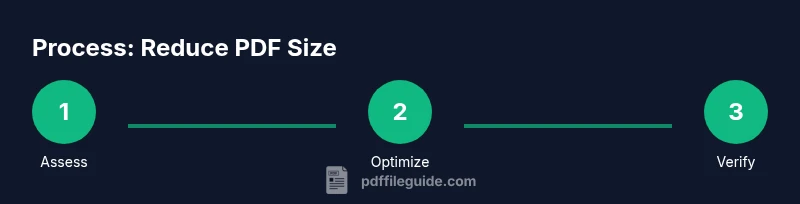
Make pdf documents smaller by applying targeted optimizations. Start by removing unnecessary metadata, compressing images, and font subsetting, then optimize document structure and font encoding. Use a reputable PDF editor or compressor to apply these steps in sequence. According to PDF File Guide, combining image downsampling with font subsetting yields the most noticeable gains without compromising readability. Finish with a file audit to verify integrity.
Why making pdf documents smaller matters
In professional settings, large PDFs slow down collaboration and waste storage space. Whether you’re sharing client reports, engineering drawings, or marketing decks, reducing file size can shorten upload times, ease email delivery, and improve performance on mobile devices. The goal is to preserve legibility and accessibility while trimming the fat. A thoughtful approach focuses on the elements that drive most size: high‑resolution images, embedded fonts, metadata, and the document’s structural complexity. By removing what isn’t necessary and re-encoding assets more efficiently, you can make pdf documents smaller without compromising integrity.
According to PDF File Guide, practical compression relies on disciplined decisions rather than one‑size‑fits‑all tricks. For example, selecting appropriate downsampling for images, subset fonts to only the glyphs used, and enabling compact object streams can yield meaningful reductions across diverse document types. The benefit isn’t just about saving disk space; it also enhances user experience by ensuring faster rendering, smoother sharing, and more reliable archiving. Throughout this guide, you’ll see how to apply these principles in real‑world workflows using both desktop editors and trusted online tools.
Core techniques for reducing PDF size
Compression starts with your assets. Images account for the largest share of most PDFs, so start by downsampling high‑resolution photos to a reasonable print or screen size and choosing an efficient compression scheme. JPEG compression at moderate quality often yields substantial savings with minimal visible impact. If color images have large areas of flat color, consider converting to PNG-8 or reducing color depth. For vector graphics, flatten or simplify complex paths when possible.
Fonts also matter. Embedding entire font families dramatically increases file size. Subsetting fonts to include only glyphs that appear in the document can dramatically reduce embedded font data. If you must embed a font for fidelity, prefer standard, widely supported fonts and avoid unnecessary substitutions.
Metadata, thumbnails, annotations, and hidden layers can swell a PDF without adding value for most readers. Remove or truncate metadata, disable embedded thumbnails, and flatten transparency to reduce rendering complexity. Enable object streams and optimize for linearized or web-friendly delivery when the target use is online viewing. Removing redundant forms and accessibility tags can also help, but balance this with your need for accessibility. PDF File Guide analysis shows that combining image downsampling with font subsetting yields consistent reductions across document types.
Practical workflows: desktop software vs online tools
Desktop tools provide control and privacy. They let you batch-compress, apply selective optimizations, and create presets for different audiences (print, web, archival). Programs like robust editors support preflight checks, font management, and asset re-encoding in one interface. If you handle confidential files or GDPR concerns, offline processing avoids transmitting content to third‑party servers. On the other hand, online tools offer convenience for quick tasks or when you don’t have access to a full suite of software. They can be faster for small edits but may pose privacy risks and variable results depending on the provider’s compression engine. When choosing a workflow, consider the document type, recipient expectations, and the required balance between file size and visual fidelity. For large batches, automation scripts or action recipes can apply consistent compression across many PDFs with minimal manual effort.
A balanced approach often combines desktop workflow for sensitive or high‑value documents with online tools for quick-turnaround files, always validating results against your quality standards.
Verifying quality after compression
Always verify that the compressed file remains usable and accessible. Open the document on multiple devices, test searchability and hyperlinks, and check that images retain sufficient clarity for your audience. If the PDF contains forms, make sure fields still respond correctly and that forms submit as expected. Run a metadata audit and check security settings to ensure no unintended changes exposed sensitive information. For professional results, compare the before-and-after file sizes and perform a side‑by‑side visual check to confirm no critical elements were degraded. If you rely on accessibility features, confirm that tagged content and reading order remain intact. The PDF File Guide team emphasizes performing a controlled test on representative pages to avoid surprises when your audience interacts with the final file.
Tools & Materials
- PDF editor or compressor software(E.g., Adobe Acrobat Pro, Foxit PDF Editor, or open-source alternatives)
- Image optimization tools or built-in image controls(Downsample to 150-300 ppi depending on use; choose JPEG or PNG wisely)
- Font management capability (subsetting)(Subset fonts to glyphs actually used in the document)
- Metadata and object‑level controls(Remove unneeded metadata, thumbnails, and hidden data)
- Preflight/audit tool(Use to generate a report of elements contributing to size)
- Backup storage(Always keep an uncompressed copy before optimizing)
Steps
Estimated time: 60-90 minutes
- 1
Assess current size and identify heavies
Open the PDF and note the file size. Use a preflight report or built‑in analytics to identify heavy elements such as large images, embedded fonts, and multimedia. This baseline guides where to apply compression first.
Tip: Start with the top three largest contributors to maximize impact. - 2
Remove metadata and unused assets
Delete extraneous metadata, embedded thumbnails, and hidden layers. Flatten transparency where appropriate to simplify rendering. This cleanup often yields immediate, noticeable gains without affecting content.
Tip: Keep a backup before removing any data you might need later. - 3
Downsample and compress images
Downsample high‑resolution images to screen or print resolution targets and apply efficient compression (e.g., JPEG at balanced quality). Re‑encode images to reduce color depth if the document allows it.
Tip: Avoid over-compression on key images that appear in thumbnails or previews. - 4
Subset and manage fonts
Embed only the glyphs used by the document. If a font must be embedded, prefer widely supported fonts and minimize font families to reduce payload.
Tip: If font fidelity is essential, test on a few pages before committing to full‑document changes. - 5
Optimize structure and enable streams
Enable object streams and cross‑reference optimizations. Consolidate redundant elements and flatten complex vector objects where practical to simplify the file’s structure.
Tip: Check that hyperlinks and interactive elements remain functional after optimization. - 6
Save presets and test across platforms
Save a version with a defined compatibility level and a test set of pages. Validate readability, searchability, and printing on different devices to ensure no critical issues.
Tip: Use a conservative compatibility setting for broad device support.
Questions & Answers
What is the most effective method to shrink a PDF?
The most effective approach is to combine image downsampling, font subsetting, and metadata removal. Test different settings to balance size and quality.
Combining image downsampling, font subsetting, and metadata removal is typically the most effective.
Will compression affect PDF quality?
Yes, compression can affect image clarity and font rendering. Choose settings that balance file size with readability and print quality.
Yes; there is usually a trade‑off between size and quality.
Can online tools be trusted for sensitive PDFs?
Online tools can pose privacy risks. Prefer offline tools for sensitive documents or ensure the provider's privacy terms meet your standards.
Online tools may not be suitable for sensitive files; use offline options when possible.
How can I verify accessibility after compression?
Run accessibility checks, verify tagging and reading order, and test form fields to ensure they still work after compression.
Run accessibility checks and test reading order and forms after compression.
Is it okay to compress PDFs for print?
Yes, but ensure image resolution and color profiles remain suitable for print; avoid over‑compression that degrades print quality.
Yes, but preserve print quality by maintaining sufficient resolution.
What settings help with batch compression?
Create reusable presets and run compression on a representative sample first to catch any issues before mass processing.
Use presets and test on a sample before batch processing.
Watch Video
Key Takeaways
- Identify biggest size contributors first.
- Subset fonts to minimize embedding data.
- Preserve readability and accessibility during optimization.
- Use presets to ensure consistency across files.