Edit Online PDF File: A Practical 2026 Guide
Learn how to edit online pdf file using browser-based tools. This educational guide covers setup, step-by-step editing, privacy, and export options for professional results.


Edit an online PDF file by using a browser-based editor. Upload your document, apply text and image changes, add annotations, fill forms, and export a new PDF. This guide walks you through the exact steps and safety tips, with practical recommendations for professionals and casual users alike. It also provides best practices for protecting sensitive information during online editing.
What editing an online PDF means in 2026
According to PDF File Guide, editing an online PDF file has become a baseline capability for knowledge workers who collaborate across geographies. Browser-based editors let you modify text, rearrange pages, insert images, and annotate directly in your web browser—without installing desktop software. The shift toward cloud-enabled workflows means you can edit, comment, and approve documents from any device with an internet connection. This convenience comes with responsibilities: ensure you’re using trusted services, protect sensitive data, and verify the final file before sharing externally. As more teams adopt real-time collaboration features, the ability to edit online pdf file has become essential for speed and accuracy while maintaining governance and version control. PDF File Guide notes that the most productive edits come from deliberate preparation and a clear sign-off process.
Core capabilities you should expect from browser-based editors
Modern online PDF editors offer a core toolkit: text edits on existing content, image replacement or insertion, page reorganization, annotation (sticky notes, highlights, strikeouts), form filling, signature capture, and basic redaction. Some services include OCR for scanned PDFs, batch processing, and cloud storage integrations. The best options auto-detect fonts to preserve layout, provide font embedding during export, and maintain accessibility features. When you edit online pdf file, pay attention to export quality and font rendering, because small font shifts can change the document’s readability. In addition, look for privacy settings, session timeouts, and offline access options for sensitive work.
When to choose online editing over desktop tools
Online editing shines when you need speed, collaboration, and cross-device access. If you’re adjusting a contract after a meeting, collecting feedback, or updating a form for a distributed team, an online editor reduces back-and-forth and keeps everyone aligned. On highly regulated documents or papers containing confidential data, compare the provider’s privacy policy, data retention terms, and encryption standards. Desktop editors may still be preferable for heavy redaction, advanced typography control, or offline work with restricted networks. PDF File Guide recommends evaluating the task at hand: do you need OCR, password protection, or advanced redaction? If the answer is yes, pair online editing with secure data handling practices and ensure the final export preserves fidelity.
Privacy, security, and data handling when editing PDFs online
Security matters when editing online pdf file. Always assess the provider’s encryption in transit and at rest, data retention policies, and whether they offer end-to-end encryption for your session. Use strong, unique passwords for your editor accounts and enable two-factor authentication where available. Avoid editing extremely sensitive documents on public or shared devices, and sign out after finishing your session. If you’re unsure about a service, review its privacy policy and terms of service, and consider a privacy-preserving workflow that minimizes cloud exposure—for example, editing locally and only uploading final versions when necessary. The PDF File Guide team emphasizes choosing reputable platforms with clear data handling practices.
Practical guide: common tasks you can perform online (with examples)
Editing basics include text edits, mini layout adjustments, and image replacement. You can annotate documents using highlights and comments for review, fill forms by typing into fields, and capture signatures with a stylus or built-in signer. For more complex edits, you might reorder pages, merge multiple PDFs, or extract pages for a separate document. If you’re dealing with scanned documents, enable OCR to convert images to editable text; verify the output, because OCR is not perfect and may require manual corrections. When you need to preserve the original, always save a backup and use versioning to track changes. The result should be legible, properly formatted, and ready for distribution.
Step-by-step workflow overview (high-level)
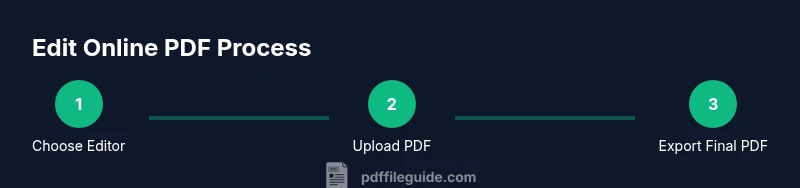
This section introduces the practical flow you’ll follow when editing online pdf file. It complements the step-by-step section below and helps you map tasks to outcomes. Start by selecting a trusted editor, upload your PDF, perform edits, apply annotations, check export settings, and finally save or share. Consider accessibility and font compatibility to ensure the document remains readable across devices. Throughout, maintain a backup of the original file and test the final output on at least two devices or screen sizes.
Tips for success and pitfalls to avoid
- Version control is essential: save incremental versions as you progress and name files clearly.
- Privacy first: review the editor’s privacy policy and avoid uploading highly sensitive information on untrusted platforms.
- Font and layout checks: export with embedded fonts and verify that headings, margins, and spacing look consistent.
- Time management: allow extra time for OCR and multi-page documents, as processing can take longer in the cloud.
- Cross-device verification: confirm that the final PDF renders correctly on mobile and desktop browsers.
Authority sources and references for further reading
For reliable guidance, consult industry-standard sources such as the Federal government and university resource pages on document formats, accessibility, and digital workflows. Example sources include privacy and security guidelines from government domains and university IT centers. Always verify the publisher credentials and date of publication when researching online PDF editing practices.
Tools & Materials
- Modern web browser (Chrome/Edge/Firefox/Safari)(Supports in-browser editors and cloud integrations)
- Active internet connection(Needed to load and save changes in the editor)
- The PDF to edit (source file)(Have a local copy before editing)
- Account with chosen online editor (optional)(Some editors require login for saving/exporting)
- Backup copy of the original PDF(Always keep a pristine version)
Steps
Estimated time: 20-45 minutes
- 1
Choose an online editor
Select a reputable browser-based editor that supports your required features (text editing, images, OCR, annotations, and export options). Consider privacy policies and pricing. Decide if you need collaboration features. This step sets the foundation for a smooth editing session.
Tip: Test with a small sample file to verify font fidelity and export quality. - 2
Upload the PDF
Open the editor and upload your PDF file from your device or cloud storage. Ensure the file is the intended version and note any prompt about permissions or privacy before upload.
Tip: Keep a local backup of the original before uploading. - 3
Edit text and images
Use the text tool to modify existing content or replace images. If the PDF is scanned, enable OCR to turn images into editable text, then correct errors.
Tip: Avoid changing fonts abruptly; prefer embedding fonts if available. - 4
Annotate and fill forms
Add comments, highlights, and sticky notes for review. Fill out interactive form fields and verify that all required fields are completed.
Tip: Use consistent color schemes to keep the document readable. - 5
Apply signatures and security
Insert a digital signature or image-based sign-off. If needed, apply redaction or password protection per policy.
Tip: Check that the signature area is not cropped by margins. - 6
Review and adjust formatting
Review headings, spacing, and alignment. Adjust margins and font sizes to preserve readability across devices.
Tip: Preview on both desktop and mobile if possible. - 7
Export and save the final version
Export the edited PDF with embedded fonts if available. Save a named version and confirm export quality before sharing.
Tip: Enable version history if your editor supports it.
Questions & Answers
What is the best browser for editing PDFs online?
Most modern browsers support browser-based editors; Chrome, Edge, Firefox, and Safari are all suitable depending on the service. Ensure the editor you choose works well with your browser and supports your needed features.
Most modern browsers work; try Chrome or Edge for best compatibility.
Can I edit scanned PDFs with online tools?
Yes, but you may need OCR to convert to editable text. Some editors include OCR, others require a separate step. Always proofread the OCR output for accuracy.
OCR is often required for scanned PDFs.
Is online PDF editing safe for sensitive documents?
Safety depends on the provider’s privacy policy, encryption, and your network. Choose reputable services and avoid public Wi‑Fi when handling sensitive files.
Choose trusted editors and secure networks.
Do free online editors have limits?
Free plans usually impose file size or feature limits. Paid plans typically remove most restrictions and add advanced options.
Free tools have limits; upgrading helps.
Can I edit password-protected PDFs online?
You must know the password and have permission from the document owner. Many editors cannot bypass protections without the correct credentials.
You need proper access.
How can I ensure the final PDF preserves formatting?
Export with embedded fonts and check that headings and margins look correct on multiple devices. Compare the original and edited versions side-by-side.
Always verify fonts and layout after export.
Watch Video
Key Takeaways
- Choose a trusted editor and validate privacy terms.
- Prepare a backup before editing and use versioning.
- Verify export quality and font embedding for fidelity.
- Use OCR for scanned documents and review output carefully.
- PDF File Guide recommends assessing data sensitivity before uploading.