Edit PDF Online on iPad: A Complete How-To Guide
Learn how to edit pdf online ipad using browser editors or apps on your iPad. This educational guide covers tools, setup, step-by-step edits, tips for preserving layout, and best practices for security and sharing.


Edit PDF online on iPad by using a browser-based editor or a dedicated app. This guide covers how to choose a tool, prepare your file, and perform common edits like text changes, annotations, and form filling, with tips for preserving layout. You'll learn about offline alternatives, security considerations, and how to export finalized PDFs.
Why editing PDFs on iPad matters
In a mobile-first world, professionals often need to adjust documents on the go. The iPad, with its touch interface and optional keyboard, provides a versatile platform for making quick edits, annotations, and form fills without returning to a desktop. According to PDF File Guide, the most effective workflows leverage browser-based editors when you need cross-device access while preserving layout and fonts. Editing a PDF online on an iPad means you can annotate contracts, proposals, and reports during meetings or travel, then share the updated document instantly. This flexibility translates to faster approvals and fewer back-and-forths, which is especially valuable for consultants, sales professionals, and project managers.
Choosing the right tool depends on your typical documents, the need for OCR, and how you plan to export. The PDF File Guide analysis shows a preference for editors that deliver a smooth touch experience, reliable export options, and predictable rendering of fonts. By understanding these factors, you can reduce wasted time on trial-and-error and start editing confidently on your iPad.
Choosing the right online editor for iPad
Not all editors handle iPad ergonomics equally. Favor tools with strong touch controls, reliable text editing or text-box overlays, and robust export options. Safari and Chrome vary in how they render complex layouts, so test a few editors with your most common files (contracts, invoices, reports) to ensure consistent rendering. If you work with scanned PDFs, pick editors that offer OCR or a separate OCR workflow. In practice, you’ll want a tool that preserves fonts, images, and spacing when exporting to PDF/A or standard PDFs. The more predictable the rendering across devices, the less you’ll have to adjust after edits.
Preparation: tools and setup
Before you edit, gather the essentials. An iPad with the latest OS, a reliable internet connection, and a browser that supports PDFs well are non-negotiables. Have the PDF you want to edit handy, ideally a copy for backup. Sign into your chosen editor so you can save edits directly to cloud storage if needed. If you expect frequent edits, consider an editor that supports a free tier and optional paid features for advanced form filling, redaction, or OCR. A well-prepared setup minimizes interruptions and safeguards your original document.
Understanding edit capabilities: text vs annotations
On iPad, you’ll encounter two main editing paradigms: direct text editing and annotation-based edits. Some editors let you modify existing text; others overlay new content via text boxes or annotation layers. If the original font is critical to your document’s appearance, aim to embed fonts or export with fonts preserved. For forms, ensure form fields remain interactive after editing. If you’re working with a scanned document, OCR-enabled editing is essential to convert images into searchable, editable text. The right approach depends on your document type and the editor’s feature set.
Step-by-step workflow overview
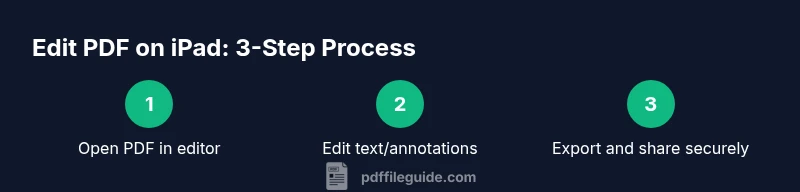
A typical workflow on the iPad begins with loading the PDF in your editor, selecting the tool you need (text, annotation, or form fields), applying edits or annotations, and finally exporting the edited file. Consistency matters: keep font choices uniform, avoid rearranging layout, and verify export settings. This overview prepares you for the detailed steps that follow in the dedicated step-by-step section and aligns expectations for results on a desktop display as well.
Best practices for preserving layout and quality
To maintain layout fidelity, prefer editing via text boxes or annotation layers rather than overwriting existing content. When exporting, use embedded fonts when available and select a standard font set to minimize font substitution on other devices. For complex pages with tables, images, or multi-column text, review the final PDF on both iPad and a desktop to catch any reflow issues. Where possible, save a copy before edits and adopt a consistent export profile (print vs screen) so the document appears the same across platforms.
Accessibility and mobile-specific tips
Accessibility remains important on mobile edits. Use high-contrast colors, descriptive alt text for images, and ensure form fields are labeled clearly for assistive technologies. If you’re creating fillable forms, verify keyboard navigation and screen-reader compatibility of each field. Mobile environments can introduce accidental edits; enable versioning or incremental saves to track changes and preserve accessibility attributes across revisions.
Compliance, privacy, and security considerations for mobile editing
Editing sensitive PDFs on an iPad requires trustworthy tools and solid security practices. Prefer editors with clear privacy policies and encryption for uploads and downloads. When sharing, limit access and consider password protection or restricted permissions. Local storage options can reduce exposure, but cloud-based workflows offer convenience—balance security with collaboration needs by choosing tools that fit your organization’s governance policy.
toolsMaterialsVersionedEndingsOnlyWrongValueIgnored?Ngu
notesOnlyForEditorial
Tools & Materials
- iPad (iPadOS 15+ or newer)(Stable internet connection recommended)
- Web browser (Safari, Chrome)(Ensure cookies and JavaScript are enabled)
- PDF file to edit(Original document or copy for backups)
- Apple Pencil or stylus (optional)(Helpful for precise annotations)
- Editor account (free or paid)(Sign-in may be required for cloud storage)
- External keyboard (optional)(Speeds up text editing)
Steps
Estimated time: 15-30 minutes
- 1
Open the PDF in the editor
Launch your preferred editor in Safari or Chrome and load the PDF. Confirm the document renders correctly before making edits to avoid layout shifts later.
Tip: If the file is large, give the app a moment to finish rendering before editing. - 2
Choose editing tool
Select the text edit tool or text box tool depending on the editor. Determine whether you’ll edit existing text or overlay new text to preserve fonts.
Tip: For sensitive layouts, prefer text boxes over overwriting existing text. - 3
Edit text or add annotations
Make necessary changes using the chosen tools. For scanned PDFs, enable OCR or annotate rather than editing the original text.
Tip: Zoom in for precise placement of edits. - 4
Fill forms or insert media
If there are form fields, fill them. You can insert images or stamps as appropriate while preserving alignment with the layout.
Tip: Avoid resizing images in ways that disturb surrounding content. - 5
Save/export the edited PDF
Export the document as PDF, preserving fonts when possible and choosing a compatible export profile.
Tip: Verify the final file on both iPad and a desktop to ensure fidelity. - 6
Share or store securely
Upload to a trusted cloud service or share directly from the editor with appropriate permissions.
Tip: Enable password protection for sensitive documents and limit access.
Questions & Answers
Can I edit PDFs offline on an iPad?
Offline editing is possible with apps that store content locally, but many browser-based editors require an internet connection. Plan for online editing if collaboration or cloud exports are needed.
Some edits work offline, but online editing is more reliable for sharing and saving.
Which editors work best on iPad for editing PDFs online?
Look for editors with reliable text editing, annotation, and form-filling features, plus solid export options and responsive touch controls.
Choose editors that handle text, annotations, and export well on iPad.
Is it safe to edit PDFs in the browser on iPad?
Use reputable editors and ensure HTTPS connections. Avoid uploading highly sensitive documents to unknown services.
Stick to trusted editors and secure connections.
Can I preserve fonts and layout when editing on iPad?
Font embedding and layout preservation depend on the editor. Export with embedded fonts when possible and verify after export.
Embed fonts when you can and check the final file.
Do I need a paid plan to edit PDFs on iPad effectively?
Some editors offer essential features for free, but more advanced editing and forms may require a paid tier.
Basic editing may be free; advanced tools often require payment.
What should I do if text edits break the document layout?
Use text boxes or annotations instead of overwriting original text; verify font consistency and re-export.
If layout breaks, switch to text boxes and re-export.
Can I edit scanned PDFs on iPad?
Editing scanned PDFs requires OCR-enabled editors or converting the scan to editable text first.
OCR-enabled tools are needed for scanned PDFs.
Watch Video
Key Takeaways
- Choose a trusted iPad-compatible editor.
- Understand whether you’ll edit text directly or use annotations.
- Export and verify layout fidelity across devices.
- Keep security and sharing controls up to date.