How to Clean PDF Background: Step-by-Step Guide
Learn practical steps to clean PDF backgrounds: remove color overlays and watermarks, replace with a clean white backdrop, and preserve text readability for accessibility and printing.


In this guide you will learn how to clean PDF backgrounds by removing or neutralizing color overlays, replacing backgrounds with a neutral color, and preserving text readability. The steps cover native edits, image-based (scanned) PDFs, and accessibility considerations to keep content usable. Follow non-destructive workflows and back up your file before making changes.
Understanding how to clean pdf background
How to clean pdf background is a common task for editors who want higher readability or better OCR results. A PDF's background can be a flat color, a pattern, an embedded image, or a watermark that interferes with text. This section explains what counts as the background and why removing or neutralizing it matters for editors, designers, and administrators. The PDF File Guide team emphasizes that a clean background improves contrast, reduces distractions, and enhances accessibility when used with proper text color and font choices. Before you start, back up the original file and set expectations about whether you will replace the background with a solid color, a transparent layer, or a plain white backdrop. Different workflows exist depending on whether the PDF is native (created in a modern editor) or scanned (image-based). For native PDFs, you may edit vector content directly, which lets you modify backgrounds without affecting text. For scanned PDFs, background cleaning usually involves raster or vector restoration, de-skewing, and sometimes re-OCRing after changes. The challenge is to distinguish background elements from foreground content—mistakes can erase text or links. Starting with a clear plan and non-destructive edits on a duplicate file reduces risk and preserves assets. According to PDF File Guide, the goal is to remove color overlays, replace backgrounds with neutral colors, and preserve legibility across devices and print.
Tooling and workflows for background cleanup
Editors today combine both native PDF tools and raster/image editors to clean backgrounds without harming foreground text. For native PDFs, look for features like background removal, color blending, and object-level editing. For scanned PDFs, you’ll often work with image editors (to adjust the scanned page) and then re-OCR the text to recover selectable content. The PDF File Guide team notes that the most robust approach is non-destructive editing: duplicate the document, work on layers or separate pages, and verify after each change. Non-destructive workflows let you revert if a chosen background removal affects legibility or hyperlinks. When assembling your toolkit, prioritize compatibility with your operating system, ensure you can export to searchable PDFs if needed, and maintain a clear naming convention for version control.
Background types and strategies
Backgrounds in PDFs fall into a few broad categories: color blocks, embedded images, and watermarks. Color blocks can often be neutralized by changing fill color, reducing opacity, or applying a white/neutral layer. Embedded images as backgrounds may require masking, clipping, or replacing with a plain color. Watermarks are especially tricky: they may be layered under text, appear diagonally, or be part of the scan itself. The right strategy depends on the type: for color blocks and white space, you usually simply adjust color values or insert a new layer; for image backgrounds, you may need to remove the image and reflow text; for watermarks, you may isolate and delete or flatten a layer. In every case, maintain a non-destructive workflow and verify that hyperlinks and form fields remain intact after changes.
Accessibility and readability considerations
Cleaning a background should not compromise accessibility. After removing a busy background, verify that text contrast meets WCAG guidelines and that color changes don’t obscure essential content. When targeting screen readers, ensure that any decorative elements are marked appropriately and that the document flow remains logical. If you replace a background with a solid color, choose high-contrast combinations (for example, dark text on a light background) and test with a screen-reader simulator. The goal is to balance visual cleanliness with or without color, while preserving semantic structure and readability for all users.
Saving, exporting, and quality checks
Once the background is cleaned, save non-destructively and create a backup copy. Export to a compatible PDF variant (print-friendly, or searchable depending on need) and check that all forms, links, and annotations still function. Run a quick OCR pass if the document was image-based and you removed or altered areas that could impact recognition. Perform a visual check across multiple devices and brightness levels to ensure the background remains neutral under different viewing conditions. Keep a changelog of edits so you can trace what was modified and when.
Common mistakes and troubleshooting tips
Editing a background without a plan can erase text or disrupt the document’s layout. Avoid removing essential decorative or branding elements that contribute to readability. Be mindful of page margins, headers, and footers that may reuse background colors. If text becomes faint after a background change, re-adjust contrast or font weight and re-check legibility. If hyperlinks vanish after editing, verify the page structure and re-link where necessary. When in doubt, revert to the original file and re-apply changes step-by-step with smaller increments. This approach minimizes errors and helps preserve document integrity.
Tools & Materials
- PDF editor with background editing features(Look for background removal, color replacement, and layer support)
- Original PDF file(Keep a native copy in case you need to revert)
- Color picker / eyedropper tool(Used to sample colors for accurate replacement)
- Backup copy of the PDF(Always preserve the original before edits)
- Accessibility checker or contrast tool(Optional but recommended to verify readability)
- OCR software (if working with scans)(Needed if you reflow or replace background on image-based pages)
Steps
Estimated time: Total: 25-40 minutes depending on document complexity
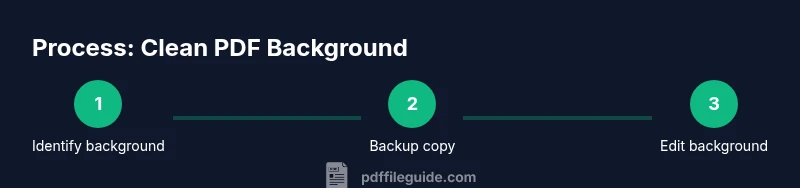
- 1
Identify background type
Open the PDF and visually inspect each page to categorize the background as color block, embedded image, or watermark. This step informs whether you should replace, remove, or mask the background. Document any anomalies and note pages that require special handling.
Tip: Take notes or screenshots for reference before making changes. - 2
Create a backup copy
Save an untouched duplicate of the file. Non-destructive edits are safer because you can compare changes against the original and revert if needed.
Tip: Use a consistent naming convention like filename_v2_clean.pdf. - 3
Choose an editing approach
Decide whether to replace the background with a solid color, remove it and leave white space, or mask it with a new layer. Your choice depends on document readability and the presence of overlaid content.
Tip: For consistency, apply the same method page-by-page where possible. - 4
Remove color blocks or watermarks
Use the editor’s background removal or layer tools to isolate the foreground text. If removing is not feasible, adjust opacity or replace with a high-contrast color.
Tip: Avoid deleting sections containing form fields or hyperlinks. - 5
Replace with a neutral background (if needed)
Insert a neutral color layer (e.g., white or light gray) beneath the content to achieve a clean appearance while preserving text clarity.
Tip: Test multiple neutral colors for optimal legibility. - 6
Preserve text and links
After background changes, verify that all text remains selectable and all links work. Reflow text only if necessary to prevent overlap with the new background.
Tip: Run a quick find/replace pass to fix any orphaned hyperlinks. - 7
OCR check (if applicable)
If you edited a scanned PDF, run OCR again to ensure the content is searchable and that the recognition accuracy remains high.
Tip: Compare OCR results with the original to catch missed words. - 8
Save, review, and finalize
Export the final version, run a final readability check, and compare with the backup to ensure fidelity. Update your notes with any new considerations.
Tip: Keep the original and edited copies accessible for future reference.
Questions & Answers
Is it legal to remove a background or watermark from a PDF?
Watermarks and branded backgrounds may be protected by copyright or licensing terms. Always confirm your rights or obtain permission before removing or altering such elements.
Note that removing watermarks or backgrounds can be restricted by licensing terms; check permissions before editing.
Will cleaning the background affect accessibility?
If done carefully, cleaning the background can improve readability and contrast, which aids accessibility. Always test with contrasts and screen readers after edits.
Cleaning can help accessibility if contrast stays high and the document structure remains intact.
What tools work best for Windows vs Mac?
Most modern PDF editors are cross-platform. Choose software that offers reliable background editing, layer support, and good export options for your OS.
Choose a tool that supports background editing and preserves hyperlinks across your OS.
Do I need to OCR again after background changes?
OCR is recommended for image-based PDFs after background edits to ensure text remains selectable and searchable.
Yes, re-run OCR if the document was originally image-based and you altered the visuals.
How can I verify hyperlinks still work?
After edits, use a link-checker or manually click all links to confirm they route correctly and aren’t broken by background edits.
Test each link to be sure edits didn’t delete or relocate them.
What constitutes a non-destructive workflow?
Non-destructive workflow means editing on copies, using layers or masks, and keeping an easily restorable original file in a safe location.
Always edit on a duplicate and keep the original untouched.
Watch Video
Key Takeaways
- Identify background type before editing
- Back up files non-destructively
- Prioritize text readability and accessibility
- Test across devices and printing scenarios
- Document changes for future reference