Can You Change PDF to Word? A Practical Guide for 2026
Learn how to convert PDFs to Word documents with minimal formatting loss. This guide covers built-in options, desktop and online tools, OCR for scans, privacy considerations, and best practices to preserve layout and accessibility in Word.


Yes. You can change a PDF to Word using built-in tools or dedicated converters. Start by selecting a method you trust, such as using Word's Open PDF feature or a reputable online tool, then run the conversion. Expect some formatting changes on complex layouts; you’ll likely need to tweak headers, columns, and images afterward.
How the conversion works in practice
Converting a PDF to Word is a blend of text extraction and document reconstruction. The software analyzes the PDF’s structure—paragraphs, headings, tables—and tries to reproduce a Word document that mirrors the original layout. For simple, text-only PDFs, the result is usually clean and editable. Complex layouts, multi-column text, or embedded fonts often shift spacing and wrapping, requiring manual adjustments. If the PDF contains scanned pages, OCR (optical character recognition) is needed to turn images into editable text. The central question many users have is whether you can change PDF to Word without losing data; the answer depends on file type and the tool used. According to PDF File Guide, understanding the document’s composition helps you pick the best method from the start. This section outlines practical steps and real-world tips to maximize accuracy while keeping editing time reasonable.
Methods to convert PDF to Word
There are several ways to perform the conversion, each with its own trade-offs. Native options in Word provide a quick route for many files. Desktop apps from major PDF vendors can preserve more formatting, though they require installation and, often, a license. Online converters offer convenience for quick jobs but require uploading your document to a third party. For scanned PDFs, OCR-enabled tools are essential to extract editable text. The optimal approach often combines methods: run a simple PDF through Word or a trusted editor, then handle complex elements separately. The goal is to achieve a faithful representation with minimal follow-up work.
Word built-in conversion: Open and convert
Word can open PDFs directly and convert them into editable Word documents. This approach is fast and requires no extra software, making it ideal for straightforward text PDFs. You access File > Open, select the PDF, and let Word perform the initial layout conversion. Review the result closely because headers, bullet lists, and tables can shift during the automatic process. When you’re satisfied, save as a Word document or in a desired Word format. This method works well for resumes, reports, and simple contracts where formatting is not heavily decorative.
Desktop tools and dedicated PDF editors
Dedicated PDF editors like Acrobat Pro or other reputable desktop tools often deliver more faithful results for complex PDFs. They offer advanced settings to control how text is extracted, how fonts are embedded, and how tables are preserved. With a few adjustments, you can export to Word while retaining headings and styles. The tradeoff is an extra step after conversion and, sometimes, a purchase or subscription. For large projects, the enhanced fidelity is often worth the cost, especially when precise formatting matters for legal, financial, or scientific documents.
Online converters: when to use them
Online services can be convenient when you need a quick conversion from any device. They require uploading your PDF to a third party, so privacy and data security should be considered. Read the privacy policy, check if they support encrypted connections, and avoid uploading highly sensitive documents. The results can be fast, and many sites offer free trials. For light editing or personal documents, online tools are often perfectly adequate and can save time when you don’t have access to desktop software.
OCR and scanned PDFs: turning images into editable text
If your PDF is image-based or uses scanned pages, OCR is not optional. Optical character recognition converts images to text that Word can edit. Choose an OCR tool with good accuracy and language support, then post-process the output to correct misrecognized characters. OCR can dramatically improve usefulness, but it may introduce errors that require careful proofreading and formatting adjustments. For multilingual documents, ensure the OCR language packs match the source text to reduce mistakes.
Retaining formatting, fonts, and tables
Preserving the original layout is one of the biggest challenges when converting PDFs to Word. Fonts may render differently, tables can shift, and multi-column layouts may collapse. Before converting, note the fonts used and try to match them in Word. After conversion, use Word’s styles to rebuild headings and lists, adjust table borders, and reflow columns as needed. For images, re-anchor captions and resize as needed to preserve their relative position in the document.
Post-conversion cleanup: a practical checklist
After conversion, perform a quick quality check. Start with text accuracy, then verify headings, lists, and page breaks. Check embedded images for alignment and captions, and review footnotes or endnotes for correct numbering. If you used OCR, search for misread letters and fix them. Save multiple versions as you refine the document and keep an error log to guide future conversions. This approach minimizes rework and speeds up the final polishing stage.
Privacy, security, and data considerations
When can you change pdf to word using online tools or cloud services, privacy should be a priority. Do not upload confidential or sensitive documents to unfamiliar or untrusted services. Use offline tools when possible or choose reputable services with strong data handling policies. For corporate documents, insist on access controls and audit trails if you share drafts. Data protection is essential in every conversion workflow and supports compliance with internal policies.
Accessibility and compliance after conversion
A converted Word document should remain accessible. Employ heading styles, alt text for images, and proper reading order to support screen readers. Run Word’s accessibility checker and fix flagged issues. If the original PDF included structural tags, try to recreate them with Word’s outline and styles. Accessibility is not optional; it improves usability for all readers and aligns with best practices in documentation.
Best practice workflow: from PDF to final Word doc
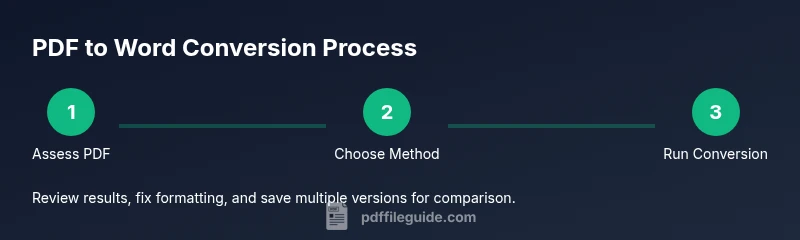
A practical workflow starts with assessing the PDF type, selecting the appropriate tool, and performing a test conversion on a copy. Start with Word’s built-in conversion for simple files, then bring in desktop editors or OCR for complex cases. Always review carefully and adjust style sets to maintain a consistent look. Save incremental versions and document formatting decisions to streamline future conversions. By following these steps, you can produce Word documents that closely mirror the original PDFs.
Additional resources and tips
For longer or specialized documents, keep a running checklist of elements that typically require post-editing, such as headers, footnotes, and table styles. Create a small template in Word with your preferred heading levels and font choices to speed future conversions. If you encounter persistent layout issues, consider splitting the PDF into sections and converting each part separately before reconciling them in Word.
Tools & Materials
- PDF file(Original document to convert)
- Computer with internet connectivity(Windows or macOS)
- Microsoft Word (365 or licensed version)(Ensure it's up to date)
- Trusted offline converter or PDF editor (optional)(Useful for complex PDFs)
- Backup copy of the PDF( safeguard before converting)
- OCR-capable tool (if dealing with scans)(Select language packs as needed)
Steps
Estimated time: 15-45 minutes for simple PDFs; 1-2 hours for complex documents with OCR and heavy formatting
- 1
Prepare and back up the PDF
Create a backup copy of the original PDF before starting. This ensures you can revert if the conversion loses important data or formatting.
Tip: Store the backup in a separate folder or external drive. - 2
Choose the conversion method
Decide whether to use Word’s built-in Open PDF feature, a desktop editor, or an online tool based on the document’s complexity and privacy needs.
Tip: For simple texts, Word’s built-in option is fastest. - 3
Run the conversion
Open the PDF in the chosen tool and initiate the conversion to Word. Allow the software to complete the process without interrupting.
Tip: Do not resize windows during the conversion to avoid glitches. - 4
Initial review and quick fixes
Scan the Word document for obvious issues: misaligned headers, broken tables, or missing bullet formatting.
Tip: Use Word’s Styles to quickly reformat headings and lists. - 5
Address complex elements
For complex layouts or OCR results, adjust columns, fonts, and image placements. Rebuild tables with borders and shading as needed.
Tip: Split large tables and reassemble if necessary. - 6
Proofread and validate
Read through the document to catch typography or OCR errors. Validate page numbers, footnotes, and cross-references.
Tip: Run a quick spell-check and grammar review. - 7
Finalize and save versions
Save a final Word version and create a dated backup. Consider exporting to PDF again for archival purposes.
Tip: Keep a changelog of edits for future conversions.
Questions & Answers
Can all PDFs be accurately converted to Word?
Not always. Simple text PDFs convert cleanly, while complex layouts, tables, and special fonts may require manual adjustments after conversion. Scanned PDFs often need OCR to become editable.
Most PDFs convert well if they're text-based; complex or scanned documents may need edits after conversion.
Will images and tables transfer correctly?
Images can often be repositioned, but captions may need retooling. Tables frequently lose borders or alignment; you may need to re-create tables in Word and reformat them.
Images and tables might need tweaks after conversion, especially for complex tables.
Is OCR required for scanned PDFs?
Yes. OCR turns the image-based text into editable text. Choose a high-accuracy OCR tool and proofread the results carefully.
If your PDF is a scan, OCR is essential, followed by careful proofreading.
Are online converters secure for confidential documents?
Security varies by provider. Prefer offline tools when dealing with sensitive information, and if using online tools, verify their privacy policy and encryption standards.
Be cautious with sensitive files and choose trusted services with clear privacy policies.
What should I do if Word can't open the PDF?
Try a different method such as exporting via a PDF editor, using an OCR tool, or converting to a Word-friendly format like RTF before importing.
If Word struggles, try another tool or format and re-import.
Watch Video
Key Takeaways
- Assess the PDF before conversion
- Choose the right tool for the file type
- Expect some formatting tweaks
- Use OCR for scanned PDFs
- Verify accessibility and structure after conversion