Change PDF to PDF: Edit, Convert, and Optimize
Learn how to change a PDF to PDF by editing, re-exporting, and optimizing content. This step-by-step guide covers tools, workflows, and best practices for professionals.


By 'changing a PDF to PDF,' you update an existing file to reflect revised content, metadata, or settings while preserving its PDF format. This guide covers editing text and images, updating forms, and re-exporting with suitable settings to maintain compatibility. According to PDF File Guide, the most reliable approach is to use reputable PDF editors and precise export options to ensure quality and fidelity.
What 'change pdf to pdf' means in practice
In professional workflows, the phrase 'change pdf to pdf' means updating an existing PDF document so that the final file reflects revised content, corrected data, revised visuals, or altered settings while still producing a valid PDF. It can involve editing text and images inside the file, adjusting form fields, updating metadata, and re-exporting with different compatibility or accessibility options. Practically, you might update a contract, replace a logo, apply a PDF/A archival standard, or switch the document’s security posture. The goal is to preserve readability, layout fidelity, and functional features across viewers, printers, and devices. According to PDF File Guide, mastering these edits requires choosing reliable tools and following a deliberate workflow to maintain document integrity.
Core goals when changing a PDF
The core objective when changing a PDF to a new PDF is to preserve visual fidelity and document semantics. This means keeping typography consistent, maintaining image quality, and ensuring that interactive elements (forms, annotations) continue to work after the edit. Accessibility considerations—such as proper tagging, reading order, and alternative text—must be preserved or improved. Metadata should accurately reflect authorship, subject, and keywords to aid discoverability. Security settings may need adjustment to allow intended use while preventing unauthorized changes. In short, you want a final PDF that remains readable, accessible, and trustworthy across devices and software.
Tools and formats you may use
There are three practical tool categories for changing PDFs: (1) dedicated PDF editors (e.g., Adobe Acrobat Pro, Foxit PhantomPDF) for comprehensive in-file edits; (2) PDF exporters and printers from original authoring apps (Word, InDesign, Excel) to produce updated PDFs; (3) OCR and accessibility tools to handle scanned content and tagging. When selecting formats, consider exporting to PDF/A for long-term archiving, PDF/X for print workflows, or standard PDF for general distribution. Always choose tools that support embedded fonts, image handling, and metadata editing to ensure consistency across viewers.
Step-by-step: prepare your PDF for editing
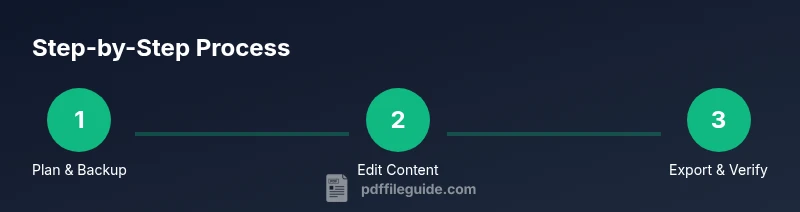
Before making changes, prepare by creating a clean backup copy and verifying file permissions. Confirm you have access to edit text, images, and forms, and collect any source assets (images, fonts) used in the document. Check the document for restrictions (password protection, restricted editing) and plan how you will handle them. If the file is a scanned image, plan to run OCR to enable searchable text. This preparation reduces surprises during edits and helps preserve the original layout.
Step-by-step: editing text and images
Open the PDF in your editor and use the text tool to modify words, adjust fonts, and correct typos. For images, replace or redraw graphics with attention to resolution and aspect ratio. When editing, maintain consistent typography and spacing to avoid reflow. If the document uses form fields, test each field for fillability and validation rules. After edits, visually compare against the original to spot drift in layout or color. Pro tip: always work on a duplicate and keep a reference screenshot of the original layout.
Step-by-step: exporting to a new PDF or PDF standards
When you have finished edits, export or save as a new PDF. Choose the appropriate PDF version and standards (e.g., PDF/A for archiving, PDF/X for print, or standard PDF for distribution). Enable font embedding if needed and adjust image compression to balance quality and file size. Name the file clearly to reflect the changes and version. After exporting, verify that all interactive elements still function and that the document renders correctly in common viewers. Pro tip: compare the new file with the original to verify that only intended changes are present.
Step-by-step: updating metadata and accessibility settings
Edit metadata fields such as Title, Author, Subject, and Keywords to reflect the revised document. Recheck the document structure for accessibility: reading order, alt text for images, and tag consistency. Run an accessibility check if your tool offers it and fix any flagged issues. Ensure that bookmarks and internal links remain functional. Pro tip: maintain an accessibility-focused mindset during edits to avoid creating barriers for assistive technologies.
Step-by-step: security considerations and permissions
If the document requires protection, adjust security settings to reflect the new use case. Consider applying or updating passwords, rights restrictions, or certificate-based permissions. Verify that the intended audience can access the document under the new policy while preventing unauthorized changes. Document any security changes for audit trails. Pro tip: whenever possible, restrict editing to authorized users and maintain an access log.
Step-by-step: quality checks and final verification
Open the edited PDF in multiple readers and on different devices to confirm consistent rendering. Print a test page to ensure layout integrity. Check fonts, colors, and alignment, and ensure JavaScript or interactive features work as expected if used. Finally, confirm that metadata and accessibility tags are accurate and complete. Pro tip: create a short verification checklist and run it before sending the file to stakeholders.
Step-by-step: archiving and handoff
Save the edited PDF in a designated project folder with a versioned filename. Archive the original and edited copies together, along with a brief changelog describing what was changed and why. Share a summary with stakeholders and provide guidance on any action items. Pro tip: establish a standardized naming convention (e.g., DocName_v2_2026-03-29.pdf) for easy retrieval.
Authority sources
- https://www.archives.gov/
- https://www.nist.gov/
- https://www.iso.org/iso-standards.html
Tools & Materials
- PDF editor software(e.g., Adobe Acrobat Pro, Foxit; must support text/image editing, forms, and metadata.)
- Original PDF file(Keep a clean, unmodified copy as the source of truth.)
- Backup naming convention(Create a clearly labeled backup like DocName_backup_YYYYMMDD.)
- Source assets(Collect images, logos, and fonts used in the document.)
- Access to original application files(If you edited content in Word/InDesign, keep the source files for reference.)
Steps
Estimated time: 60-90 minutes
- 1
Prepare your PDF file
Create a clean backup copy, verify permissions, and collect any source assets. Confirm you can edit text, images, and forms. Plan how you will handle any restrictions.
Tip: Always work on a duplicate to prevent data loss. - 2
Identify changes and plan layout
List exact edits (text replacements, image swaps, form updates) and note where fonts/images live in the document. Sketch a quick layout plan to minimize reflow later.
Tip: Reference the original layout with a quick screenshot. - 3
Open the file in your editor
Launch your editor and load the PDF. Check that editing features are enabled and that the document isn’t locked or restricted.
Tip: If needed, request permission to modify restricted content. - 4
Edit text content
Use the text tool to modify wording, adjust font size, and match typography. Check for overflows and awkward line breaks.
Tip: Prefer existing font families to preserve visual consistency. - 5
Replace images and graphics
Remove outdated visuals and insert updated assets. Adjust size and position to maintain the document’s balance.
Tip: Use high-resolution assets and maintain aspect ratios. - 6
Update forms and annotations
Modify fields, annotations, and interactive elements. Test form filling and validate required fields.
Tip: Ensure accessibility properties are correct for screen readers. - 7
Adjust metadata and accessibility tags
Update Title, Author, Subject, and Keywords. Review reading order and image alt text.
Tip: Run an accessibility check if available. - 8
Export as a new PDF
Choose PDF version and standards (PDF/A, PDF/X, or standard PDF). Enable font embedding and set image quality.
Tip: Use versioned filenames to track edits. - 9
Perform quality checks
Open in multiple viewers, run a print test, and compare to the original to confirm only intended changes.
Tip: Keep a checklist to avoid missing items. - 10
Apply security settings
Adjust passwords or permissions if required. Document changes for future audits.
Tip: Limit editing rights to authorized users. - 11
Document changes and archive
Record the changes in a changelog and save to a controlled archive alongside the source file.
Tip: Maintain consistent naming across versions. - 12
Handoff and monitor
Share the edited PDF with stakeholders and monitor feedback for any further edits.
Tip: Set a review window to capture input.
Questions & Answers
What does 'change pdf to pdf' involve?
It involves updating the content, visuals, and settings of an existing PDF and saving it as a new or revised PDF. This can include text edits, image replacements, form updates, and metadata changes, followed by an appropriate export. The goal is to preserve layout fidelity and ensure compatibility across viewers.
It means updating an existing PDF and saving the result as a new PDF, including edits to text, images, forms, and metadata.
Can you change a PDF without losing quality?
Yes, by using high-quality export settings, embedding fonts, and avoiding aggressive image compression. Preview the file in multiple viewers and printers to ensure fidelity is maintained after changes.
Yes—use quality export settings and verify in several viewers.
What tools are best for editing PDFs?
Professional editors like Adobe Acrobat Pro or Foxit provide comprehensive editing for text, images, forms, and metadata. For simpler changes, some office suites offer export-to-PDF capabilities, but may lack advanced editing features.
Professional editors are best for comprehensive edits; they handle text, images, and metadata reliably.
Is there a difference between editing a PDF and exporting a new one?
Editing a PDF changes the existing file, while exporting creates a new PDF from source content, potentially changing layout, fonts, and compression. Exports are often preferred when you want a clean, standards-compliant new file.
Editing updates the current file; exporting creates a new file with the updated content.
How do I verify the changes after saving?
Open the new PDF in multiple viewers, check all edited sections, run a quick accessibility check, and compare it with the original to confirm only intended changes occurred.
Open it in a few viewers and compare it to the original to confirm the changes.
Are there security concerns when changing PDFs?
Yes. Ensure you have proper permissions, review encryption and permissions after edits, and avoid exposing sensitive data. Maintain an audit trail of changes when required by policy.
Make sure you’re authorized to edit and document any security changes.
Watch Video
Key Takeaways
- Back up before editing.
- Use the right tool for the task.
- Export with correct PDF version and standards.
- Verify accessibility and metadata.
- Document changes for audits.