Convert PDF to PowerPoint for Free: Step-by-Step Guide
Learn how to convert a PDF into PowerPoint for free using online and offline tools. This step-by-step guide covers best practices, formatting tips, and privacy considerations for safe, accurate results.


Learn how to convert a PDF into PowerPoint for free using reliable online and offline methods. This step-by-step guide covers safe free tools, essential preparation, and practical tips for preserving layout, handling images, and OCR when needed. By following these steps, you can create editable PowerPoint slides without purchasing software.
Why PDF to PowerPoint conversion matters for professionals
In a modern workflow, the ability to turn a static PDF into an editable PPT instantly saves time in preparing presentations, client proposals, and training materials. The PDF File Guide team has observed that many individuals and professionals rely on free conversion options to bridge the gap between document sharing and dynamic slide decks. This section explains the core benefits of transforming PDFs into PowerPoint slides and how free tools can fit into a disciplined workflow. Expect to gain faster turnaround, consistent visuals, and the flexibility to edit content after import. The goal is not perfect perfection on the first try, but a solid, editable starting point you can polish in PowerPoint. When you start with a clear plan, even complex PDFs become usable slide assets.
Understanding formats: what changes when you move from PDF to PPT
PDFs are fixed layouts designed for consistent printing and viewing, while PowerPoint files are dynamic canvases optimized for sequential slides and speaker notes. When converting, you may encounter layout shifts, font substitutions, and image scaling differences. The PDF File Guide approach emphasizes setting expectations: simple text-based PDFs convert with high fidelity, while image-heavy or scanned PDFs may require OCR and manual touch-ups. Understanding these differences helps you pick the right free method and prepare for post-conversion editing. This foundation reduces frustration and helps you achieve the best possible slide deck from your PDF content.
Free methods to convert PDF to PowerPoint: options that won’t cost you a dime
There are two broad categories of free conversion: online services and offline software. Online tools typically require uploading your PDF to a server and then downloading a PPTX. Privacy and data handling are critical considerations here, especially for confidential documents. Offline routes include free desktop software and built-in features of office suites that support export or paste operations. When you choose a method, consider document size, complex formatting, and whether OCR is needed for scanned pages. In many cases, a combination of tools yields the best balance between accuracy and privacy.
Step-by-step workflow: a practical free-online workflow you can use today
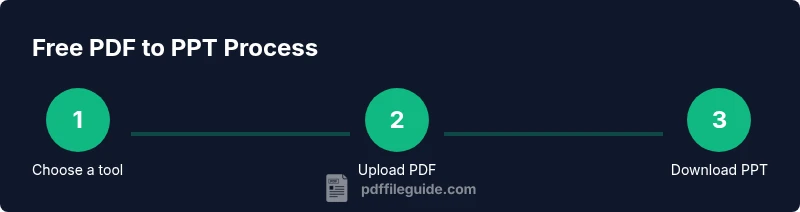
A common free workflow starts with selecting a trusted online converter, uploading the PDF, and downloading the resulting PPTX. The next step is to open the PPTX in PowerPoint or a compatible editor and perform targeted formatting tweaks: adjust fonts, reflow text, align images, and verify slide consistency. If your PDF contains scanned pages, you’ll typically need OCR to extract editable text before or after conversion. Finally, save a clean version with a descriptive filename and back it up in your preferred cloud storage. This approach keeps your process transparent and repeatable.
Preserving layout and typography: what to expect and how to fix it
Layout preservation is one of the trickiest parts of PDF-to-PPT conversion. Fonts may shift, spacing can widen, and images might move. A practical tactic is to lock in the PPTX font choices early, then adjust line breaks to maintain readability. For complex layouts, you might need to re-create certain slides from scratch using the converted content as a draft. Keeping a consistent slide size (16:9 for most audiences) and using master slides helps maintain uniformity across the deck.
Handling complex PDFs: tables, charts, and image-heavy pages
Tables and embedded charts often don’t translate cleanly. In such cases, extract and re-create these elements within PowerPoint or export charts to image formats and re-import them with proper sizing. For image-heavy PDFs, consider converting pages to high-resolution images first, then placing them on slides and overlaying text boxes. OCR becomes essential when you want to edit text rather than treat it as an image. Plan for increased editing time if your PDF includes many tables or multi-column layouts.
Privacy, security, and data considerations when using free tools
Free online converters may store your files temporarily on third-party servers. If content is sensitive, prefer offline options or tools that guarantee local processing. Read privacy policies carefully, avoid uploading confidential documents, and delete files promptly after conversion. If needed, you can use a buffered workflow: convert non-sensitive pages online, and handle sensitive sections with offline software. This balanced approach minimizes risk while keeping costs down.
OCR and accuracy: turning scanned PDFs into editable slides
Many PDFs are image-based, which requires Optical Character Recognition (OCR) to extract text. OCR quality varies by tool and language. After OCR, review the resulting text for misrecognitions, hyphenation errors, and punctuation mistakes. When possible, run OCR on a high-quality scan, then perform a targeted proofreading pass in PowerPoint to restore readability and structure. Remember, OCR is not perfect, but it dramatically improves editability of scanned documents.
Alternatives and trade-offs when free tools don’t fit your needs
If free options struggle with your PDF, consider staged approaches: extract content to Word or Google Docs first, then copy into PowerPoint, or export to images and assemble slides from those images. For long-term projects, a paid tool might deliver higher fidelity and automation. Weigh the time saved against potential accuracy trade-offs. The key is to establish a repeatable workflow that consistently yields acceptable results for your audience.
Tools & Materials
- Computer or laptop(With stable internet connection for online tools)
- PDF file(s) to convert(Organize by project and sensitivity)
- Web browser(Updated for best compatibility)
- Microsoft PowerPoint or compatible editor(Ensure you can save as PPTX)
- Free online PDF-to-PPT converter(s)(Use reputable services and avoid sensitive documents)
- Offline converter software (free)(Alternative if privacy is a concern)
- OCR-capable tool (if needed)(For image-based PDFs to extract text)
Steps
Estimated time: 45-60 minutes
- 1
Gather your PDFs
Collect the PDFs you intend to convert and organize them by project. Verify they are the final versions and note any pages with special formatting or imagery that may require extra attention during conversion.
Tip: Create a dedicated folder for source PDFs to keep files organized. - 2
Choose a free conversion method
Select an online PDF-to-PPT converter or offline tool based on your privacy needs and file complexity. For sensitive documents, prefer offline solutions. If privacy isn’t a concern, online tools can be faster for simple PDFs.
Tip: Test one page first to gauge how well the tool preserves formatting. - 3
Convert the PDF
Upload your PDF to the chosen tool and run the conversion. If you’re using OCR-enabled tools for scanned pages, ensure OCR is completed before download if your workflow requires editable text.
Tip: Check that you are exporting as PPTX when given a choice. - 4
Download and open in PowerPoint
Save the converted file to your computer and open it in PowerPoint. Review all slides for alignment, font fidelity, and image placement before making edits.
Tip: Enable 'Slide Master' for global formatting adjustments. - 5
Tidy up formatting
Adjust fonts, spacing, and line breaks to improve readability. Replace any missing fonts with similar alternatives and ensure consistent slide sizes across the deck.
Tip: Use built-in PowerPoint themes to achieve uniform visuals quickly. - 6
Validate content accuracy
Cross-check the slide content against the original PDF. Verify numbers, captions, and bullet points. Correct any transcription errors introduced during conversion.
Tip: Create a quick checklist for critical slides (title, data, conclusion). - 7
OCR adjustments for image-based pages
If your PDF contained scanned pages, run OCR to extract text before editing. Review OCR results for misreads especially with numbers and technical terms.
Tip: If OCR isn’t accurate, try a higher-quality scan or alternative OCR engine. - 8
Export and share
Save the final PPTX, export as PDF if needed for sharing, and store a backup copy. Prepare a notes page if you’ll present this deck to ensure clarity.
Tip: Archive the original PDF alongside the PPTX for reference.
Questions & Answers
Can I convert a PDF to PowerPoint for free?
Yes—simple PDFs can be converted for free using online tools or offline software. Complex layouts may require extra editing.
Yes, you can convert PDFs to PowerPoint for free, though you may need extra edits for complex layouts.
Will formatting be preserved after conversion?
Formatting is often preserved for straightforward documents. Expect some adjustments for fonts, spacing, and alignment on complex slides.
Formatting may not be perfect; be prepared to tweak fonts and layouts.
Should I OCR scanned PDFs before converting?
If your PDF is image-based, OCR is essential to extract editable text. After OCR, review for errors and adjust as needed.
Yes, use OCR for scanned PDFs to create editable text before editing in PowerPoint.
Can I convert multiple PDFs at once using free tools?
Many free tools limit batch processing; you may need to convert files one by one or upgrade. Plan your workflow accordingly.
Batch conversion is often limited on free tools; expect individual file processing.
Is it safe to upload sensitive documents to online converters?
Avoid sharing confidential files with unknown online services. Use offline tools or trusted providers and review privacy terms.
Be careful with confidential data; use offline tools when possible.
What are common issues after conversion?
Expect misaligned text, missing fonts, and image repositioning. A final pass in PowerPoint usually fixes most problems.
Common issues include alignment and font substitutions; fix them in PowerPoint after conversion.
Watch Video
Key Takeaways
- Start with non-sensitive PDFs to test workflows.
- Expect some layout tweaks after conversion.
- OCR improves editability for scanned PDFs.
- Offline tools enhance privacy for confidential material.
- A consistent slide design speeds up polishing.