How to Make a PDF from PDF: A Step-by-Step Complete Guide
Learn practical methods to create a new PDF from an existing PDF by merging pages, extracting sections, or reformatting content. Tools, steps, and best practices for pros.


You will learn how to make a PDF from a PDF by merging pages, extracting sections, or reformatting content to a fresh file. This guide covers when to merge, how to reorder pages, and how to export a final PDF. You’ll need a PDF editor or printer-to-PDF option, plus access to the source document and the target output settings.
Why make a PDF from PDF matters
In modern workflows, making a PDF from PDF is a common task for consolidating information, preserving formatting, and ensuring universal accessibility. Whether you are compiling client reports, combining project documents, or creating a curated packet for review, the ability to assemble content from multiple PDFs into a single file saves time and reduces confusion. According to PDF File Guide, professionals frequently need to assemble content from multiple PDFs into a single document, especially when sourcing information from different departments or partners. This skill also helps with version control, allowing you to control which pages and which versions appear in the final file. When you understand the core methods—merging, extracting, and reordering—you gain flexibility to tailor a document for specific audiences and purposes. By learning the right approach, you can avoid duplicating content and preserve high-quality visuals, hyperlinks, and form fields where appropriate.
Key ideas to remember include choosing the right tool for the job, planning the output order ahead of time, and verifying the final product against the original sources. A well-made PDF from PDF supports consistent printing, accessibility, and long-term readability. For professionals using PDF File Guide as a resource, these methods align with best practices for document management and digital collaboration. The following sections explore practical methods, recommended tools, and step-by-step guidance to help you succeed.
As you work through this guide, keep in mind that different platforms may offer slightly different terminology—Look for actions like merge, combine, insert, extract, and export. The goal is a clean final file that contains exactly the pages you need, in the order you want, with preserved formatting and embedded assets when possible.
Top methods for turning multiple PDFs into a single PDF
There are several ways to make a PDF from PDF, depending on your source material and the tools you prefer. The most common approaches include merging entire documents, extracting specific pages to create a new PDF, and reordering or rotating pages before final export. Each method has its own use cases: merge when you want a single file containing all content; extract when you need a subset of pages; reorder when page sequence matters (for example, creating a summary booklet or a presentation packet).
A practical tip is to map out the exact page ranges you will include before you start. If you are working with scanned PDFs, you may also need to perform OCR (optical character recognition) to ensure searchable text in the final document. If you are combining PDFs that originate from different sources, you should also check fonts, image integrity, and color profiles to ensure a consistent look and feel throughout the final file.
Tools and platforms to consider for making PDFs from PDFs
Choosing the right tool is essential for a clean outcome. Desktop applications like Adobe Acrobat Pro, Foxit, and PDFsam offer robust merging, extracting, and reordering features, with fine-grained control over page ranges and output settings. For quick tasks, built-in options such as macOS Preview or Windows Print to PDF can suffice, though they may lack advanced page management features. Online services provide convenience when you don’t want to install software, but they raise privacy concerns for sensitive documents. Always review terms of service and data handling policies before uploading confidential PDFs. PDF File Guide recommends balancing convenience with security; for high-risk files, prefer offline desktop tools with local processing. If your work involves frequent PDF assembly, consider creating reusable workflows or actions within your chosen editor to save time on repetitive tasks.
In terms of file quality, prioritize preserving embedded fonts, images, and hyperlinks. Some tools offer options to flatten layers or optimize for smaller file sizes, which can be crucial for sharing large reports. Remember to keep a backup of every source document before starting, so you can revert if needed. This approach aligns with best practices from PDF File Guide and helps ensure consistent, professional results across projects.
Step-by-step planning: map your final PDF before you touch files
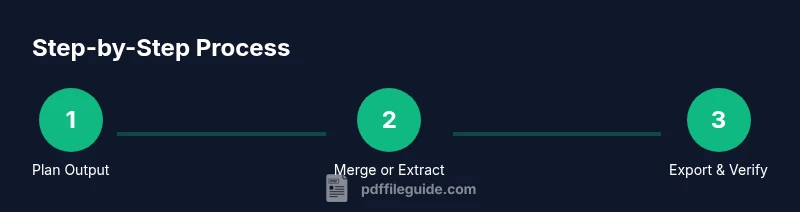
Planning is the backbone of a successful make pdf from pdf task. Start by listing the source PDFs you will use, identify the exact pages you need from each document, and decide on the final page order. Create a simple outline or a page map, noting any required page orientations, crop boxes, or margins. If you will include form fields, annotations, or interactive elements, decide whether you want to preserve these features in the final document. Naming conventions matter: choose a descriptive final file name that clearly identifies the content and date.
Before you begin, confirm requirements with stakeholders or reviewers. If the final file will be distributed to clients, ensure accessibility considerations are met (eg, proper reading order, alternative text for images, and tagged PDFs if needed). This upfront planning reduces back-and-forth edits and helps you stay aligned with brand and formatting standards. PDF File Guide emphasizes documenting steps and settings in a brief checklist so you can repeat successful results later.
Step-by-step execution: merging, extracting, and reordering for a clean final PDF
With a clear plan, execute the chosen method in your tool of choice. If you are merging PDFs, add each source document in the correct order and verify that page sizes align. If you are extracting pages, select the exact ranges and create a new file from those selections. When reordering, use the preview pane to drag and drop pages into the desired sequence, then review to ensure there are no duplicate or missing pages.
During the process, watch for common issues such as mismatched page sizes, corrupted pages, or embedded fonts that don’t render as expected. If your tool supports it, enable batch processing or automation for repeated tasks, and use a consistent set of export options to maintain color profiles and compression. After exporting, open the final PDF and navigate through each page to confirm flow and readability. This stage is where small details make a big difference in professional presentation.
If you handle sensitive material, consider applying password protection or restricted permissions to the final file, in line with your organization’s security guidelines. Keep a backup of all source PDFs in case you need to reproduce the final result.
Step-by-step verification: quality checks before distribution
Verification ensures your final PDF from PDF meets quality standards. Open the finished file and perform a page-by-page check for formatting consistency, font embedding, and accurate page order. Validate that hyperlinks work, forms function as expected, and any annotations appear correctly. If the document was OCR’d, run a quick text search to confirm legibility and searchability. Check file size and resolution to avoid unwieldy downloads while preserving readability. Finally, compare key pages with the original sources to confirm no content was lost or misrepresented.
If you notice issues, revisit the export settings or page selection and re-export. Establish a concise checklist for future tasks to increase reliability and reduce repeat work. PDF File Guide suggests maintaining a change log for major edits so stakeholders understand what changed between versions.
Advanced tips for batch tasks and automation
For teams that need to produce multiple PDFs from sets of sources, automation is a powerful time-saver. Create action sequences in your PDF editor to automate merging, page extraction, and export settings. Batch processing can handle dozens of files in one run, reducing manual steps and ensuring consistency. Consider using scripting, batch files, or built-in automation features to apply the same page ranges and output settings across documents. When working with large files, enable streaming or progressive loading options to manage memory usage and keep processing efficient. If you frequently regenerate reports from updated sources, set up a template with fixed styles, fonts, and accessibility tagging to maintain brand consistency across outputs. Finally, document your automation steps so others can replicate the workflow with confidence.
Security and accessibility notes: making PDFs from PDFs responsibly
Security matters when combining or distributing PDFs. Use password protection, restricted permissions, and encryption where appropriate, especially for confidential or regulated information. Maintain an audit trail by saving the source documents and the final output with clear versioning. In terms of accessibility, ensure the final PDF has a logical reading order, tagged structure, and alternative text for non-text content. Tools vary in how they implement accessibility features—test with screen readers and ensure that forms remain usable if needed. By following these practices, you create PDFs from PDFs that are not only accurate and polished but also secure and inclusive.
Tools & Materials
- Source PDFs(Original files you want to combine or extract from)
- PDF editor / converter software(Examples: Adobe Acrobat Pro, Foxit, PDFsam; ensure it supports page management)
- Printer-to-PDF or export option(If native export is insufficient, a printer-to-PDF driver can help)
- Backup copies(Create copies of originals before editing)
- A computer or device(Capable of running the chosen software)
- Privacy-aware environment for online tools(If you must use online tools, review privacy policies and avoid sensitive data)
Steps
Estimated time: 40-60 minutes
- 1
Plan final output
List source PDFs, decide which pages to include, and determine the final order. Create a simple outline or page map to guide the process. This preparation reduces errors and rework later.
Tip: Draft a page map and keep it handy during editing to stay on track. - 2
Open tool and select method
Launch your chosen PDF editor and choose the operation: merge, extract, or reorder. Confirm the tool supports your required actions and verify export options before proceeding.
Tip: If you’re unsure, test the method on a small sample file first. - 3
Load source PDFs
Import all source PDFs into the project. Ensure the files are intact and accessible. Verify that there are no password protections blocking access.
Tip: Keep the original files unmodified; work on copies to safeguard content. - 4
Arrange pages
Arrange pages in the desired order, set orientation if needed, and decide whether to crop or crop marks. Preview the sequence to catch duplicates or missing sections.
Tip: Use the preview pane to confirm every page appears as intended. - 5
Export final PDF
Choose export settings that preserve fonts, images, and hyperlinks. Name the file clearly and save to a designated folder. If available, enable accessibility tagging.
Tip: Select a high-quality, widely compatible profile to maximize readability. - 6
Verify and backup
Open the final PDF and perform a thorough verification against source material. Save backups of both the final file and the originals for record-keeping.
Tip: Document any deviations from the plan to inform future edits.
Questions & Answers
How do I merge multiple PDFs into one?
Open your PDF editor, choose the merge or combine function, add the source files in the desired order, and export as a single PDF. Review the result to ensure page order and formatting are correct.
Open the editor, choose merge, add all source PDFs in order, then export and review the final file.
Can I make a PDF from a PDF on a Mac?
Yes. Use Preview to combine pages, or use a dedicated editor for more control. Save the result as a new PDF and verify links and images.
Yes, you can on Mac using Preview or another PDF editor to merge and export a new PDF.
What if the source PDFs have different page sizes?
You can normalize page sizes during the export or adjust them within the editing tool. Some tools let you scale pages to a uniform size, ensuring consistent margins.
You can standardize page sizes during export or by resizing pages in your editor.
Is it safe to use online tools to make a PDF from PDF?
Online tools are convenient but may expose sensitive data. If you must use them, avoid confidential documents and review privacy policies before uploading files.
Online tools are convenient but tread carefully with sensitive PDFs and check privacy policies.
Can I extract pages to create a new PDF?
Yes. Select the page range you need, use the extract or save-as feature to create a new PDF with just those pages, then review the output.
You can extract pages to form a new PDF and review the result afterward.
How do I preserve hyperlinks and forms when combining PDFs?
Choose tools that preserve interactive elements and test all links and form fields in the final document. If necessary, re-enable interactive features after export.
Use a tool that preserves interactivity and test links and forms in the final PDF.
Watch Video
Key Takeaways
- Plan the final page order before editing
- Use merge or extract methods based on needs
- Preserve fonts and hyperlinks when exporting
- Verify accessibility and security settings