Markdown to PDF: A Practical How-To Guide for 2026
Learn how to convert Markdown to PDF with practical steps, tools, and tips. This guide covers Pandoc, LaTeX options, editor exports, styling, and accessibility considerations to produce clean, publication-quality PDFs.


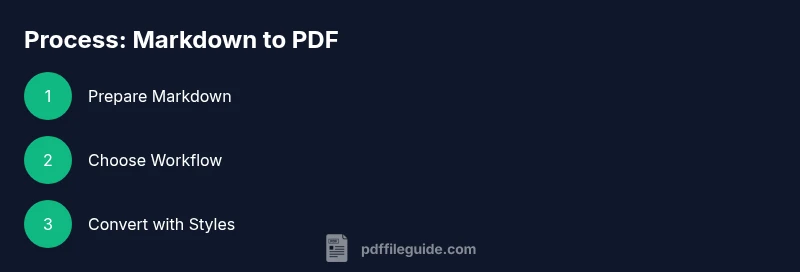
Goal: convert Markdown to PDF using a reliable workflow. You’ll select a tool (Pandoc, Typora, or Obsidian), install any required dependencies, and apply consistent styling with templates or LaTeX. By the end, you’ll produce a clean, print-ready PDF from your Markdown source.
What is Markdown to PDF and why it matters
Markdown to PDF combines lightweight markup with robust PDF output, enabling clean sharing and printing of technical docs, README files, reports, and eBooks. For professionals who edit, convert, and optimize PDFs, the workflow from markdown to pdf is a backbone of publishing pipelines. According to PDF File Guide, Markdown to PDF enables reliable publishing workflows for docs, readme, and reports, preserving structure like headings, lists, links, and code blocks while offering flexible styling options. This makes it ideal for teams that want human-readable source files and polished final documents. When you merge Markdown with a PDF output, you gain portability and reproducibility: your content remains in plain text, but your final artifact looks designed and printer-ready. Pair this with versioning and automation, and you have a repeatable, scalable publishing process. In 2026, many editors support direct export, but the most powerful approaches combine Markdown with a parameterized toolchain to control typography, margins, and metadata.
In practice, the key is to decide what quality you need: quick sharing, or publication-ready documents. For most technical docs, a high-quality PDF with vector graphics and embedded fonts is achievable by choosing the right workflow and templates. The rest of this guide will walk you through options, practical steps, and common pitfalls so you can produce reliable PDFs from Markdown in real-world workflows.
note”:null,
Tools & Materials
- Markdown editor or IDE(VSCode with Markdown plugins, Obsidian, Typora, or any editor you prefer.)
- Pandoc (converter)(Install the latest stable version from pandoc.org.)
- LaTeX distribution (optional but recommended)(TeX Live, MiKTeX, or MacTeX for high-quality PDF output with Pandoc.)
- PDF viewer(Use your preferred viewer for quick checks.)
- CSS templates or LaTeX templates (optional)(For styling, you can supply a custom template to Pandoc.)
- Command-line shell or terminal(PowerShell/Terminal to run Pandoc commands.)
Steps
Estimated time: 25-40 minutes
- 1
Choose your workflow
Decide whether to use Pandoc with a LaTeX backend, or rely on a Markdown editor’s built-in export. This choice determines how you approach styling, fonts, and page layout. Start with a small sample Markdown file to experiment with both paths and compare output quality.
Tip: Begin with a minimal doc (title, heading, a paragraph) to test basic formatting before adding images or tables. - 2
Install your tools
Install Pandoc and a TeX distribution if you plan to use LaTeX-backed PDF output. Verify that pandoc and latex binaries are reachable from your command line by running pandoc --version and latex --version.
Tip: Use official installers and avoid outdated package managers for best compatibility. - 3
Prepare a clean Markdown source
Ensure your Markdown uses consistent headings, alt text for images, and well-formed lists. Remove extraneous HTML unless you intentionally want to map it to PDF. This preparation reduces conversion surprises later.
Tip: Validate with a quick render to HTML first if you’re unsure about how a section will translate to PDF. - 4
Run the conversion
Execute the conversion command or use the editor’s export feature. Example Pandoc command: pandoc input.md -s -o output.pdf. If using LaTeX, you may choose pdflatex or xelatex as your engine.
Tip: Start with a simple command and add a template later to refine typography. - 5
Apply styling with templates
Supply a LaTeX template or a CSS stylesheet to control fonts, margins, and headers. Pandoc can ingest templates via --template or a metadata block; editor exports often have built-in style controls.
Tip: Test with a small section to refine font size and margins before processing the whole document. - 6
Handle images, tables, and code blocks
Ensure image paths are correct, captions are added, and tables render clearly. For code blocks, choose a monospace font and enable line numbering if needed. This step often requires tweaking LaTeX or CSS for readability.
Tip: Use captions for images and tables to improve accessibility and navigation in the PDF. - 7
Review and tweak
Open the final PDF and check for orphan lines, page breaks, and readability. Adjust margins, font sizes, or template options as needed. Re-run the conversion to finalize the document.
Tip: Use a print preview to catch layout issues that aren’t obvious on screen. - 8
Finalize and automate
Create a repeatable script or Makefile to regenerate PDFs from Markdown. Document the exact commands and templates used so others can reproduce the output consistently.
Tip: Automate with versioned templates and a simple script to reduce manual steps. - 9
Publish or archive
Distribute your PDF through common channels (email, cloud storage, or a docs portal) and keep a copy in your version control for traceability. Consider accessibility checks and compliance needs if applicable.
Tip: If you need a long-term archive, consider PDF/A for archival stability.
Questions & Answers
What is Markdown to PDF and why should I use it?
Markdown to PDF is the process of converting Markdown text into a printable PDF. It preserves headings, lists, links, and code blocks, making it ideal for Readme files and reports.
Markdown to PDF turns simple text into a polished document, keeping structure and formatting intact for printing or sharing.
Which tool is best for converting Markdown to PDF?
There isn’t a single best tool. Pandoc with a LaTeX backend provides the most control and reproducibility, while editor exports are quicker for simple tasks.
Pandoc with LaTeX gives the most control, though editor exports are convenient for quick results.
Is Pandoc free and how do I install it?
Yes, Pandoc is open-source and free. Install from pandoc.org or your operating system’s package manager.
Yes, Pandoc is free and open-source; install it from the official site or your system’s package manager.
Can I style Markdown PDFs with CSS or LaTeX templates?
Yes. Pandoc supports LaTeX templates for high control, and CSS can be used for HTML-to-PDF conversions. You can customize fonts, margins, and headers.
You can style with LaTeX templates or CSS, depending on the path you choose.
How do I handle images and tables when exporting to PDF?
Ensure images have valid paths, use captions, and render tables with clear formatting. Pandoc options and templates help with complex layouts.
Make sure images have proper paths and captions; use Pandoc to improve table layouts.
Watch Video
Key Takeaways
- Choose a workflow that fits automation needs
- Test fonts and margins for clarity
- Use templates for consistent styling
- Check accessibility in the PDF output
- Document steps for repeatable publishing