PDF Convert to PowerPoint: Step-by-Step Guide
Learn how to convert PDF files into PowerPoint slides with reliable methods, practical tips, and workflow options. This expert guide from PDF File Guide covers native options, online converters, OCR considerations, and best practices.


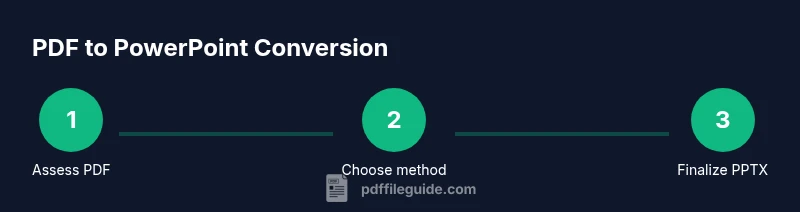
You can convert a PDF into PowerPoint slides by using native PowerPoint import when available, online converters for multi-page files, or manual recreation from your key layouts. Expect formatting adjustments, font issues, and image quality trade-offs. This guide from PDF File Guide walks you through reliable methods, trade-offs, and best practices to maintain accuracy.
Understanding the goal of PDF to PowerPoint conversion
When you convert, you’re not just changing file formats; you’re translating fixed-layout content into editable, slide-friendly elements. Text must be selectable, images should stay sharp, and layouts may shift as pages become slides. Your aim is to preserve the information hierarchy (headings, bullets, tables) while making the result easy to edit in PowerPoint. The PDF File Guide team emphasizes that different PDFs behave differently: a text-heavy document with clean fonts converts differently than a frazzled PDF with scanned pages or complex vector-heavy graphics. Set expectations: simple reports convert smoothly; multi-column brochures or forms may require more manual cleanup. Before you begin, decide whether you want a faithful, one-to-one recreation or a streamlined, presentation-ready version with clean styles. In practice, pre-define slide sizes to match your presentation template, gather your fonts, and plan how you’ll handle charts and images. This upfront planning reduces rework later and speeds up your workflow.
Native PowerPoint capabilities for PDF conversion
PowerPoint offers several pathways to bring PDF content into a presentation. In some versions, you can select a PDF and let PowerPoint convert pages into slides automatically; in others, the feature is limited to embedding the PDF as an object or inserting as images. The exact behavior depends on your operating system, Office version, and whether the PDF has selectable text. When conversion is successful, you’ll typically see each PDF page as a new slide or as a background image on slides. If you don’t see a clean result, you can still extract key text and visuals and paste them into slides, then apply a consistent theme. PDF File Guide notes that manual adjustments after a native conversion are common, especially for charts, tables, and multi-column layouts.
Using dedicated conversion tools (online and desktop)
A wide range of standalone converters can transform PDF documents into PPTX with varying levels of fidelity. Desktop tools often yield higher quality and more consistent results for multi-page PDFs, while online services offer speed and convenience. When choosing a tool, consider the document’s content type, privacy policies, file size limits, and whether the converter preserves fonts and vector graphics. After conversion, you’ll typically receive a PPTX that mirrors the original pages as slides or as editable content. It’s wise to compare at least two methods on a small sample file to determine which provides the best balance between accuracy and editability. PDF File Guide analysis shows that combining a native approach with a secondary converter can yield the strongest results for complex layouts.
Manual recreation: when auto-conversion isn’t enough
In many cases, auto-conversion won’t perfectly preserve intent. A manual recreation workflow involves creating a new PowerPoint deck and copying content slide by slide, preserving headings, lists, and emphasis. Start by laying out a clean template that matches your PDF’s visual hierarchy. Paste text, re-create tables and charts, and insert high‑resolution images where needed. This approach gives you precise control over typography, spacing, and color, and it’s often faster for short PDFs or brochures with rich graphics. Treat the manual process as a design task: use consistent fonts, align elements to a grid, and apply Master Slides so future decks stay on brand.
Handling fonts, images, and charts
Fonts are a frequent source of drift after conversion. If your original PDF uses fonts that aren’t installed on your system, you may see substitutions that impact spacing and readability. When possible, use standard, widely available fonts and embed fonts in the final presentation. Images may appear rasterized if the conversion compresses assets; check image resolution and replace any low‑quality graphics with higher‑resolution originals. Charts and tables can lose formatting; for accuracy, recreate complex visuals in PowerPoint using native chart tools rather than importing as static images. Keeping a consistent color palette and brand typography will help the PPT feel cohesive with other slides.
OCR for scanned PDFs and image-based content
If your source PDF is a scan or contains images of text, optical character recognition (OCR) is essential to regain editable text. Many modern converters include built‑in OCR, but results vary by language, font, and text orientation. After OCR, review and correct errors to avoid misprints. For best results, choose an OCR option that preserves layout cues (columns and headers) and export to PPTX with minimal compression. If you work offline, ensure your OCR tool supports batch processing so you can handle longer documents efficiently.
Quality checks and best practices
Once you generate slides, perform a thorough quality check. Verify that headings, bullet points, and spacing align with your slide template. Check image clarity and ensure non-destructive editing so you can revisit content later. Use slide masters to enforce a consistent look across all slides and leverage built-in design ideas to improve readability. Save incremental versions as you progress, and test the deck by presenting in a mock environment to catch layout or font issues that aren’t obvious on screen.
Common pitfalls and quick fixes
Beware of auto-converted content that looks right at first glance but hides small errors (hyphenation, orphan lines, or misaligned bullets). Pitfalls include missing fonts, broken tables, and embedded media that don’t transfer. Quick fixes include adjusting the master slide, replacing problematic fonts with system fallbacks, and recreating troublesome charts. If your PDF contains forms, expect those fields to be non-editable in PowerPoint; plan to rebuild any forms as interactive slides or separate PDFs for distribution.
Tools & Materials
- Computer or device with internet access(Essential for online converters and accessing cloud tools)
- Source PDF file(Original document you want to convert; keep a backup)
- Microsoft PowerPoint (Office 365 or standalone)(Verify version supports PDF import and master slides)
- Stable internet connection(For online converters and downloads)
- OCR software or OCR-enabled converter(Needed for scanned PDFs to extract text)
- Fonts used in the PDF (font family list)(Helps preserve typography when possible)
- Backup storage (external drive or cloud)(Keep raw sources and final PPTX copies)
- Reliable PDF-to-PPT converter (desktop or online)(Choose reputable providers and review privacy policies)
Steps
Estimated time: Estimated total time: 45-120 minutes
- 1
Prepare your source files
Collect the PDF you want to convert and any assets (logos, fonts). Confirm you have permission to use the content. This step sets the stage to minimize cleanup later.
Tip: Create a backup copy before starting. - 2
Assess content complexity
Scan the PDF to determine if it’s text-heavy, image-heavy, or contains forms; decide your conversion approach accordingly.
Tip: Note sections that will require special handling. - 3
Choose your conversion method
Decide between native PowerPoint import, desktop/dedicated converters, or manual recreation based on content and privacy needs.
Tip: If privacy is important, start with a native method. - 4
Attempt native conversion (if available)
Open the PDF in PowerPoint to see if pages import as slides or editable content; adjust as needed.
Tip: Check for text flow and reflow issues. - 5
Try a trusted online or desktop converter
Upload the PDF, choose PPTX, and download; compare against native result and select the better base.
Tip: Prefer services with clear data retention policies. - 6
Clean up and reformat the slides
Tidy typography, align grids, replace low-res images, and unify color styles; use Slide Master for consistency.
Tip: Keep a consistent font size hierarchy. - 7
Rebuild complex visuals
Recreate tables, charts, and infographics in PowerPoint for accuracy and editability.
Tip: Export charts from source data when possible. - 8
Apply OCR and verify text
If the PDF was image-based, run OCR and correct errors in the slides.
Tip: Proofread every slide for typos introduced by OCR. - 9
Final review and export
Review final deck, run spell check, save as PPTX, and optionally export a PDF version for distribution.
Tip: Keep a versioned file name with date.
Questions & Answers
What is the simplest way to convert a PDF to PowerPoint?
If your PowerPoint version supports PDF import, use it to create slides from PDF pages. If not, use a reputable offline or online converter and then tidy the slides.
Use built-in import if available, otherwise use a trusted converter; manual cleanup might be necessary.
Can I preserve all fonts and layouts during conversion?
Preservation is not always perfect. Fonts may not embed automatically, and complex layouts may shift. You may need to adjust fonts and reflow content.
Fonts may not always stay the same; you’ll likely adjust spacing after conversion.
Is OCR required for scanned PDFs?
Yes. Scanned PDFs are image-based and require OCR to extract editable text. Use OCR-enabled tools and review results.
Yes, OCR is needed for scanned content; verify accuracy after extraction.
Are online converters secure for sensitive PDFs?
Security varies by provider. Use reputable services, review privacy policies, and avoid handling confidential material if possible.
Be mindful of what you upload; use trusted services and delete data after processing.
What should I do with forms in PDFs?
Forms and interactive elements often don’t translate directly. Plan to recreate forms as slide content or as separate PDFs for distribution.
Forms often need manual recreation.
What’s a good final check before presenting?
Review slide alignment, fonts, spacing, and image quality. Run a quick spell check and test navigation.
Check alignment and readability before presenting.
Watch Video
Key Takeaways
- Plan before converting to minimize cleanup.
- Choose a method based on content type.
- Verify fonts and layout after conversion.
- Recreate complex visuals for accuracy.
- Save and back up final deliverables.