How to Convert Picture into PDF: A Complete Guide
Learn how to turn any picture into a PDF with offline and online tools. This guide covers step-by-step methods, quality tips, and privacy considerations for 2026.


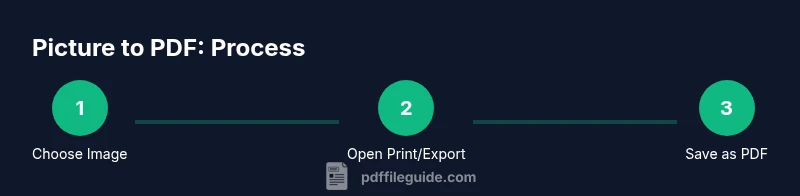
Turn a picture into a PDF using your computer or phone with a few clicks. Choose your image, open the Print or Export option, select Save as PDF, adjust resolution and size, and save. For multiple images, use a PDF printer or merge them into a single file for easy sharing.
Introduction to turning a picture into PDF
If you’ve ever needed to preserve a photo, invoice, or graphic as a single portable document, converting a picture into PDF is a practical, fast solution. The ability to keep formatting consistent across devices makes PDF a preferred format for sharing images in professional settings. According to PDF File Guide, this task is a common workflow for students, designers, and office teams alike, helping keep visuals accessible and print-ready across platforms. In 2026, mastering this skill saves time when compiling reports, portfolios, or photo albums for clients and collaborators.
What a PDF is and why it matters for images
A PDF (Portable Document Format) is a fixed-layout file format that preserves fonts, images, and formatting. When you convert a picture into PDF, you create a self-contained document that looks the same on Windows, macOS, iOS, and Android. This is especially useful for avoiding color shifts or scaling issues that can occur when sharing image files alone. PDFs also support compression, which helps keep file sizes manageable without sacrificing essential quality. For professionals, a single-page image PDF can be a lightweight, shareable asset for proposals or design briefs.
Offline vs online conversion: pros and cons
Online tools offer speed and convenience but require uploading your image to a third party, which may raise privacy concerns for sensitive content. Desktop tools—like built-in OS features or paid software—keep your data on your device and often provide finer control over image quality, compression, and layout. PDF File Guide recommends evaluating privacy, file size, and output fidelity when choosing between offline and online methods. If you’re handling confidential work, offline is typically the safer route.
Common use cases for picture-to-PDF conversions
- Archiving personal photos in a single, shareable file
- Creating proof-ready visuals for client deliverables
- Packaging screenshots, diagrams, or charts for quick dissemination
- Preparing image-based proofs for print or publishing
Understanding image quality: resolution, color, and compression
When you convert a picture into PDF, the resolution (dpi), color mode (RGB vs CMYK), and compression level influence final quality and file size. Higher dpi preserves detail for printing, while aggressive compression reduces file size at the cost of sharpness. If your goal is a digital presentation, a moderate dpi and balanced compression usually offer the best compromise. Always preview the PDF to ensure text and imagery remain legible across devices.
noteNullForMarkdownHeadingsOverflownullFreed
Tools & Materials
- Image file(s)(PNG, JPEG, TIFF, or HEIC; ensure the file contains the image you want to convert.)
- Device with PDF printing capability(Windows, macOS, iOS, or Android with a built-in or third-party PDF printer/export option.)
- Internet access (optional)(Needed for online converters; ensure you trust the site.)
- PDF viewer or editor (optional)(Useful for verifying and annotating the resulting PDF.)
Steps
Estimated time: 5–15 minutes
- 1
Prepare your image
Locate the photo you want to convert and confirm it’s high enough resolution for your intended use. If necessary, crop or straighten the image to improve framing before conversion.
Tip: Use a clean, well-lit photo for best results. - 2
Open the image in a suitable app
Open the image in an app that supports PDF export or printing. On computers, this could be the Photos app, Preview on macOS, or the default Windows Photos viewer. Mobile devices may use the built-in gallery app.
Tip: If your app has a “Print” option, you can access Save as PDF from there. - 3
Access the Print or Export feature
Choose Print or Export as PDF from the app’s menu. This is the universal path to create a PDF from a single image across platforms.
Tip: If you don’t see Save as PDF, look for a Print dialog and select a PDF printer. - 4
Configure output settings
Set the page size to match your image (e.g., A4 or Letter), orientation (portrait or landscape), and resolution options if available.
Tip: Aim for 300 dpi if you plan to print; otherwise, 150–200 dpi is usually sufficient for on-screen viewing. - 5
Save the PDF to a chosen location
Choose a destination folder, name the file clearly, and save. Verify the file appears in your chosen folder.
Tip: Use a descriptive name like “WeddingPhoto-2026-01-01.pdf.” - 6
Review the PDF for quality
Open the saved PDF to confirm image clarity, alignment, and color accuracy. If needed, re-run with updated settings.
Tip: Check both on screen and in print preview if printing.
Questions & Answers
What is the simplest way to convert a single image to PDF on Windows or macOS?
On most systems, open the image in the default viewer and select Print, then choose Save as PDF. This uses the built-in PDF printer and preserves the image without extra software. For mobile, tap Share and select Print to find the Save as PDF option.
Open the image, choose Print, then Save as PDF to create your file.
Can I convert multiple images into one PDF?
Yes. Use a batch export or a PDF printer that supports adding multiple pages. Most apps let you load images in order, then export a single PDF with each image as a separate page.
You can combine several photos into one PDF by listing them in order and exporting.
What about image-to-PDF quality and compression options?
Choose a balance between resolution and file size. For printing, use higher DPI; for online sharing, moderate DPI with compression keeps file size reasonable.
Adjust resolution and compression to balance quality and size.
Are online tools safe for sensitive images?
Online tools offer convenience but involve uploading your image. Use trusted sites and avoid confidential material. Offline tools provide more privacy.
Be cautious with sensitive images and prefer offline methods when possible.
Can I edit a PDF after conversion to fix issues?
Yes. Most PDF editors allow you to rotate, crop, or replace pages, and to adjust image placement after conversion.
You can tweak the PDF after it’s created using an editor.
Watch Video
Key Takeaways
- Turn any picture into PDF quickly with built-in tools
- Choose offline methods for sensitive content
- Adjust resolution and compression for printing vs. digital use
- Combine multiple images into one PDF for easy sharing
- Always preview the final PDF before sending