PowerPoint to PDF: The Complete Conversion Guide
Master PowerPoint to PDF conversion with clear steps, tips, and best practices. Learn export options, formatting preservation, fonts, accessibility, and troubleshooting from PDF File Guide.


Goal: Convert PowerPoint to PDF with preserved formatting, embedded fonts, and accessible layouts. Use PowerPoint's built-in Export or Save As, Google Slides export, or trusted online converters. This quick answer outlines the core steps and essential checks to produce a faithful, print-ready PDF from your presentation. Expect consistent margins, visible slide notes, and intact hyperlinks when configured correctly.
Why PowerPoint to PDF matters
In professional environments, sharing slides as PDFs ensures everyone sees the same layout, fonts, and images, regardless of software or platform. PDF files reproduce exact margins, print quality, and embedded graphics, making them ideal for client deliverables, training materials, and archived samples. For many teams, PDF is the preferred universal format for distribution before meetings or conferences. The PDFs preserve your design intent while reducing the risk of accidental edits. According to PDF File Guide, choosing a reliable export path minimizes font substitutions, broken links, and layout shifts during conversion.
Before you convert: check fonts and formatting
Before exporting, review the presentation for font consistency, image resolution, and slide transitions that might not translate to PDF. Use standard fonts when possible to reduce substitution issues. Ensure slide masters and templates align with your brand guidelines. Verify that slide numbers, footers, and page margins are correct, since PDFs lock in the layout. In addition, confirm that any embedded objects (charts, SmartArt, or media) will render properly after export. The goal is to minimize surprises in the final file, especially when sharing with external stakeholders. PDF File Guide analysis shows that font embedding and consistent image scaling are common pain points—plan for them ahead of time.
Choosing the right export option: PowerPoint vs Google Slides vs online tools
PowerPoint desktop applications offer several export paths (Save As, Export) with options to include notes and handouts. Google Slides provides a convenient cloud-based export to PDF, often useful for quick sharing. Online converters can be handy when you don’t have PowerPoint installed, but quality and privacy vary; always choose reputable services and review the privacy policy. PDF File Guide recommends starting with built-in options and using online tools only for non-sensitive content. When accuracy matters, test a short subset of slides before exporting the entire deck.
Step-by-step overview
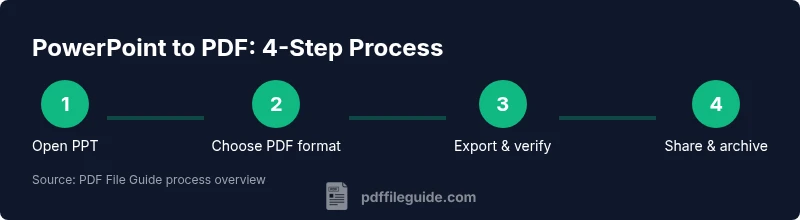
This section offers a practical overview of the core path for PowerPoint to PDF, plus a quick look at alternatives. Start by opening the file, selecting your export method, and configuring options such as slide range, whether to include speaker notes, and the desired quality. After exporting, open the PDF to verify slide order, image fidelity, and hyperlink functionality. If you need to share handouts or multiple slides per page, adjust those settings accordingly. A careful approach reduces revision cycles and keeps your branding intact. The PDF File Guide approach emphasizes a deliberate validation step to catch issues early.
Common issues and how to fix them
Conversion can introduce font substitutions, shifted alignments, or missing images. To fix this, choose standard fonts, embed fonts when possible, and export with the highest resolution settings. If a slide shows an unusual character, select a universal font, reinsert the character, and re-export. Hyperlinks sometimes break if the source link changes; ensure links are correct in the PPT before exporting. For accessibility, ensure the PDF is tagged and readable with screen readers where possible. PDF File Guide notes that fonts and image resolution are the two most frequent culprits behind misrendered PDFs.
Step-by-step: Convert using PowerPoint (Windows/macOS)
This section provides an actionable reference for PowerPoint users while keeping content distinct from the step-by-step workflow. Start by opening your presentation and running a quick quality check—fonts, images, and alignment should be finalized before export. Choose a lossless export path (Save As or Export) and select PDF as the output format. Configure options such as whether to export all slides or a subset, include notes, and embed fonts if your license allows. Save to a clearly named location and verify the result in a PDF viewer. If issues arise, revisit design choices and re-export with adjusted settings. Estimated total time: 15-25 minutes.
Step-by-step: Convert using Google Slides
Google Slides offers a straightforward PDF export if you don’t have PowerPoint installed. Open your presentation in Slides, review layout and fonts, then choose File > Download > PDF Document (.pdf). Pay attention to how Slides handles fonts and embedded elements; some complex graphics may render differently. Use standard fonts where possible and keep slide content concise for the best results. After export, compare the PDF to the original to confirm consistency and accessibility.
Best practices for accessible PDFs
Accessibility matters for inclusive distribution. Ensure your PDF is tagged properly, images have alt text, and reading order aligns with the slide sequence. Use descriptive document titles, and enable text extraction where possible. If your content includes tables, verify they are navigable with screen readers. PDF File Guide emphasizes testing the final document with assistive technology to confirm that essential information remains discoverable and readable.
Ready-to-use checklist and best practices
Create a pre-export checklist: font compatibility, image resolution, slide order, and color contrast. Always export a test deck first and review it on multiple devices. Maintain a naming convention for versions and consider embedding fonts only when licensing permits. Finally, store the final PDFs in a predictable location with consistent metadata to simplify distribution and archiving. Following these steps will save time and improve outcomes for teams that rely on PPT-to-PDF workflows.
Tools & Materials
- PowerPoint (Windows/macOS) or Google Slides(PowerPoint 2019/2021/365 or latest Google Slides for best compatibility)
- A computer with internet access(Windows, macOS, or Chromebook with sufficient RAM)
- PDF viewer/editor(For verification and minor adjustments after export)
- High-resolution source images/fonts(Optional but helps preserve quality in export)
Steps
Estimated time: 15-25 minutes
- 1
Open the presentation and review
Open your PPT and perform a quick quality check for fonts, alignments, and image quality. This upfront review prevents downstream surprises during export.
Tip: Fix any font substitutions by selecting standard fonts before exporting. - 2
Choose the export method
Navigate to Save As or Export and select PDF as the format. This establishes the target type and prepares the options panel.
Tip: If notes are important, choose the option to include notes. - 3
Configure export options
Specify slide range, include notes or handouts, and select quality settings. Higher resolution preserves images but increases file size.
Tip: For most reports, export all slides with embedded fonts if permitted. - 4
Save with a clear name
Choose a descriptive file name and location to avoid confusion with previous versions.
Tip: Add a date or version number to the filename. - 5
Verify the PDF
Open the PDF and check slide order, fonts, links, and notes. Confirm margins and color integrity after export.
Tip: Test hyperlinks and interactive elements across a couple of devices. - 6
Re-export if needed
If issues are found, adjust settings (e.g., font embedding or image compression) and export again.
Tip: Keep a small, iterative change log to document fixes.
Questions & Answers
What is the difference between exporting and saving as PDF?
Export and Save As both create a PDF, but export options may offer more control over quality, included content (notes, handouts), and accessibility features. Choosing the right path helps maintain formatting and ensures needed elements are included.
Export or Save as both produce a PDF, with export offering more control over content and accessibility.
Will hyperlinks stay clickable in the PDF?
Yes, hyperlinks created in slides generally remain active in the PDF if the export settings preserve links. Verify by testing a few links after export.
Hyperlinks usually stay clickable after export; test a few to be sure.
Can fonts be embedded into the PDF?
Many PowerPoint export options offer font embedding. Embedding helps preserve look on other devices but check licensing for fonts before embedding.
Fonts can often be embedded; check licensing and export options.
Can I export only certain slides?
Yes. Use the slide range option in most export dialogs to include only the slides you need, which reduces file size and keeps the content focused.
You can export a selected slide range to keep the PDF focused.
Is PPT to PDF different on Google Slides?
Google Slides offers a straightforward export to PDF, but font rendering and embedded objects may vary from desktop PowerPoint. Always review the final PDF.
Google Slides can export to PDF, but verify results against PowerPoint exports.
How do I password-protect a PDF after exporting?
Password protection is usually set in the PDF editor after export or via the printer/print-to-PDF dialog. Ensure you share passwords securely.
You can add a password after export using a PDF editor or export tool.
Watch Video
Key Takeaways
- Choose the right export path for your needs.
- Embed fonts and check hyperlinks after export.
- Verify the PDF on multiple devices and with assistive tech.
- Document versioned exports to keep your workflow organized.