Scanner and PDF: From Paper to Perfect PDFs
Learn how to turn paper into high-quality PDFs using a scanner, OCR, and smart file management. This educational guide covers hardware choice, OCR options, metadata, and best practices for reliable, searchable PDFs.


This guide shows how to scan documents into PDF, optimize for search, and save with OCR-enabled or image-based PDFs. You'll learn setup tips, file organization, and best practices for long-term archiving. By following these steps, professionals can turn paper into searchable, compact PDFs with reliable metadata—using scanners and PDF software.
Understanding the scanner-to-PDF workflow
In modern office workflows, a scanner is more than a device for capturing pages. It becomes a gateway to organized, searchable digital archives when paired with the right PDF settings and file management. A scanned PDF can be image-only, preserving visual fidelity, or OCR-enabled, which adds a hidden text layer that makes the document searchable and editable. For professionals, choosing the right format—PDF/A for long-term archival, or standard PDF for day-to-day sharing—depends on the document’s purpose and retention policy. According to PDF File Guide, aligning your scanning approach with archival needs reduces risk and ensures future accessibility. Understanding the trade-offs between image-based versus text-searchable PDFs helps you plan retention, indexing, and retrieval strategies from the start.
Key concepts: image-based vs OCR PDFs
- Image-based PDFs store pages as images, preserving layout but not text searchability. They are ideal for graphics-heavy materials where font rendering must remain exact.
- OCR PDFs add a text layer that enables search, copy-paste, and text-based editing; the accuracy depends on the scanner’s resolution, the document’s cleanliness, and the OCR engine. PDF File Guide notes that OCR is most reliable on clean, high-contrast text and that languages beyond English may require language packs or specialized engines. When flexibility matters, starting with OCR and then applying additional image compression can balance readability with file size.
Resolution, color, and compression basics
Resolution affects legibility and OCR accuracy. Text-heavy documents typically benefit from moderate DPI settings to keep file sizes reasonable while maintaining readability. Color mode matters: black-and-white (1-bit) can minimize file size for text-only pages, grayscale suits mixed documents, and color preserves charts or images. Compression strategies—such as choosing ZIP or JPEG compression for images—impact both clarity and file size. PDF File Guide recommends a practical approach: scan text at 300–400 DPI for OCR, switch to color only when color content is essential, and apply post-scan optimization to remove blank margins.
Choosing hardware and software for reliable PDFs
The choice between a flatbed scanner and a sheet-fed model affects throughput and quality. Flatbeds excel for delicate documents and books, while sheet-fed scanners handle multi-page stacks quickly. For best OCR outcomes, select a device with consistent lighting, minimal skew, and reliable auto-feeder alignment. Software matters too; use a driver suite or scanning app that supports PDF output with built-in OCR, page orientation detection, and straightening tools. PDF File Guide emphasizes keeping your scanning software updated to reflect the latest OCR engines and PDF features, which helps maintain compatibility with future viewers and accessibility tools.
OCR and text layers: improving searchability and accessibility
OCR converts image text into searchable text data. High accuracy requires good source images (clean bleed-free pages, high contrast). Languages beyond English may require supporting language packs, and you should review the output for misrecognized characters. After OCR, you can add bookmarks, metadata, and tags to improve navigation. PDF File Guide highlights that well-implemented OCR improves accessibility, enabling screen readers to interpret content and enabling keyword search across large document sets.
File management, metadata, and optimization
A well-organized PDF library uses consistent naming conventions, meaningful metadata, and a predictable folder structure. Naming should reflect document type, date, and version, while metadata fields like author, title, subject, and keywords enhance search indices. In addition to naming, consider PDF settings that balance quality and size, such as image compression levels, font embedding choices, and whether to enable PDF/A compliance for archival projects. PDF File Guide recommends documenting your OCR language, output intent, and whether the PDF is intended for print or screen viewing to guide future processing and accessibility checks.
Step-by-step scan-to-PDF workflow (overview)
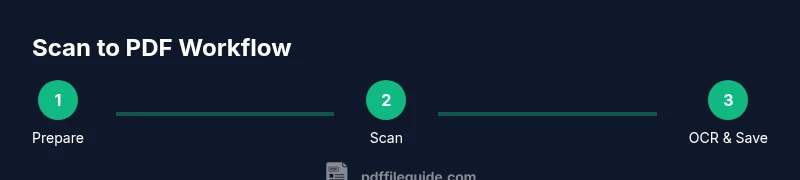
The following steps provide a practical path from paper to PDF, emphasizing accuracy, accessibility, and organization. You’ll calibrate hardware, decide on OCR usage, scan pages, and then verify the results before final storage. While some documents may require adjustments for color fidelity or legibility, a disciplined workflow ensures consistent outcomes across projects and teams. Remember to keep your software and drivers updated and to maintain a clear naming and metadata strategy from the outset.
Authoritative sources
- https://www.nist.gov/publications
- https://www.iso.org/standard/74588.html
- https://www.pdfa.org/ (PDF/A—Long-term preservation)
All sources provide foundational guidance on digitization standards, archival practices, and accessibility considerations that support robust PDF workflows.
Tools & Materials
- Document scanner with automatic document feeder (ADF)(Prefer a scanner with OCR capability or bundled OCR software; ensure reliable feeding for multi-page documents)
- Computer or mobile device with PDF software(Use software that supports PDF output, OCR, metadata editing, and compression optimization)
- Quality USB cable and power source(Stable power and data connection prevent scan interruptions and skew)
- Appropriate calibration tools or test pages(Calibrate scanner alignment and brightness/contrast if available)
- Quiet, clean workspace(Reduce dust and glare for better image quality; flatten pages if needed)
Steps
Estimated time: 45-60 minutes
- 1
Prepare documents
Sort and align pages, remove staples, and straighten pages to avoid skew. Clean the scanner glass and ensure pages lie flat to minimize kurtosis and shadowing. If handling long documents, consider dividing into batches that fit the ADF capacity.
Tip: Use a clean desk, and tap pages lightly to remove folds before feeding. - 2
Install drivers and set scan profile
Connect the scanner to your computer and install the latest drivers. Create or choose a scan profile optimized for text: mono or grayscale, 300–400 DPI for OCR, and a destination folder for the PDFs. Enable page detection to auto-rotate and crop margins.
Tip: Test scan a single page first to verify alignment and OCR readiness. - 3
Place documents and initiate scan
Load documents into the feeder in the correct orientation. Start the scan with the chosen profile and monitor the feed to catch misfeeds. For best OCR results, ensure pages are clean and free of smudges that could interfere with recognition.
Tip: Scan in batches if you notice misfeeds to minimize wasted pages. - 4
Enable OCR and review text
If your profile includes OCR, run the recognition after scanning. Review a few pages to check accuracy, especially for unusual fonts, names, or numbers. Correct obvious misreads and adjust language settings as needed.
Tip: Turn on spell check for the OCR layer to catch obvious typos. - 5
Save as PDF and set metadata
Save the scanned pages as a single PDF or a small batch, depending on document length. Add meaningful metadata (title, author, subject, keywords) and enable bookmarks for navigation. Select whether to embed fonts and apply color- or grayscale-based compression.
Tip: Use descriptive file names with dates and version numbers for easy retrieval. - 6
Verify and optimize
Open the PDF in a viewer to verify readability, searchability, and file integrity. If needed, run a secondary pass to fix any remaining issues and re-save. Consider archiving as PDF/A if long-term preservation is a goal.
Tip: Check accessibility tagging if required by your audience or organization.
Questions & Answers
What is the difference between a scanned PDF and an image-only PDF?
A scanned PDF often stores pages as images, preserving appearance but not text. An OCR-enabled PDF includes a text layer allowing search, selection, and editing. Choose OCR for accessibility and quick retrieval, and image-only when exact visual fidelity is essential.
A scanned PDF stores images of pages, while OCR adds text you can search. OCR is usually the better default for most documents unless you need exact visuals.
What DPI should I use for text documents?
For most text documents, 300–400 DPI provides clean text recognition without creating overly large files. Increase to 600 DPI only if complex fonts or detailed graphics require sharper readability.
Typically 300 to 400 DPI works well for text. Go higher if you have graphics or unusual fonts.
Should I save all scans as PDF/A?
PDF/A is designed for long-term preservation and ensures fonts and colors render consistently. Use PDF/A when you need archival-quality files or plan long-term data retention; otherwise, standard PDF may suffice for routine sharing.
Use PDF/A for archival needs. For everyday sharing, a standard PDF is usually enough.
Can I scan multi-page documents into one PDF?
Yes. Modern scanners and software allow you to queue pages into a single PDF with consistent settings. Use file-name conventions and bookmarks to improve navigation.
Absolutely. You can compile all pages into one PDF and add bookmarks for easy navigation.
What if OCR misses some words or logos?
OCR performance varies by font, language, and image quality. Re-run OCR after adjusting language packs, re-scan problematic pages, or manually edit the PDF text layer as needed.
If OCR misses things, try adjusting language settings or reprocessing the troublesome pages.
How can I ensure accessibility in scanned PDFs?
Enable tagging to create a navigable structure, ensure text is searchable, and provide alternative text for images when relevant. Validation with accessibility checkers helps confirm compliance.
Turn on document tagging and test with accessibility tools to verify compliance.
Watch Video
Key Takeaways
- Scan with OCR when possible to enable searchability
- Choose a consistent file-naming and metadata strategy
- Verify OCR accuracy and fix misreads promptly
- Archive important PDFs with PDF/A settings for longevity