Can You Edit Text in PDF? A Practical How-To Guide for 2026
Learn how to edit text in PDF files, when it’s possible, best tools, step-by-step workflows, OCR options, and tips for professionals. This guide covers editing text, handling fonts, and preserving accessibility.


Yes, you can edit text in PDFs in many cases, but the ability depends on how the file was created and whether editing is allowed. Use a dedicated PDF editor to modify existing text, adjust fonts, or replace wording without breaking layout. If the document is locked, scanned, or uses non-editable text, you may need OCR or permission first.
What you can edit in a PDF and why
PDFs encode data in several ways, and what you can edit depends on how the file was built and what permissions were set. According to PDF File Guide, many PDFs include an editable text layer that lets you modify words, adjust fonts, and reflow text without upending layout. In other cases, text may be embedded as an image or protected by a password, making edits impossible without additional steps. Start by testing basic selectability: if you can highlight the text, you're likely dealing with true text. If not, you may be looking at a graphic, a scanned page, or a design element that requires OCR or re-creation. Licensing and security also matter; some PDFs allow editing only for certain users or with a specific access password. Understanding the document’s structure—text layers, font embedding, and image compression—helps set realistic expectations. Even when edits are possible, minor adjustments can ripple through the page, affecting line breaks, kerning, and hyphenation. Your goal is to preserve the original appearance while making accurate changes.
How PDFs handle text: fonts, encoding, and layers
PDFs handle text across several layers: the text layer, font objects, and graphic or image content. Some PDFs embed fonts, which helps ensure your edits look the same on other machines; others refer to system fonts, which may cause substitution if the target font isn’t installed. Encoding matters: ligatures and kerning can shift when you replace words. In many modern PDFs, text exists on a selectable layer, but this isn’t universal. If the font used by the document isn’t embedded, you may temporarily see spacing or glyph changes after editing. Digital rights and encryption can further restrict editing; always verify permissions before you begin. For accessible PDFs, tags and structure need to remain intact; edits should not break screen-reader order or alt text. When you understand these basics—text layers, fonts, encoding, and accessibility—you can choose the right strategy for editing, whether you stick with the original PDF editor or switch to a conversion workflow for more extensive changes.
Methods to edit text in PDFs
There are several paths to edit text, depending on the document’s structure and your goals. The most direct method is to use a professional PDF editor that provides a dedicated Edit Text tool, allowing you to modify words on the page while preserving layout. If you need to change typography, you can replace fonts or adjust font attributes to maintain the original look. For long-form edits or if the text layer is unstable, converting the PDF to an editable format (such as Word) can be faster; you can then re-export to PDF after revising. In some cases, you may only need minor revisions, which can be done with annotations and strikeouts without changing the underlying text. For scanned PDFs, OCR is often required to create a real text layer before edits. Regardless of the method, always proofread the final document and verify that all changes align with the original intent and formatting.
Editing with professional PDF editors: features and caveats
Professional PDF editors offer direct text editing, font substitution, spell check, and layout-aware editing. They also provide tools to correct ligatures, kerning, and line wrapping to preserve the document’s appearance. A key caveat is font licensing: you should only edit if you have the rights to modify and embed fonts used in the document. Some editors also implement content protection features that can block edits or require you to unlock the file with proper credentials. Accessibility considerations are essential; ensure that edits do not disrupt reading order or tagged content so screen readers can interpret the document accurately. For complex layouts, incremental editing with frequent saves reduces the risk of unintended shifts. Always work on a duplicate copy and compare the edited version with the original to ensure fidelity.
Editing in browser or mobile apps: quick edits
Browser-based editors and mobile apps can handle light edits, such as correcting typos or updating dates. These tools are useful for on-the-go changes or quick reviews, but they may sacrifice typographic fidelity, font integrity, or advanced layout control. If you plan to share or publish the edited PDF, verify that the final rendering remains faithful across devices and viewers. Be mindful of security prompts and avoid uploading sensitive PDFs to questionable online platforms. For simple edits, these tools can be efficient; for heavier editing tasks, a desktop editor with full font and layout control is usually preferable.
Using annotations and form fields to adjust visible text
Annotations and form fields can adjust what readers see without altering the base text layer. You can add text boxes for commentary, sticky notes for revisions, or form fields to capture user input. This approach is ideal when you’re providing a draft or a marked-up document intended for review, approval, or workflow collaboration. Keep in mind that annotations are separate from the actual content, so they won’t permanently change the document’s original wording unless you explicitly merge or flatten them. Ensure accessibility is preserved by using descriptive titles for form fields and alt text for interactive elements.
OCR and scanned PDFs: turning images into editable text
When a PDF is merely a scanned image, the content is not editable text by default. In these cases, OCR (optical character recognition) is essential to convert images into an editable text layer. Quality OCR depends on the scan resolution, font clarity, and language. After OCR, you should proofread carefully to catch misrecognitions, especially with similar characters or ligatures. If the OCR results don’t meet accuracy standards, consider re-scanning at a higher resolution or manually retyping critical sections. OCR-enabled workflows often integrate with PDF editors or conversion tools to streamline post-recognition editing and ensure proper layout.
Practical workflow for a polished PDF edit
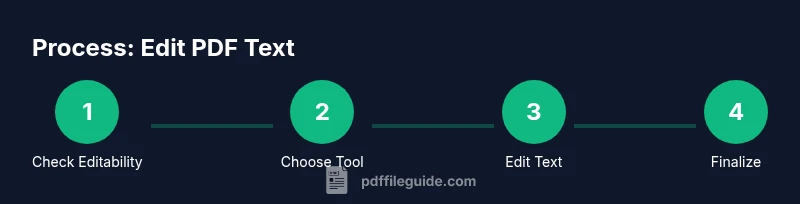
A practical workflow begins with a clear edit objective, followed by tool preparation, and ends with rigorous validation. Start by identifying the exact text to change and gather fonts and licenses needed. Open the PDF in your editor and test the text layer; if editable, perform the edits with attention to font compatibility. If you must convert, choose a reliable conversion path, then re-import the content and re-check layout. After edits, run a checks for accessibility tags, table of contents, and searchability. Output the final document as a new file, keeping the original as a backup. Finally, share a diff or annotation summary to communicate changes to teammates or stakeholders.
Common pitfalls and how to avoid them
Editing a PDF can introduce subtle issues: font substitutions, altered line breaks, or misaligned images. To avoid these, always edit on a duplicate file, verify font licenses, and compare the before/after versions page by page. If you rely on OCR, proofread the text against the original and correct misread characters. When changing content, ensure factual consistency and avoid altering the document’s tone or legal meaning. Inaccessible edits can also create barriers for assistive technologies, so preserve logical reading order and tagging. Finally, document the changes and preserve an archival copy rather than overwriting the original without traceability.
Tools & Materials
- PDF editing software(Choose a tool with a dedicated Edit Text feature and robust font handling.)
- Fonts and licenses(Have the exact font files or licenses if font substitution is needed.)
- Original source PDF and backups(Keep a clean copy before editing; use versioned backups.)
- OCR software (optional)(Needed for scanned or image-based PDFs to create a real text layer.)
- Word processor export capability (optional)(Useful when converting long edits for easier revision.)
- Access to edit permissions (if protected)(Obtain password or owner rights as required.)
Steps
Estimated time: 45-90 minutes
- 1
Assess the PDF's editability
Open the document in your editor and try selecting text. If you can highlight words, it’s likely editable; if not, the content might be an image or locked. Determine the need for OCR or a permissions check before proceeding.
Tip: Test on a small section first to confirm editing behavior without risking the whole document. - 2
Prepare your editing toolkit
Install or open the required PDF editor, ensure fonts are accessible, and prepare a backup copy of the original. If you plan to substitute fonts, confirm licensing and embedding capabilities.
Tip: Create a named copy (e.g., Document_v2.pdf) to track changes easily. - 3
Edit existing text
Use the Edit Text tool to modify words, adjust typography, and keep line breaks consistent with the original layout. Watch for unintended reflow and ensure spacing remains balanced.
Tip: Work in small chunks and compare each change to the original layout. - 4
Handle non-editable sections
If some text won’t edit, determine whether it’s an image layer or protected content. Apply OCR to create a text layer, or re-create the section in a separate editor if necessary.
Tip: After OCR, proofread for misrecognized characters and fix them promptly. - 5
Validate and optimize
Check font consistency, alignment, colors, and accessibility. Ensure the document structure remains intact for screen readers and search indexing.
Tip: Run a quick accessibility and search-index check to catch issues early. - 6
Finalize and archive
Save the final version as a new file, document the edits, and keep the original intact. Share the change log with collaborators if needed.
Tip: Export a PDF/A or another archival-friendly format if long-term preservation is required.
Questions & Answers
Can I edit a PDF without converting it to another format?
Yes, if the PDF has an editable text layer and editing permissions. If not, you may need OCR or a different workflow. Always verify permissions before editing.
You can edit some PDFs directly if they’re not protected and contain editable text.
What tools are best for editing PDFs?
A capable PDF editor with a dedicated Edit Text feature is ideal. For complex edits, consider converting to a word processor, then re-exporting as PDF.
A capable editor with text editing and proper font handling works best, especially for complex layouts.
Is OCR required for scanned PDFs?
Yes. Scanned PDFs are image-based and require OCR to create a searchable and editable text layer. Post-OCR proofreading is essential.
If the PDF is just a scan, OCR is usually necessary to edit the text.
How can edits affect accessibility?
Incorrect edits can disrupt reading order and tagging. Always check that edits preserve accessibility metadata and screen-reader compatibility.
Edits can affect accessibility, so verify the document’s structure after changes.
Can I edit PDFs on mobile devices?
Yes, for simple edits with mobile apps, but you’ll often lose some layout fidelity. For thorough edits, use a desktop editor.
Mobile edits are possible for quick changes, but desktop editing is preferred for accuracy.
How do I preserve fonts when editing?
Use embedded fonts and license-compliant substitutions. Avoid changing font metrics unless necessary to maintain layout.
Keep fonts consistent and licensed to preserve the document’s look.
Watch Video
Key Takeaways
- Identify editability before starting.
- Choose the right tool for the job.
- OCR is essential for scanned PDFs.
- Preserve fonts and layout when editing.
- Always back up the original document.