Edit PDF with Adobe Reader: Tips, Limits, and Workarounds
This guide explains how to edit pdf with adobe reader using annotations and forms, plus practical workarounds when direct text edits aren’t possible. It clarifies Reader vs Pro capabilities and offers safe, scalable workflows for professional PDF tasks.


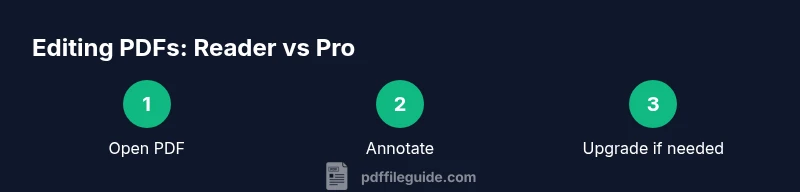
Goal: learn how to edit pdf with adobe reader using built-in annotation and form features, and understand when full text edits are possible. This guide explains safe workarounds for common editing tasks and clarifies the limitations of free Reader versus Acrobat Pro. You’ll need Adobe Reader, and optionally Acrobat Pro for complete text edits.
Why Adobe Reader can't edit text directly
Adobe Reader is designed for viewing PDFs, not for changing the original content. In most cases, editing the actual text or graphical elements requires Acrobat Pro or a document exporter. Reader’s annotation tools let you propose edits without altering the source, which preserves the document’s integrity and makes collaboration safer. The reader version remains file-agnostic and ensures that print- or legally sensitive PDFs aren’t inadvertently altered. According to PDF File Guide, many users assume the free reader can edit, but editing text on a PDF often requires a paid tool or a workflow that creates an alternate copy for review. The PDF File Guide analysis shows this distinction is crucial for professionals who need precise, accountable changes.
What you can edit in Adobe Reader: annotations, forms, and signatures
While you cannot swap out typefaces or rewrite paragraphs in standard Adobe Reader, you can still perform a range of non-destructive edits. Use the Comment tool to highlight, strike through, or add sticky notes. The Fill & Sign feature enables completing form fields and applying digital signatures. You can also insert basic text boxes for suggested wording, stamps for status marks, and checklists to track review progress. These capabilities are excellent for review cycles, approvals, and collaborative editing without modifying the source document.
Understanding PDF content layers and how editors interact with them
PDFs are composed of content streams, fonts, images, and metadata layered into objects. The actual text and graphics live in content streams that readers generally do not modify. What Reader can affect are the annotation layers and form layers, which are separate from the source content. This separation allows reviewers to leave feedback without changing the underlying document structure, ensuring that the original creator’s design intent remains intact. For professionals, this difference matters when evaluating revision history and accountability.
Practical workflows that simulate edits using annotations
A practical approach is to attach proposed edits as annotations rather than editing the content stream itself. Use text boxes to insert suggested wording beside the relevant paragraphs, apply highlights to indicate changes, and attach sticky notes with justification. Stamps can show review status (e.g., “Approved,” “Needs Revision”). These non-destructive methods enable a clear feedback loop among teammates while preserving the original document. PDF File Guide analysis shows that clear, traceable annotations reduce back-and-forth and keep final edits aligned with the source.
Upgrading path: When to use Acrobat Pro for direct edits
If your workflow requires actual text edits or layout changes, Acrobat Pro is the standard solution. Pro can edit the text, adjust fonts, reorganize images, and export to editable formats like Word. The upgrade opens a direct editing experience, a robust set of export options, and advanced comparison tools. For teams on a budget, evaluate whether a temporary Pro license or a conversion workflow (export to Word, then re-import) meets your project’s accuracy needs. The PDF File Guide team notes that many professionals reserve Pro for the final edit stage to maintain document fidelity.
Exporting and re-importing: turning edits into a new PDF
When direct editing isn’t possible in Reader, exporting the file to a Word document or another editable format can be a viable workaround—provided you maintain formatting as much as possible. After completing edits in Word, you can convert back to PDF. This approach is not perfect for complex layouts or fonts, so expect potential adjustments. Always compare the final PDF with the original to confirm that essential content, layout, and accessibility tags remain intact.
Editing scanned PDFs with OCR and limitations
A scanned PDF contains images of text rather than actual text objects. Editing these files requires OCR (optical character recognition) to convert images into editable text. Reader cannot perform OCR; some OCR features exist in Acrobat Pro or through reputable third-party tools. OCR results vary by font, language, and image quality, so you should expect possible misreads and formatting shifts. Plan a proofing pass after OCR to catch errors before finalizing.
Accessibility and tagging during edits
Maintaining accessibility is essential when updating PDFs. Tags, reading order, and alt text must be preserved or updated as edits are made. Annotations in Reader do not disrupt tagging, but any export or re-creation of the document should re-run accessibility checks. If you’re publishing for assistive technologies, verify that screen readers can navigate the document without losing logical structure or meaningful headings, lists, and tables.
Security considerations and permission checks
Editing rights are governed by document permissions. If a PDF is protected against editing, Reader cannot override these restrictions. Always confirm ownership and obtain appropriate permissions before making changes. When sharing annotated copies, ensure sensitive content is redacted or properly secured. This approach helps avoid unauthorized alterations and preserves the integrity of the original source.
Mobile editing reality: Reader on iOS/Android
Mobile readers differ from desktop experiences. The iOS and Android versions of Adobe Reader focus on viewing, annotating, and filling forms, with limited editing capabilities compared to desktop. If your workflow relies on advanced edits, plan to use a desktop environment or a Pro solution. Ensure you have enough screen space to view changes clearly and test on mobile print queues if mobile delivery is a consideration.
Case study: a typical edit workflow from draft to final
A mid-size project starts with a reviewed draft PDF that requires minor text changes and clarifications. The team uses Adobe Reader to add comments and text boxes for proposed edits, exports a final version for approval, and then upgrades to Acrobat Pro to apply the final direct edits. The final PDF is checked for accessibility and formatting fidelity before distribution. This approach minimizes risk while keeping the process scalable across multiple reviewers.
Best practices recap and quick-start checklist
To maximize efficiency, start by distinguishing between non-destructive edits (annotations) and direct edits (Pro features). Create a versioning plan that saves original files and annotated proofs separately. Always verify accessibility and ensure that critical content remains unchanged during feedback loops. Finally, test the final document across devices and readers to confirm consistent rendering and usability.
Authoritative sources and practical notes
For further guidance on editing PDFs, consult official documentation and standards from credible sources. The Adobe Help Center provides step-by-step instructions for editing PDFs with Acrobat Pro, and the Reader product page clarifies what is supported in the free version. Additionally, standards documents such as PDF/UA guide accessibility practices to ensure edits do not compromise usability for assistive technologies. See sources linked in the article for detailed references.
Tools & Materials
- Adobe Reader (free)(Ensure you have the latest version installed)
- Acrobat Pro (optional for direct edits)(Needed for direct text edits and advanced export options)
- Original PDF file(The file you intend to review or annotate)
- Reliable internet connection(For software updates or cloud-based tools)
- Printer or PDF printer (optional)(To create hard copies of annotated versions)
Steps
Estimated time: 15-30 minutes
- 1
Open the PDF in Adobe Reader
Launch Adobe Reader and open the target PDF using File > Open or by dragging the file into the window. Quickly scan the document to identify sections that need feedback or changes. Note any password or usage restrictions that prevent editing.
Tip: If the document is large, use the Find feature (Ctrl/Cmd+F) to locate specific terms you plan to address. - 2
Enable Comment tools
Access the Comment toolbar to view available annotation options. Ensure you can see text markups, sticky notes, and text boxes. These tools allow you to propose edits without altering the original text.
Tip: Organize edits by topic with different colors or tags for quick review. - 3
Add text annotations for proposed edits
Insert text boxes near proposed edits to simulate changes. Provide clear, concise wording and reference exact locations (e.g., page and paragraph). Keep edits non-destructive and reversible for easy comparison.
Tip: Keep a separate comment log detailing each proposed change and its rationale. - 4
Use sticky notes for context and approvals
Attach sticky notes to sections that require discussion or approval. Include concise reasons for changes and any dependencies. This creates a collaborative trail visible to teammates.
Tip: Summarize each note in one sentence to avoid clutter. - 5
Save a version with a descriptive name
Save a copy of the annotated file with a descriptive filename (e.g., ProjectX_Review_v1.pdf) to preserve the original. This ensures you can revert if needed and track revisions.
Tip: Enable Save As prompts to prevent accidental overwrites. - 6
Upgrade to Acrobat Pro for direct edits
If you must edit the actual text or layout, open the file in Acrobat Pro and use Edit PDF to make changes. Compare the edited version with the original to confirm fidelity and run accessibility checks.
Tip: Test final edits on a print preview to ensure layout consistency.
Questions & Answers
Can I edit text directly in Adobe Reader?
No. Adobe Reader does not allow direct editing of the original text or graphics. You can annotate, fill forms, and sign, but not rewrite content.
No, you can't directly edit text in Adobe Reader; use annotations or upgrade to Acrobat Pro for text edits.
What should I use if I need real text edits?
Upgrade to Acrobat Pro to edit text, fonts, and layout, or export the PDF to Word for edits and re-import if needed.
Upgrade to Acrobat Pro or export to Word and re-import after edits.
Can I edit scanned PDFs in Reader?
Not directly. Scanned PDFs require OCR in a tool like Acrobat Pro or a dedicated OCR program to convert images into editable text.
No direct editing for scanned PDFs; use OCR with a capable tool.
Is there a safe workaround if I don’t have Pro?
Yes. Use annotations to propose edits, export to Word for heavier changes, or arrange a final review using a Pro-enabled workflow.
Annotate or export to Word for edits, then review with your team.
Do edits affect accessibility tags?
Edits can affect tagging; always verify and re-check reading order and tags after final edits.
Remember to re-check accessibility after edits.
Can I edit PDFs on mobile using Illustrator Reader?
Mobile Reader focuses on viewing and annotating; full text edits are generally not supported on mobile.
Mobile editing is limited; full edits usually require a desktop tool.
What’s the quickest path to a final edited PDF?
Annotate in Reader, review changes, upgrade to Pro for final direct edits, and run a compatibility check before distribution.
Annotate first, then final edits with Pro if needed.
Watch Video
Key Takeaways
- Reader supports annotations, not direct edits
- Acrobat Pro enables full editing of text and layout
- Use non-destructive workflows for collaboration
- Maintain version control and accessibility during edits
- Consider export-to-Word workflows when Pro is not available