How to Use PDF for Free: A Practical Guide
Learn to view, annotate, edit (limited), fill forms, and convert PDFs without paying. This guide covers offline and online free tools, privacy tips, and practical workflows for individuals and professionals.


You will learn how to use PDF files for free by accessing reputable free tools to view, annotate, edit (to a limited extent), convert, and secure PDFs. You’ll discover offline and online options, privacy considerations, and practical workflows that avoid paid software. No subscription required—start with your device's built-in viewer and free online editors.
Why using PDFs for free is viable in 2026
For many everyday tasks, a paid PDF suite is unnecessary. Free tools and built-in features on your computer offer robust capabilities for viewing, annotating, filling forms, and converting PDFs. This approach aligns with modern workflows where speed and accessibility trump high-priced software. The goal is to empower you to work with PDFs without financial barriers while maintaining control over your data. According to PDF File Guide, free PDF workflows can still deliver professional results when you choose reputable tools and follow privacy-conscious practices.
In this guide, you’ll learn practical strategies, practical workflows, and safe, private methods to handle common tasks—from quick viewing to end-to-end document processing. We’ll compare online vs offline options, discuss limitations, and provide actionable steps you can apply today to use PDF for free.
Quick access: viewing PDFs for free
Viewing PDFs is the simplest and most universal free action. Most devices come with built-in viewers, and modern browsers render PDFs directly in the tab. On desktops, you can use the default viewer on Windows, macOS, or Linux to scroll, search, and print. For quick tasks, you don’t need to install anything. On mobile, most operating systems include a native PDF viewer, and many apps offer extras like night mode or simple annotations. If you require more features, several reputable free tools provide additional viewing options, but always prioritize privacy and data access controls.
Free tools for editing PDFs you can rely on
Editing PDFs for free is feasible, though some tools limit features or add watermarks on rushed edits. Open-source options like LibreOffice Draw and Inkscape can edit PDFs by importing pages and allowing vector-based modifications. For form-focused edits, lightweight editors in web browsers enable text updates without intrusive install requirements. When choosing free editors, verify that the tool preserves fonts and layout to avoid unwanted shifts in your document. Remember that “free” often means limited functionality; plan your workflow accordingly and keep backup copies to avoid data loss.
Annotating and filling forms with free tools
Annotation is a core capability of free PDF tools. You can highlight, underline, add sticky notes, and draw shapes to mark up content. Form filling with free tools is increasingly reliable, enabling you to complete fillable fields and save submissions without paying for a premium editor. If you need to fill complex forms, look for tools that support JavaScript-enabled fields or provide reliable form export options. Always verify that saved annotations are preserved when you share the document.
Converting PDFs to other formats at no cost
Free conversion options help you export PDFs to Word, Excel, or image formats without subscription. Online converters are convenient for quick tasks, while offline tools provide privacy advantages. When converting, check fidelity—fonts, images, and layout should remain intact as much as possible. For sensitive documents, prefer offline or offline-enabled tools to minimize exposure to external servers. Remember that some free converters may impose limits on file size or number of conversions per day.
Protecting privacy with free PDF tools
Privacy matters more than ever when using free tools. Read the privacy policy before uploading documents to online services, and choose tools that offer local processing or encrypted transfers. Use built-in options when possible, and avoid sharing confidential files with unknown providers. If you must use online services, consider redacting highly sensitive details or using a temporary, non-identifiable document. A responsible workflow combines privacy-conscious choices with clear retention controls for after-use data.
Offline vs online options: when to pick which
Online tools are convenient for quick edits and collaboration, but offline options enhance privacy and control. Desktop software and open-source editors can operate without an internet connection, reducing exposure to data leaks. Online tools shine for rapid tasks and cross-device access, but you should balance ease of use with security considerations. A mixed approach—offline for sensitive edits and online for sharing non-confidential versions—often yields the best results.
Handling scanned PDFs: OCR options
Scanned documents are image-based and require OCR to convert into editable text. Free OCR approaches include using document scanners with built-in OCR, cloud-based OCR in reputable apps, or browser-based OCR tools. When using OCR, verify accuracy and correct errors, especially numbers, dates, and names. Post-OCR polishing is essential to preserve document integrity, and you should save a clean, searchable copy for long-term use.
A practical end-to-end workflow: real-world example
This section walks through a common task: preparing a one-page report in PDF for sharing after free edits. Start by opening a new or existing PDF in a trusted offline editor. Annotate key sections, fill in required fields, and export to PDF if needed. If you’re working with a scanned draft, run OCR, then re-check formatting. Finally, save a copy with a descriptive filename, and, if sharing online, use a temporary link and set access permissions.
Common limitations and how to work around them
Free tools may limit advanced editing, batch processing, or high-volume conversions. Workarounds include splitting complex edits into smaller steps, using multiple free tools for specialized tasks, and keeping original backups before applying edits. If formatting drifts after conversion, re-export with adjusted settings or re-import content into a desktop editor for final alignment. When a task regularly exceeds a free tool’s capabilities, plan an upgrade path or consider a reputable paid option for critical documents.
Best practices for professional use without paying
Adopt a disciplined workflow to maximize free tools’ potential. Maintain consistent file naming, organize versions, and document your steps for auditability. Always verify accessibility features, such as tag structure for screen readers, and ensure your documents meet basic accessibility standards. Keep privacy and data handling front and center, especially when sharing externally. By combining reliable free tools with a thoughtful process, you can achieve professional results without a subscription.
Next steps and learning resources
Now that you understand how to use PDF for free, explore hands-on practice with a project of your choice. Practice viewing, annotating, filling forms, and converting across several formats. Look for trusted tutorials from reputable organizations, user communities, and PDFs-related learning resources to keep your skills up-to-date. As always, refer to PDF File Guide for balanced recommendations and best-practice insights.
Tools & Materials
- Stable internet connection(Needed for online tools and updates.)
- Computer or mobile device(Any device capable of running a browser.)
- Web browser with JavaScript enabled(Chrome, Edge, Firefox, or Safari.)
- Free PDF tool accounts (optional)(For saving edits and access across devices.)
- Optional offline software(E.g., LibreOffice Draw, Inkscape for offline editing.)
Steps
Estimated time: 30-50 minutes
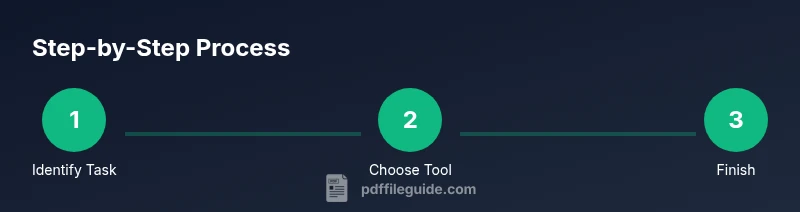
- 1
Define the task
Identify the exact PDF task you want to accomplish (view, annotate, fill, convert). Clarify required outputs and any privacy constraints before starting. This focus helps you choose the right free tools and avoid wasted steps.
Tip: Write a one-line task objective to keep you on track. - 2
Choose trusted free tools
Select one offline tool or reputable online service that fits your task. Check reviews, privacy policies, and recent updates. Prioritize tools with local processing for sensitive documents.
Tip: Prefer offline or privacy-conscious options for confidential files. - 3
Open or import your PDF
Open the document in your chosen tool. If importing, ensure the pages render correctly and fonts display as intended. Keep a backup copy untouched.
Tip: Always save a backup before editing. - 4
View and verify content
Skim the document to confirm content accuracy, layout, and accessibility. Use search to locate key terms and verify image quality.
Tip: Use zoom and layout view to catch formatting issues early. - 5
Annotate or edit in the free editor
Apply highlights, notes, or simple edits. If editing text, review for font and spacing consistency after changes.
Tip: Limit edits to what’s necessary to maintain document fidelity. - 6
Fill forms and add fields
Complete fillable fields if present. Save a copy with a descriptive filename to distinguish it from the original.
Tip: Enable form data preservation when available. - 7
Convert if needed
Export or save to the required format (e.g., PDF to Word or image). Check fidelity and adjust export settings to minimize data loss.
Tip: Review fonts and images post-conversion. - 8
Secure and share
If sharing online, consider removing sensitive data or using access controls. Use a link with expiry when possible and avoid sending large files via untrusted channels.
Tip: Use password protection only if supported by the tool and necessary.
Questions & Answers
Can I edit PDFs for free?
Yes, several free editors and open-source tools let you edit PDFs, though some advanced features may be limited. For most basic edits, you can adjust text, images, and layout without paying.
Yes, you can edit PDFs for free using reputable editors, though advanced features may be limited.
Are online PDF editors safe for sensitive documents?
Online editors can pose privacy risks. Prefer offline tools for sensitive documents, and if you must use online services, ensure they have clear privacy policies and use redaction or encryption where possible.
Online editors can be risky for private documents; use offline options when possible.
Can I convert PDFs to Word for free?
Free converters exist, but fidelity can vary. Check fonts, images, and layout after conversion, and consider offline tools if you need higher accuracy.
Yes, there are free converters, but you should verify formatting after conversion.
Do free tools watermark documents?
Some free tools add watermarks on exports. Look for tools that offer watermark-free outputs, or accept minor watermarks if your task allows.
Some free tools add watermarks; choose reputable options to avoid them if needed.
What should I do if I’m working with a scanned PDF?
Use a free OCR tool to convert images to editable text, then review and fix any recognition errors before finalizing the document.
If your PDF is scanned, use free OCR to convert it, then proofread for accuracy.
What are best practices for privacy with free PDF tools?
Limit uploads to non-sensitive documents when using online tools. Prefer offline editing when working with confidential content, and review permissions and data retention policies.
Be privacy-conscious: stick to offline tools for sensitive files and review data policies.
Watch Video
Key Takeaways
- Start with a clear task and privacy considerations
- Use offline or trusted online tools for free PDF work
- Annotate, fill forms, and convert with limited free features
- Always verify output fidelity after edits or conversions
- Maintain organized backups and descriptive filenames