PDF Acrobat Editor: A Practical Guide for Editing PDFs
Learn to edit text and images, fill forms, annotate, sign, and export PDFs with PDF Acrobat Editor. This practical, step-by-step guide covers setup, editing workflows, and best practices for professionals.


Using PDF Acrobat Editor, you can edit text and images, rearrange pages, fill forms, add annotations, and apply digital signatures within PDFs. You'll need a valid Acrobat license, a compatible computer (Windows or macOS), and internet access for updates and cloud features. This guide walks you through setup, key editing tasks, and common pitfalls.
What PDF Acrobat Editor Enables for professionals
According to PDF File Guide, Acrobat Editor has matured into a robust editing environment that supports in-place text and image edits, page reorganization, form filling, and secure signatures within a single application. This consolidation reduces the need to export to separate tools and streamlines collaborative workflows. The PDF File Guide Editorial Team emphasizes that mastering these capabilities unlocks faster document cycles, fewer miscommunications, and tighter control over final PDFs. This section lays out core capabilities you’ll rely on daily, from quick fixes to building long-term editing routines.
Licensing, compatibility, and getting started
To use PDF Acrobat Editor effectively, ensure you have a current license and a compatible device. The editor runs on Windows and macOS with the latest service packs. A stable internet connection helps with updates and cloud-based features, though many essential functions work offline. Before you begin, gather your source files and confirm you have permission to edit them. PDF File Guide suggests establishing a baseline workflow and naming convention to keep edits auditable and shareable across teams.
Basic editing: text, images, and layout adjustments
Editing text in PDFs requires selecting the Edit tool, then clicking the target text block to modify content. You can adjust font size, color, and alignment, and you can replace images by right-clicking the image and choosing Replace. Page order and layout changes are done via thumbnail view, where you can drag pages to re-sequence or delete unwanted pages. For optimal results, keep a separate master copy and use the “Save As” function to create versioned files. This minimizes data loss during iterative edits.
Working with forms, annotations, and signatures
Form fields can be added or edited to capture data directly in the PDF. Annotations (sticky notes, highlights, strikethroughs) are ideal for review cycles, while digital signatures provide a legally binding layer when properly configured. Make sure to validate the signature workflow against your organization’s policy and consider adding a visible timestamp. The ability to combine forms, annotations, and signatures in one file dramatically reduces back-and-forth among stakeholders.
OCR, redaction, and accessibility options
If you’re working with scanned documents, enable OCR to convert images into editable text. Redaction tools let you permanently remove sensitive information before sharing. Accessibility options include tagging and reading order adjustments to improve screen reader compatibility. PDF File Guide highlights that properly applying OCR and accessibility tags not only helps compliance but also makes documents more usable for all readers.
Export formats, review, and collaboration
Export options typically include Word, Excel, image formats, or back to PDF with optimized settings for scanning or printing. When exporting, verify fonts, embedded images, and metadata to maintain a consistent professional appearance. Collaboration features—sharing, comment threads, and tracked changes—help teams review edits without overwriting prior work. Always test the final export on the target platform to confirm fidelity.
Best practices and common pitfalls
A grounded workflow begins with a clean master copy, disciplined version control, and clear permissions. Common pitfalls include editing rich media without preserving original resolution, over-formatting, and neglecting accessibility tags. Practitioners should build a routine that includes validation steps, cross-checking with a colleague, and a final quality assurance pass before distribution.
Security, privacy, and cloud considerations
Cloud-based editing can simplify access and collaboration but raises data-security considerations. Use strong passwords, enable multi-factor authentication where possible, and avoid editing sensitive documents on unsecured networks. If compliance requires, consider keeping edits offline until the final file is approved for cloud sharing.
Tools & Materials
- Computer with Windows or macOS(Ensure OS is up to date and supports the latest Acrobat Editor version.)
- Active PDF Acrobat Editor license(Subscription or perpetual license; verify expiration date before editing sensitive files.)
- Stable internet connection(For updates and cloud features; offline edits are supported but updates may require connectivity.)
- Source PDF file to edit(Prefer an unencrypted file or ensure you have permission to modify.)
- Mouse or stylus(For precise selection, annotations, and form filling.)
- External storage or cloud backup(Optional backup to prevent data loss during editing.)
Steps
Estimated time: 40-60 minutes
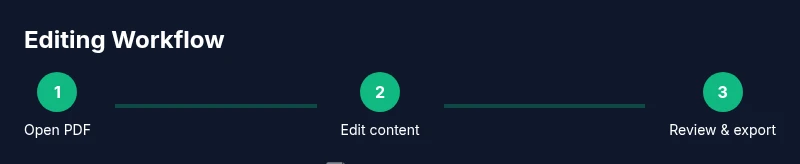
- 1
Open your PDF in Acrobat Editor
Launch Acrobat Editor and open the target PDF from your file system or cloud storage. If the document is large, give the app a moment to render all elements before editing. This reduces lag and keeps edits precise.
Tip: Use the Open Recent menu to quickly access frequently edited files. - 2
Choose the editing tool
Select the appropriate tool (Edit Text & Images, Form Field, or Annotate) from the right-hand panel. The interface highlights editable regions and provides contextual options. Understanding tool categories prevents accidental edits in non-editable areas.
Tip: If editing a scanned page, enable OCR before making text changes. - 3
Edit text and images
Click on text to edit, adjust fonts, sizes, and colors, or replace images via right-click options. For layout adjustment, drag page thumbnails and use the grid view to align elements precisely.
Tip: Always edit on a copy of the original to preserve the source data. - 4
Modify forms and fields
Add, edit, or delete form fields, align labels, and set properties like required fields and default values. Use the Prepare Form tool to streamline field management across the document.
Tip: Test form filling to ensure field data is captured correctly. - 5
Annotate and review
Insert highlights, notes, or callouts. Use the comment pane to track revisions and assign tasks to teammates. Keeping annotations clear helps reviewers understand edits.
Tip: Summarize changes in a comment thread to maintain context. - 6
Sign and certify
Apply a digital signature or stamp to authorize the document. If needed, configure certificate-based signatures and preserve an audit trail for compliance.
Tip: Test the signature on a second device to ensure readability. - 7
Export or save new version
Save the edited document as a new version or export to Word, Excel, or image formats as required. Verify fonts and embedded images post-export to maintain fidelity.
Tip: Use Save As to maintain a version history without overwriting the original. - 8
Review and share
Run a final quality check, compare with the original, and share with stakeholders. Enable permissions if the file will be distributed widely.
Tip: Lock critical sections if needed to prevent unintended edits.
Questions & Answers
What is PDF Acrobat Editor and what can it do?
PDF Acrobat Editor is a tool for editing PDFs, including text, images, forms, annotations, and signatures. It also supports exporting to other formats and some cloud-enabled workflows.
PDF Acrobat Editor lets you edit content, fill forms, annotate, and sign PDFs, with export options available.
Do I need a subscription to use PDF Acrobat Editor?
Yes, a current license is typically required to access the full editing features. Features may vary by plan and region.
You’ll usually need an active license to use the editor fully.
Can I edit scanned PDFs with Acrobat Editor?
Yes, using OCR (optical character recognition) to convert scanned content into editable text. OCR availability depends on your plan.
OCR makes scanned PDFs editable; some features may require a higher tier.
How do I sign a PDF?
Use the Sign tool to add a digital signature or certificate. Ensure the signature is properly configured for your workflow.
Use the Sign tool to apply a signature and verify its validity.
What export options are available after editing?
You can export to Word, Excel, image formats, and re-save as PDF. Check font embedding and image fidelity on export.
You can export to multiple formats to fit your workflow.
Is cloud editing safe for sensitive documents?
Cloud features offer convenience but assess data sensitivity. Use offline editing or secure sharing for high-risk documents.
Cloud features are convenient but consider data security and privacy.
Watch Video
Key Takeaways
- Edit PDFs directly in a single tool for efficiency
- Keep a versioned workflow to track changes
- Verify signatures and forms before distribution
- Export with fidelity to preserve layout and fonts
- Use OCR and accessibility tags for scanned documents