PDF editing on iPad: A practical guide for 2026
Master PDF editing on iPad with practical steps, app recommendations, and best practices for annotations, form filling, page management, and secure exporting in 2026.


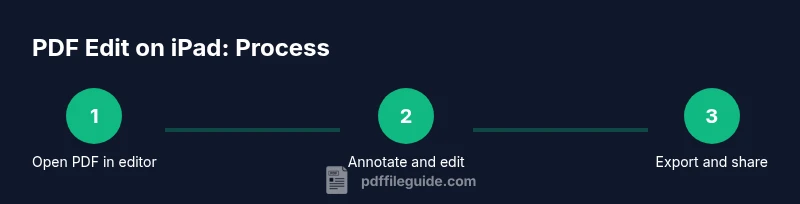
You can edit PDFs on iPad by using dedicated apps to annotate, fill forms, edit text (where supported), and export the finished file. Pick one editor that matches your workflow, open your PDF, and save or share the updated document. For best results, keep a backup of the original before making edits.
Why editing PDFs on iPad matters
In today’s mobile-driven workflows, professionals often need to review, annotate, and modify PDFs while away from a desk. The iPad provides a blend of touch-first interaction, pen input, and capable editing apps that make this possible without switching to a laptop. According to PDF File Guide, modern editors leverage tablets to accelerate feedback loops during meetings, client reviews, and field work. You can highlight text, add comments, insert sticky notes, and compare versions side by side. The ability to export finalized documents to teammates or customers keeps projects moving forward, even when everyone is dispersed. With the right combination of hardware, software, and cloud storage, you can complete most PDF editing tasks directly on a tablet, preserving layout integrity and document security. This guide focuses on practical, real-world workflows for 2026 devices, showing you how to select apps, plan edits, and maintain quality while staying within file size and compatibility constraints.
Supported workflows on iPad
PDF editing on the iPad encompasses a range of activities, from quick annotations to more advanced content modification. Start by distinguishing two broad workflows: lightweight annotation and more substantial content editing. Annotation includes highlights, underlines, shapes, stamps, and comments that communicate feedback without altering the original text. Content editing may involve text or image changes, form filling, and page rearrangement. Not all PDFs support direct text edits; some are scans requiring OCR. In practice, most professionals combine annotation with occasional text edits and form interactions. The iPad’s multi-touch gestures and optional Apple Pencil provide precise control, while cloud storage lets you sync edits across devices. When choosing a workflow, consider the document’s purpose: a review draft might rely on annotations, while a contract may require secure signing and form fields. Finally, keep your workflow consistent across projects to reduce errors and save time.
Best iPad apps for PDF editing
A handful of apps consistently deliver reliable PDF editing on iPad across common tasks. Choose a primary editor that fits your typical workflow and supplement with other tools for specialized needs. Look for robust annotation tools, reliable form support, and solid export options. Features to prioritize include: multi-page editing, text reflow or OCR, form autofill, digital signatures, and high-quality export with lossless or compressed options. Examples of commonly used editors in professional settings include feature-rich options that support annotations, forms, and secure sharing. When evaluating apps, consider your budget, offline capabilities, and how well the app integrates with your cloud services. The best approach is to trial 2–3 apps to determine which interface and toolset align with your approach to PDF work on iPad.
Annotating and markup on iPad: strategies that speed review
Annotations are the lifeblood of quick reviews. Use consistent colors to categorize comments (for example, yellow for questions, blue for approvals). The iPad’s Apple Pencil enables precise highlighting, margin notes, and callouts. Leverage skins and templates for standardized marks to reduce cognitive load. When a document includes forms, keep annotations out of form fields to avoid cluttering interactive sections. For longer documents, enable split-screen or picture-in-picture to compare multiple pages side by side. Regularly save and export interim versions so you can revert if a change introduces layout shifts. Finally, practice a two-step review: first mark up, then perform a final pass to ensure readability and consistency.
Editing text and images in PDFs on iPad
Text editing inside PDFs is supported primarily in editable PDFs or PDFs created with interactive text boxes. For scanned documents, OCR is often required to convert images of text into selectable content. Choose an app with reliable OCR if you anticipate heavy text edits. When actual text editing is possible, ensure font consistency by using embedded fonts or standard system fonts. Image edits usually involve replacing or repositioning images rather than fully editing raster content; some apps offer basic crop and replace functions. Remember that complex typography or embedded fonts may not carry over perfectly after export, so perform a final check after saving. In practice, plan for occasional manual adjustments and verify cross-platform compatibility for recipients.
Working with forms and fillable PDFs on iPad
Fillable forms provide a powerful way to collect data on the go. Look for forms that support keyboard input, dropdowns, and digital signatures. Some PDFs are static scans, requiring OCR to present editable fields; others already include interactive form fields. When filling forms, verify that all required fields display correctly on your device and that saved data persists after exporting. Digital signatures require appropriate security settings; ensure your chosen app supports certificate-based or ID-based signing if needed. After completion, test the form by re-opening and verifying that all fields are preserved and that the data is exportable in a commonly used format (e.g., fillable PDF or flattened form).
Managing pages and document structure on iPad
Page management helps maintain a clean, navigable PDF. Use thumbnail views to reorder pages, delete unnecessary pages, or insert new ones. Some apps allow you to rotate pages, extract sections, or merge multiple PDFs into a single document. When rearranging content, keep the logical flow consistent with the document’s purpose; a jumbled sequence can undermine readability. Always save a backup before performing large restructures. If you rely on external references, ensure page numbers and bookmarks remain accurate after edits. A well-organized PDF improves both user experience and downstream workflows.
Exporting, sharing, and preserving quality
Export options determine how readers experience your edits. Choose an export profile that preserves form fields where needed, preserves hyperlinks, and balances file size with image and font quality. For workflows to other devices, consider cloud sharing, email, or secure file transfer. Some apps offer options to flatten forms to prevent accidental edits, while others preserve interactivity for recipients who need to fill out the form. When sending externally, verify the recipient’s software compatibility to avoid mis-rendered fonts or missing images. Finally, keep an eye on size limits for attachments and consider compressing large PDFs when necessary.
Tips for reliability, backups, and security
Backups protect you from accidental edits and corruption. Keep an original copy stored in a trusted cloud location or external drive. Use independent tools for sensitive PDFs and limit access with password protection where supported by your app. If you work across devices, enable automatic syncing to ensure you always have the latest version. When sharing, use secure channels and verify permissions. In addition, PDF File Guide’s analysis, 2026, suggests adopting a consistent naming convention and version control to streamline collaboration and reduce errors. These practices help maintain reliability and data integrity.
Authoritative references and next steps
- National Institute of Standards and Technology (NIST) on PDF basics: https://www.nist.gov/topics/pdfs
- ISO PDF standards overview: https://www.iso.org/standard/32000.html
- PDF Association and accessibility resources: https://www.pdfa.org/
For next steps, practice a simple two-file workflow: annotate one PDF and export a second one with embedded fonts. Track times and note any issues to improve your next session.
Tools & Materials
- iPad (with recent iPadOS)(Have a supported model with access to the App Store)
- PDF editing app(Choose a capable editor with annotation, form, and export features)
- Apple Pencil (optional)(Helpful for precise markup and handwriting notes)
- Cloud storage or local file access(Apps should be able to access and save PDFs to cloud or local storage)
- Keyboard or trackpad (optional)(Speeds navigation for longer editing sessions)
- Backup strategy (original copies)(Keep originals in a safe location before editing)
Steps
Estimated time: 60-90 minutes
- 1
Open or import the PDF
Launch your chosen editor and import the target PDF from iCloud, Files, or another cloud service. Verify the document opens correctly and take a quick glance at layout and fonts. This initial step sets the stage for accurate edits.
Tip: If the file is in another app, use the share/export option to move it into your editor. - 2
Annotate the document
Apply highlights, comments, and shapes to capture feedback without changing the original content. Use consistent color coding to distinguish questions, approvals, and changes. Save frequently to prevent loss of markup.
Tip: Create a short legend for your color codes to maintain consistency across projects. - 3
Edit text and images (where supported)
If the PDF supports editable text, adjust wording or replace images as needed. For scanned documents, enable OCR if your app provides it. Check fonts and embed or substitute fonts to preserve appearance.
Tip: Always run a quick font check after edits to ensure readability on other devices. - 4
Fill forms and apply signatures
Interact with form fields to enter data, select options, or insert signatures. Verify that autofill works and that data persists after saving. For legal documents, ensure the signature method aligns with your workflow.
Tip: Test the form by reopening and ensuring all entered data remains intact. - 5
Reorder pages and manage layout
Use the thumbnail view to reorder pages, delete unwanted pages, or insert new ones. Maintain logical flow and preserve bookmarks if present. Always back up before major restructures.
Tip: After reordering, skim the document to confirm the sequence reads naturally. - 6
Export and share
Choose an export profile that suits your recipient (preserve fields, flatten, or compress). Share via secure channels or cloud links. Confirm the recipient can open and view the edited PDF without issues.
Tip: Inspect the exported file for missing fonts or broken links before distribution.
Questions & Answers
Can I edit text on iPad PDFs?
Yes, you can edit text in PDFs that support editable fields or have OCR-enabled text. For scanned PDFs, OCR is often required to convert images into selectable text. Some apps offer limited text editing capabilities; always verify font consistency after edits.
You can edit text in PDFs that support editing or OCR; for scans, OCR is usually needed.
Best app for iPad PDFs?
There isn’t a single best app; choose one that fits your primary tasks—annotation, form filling, and export. Try at least two apps to compare interface, accuracy of OCR, and reliability of exports.
There isn’t one best app; try a couple to find the best fit for your tasks.
Can I fill forms on iPad PDFs?
Yes. Many editors support interactive form fields, dropdowns, and signatures. If a PDF is a static scan, you may need OCR or to convert it into an editable form first.
Yes, forms are writable on many iPad PDF apps, especially with editable fields.
Is cloud storage safe for PDFs?
Cloud storage can be safe if you use trusted providers and enable strong access controls. For sensitive PDFs, use apps with built-in encryption and consider additional password protection on your documents.
Cloud can be safe with trusted providers and good security practices.
Can I edit scanned PDFs on iPad?
Editing scanned PDFs typically requires OCR to convert images to selectable text. Some apps include built-in OCR; results vary, so verify the accuracy before finalizing edits.
Editing scanned PDFs usually needs OCR to convert text.
How do I merge or split PDFs on iPad?
Many iPad PDF editors offer page-level tools to merge multiple documents or extract sections. Start with a backup, then use thumbnail view to perform the operations and recheck the document flow afterward.
You can merge or split PDFs using page tools; back up first.
Watch Video
Key Takeaways
- Choose the right app for your workflow
- Annotate, fill forms, and export with quality
- Back up originals before major edits
- Leverage cloud syncing for cross-device access