Can You PDF on iPhone? A Practical How-To Guide for iOS Today
Learn how to create, view, annotate, and share PDFs on iPhone using built-in tools and trusted apps. This guide covers saving web pages as PDF, filling forms, signing, and optimizing PDFs for mobile workflows.


If you’re wondering can you pdf on iphone, the answer is yes using built-in apps like Files and Markup, plus trusted third-party tools. This quick guide highlights how to create, annotate, fill forms, and share PDFs on iPhone for everyday work. Whether you need to save a web page as PDF, annotate contracts, or export emails as PDFs, you’ll find simple steps below.
Can you pdf on iphone: overview
Yes—can you pdf on iphone? The short answer is yes, thanks to built-in iOS tools and a growing ecosystem of apps. On iPhone, PDFs are a native file type that you can create, view, annotate, sign, and share from a few taps. According to PDF File Guide, can you pdf on iphone is commonly achieved with the Files app and Markup, plus trusted third-party editors when you need more advanced features. This article outlines what you can do on-device, which apps handle common tasks, and how to build a smooth mobile PDF workflow for work, school, or personal use. You’ll learn practical steps to convert documents to PDF, save web pages, and keep your PDFs accessible across devices. The goal is to empower you to complete typical PDF tasks without switching to a computer, using tools you already own.
Throughout this guide you’ll see how professional workflows translate to iPhone, with tips to stay organized and secure while mobile.
Native tools for PDF tasks on iPhone
Your iPhone ships with a powerful set of built-in tools to work with PDFs without third-party software. The Files app can store, preview, and organize PDFs; Markup lets you annotate, sign, and highlight directly inside PDFs; and the Print-to-PDF workflow (Share > Print > Pinch-out to Save as PDF) creates a PDF from almost any document. This built-in trio covers most day-to-day needs, from saving a webpage as PDF to stamping a contract with your signature. For professionals, these tools deliver a fast, reliable baseline that integrates with iCloud and other apps, ensuring you can access PDFs from anywhere. PDF File Guide emphasizes that starting with native capabilities keeps your workflow simple and lowers friction when you’re on the move. If you’re asking can you pdf on iphone, this approach is the fastest way to begin.
Saving web pages and emails as PDFs on iPhone
Saving content as PDF is often essential for offline access or archiving. In Safari, you can tap the Share button, choose Print, and then use the pinch gesture to reveal the Save as PDF option. This means you can convert almost any web page into a portable document you can store in Files or iCloud Drive. Similarly, you can save email attachments and even whole conversations as PDFs from Mail by using the Print or Share options. The advantage on iPhone is that this process requires no additional software and keeps everything accessible across devices. For a professional workflow, try saving critical sources as PDFs so you can annotate or reference them later without losing formatting.
In short, basic conversions are straightforward, and the built-in workflow is designed to be reliable and fast on mobile.
Annotating, signing, and filling forms on iPhone
Annotating PDFs on iPhone is quick with Markup, which lets you draw, highlight, and insert text or signatures. This built-in capability is often enough for most approval workflows, sketching notes, or adding a signature to a contract. If you require more advanced form filling or field validation, you can open the PDF in a third-party editor that supports fillable forms and advanced annotations. The iPhone’s native tools also support Apple Pencil on compatible devices, which can improve precision for signatures and diagrams. For professionals, this means you can review, annotate, and approve documents without leaving mobile. The ability to sign digitally directly on the document streamlines approval cycles and reduces dependency on paper.
Using third-party apps to extend PDF editing on iPhone
While the built-in tools cover many tasks, third-party apps like PDF editors expand capabilities for editing text, OCR, and advanced form handling. These apps can offer features such as editing embedded text (not just annotations), font embedding controls, batch processing, and more robust password protection. When choosing an app, look for reliable developers, offline editing support, and secure data handling. A practical approach is to start with a trusted free option and move to a paid app if you hit a feature you need for work or school. Third-party apps should complement, not replace, the proven native workflows that keep your mobile PDFs accessible and secure.
File size, compression, and readability for mobile PDFs
Reading PDFs on an iPhone benefits from optimized file sizes and clear typography. If a document feels slow to load or takes too long to share, use built-in compression options in apps that offer export settings, or leverage the Files app’s quick organization to store smaller, compressed versions. Avoid embedding large fonts or high-resolution images in documents intended for mobile viewing, unless necessary for print quality. For accessibility, ensure that fonts and contrast remain legible on small screens. By balancing quality and size, you maintain a smooth reading experience and faster sharing across apps and services.
Sharing, cloud syncing, and cross-device workflows
A key advantage of PDF workflows on iPhone is seamless cloud syncing. Save PDFs to iCloud Drive, then access them on your Mac or iPad, enabling consistent work across devices. You can also share PDFs via Messages, Mail, or AirDrop. For collaboration, consider keeping project PDFs in a shared cloud folder so teammates can add annotations or comments in real time. If you’re using third-party apps, verify their sync options and security settings. The ability to move smoothly between iPhone and other devices supports modern, mobile-first workflows that keep you productive on the go.
Accessibility and inclusive design for PDFs on iPhone
Mobile accessibility is essential for a broad audience. iPhone PDFs should maintain accessible structure, with proper tagging, readable fonts, and alt text for images when possible. VoiceOver and other screen readers can read PDF content, so ensure text contrasts well against the background. When you annotate, be mindful of readability and avoid small or cramped annotations that hinder accessibility. Some apps provide built-in accessibility checks; use them to confirm your PDFs are usable by everyone. PDF File Guide suggests testing important documents with accessibility features to prevent last-minute issues before sharing externally.
Common pitfalls and troubleshooting steps
Despite the simplicity of mobile PDF tasks, issues can arise. If you can’t find a Save as PDF option, check whether you’re in the correct app or whether the feature is restricted to certain document types. When signatures don’t render properly, try exporting the PDF or using a different app with more robust signing support. If fonts appear missing after export, ensure fonts are embedded or use a flatter document layout. For sensitive PDFs, consider password protection and review sharing permissions. By anticipating these pitfalls, you can troubleshoot quickly and keep your mobile PDF workflow moving.
Quick-start workflow you can try today
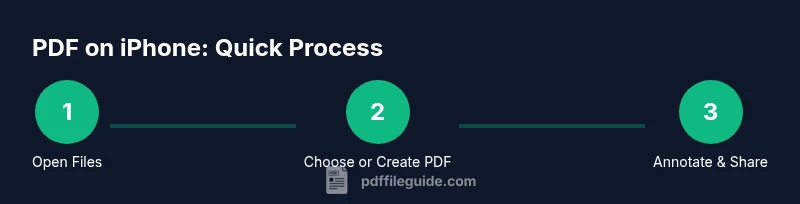
A practical, no-fuss workflow: 1) Identify the document to convert or annotate; 2) Use Files or Safari to Save as PDF; 3) Open in Markup to add notes or a signature; 4) Save back to Files or cloud storage; 5) Share via Messages or Mail; 6) If needed, open in a dedicated editor for advanced edits; 7) Compress and secure the final file before distribution. This pattern will help you stay organized and efficient when working on the go.
Tools & Materials
- iPhone with iOS 16+(Latest OS for best PDF features)
- Files app (built-in)(Primary hub for PDFs on device)
- Markup tools(Annotate, sign, and highlight PDFs)
- Third-party PDF editor/app (optional)(For advanced editing, OCR, and forms)
Steps
Estimated time: 25-40 minutes
- 1
Open the Documents you want as PDF
Locate the file in Files, Notes, Safari, or another app. Use Spotlight if needed to find it quickly. WHY: Starting from the source ensures you convert the exact content you need.
Tip: Use Spotlight search for speed and accuracy. - 2
Export or Save as PDF
If the source supports exporting, choose Save as PDF. For most apps, use Share > Print, then pinch out on the print preview to reveal Save as PDF. WHY: This is the universal way to create a PDF on iPhone without extra software.
Tip: In Safari, Save as PDF from the Share menu is often the fastest route. - 3
Choose a storage location
Save the PDF to Files or a cloud location like iCloud Drive. Organize by project or client to stay efficient. WHY: Consistent storage keeps you from losing important PDFs on the device.
Tip: Create a dedicated folder for PDFs to simplify later retrieval. - 4
Annotate or sign with Markup
Open the PDF in Markup to add highlights, text, or a signature. You can use Apple Pencil if available for precise signing. WHY: On-device annotations streamline reviews and approvals.
Tip: Use bold or colored ink to improve legibility. - 5
Fill out forms
If the document includes form fields, tap into them and enter text. Some PDFs require a dedicated editor for advanced form features. WHY: Filling forms on iPhone avoids printing and scanning.
Tip: Check that fields save properly after you exit; some apps auto-save. - 6
Add extra protection
If the PDF contains sensitive data, use password protection via a compatible app or export settings. WHY: Security minimizes risk when sharing.
Tip: Choose a strong, unique password and share it separately if needed. - 7
Compress for sharing
If the file is large, use an export option to reduce size or compress within the app. WHY: Smaller files travel faster and are easier to email or message.
Tip: Aim for a balance between readability and size. - 8
Share with colleagues
Send via Messages, Mail, AirDrop, or cloud links. WHY: Quick sharing accelerates collaboration and review cycles.
Tip: AirDrop is often the fastest for nearby teammates. - 9
Sync and access elsewhere
Ensure the PDF is stored in a cloud folder so you can access it on Mac or iPad. WHY: Cross-device accessibility is a major benefit of mobile workflows.
Tip: Verify the cloud folder sync status after saving. - 10
Review accessibility and retention
If the PDF needs accessibility support, run through basic checks (contrast, alt text). Keep a habit of archiving important PDFs. WHY: Accessibility and retention reduce future friction.
Tip: Label documents clearly for future searchability.
Questions & Answers
Can you pdf on iphone using only built-in apps?
Yes. The Files app and Markup provide core PDF creation, annotation, and signing capabilities without extra software.
Yes, you can use built-in apps like Files and Markup to create, annotate, and sign PDFs on iPhone.
How do I save a webpage as a PDF on iPhone?
Open Safari, tap Share, choose Print, then pinch out on the preview to reveal the Save as PDF option.
In Safari, use the Share menu, then Print and pinch to Save as PDF.
Is editing text in a PDF on iPhone reliable?
Basic text editing is supported in some apps; for heavy text edits, use a dedicated PDF editor.
Basic edits work in many editors, but heavy text editing may require a dedicated app.
Can I password protect PDFs on iPhone?
Some apps offer password protection; built-in options are limited, so consider a trusted editor for strong security.
Yes, some apps let you password-protect PDFs; for strong security, use a capable editor.
What are the best apps for annotating PDFs on iPhone?
Built-in Markup handles most needs; for advanced features, try reputable third-party editors with robust annotation tools.
Markup covers most tasks; for advanced features, consider a trusted third-party editor.
Can I fill forms in PDFs on iPhone?
Yes, if the form fields are active in the PDF; some apps support more complex form features.
Yes, you can fill forms in PDFs on iPhone, depending on the form’s compatibility.
Watch Video
Key Takeaways
- Create PDFs directly on iPhone using native tools.
- Annotate, sign, and fill forms with minimal apps or built-in features.
- Save, organize, and share PDFs across devices securely.
- Use compression to optimize for mobile viewing and sharing.
- Consider accessibility and security when handling sensitive PDFs.