PDF on iPad mini: Mastering PDFs on a Small Screen
Learn to view, annotate, fill forms, and export PDFs on your iPad mini. Practical steps, app suggestions, and best practices from PDF File Guide for professionals and individuals.


This guide shows you how to view, annotate, fill forms, and export PDFs on an iPad mini. You'll discover the best apps, display settings, and accessibility tips to optimize reading on a compact screen. By the end, you will confidently open PDFs, annotate with markup, complete fillable forms, and share or save documents.
What makes reading PDFs on an iPad mini distinct
Reading PDFs on the iPad mini blends a compact display with powerful software features. The 8.3-inch screen delivers sharp text, but small controls can slow review. According to PDF File Guide, success comes from choosing the right app, adjusting zoom and font size, and enabling comfortable brightness and contrast. With a few ergonomic tweaks, long documents become readable and less tiring. In practice, you’ll often use features like split-view to keep reference PDFs handy while you work on the current document, a common pattern in mobile document review. The goal is to balance readability with productivity, so you can stay focused without fighting with the interface.
Choosing the right apps for PDFs on iPad mini
Your app choice shapes every step of the workflow, from viewing to editing and exporting. Built‑in options like Files and Books can cover basic reading and markups, while dedicated PDF editors provide advanced features such as form filling, signatures, and batch export. When evaluating apps, consider compatibility with your tick-box list: annotation tools, fillable forms, OCR for scans, cloud syncing, and reliable search. Many professionals prefer a dedicated editor for heavy workloads, but a combination of a file manager and a capable editor often delivers the best balance. Remember to verify app permissions for files, storage, and accessibility to maintain a smooth workflow.
Optimizing display and accessibility settings
Display settings play a crucial role in long PDF sessions. Turn on True Tone and Night Shift to reduce eye strain, and adjust text size and line spacing for comfortable reading. Use the iPad mini’s zoom and split-view features to tailor the reading pane to your preference. Accessibility features like VoiceOver and Siri Shortcuts can speed navigation, especially for reviewing lengthy documents. If you frequently annotate, consider enabling a dedicated marker color palette and learn the app’s gesture set for precision work. The objective is a stable, legible canvas that minimizes eye fatigue while preserving document fidelity.
Editing, annotating, and filling forms on the go
Annotation is a core reason professionals carry PDFs on a tablet. Use markup tools to highlight, underline, and add notes, then switch to text input or signature fields when forms appear. For fillable PDFs, confirm that the selected app supports each field type (text, checkboxes, radio buttons, date pickers). Keep annotations non-destructive when possible by saving copies or exporting with a dated version stamp. If you need to insert comments, use a consistent color scheme to avoid confusion during reviews. Practically, you’ll want a workflow that lets you annotate, review, and finalize without repeatedly switching apps.
Exporting, sharing, and syncing PDFs
Export options vary by app but typically include exporting as a new PDF, saving to Files or iCloud Drive, and sharing via email or links. Cloud syncing ensures your latest edits are available across devices, so enable the relevant folder in iCloud or your preferred service. When exporting, preserve annotation layers if the app supports it, or embed notes as a separate review layer for clarity. If you collaborate with others, use share permissions and password protection where appropriate to maintain document security. The ability to keep a clean, organized export trail is essential for professional workflows.
Working with scanned documents and OCR on iPad mini
OCR converts images to searchable text, which is invaluable for scanned PDFs. Some apps include built‑in OCR or leverage system features like Live Text. Results vary by language and print quality, so always proofread OCR outputs. For best results, scan with high resolution, ensure good lighting, and save the document in a format that preserves layout. When OCR isn’t sufficient, you can attach a note stating the document’s limitations and keep the original image-based PDF as a reference. OCR increases searchability without sacrificing the original document’s integrity.
Troubleshooting common issues on iPad mini
If a PDF won’t open, verify the file isn’t corrupted and that the app supports the PDF version. If annotations disappear after a update, check whether the app saves to the cloud or device storage and ensure you’re editing the correct copy. Slow performance can stem from large files; consider splitting very large PDFs into smaller parts or offloading older documents to cloud storage. If text rendering looks off, adjust display settings, reset the app, or reinstall it. For accessibility tasks, ensure screen readers and assistive features are compatible with your editor.
Best practices for professional use
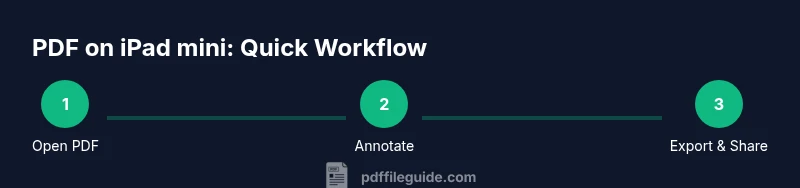
Establish a consistent workflow across devices: open, annotate, validate, export, and back up. Use a single master folder for active PDFs and a separate archive for completed work. Maintain version control by including dates in file names and saving non-destructively when possible. Regularly audit permissions on shared documents and review security settings for cloud storage. Finally, document your preferred app combos and keyboard shortcuts so new team members can ramp up quickly. A disciplined approach minimizes errors and accelerates review cycles.
Tools & Materials
- iPad mini (any recent model)(iPadOS 17 or later recommended for latest features)
- PDF viewing/annotation apps(Examples include built-in Files/Books and third-party editors)
- Charger and sufficient storage(Keep space for large PDFs and offline copies)
- Stylus or Apple Pencil (optional)(Useful for precise annotations)
- Keyboard (optional)(Helpful for forms and long notes)
Steps
Estimated time: 40-75 minutes
- 1
Prepare your PDFs and equipment
Collect all PDFs you’ll work with and confirm your iPad mini is updated. Install or verify your annotation and editor apps are ready. Open one representative PDF to verify it loads correctly and annotations can be added.
Tip: Update apps to the latest version to ensure feature parity across documents. - 2
Choose the right app for your workflow
Evaluate whether you need basic viewing, advanced annotation, or fillable forms. Pair a file manager with a dedicated editor if you handle complex PDFs. Test a free trial if available to compare features.
Tip: Keep a short list of must-have features (annotation, forms, OCR) to guide your choice. - 3
Open a PDF and set a comfortable viewing layout
Open the PDF in your chosen app and adjust zoom, page fit, and brightness. Enable a reading mode or two-page view if available for easier navigation. Consider using split-view to reference another file while reading.
Tip: Use a consistent zoom level across documents for faster review. - 4
Annotate and fill forms as needed
Apply highlights, notes, and shapes as required. If the PDF contains fillable fields, test typing, checkboxes, and digital signatures. Save changes with a non-destructive method when possible.
Tip: Keep a color scheme for annotations to avoid confusion later. - 5
Export, share, and archive
Export edited PDFs with or without annotations, depending on the app. Save to Files or a cloud drive and share via email or a link. Create backups to a dedicated archive folder.
Tip: Include a version stamp in file names (e.g., 2026-03-31_ProjectName). - 6
Sync across devices and back up
Enable cloud sync to access the latest edits on other devices. Periodically verify that backups complete and restored copies open correctly.
Tip: Turn on automatic backups for peace of mind. - 7
Troubleshoot issues efficiently
If a document won’t load or annotations vanish, check file integrity and app permissions. Reopen the file in a different app to isolate problems, and consider reinstalling the app if persistent.
Tip: Document any recurring issues for technical support.
Questions & Answers
Can I annotate PDFs on iPad mini without third-party apps?
Yes, the iPad mini supports built-in Markup within Notes and Files, which allows highlighting, drawing, and basic text notes. For more advanced features like signatures and form filling, consider a dedicated PDF editor.
Yes, you can use built‑in Markup in Notes or Files, and for more features, try a dedicated editor.
Which app is best for filling forms on iPad mini?
Many PDF editors provide form-filling capabilities. Look for apps that support interactive form fields, digital signatures, and secure saving. Test a few options to see which offers the smoothest form entry for your workflow.
Most editors support form fields; test a few to find the one that feels fastest for you.
Can I export edited PDFs back to cloud storage?
Yes. Most apps offer export to Files, iCloud Drive, or other cloud services. Choose a destination that aligns with your team’s workflow and maintain consistent naming conventions.
Yes, export to your cloud storage and keep consistent naming.
Is Live Text OCR available on iPad mini for scanned PDFs?
OCR capabilities exist in some apps and may leverage built-in system features. Results depend on image quality and language, so verify output and correct as needed.
OCR exists in some apps; verify results and correct as needed.
How should I protect PDFs when syncing to the cloud?
Use password protection where available, restrict sharing, and enable two‑factor authentication on your cloud account. Regularly review access permissions for sensitive documents.
Protect PDFs with passwords, limit sharing, and review permissions.
Watch Video
Key Takeaways
- Choose a capable app for annotation and forms
- Adjust display for readability on small screens
- Export and backup edited PDFs regularly
- Use OCR when needed and verify results