How to Download PDF from a Link: Safe, Simple Steps
Learn how to download pdf from link safely, verify authenticity, and protect your device with practical, step-by-step guidance designed for professionals and everyday users.


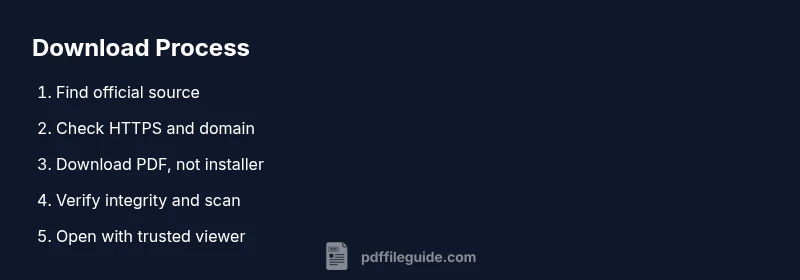
To download pdf from a link safely, start by opening the URL in a trusted browser, verify the domain matches the official site, then use the download button and choose PDF if prompted. Save the file to a known, secure location, and scan it with your antivirus before opening. This quick, vetted approach minimizes malware risk.
Understanding the concept: download pdf from link
In this guide, you will learn how to systematically approach downloading a PDF from a link while prioritizing safety and accuracy. The phrase download pdf from link highlights a common task that many professionals perform daily, and getting it right reduces exposure to malware, phishing, and corrupted files. By following curated steps and checks, you can protect your data and your device while preserving document integrity.
Assessing source trustworthiness before you click
The most important factor in a safe download is the source. Look for official domains, government or educational institutions, or well-known publishers. Check that the page uses HTTPS with a valid certificate, and skim the page for red flags like aggressive ads or requests to install unfamiliar software. If the link came from an email or chat, verify it via the sender's known channels. This initial check helps ensure that the process of download pdf from link begins on solid ground.
Browser behavior and download prompts you should expect
Modern browsers offer clear prompts when a file is downloaded. You may see the file name and type, a caution banner, or a prompt asking where to save. Always choose a trusted download location and avoid saving to temporary directories or desktop if you share the device. If a browser asks you to enable plugins or suspicious extensions to proceed, back out and reassess the source to maintain safe download practices.
Step-by-step considerations while initiating a download
When you click the download button, ensure the file type is PDF and the URL points to the expected domain. If the browser presents multiple download options (such as different file formats or link aggregations), select the official PDF option and ignore any third-party installers. Keep your browser's security settings enabled, and consider using a download manager only from reputable developers to reduce risk.
Verifying the downloaded file's integrity and authenticity
After the download completes, locate the file in your chosen folder and verify its authenticity. If a checksum or signature is provided by the source, compare it to the downloaded file. Look for obvious signs of tampering like mismatched file size, altered metadata, or an unexpected extension. Only open the PDF with a trusted viewer and apply antivirus scanning before use.
Security best practices for PDFs
PDFs can contain embedded scripts or malicious payloads. Disable JavaScript in your PDF viewer if the option exists, and avoid enabling plugins from unknown sources. Keep your operating system and reader software up to date, and regularly review permissions granted to applications. This reduces risk even when you correctly download pdf from link from reputable sources.
Accessibility and documentation considerations
If you rely on screen readers or assistive technologies, ensure the PDF is accessible and properly tagged. When possible, download from sources that provide accessible versions or metadata. Retain the source URL for auditing, and maintain a simple, reproducible workflow so your team can verify accessibility credentials later.
Mobile devices and offline reading considerations
On mobile devices, verify the source and use built-in browsers or apps from reputable vendors. Some devices prompt to open PDFs in a separate app; choose the viewer you trust, and ensure that the app has the necessary permissions without requesting excessive access. A consistent, cautious approach on mobile mirrors desktop safety practices.
Legal and licensing notes
Always respect copyright and licensing terms when downloading PDFs. If a document is behind a paywall or requires user authentication, ensure you have rights to access it. When in doubt, contact the source for permission or seek alternatives that clearly state usage rights to avoid inadvertent violations.
Quick-start checklist for safe downloads
Create a repeatable routine: confirm source identity, inspect the download prompt, save to a secure location, scan for threats, and verify integrity before opening. This checklist helps you maintain a high standard of safety with every download pdf from link you encounter.
Common pitfalls and how to avoid them
Be wary of shortened URLs that obscure destinations, unsolicited email links, and downloads that prompt you to install software. When you encounter these patterns, stop, verify the source, and consider alternative, trusted access methods to obtain the PDF.
Final guidance for ongoing practice
Adopt a consistent habit of evaluating links before clicking, keeping software updated, and leveraging built-in protections in your browser. By following these practices, you can confidently download pdf from link while maintaining device security and data integrity.
Tools & Materials
- Web browser (latest version)(Chrome/Edge/Firefox recommended)
- Verified source URL(Official site or publisher page)
- Stable internet connection(Prefer wired or reliable Wi‑Fi)
- Antivirus or anti-malware software(Keep real-time protection enabled)
- PDF viewer or reader(Acrobat, Edge PDF, or similar)
- Secure device with up-to-date OS(Enable automatic updates)
Steps
Estimated time: 15-25 minutes
- 1
Prepare your environment
Set up a secure workspace: close other tabs that may be compromised and ensure your antivirus is running. Confirm you are on a trusted network before attempting any download. This creates a clean baseline for the following steps.
Tip: Close unnecessary tabs to reduce distraction and risk. - 2
Locate a trustworthy link
Find the official page or publisher site that directly hosts the PDF. Avoid links from random emails or social posts unless you can verify the source. A trustworthy link reduces the chance of encountering malware during the download pdf from link.
Tip: Hover to preview the URL and verify domain similarity to the known site. - 3
Inspect the URL and page security
Check that the URL uses HTTPS and matches the expected domain. Look for a valid security certificate and contact details in the footer. If things look odd or the site asks for unusual permissions, back away.
Tip: Look for a privacy policy and contact page as additional trust signals. - 4
Initiate the download
Click the explicit Download button labeled PDF or the link clearly associated with the document. If the site offers multiple formats, choose PDF to ensure you download the correct file type.
Tip: Avoid pop-ups asking to install software to proceed. - 5
Choose the right download option
If presented with options, select the official PDF file and ignore any third-party installers or adware bundles. Beware of redirects that lead to unrelated software.
Tip: Prefer direct downloads from the publisher instead of installers. - 6
Save to a secure location
Specify a known, safe folder for the downloaded file. Avoid saving in shared or temp directories. If possible, rename the file to a descriptive name that reflects the source.
Tip: Use a dedicated Downloads folder with subfolders by source. - 7
Verify the file integrity
If the source provides a checksum or digital signature, compare it with the downloaded file. Look for matching file size and no unexpected additional files.
Tip: If checksums are not provided, rely on a reputable source and scan the file after downloading. - 8
Scan for threats
Run your antivirus or a dedicated malware scan on the downloaded PDF before opening. Enable real-time protection if available.
Tip: Use a quick scan first, then a full scan if threats are detected. - 9
Open the PDF safely
Open with a trusted viewer and ensure JavaScript is disabled if your viewer supports it. If the document behaves oddly (unexpected prompts, embedded scripts), close it immediately.
Tip: Keep the viewer updated to protect against exploits.
Questions & Answers
Is it safe to download PDFs from unknown sources?
Not generally. Always verify the source, use HTTPS, and scan the file after downloading.
Not always safe; verify the source and scan the file after downloading.
How can I verify a PDF's authenticity?
Check the URL, source reputation, and any provided checksums or signatures. Use a trusted PDF viewer.
Check the URL and use checksums if provided.
What if my browser blocks the download?
Pause and re-check the source. Try another trusted browser or site, and ensure the URL is correct.
Pause, verify the source, and try again on a trusted browser.
Can I download PDFs on mobile devices?
Yes, by using the device's official browser or app from a reputable source. Always verify the link before downloading.
You can, just verify the link and source on mobile.
Why does my download prompt indicate malware?
It could be a false positive or an actual threat. Stop, scan, and verify source before proceeding.
Stop, scan, and verify the source before proceeding.
Should I enable downloads from unknown domains?
Avoid enabling downloads from unfamiliar sources; stick to official sites and trusted publishers.
Avoid enabling downloads from unfamiliar sources.
Watch Video
Key Takeaways
- Verify the download source before clicking.
- Save PDFs to a known, secure folder.
- Scan files for malware before opening.
- Disable risky features in the PDF viewer if available.
- Maintain a consistent download routine for safety.