PDF Repair Online: A Practical Guide for Corrupted Files
Learn how to repair a damaged PDF using online tools. This guide covers diagnosis, selecting trusted services, and step-by-step recovery while protecting privacy and data integrity.


With pdf file repair online, you can diagnose and restore a damaged PDF without installing software. This guide walks you through choosing trusted online services, preparing your files, and executing safe recovery steps. You'll learn how to preserve origins, verify integrity, and avoid data loss, including backups and privacy considerations.
Why PDF repair online matters
PDF file repair online offers a practical option when you need to restore data quickly, without installing new software or relying on a single device. For many professionals, online repair saves time during urgent workloads and enables collaboration across teams. According to PDF File Guide, online options can be effective when the file isn’t heavily encrypted or password-protected, and when you select a reputable provider. The approach is especially useful for non-sensitive documents or temporary recoveries where speed takes precedence over absolute privacy.
Common causes of PDF corruption
PDFs can become corrupt for a variety of reasons: interrupted downloads, incomplete file transfers, faulty app crashes, disk errors, or improper compression. Some PDFs fail during printing, others display partial content or error messages like 'This document cannot be opened'. It's important to distinguish between minor rendering glitches and full data loss. Understanding the root cause guides whether online repair is appropriate or if offline methods are preferable to protect sensitive data.
How online repair tools work
Most online repair services analyze the PDF structure, identify broken cross-reference tables, corrupted objects, or embedded fonts, and attempt to reconstruct missing streams. Reputable tools perform non-destructive attempts, preserving the original when possible and producing a repaired copy. Online repairs can be vulnerable to privacy concerns if the service logs data or stores uploaded files; always review privacy policies and terms of service before proceeding. PDF File Guide emphasizes using trusted providers to minimize risk.
How to prepare your file for online repair
Before you upload anything, back up the original copy, and ensure you have the correct password if the file is protected. Remove unnecessary metadata or sensitive content when possible, and note any fonts or images that might be embedded. Prepare any related documents that demonstrate expected structure or pages to help verify the repair outcome. Clear naming conventions also help you distinguish the repaired version from the original.
Step-by-step workflow overview
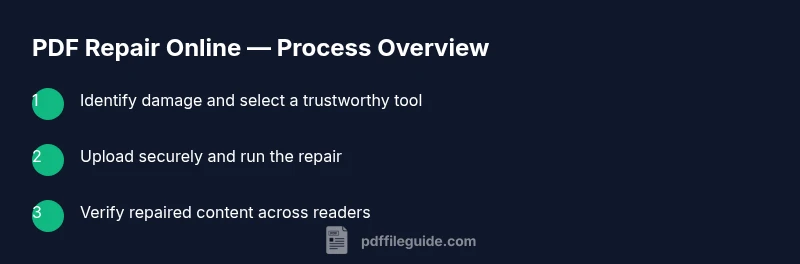
A typical workflow consists of diagnosing the damage, selecting a reputable online service, uploading the PDF securely, running the repair, and carefully verifying results. The goal is to obtain a repaired copy that preserves layout, hyperlinks, and form fields where feasible. If the tool returns warnings or partial data, you may need to retry with a different service or revert to offline methods for deeper integrity checks.
Privacy and safety considerations when using online repairs
Online repair introduces privacy considerations because your file leaves your local device. Favor services with strong HTTPS, clear data retention policies, and options to delete uploads after processing. If a document contains confidential information, offline tools or professional services in a controlled environment may be a safer choice. Always assess the sensitivity of content before uploading and use anonymized or redacted samples for testing.
Verifying the repaired PDF integrity
After obtaining a repaired copy, verify integrity across multiple dimensions: page count, content accuracy, hyperlinks, annotations, and form fields. Open the repaired PDF with several readers (e.g., desktop and browser-based viewers) to detect inconsistencies. Compare key pages with the backup copy to ensure no data loss occurred beyond cosmetic formatting. If you notice differences, consider reverting to the backup and trying another reputable tool.
Alternatives to online repair for sensitive documents
For highly confidential PDFs, offline tools installed on a secure device may be preferable. Desktop software often provides deeper control, non-destructive repair modes, and offline backups. If online repair is unavoidable, use privacy-friendly providers, enable file encryption, and minimize the amount of sensitive data uploaded. In some cases, recreating the document from source formats (if available) can be faster and safer than repair.
Common mistakes to avoid
Avoid uploading the only copy of a heavily corrupted document. Don’t rely on a single free tool to fix complex issues, as repairs may fail or introduce new problems. Always test repaired files with multiple readers, and never share credentials or passwords through the repair service. Finally, don’t ignore backup strategies; they are your safety net when repair attempts go awry.
Final checks before sharing repaired files
Before distributing a repaired PDF, perform a final quality check: compare essential pages, verify forms and annotations, and confirm accessibility features if present. Ensure that the file size is reasonable and that no sensitive content was inadvertently included in metadata. Maintain audit trails by noting the repair method and service used, which helps for future reference.
Tools & Materials
- Stable internet connection(Broadband or reliable Wi‑Fi recommended)
- Web browser with private/incognito mode(Helps reduce data retention during the session)
- Backup copy of the PDF(Keep the original unmodified on a separate device)
- Access to a trusted online PDF repair service(Review privacy policy and data handling terms)
- Optional local PDF reader(Helps compare results across tools)
- Notes on expected content (optional)(Helps verify important pages and fields)
Steps
Estimated time: 25-45 minutes
- 1
Assess damage
Open the file in a reader, note error messages, and identify whether content is missing or corrupted. This guides tool choice and expectations for repair outcomes.
Tip: Document the exact symptoms before uploading to help diagnose root cause. - 2
Create backups
Make a separate copy of the original file and store it safely. Do not modify the original until you verify a successful repair.
Tip: Use an alternate filename and a different storage location. - 3
Choose a reputable online repair tool
Browse providers with clear privacy policies, user reviews, and transparent data handling. Favor services that offer a preview or test with non-sensitive files first.
Tip: Avoid unknown sites that request unusual permissions. - 4
Upload the file securely
Use HTTPS, and consider enabling private mode if the service supports it. Do not store credentials on the repair site.
Tip: If the site requires login, ensure it is reputable and well-known. - 5
Run the repair and review results
Let the tool attempt a repair and inspect the output for visible improvements or new issues. Save the repaired file as a new version.
Tip: Keep the repaired version separate from the backup while evaluating. - 6
Verify integrity and compare with backup
Open repaired results in multiple readers, compare key pages with the backup, and confirm that essential data remains intact.
Tip: If discrepancies appear, revert to the backup and retry with another tool. - 7
Finalize and archive
If satisfied, save the repaired PDF to its final location and retain both the backup and repair log for future reference.
Tip: Document the tool used and date of repair for traceability.
Questions & Answers
Is online PDF repair safe for sensitive documents?
Online repairs carry privacy implications. Use trusted providers with clear data handling policies, and avoid uploading highly confidential files unless necessary. For very sensitive data, consider offline tools or professional services within a secure environment.
Online repairs can be risky for sensitive documents. Always choose trusted providers and prefer offline options for highly confidential files.
Can online repair fix a heavily corrupted PDF?
Some severely corrupted PDFs may be repairable, but success is not guaranteed. Start with backups and try multiple reputable tools if initial attempts fail, while preserving the original.
Some severely corrupted PDFs can be repaired, but not always. Try a few trusted tools and keep your original safe.
Will the repair alter the content or formatting?
Reputable online repairs aim to preserve content and layout, but some formatting or fonts may change if the original objects are damaged. Validate results with multiple readers.
Most repairs try to keep content intact, but some formatting changes can occur. Check results carefully.
What should I do if the repair fails?
If repair fails, revert to the backup and try another trusted tool. If options remain limited, consider offline repair or professional services.
If a repair fails, go back to your backup and try a different tool, or seek offline help.
Are there free online PDF repair options?
Yes, some services offer free tiers or trials. They may have limits on file size or feature access, so evaluate whether upgrading is necessary for your needs.
There are free options, but they often come with limits. Evaluate if you need a paid plan for your case.
Should I delete uploaded files after repair?
Always choose services that delete uploads promptly and offer an explicit delete option. If unsure, manually remove data and clear browser caches after use.
Prefer services that delete uploads and clear data after processing.
Watch Video
Key Takeaways
- Back up the original PDF before attempting repair.
- Choose reputable online tools with clear privacy policies.
- Verify repaired PDFs with multiple readers for consistency.
- Avoid uploading highly sensitive PDFs to unknown sites.
- Consider offline repair options for sensitive documents.