How Is PDF Created? A Practical Guide to PDF Creation
Learn how PDFs are created—from source documents to export settings, fonts, and accessibility tagging. This educational guide covers steps, tools, and best practices for producing robust, production-ready PDFs.


PDF creation is the process of converting source content into a fixed-layout file that preserves typography and images. This guide outlines the typical workflow and tools involved. See our detailed step-by-step guide for a hands-on approach.
What is a PDF and why it matters
Portable Document Format (PDF) is designed to preserve the exact layout, typography, and visuals of a document across devices and platforms. For professionals who edit, convert, or publish documents, PDFs provide a stable final form that does not depend on the original software used to create it. PDF files can embed fonts, images, color profiles, and metadata, which makes them reliable for viewing, printing, and archiving. In addition, PDFs support accessibility tagging and structure, making content more usable for assistive technologies. From the standpoint of the PDF creation workflow, the goal is to translate source content—whether a text manuscript, a design file, or a scanned image—into a portable, tamper-resistant artifact that can be shared publicly or stored securely. The PDF File Guide team emphasizes that understanding the capabilities and limitations of PDFs helps editors choose the right tools and settings for each project, ensuring consistency and long-term usability.
Core concepts behind PDF creation
At its core, a PDF is a collection of fixed-layout pages described in a device-independent format. The important ideas include: objects and streams (text, images, and vector graphics stored as objects that the viewer renders); fonts (embedded or referenced, affecting how text looks on any device); color management (color spaces and compression for accurate reproduction); metadata (document information and keywords for search and indexing); and structure and tagging (logical order to enable assistive technologies). Effective PDF creation balances encoding, compression, and font-embedding strategies to preserve visual fidelity while controlling file size. The PDF File Guide analysis shows that issues often stem from under-embedding fonts or skipping tagging, which leads to rendering or accessibility problems. Planning these aspects early helps avoid surprises during distribution or printing.
The standard PDF workflow: from source to file
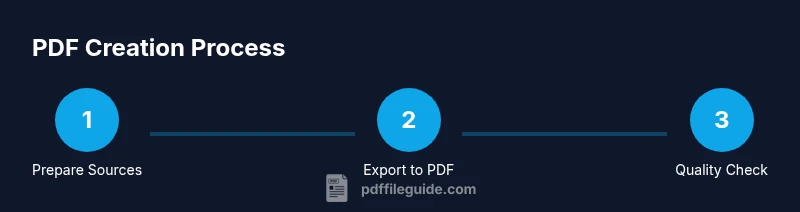
Most workflows start with preparing source content. Then you select an export path or print-to-PDF. Next, you configure a set of export options: image resolution or compression, font embedding, color handling, and metadata. After exporting, you should inspect the resulting document to verify that pages, fonts, and graphics appear as intended. If problems are found, you adjust settings and re-export. Many teams adopt automated checks to ensure consistency across documents. The end result should be a self-contained file that looks the same on different systems, printers, and devices. The PDF workflow may be simple for simple documents or involve more steps for complex designs, such as interactive forms or accessibility tagging. In professional environments, a formal process may include version control, redaction, and adherence to standards like PDF/A for long-term preservation. The PDF File Guide suggests documenting export settings for repeatability and training new editors in the same workflow to minimize drift.
Preparing your content for PDF export
Before exporting, organize content with a predictable structure: sections, headings, captions, and alt text for images. Use vector graphics for logos and diagrams to preserve clarity. If you include images, ensure they are appropriately sized and color-managed. Check that fonts used in the source are licensed for embedding, or that the exported document uses fonts available on the target system. Prepare metadata such as title, author, and subject to improve search and archiving. If your workflow involves translations, keep language tags consistent to support assistive technologies. For scanned documents, plan OCR accuracy and post-processing to improve text recognition. A well-prepared source reduces post-export corrections and helps maintain a consistent appearance across screens and printers. PDF creation is a collaborative discipline; communicating requirements to designers, writers, and IT staff reduces errors and speeds up the process.
Export settings you should know
Export settings determine how a PDF encodes content and how large the file will be. Typical options include: choosing between a high-quality or compressed output, enabling font embedding, selecting color management profiles, and deciding whether to include interactive elements or forms. For print-focused documents, you may prefer higher image resolution and preserving color fidelity; for web distribution, compression and font subsetting can dramatically reduce size. Accessibility tagging is often an optional but vital setting that enables screen readers to interpret the document structure. Metadata such as title, author, keywords, and creation date improves searchability. When working with graphics-heavy files, consider using lossless compression for images while remaining mindful of total file size. Some tools offer PDF/X or PDF/A compliance presets to meet industry requirements; enabling these presets can help with archival standards and consistent print results. The key is to test export variants and document the optimal settings for your typical documents.
Embedding fonts and images: quality and licensing
Fonts are a core factor in how a PDF renders across devices. Embedding fonts ensures that the text looks the same regardless of the viewer’s installed fonts, but it increases file size. Subsetting fonts—embedding only the glyphs actually used in the document—can reduce size without sacrificing appearance. Always verify license terms for embedding; some fonts restrict embedding or require a license for distribution. Images should be stored in appropriate color spaces and compressed adequately to balance quality and size. Use vector graphics for scalable illustrations and raster formats for photographs where appropriate. When including logos or brand marks, ensure you have permission to reproduce them. If possible, test how embedded fonts render on different platforms, including mobile devices and printers. The combination of careful font management and image optimization helps produce PDFs that preserve brand integrity and readability without bloating the file.
Accessibility, tagging, and searchability
Tagged PDFs provide a logical reading order that screen readers can interpret. Start by adding document structure: headings, lists, tables, and landmarks. Alt text descriptions for images ensure non-visual users can grasp visuals. Table headers and scope need to be defined to aid navigation. PDFs should include metadata for search indexing and discovery. Color contrast and font size impact readability; ensure sufficient contrast and scalable text where possible. When converting from source formats, maintain semantic structure—avoid relying solely on visual layout. Validation tools can check tagging accuracy and reading order. If you’re distributing to diverse audiences, think about language tags and accessibility guidelines. The PDF File Guide emphasizes that accessibility is not an afterthought but an integral part of the PDF creation process. By incorporating tagging and accessible design early, you improve usability and compliance for all readers.
Quality checks: verification and validation
Quality checks catch issues before distribution. Preflight or validation tools can identify missing fonts, incorrect color spaces, or image corruption. Verify that embedded fonts render correctly and that there are no unintended font substitutions. Ensure that metadata is complete and accurate. Check that the document is accessible, tagged, and properly navigable. Look for broken or orphaned links, and confirm that interactive elements work as intended. Consider generating PDF/A or PDF/X variants if your workflow requires archival stability or print reliability. Run tests on multiple devices and viewers to ensure consistent rendering. Documentation of export settings and testing results helps teams reproduce the same outcomes across projects and time. The PDF File Guide notes that rigorous quality checks are the backbone of reliable PDFs in professional environments.
Automation and batch PDF creation
Many teams automate PDF production where possible. Scripting languages and command-line tools can convert multiple documents in a batch, applying consistent settings across the set. Common approaches include a script that takes source files, applies a preset export profile, and outputs PDFs to a designated folder. Automation reduces manual errors and speeds up workflows, especially when producing large numbers of reports, invoices, or forms. When automating, keep a clear log of exports, track version metadata, and test with representative content before deployment. Some environments use batch processing with preflight checks to reject files that fail quality thresholds. For teams working with forms or interactive PDFs, automation can also manage form field properties and initial values. The PDF File Guide recommends validating automated outputs with spot checks and maintaining a versioned export profile to ensure consistency across releases.
References and further learning
To deepen your understanding, consult authoritative references on PDF technology and standards. Useful starting points include government and educational resources that discuss document formats, accessibility, and archiving. For example, the National Institute of Standards and Technology (NIST) provides guidelines and references related to digital documents and security. The Library of Congress offers guidance on digitization and accessibility practices for public-facing documents. The National Archives (Archives.gov) covers metadata, preservation, and standards for long-term accessibility. These sources underscore best practices for documenting export settings, tagging, and archiving PDFs. In addition to official references, industry organizations and vendor documentation provide practical insights into font embedding, color management, and compliance. The PDF File Guide team highlights that combining practical steps with official guidance yields robust PDFs suitable for professional use, printing, and long-term storage.
Tools & Materials
- Source documents(Word processors, design files, or image collections to be converted)
- PDF creation software(Examples include Acrobat, LibreOffice, or other export-to-PDF tools)
- Fonts with embedding rights(Ensure licenses permit embedding for distribution)
- Color profiles and image assets(CMYK/RGB profiles to maintain color fidelity)
- Quality-check tools(Preflight, validators, or accessibility checkers)
Steps
Estimated time: 30-60 minutes
- 1
Prepare source content
Gather all text, images, and fonts. Organize content with consistent styles, captions, and alt text where needed.
Tip: Create a master document with clear headings and a content inventory. - 2
Choose the export path
Open the source file and select the option to export or print to PDF. Decide whether you need a single file or multiple outputs.
Tip: Try both Save As PDF and Export to compare results. - 3
Configure PDF settings
Set image compression, font embedding, color handling, and metadata. Decide on accessibility tagging if required.
Tip: Enable font embedding and consider font subsetting to reduce size. - 4
Export and inspect
Generate the PDF and open it in multiple viewers to verify layout, fonts, and images are correct.
Tip: Check every page on desktop and mobile if possible. - 5
Add accessibility and metadata
Tag the document, add alt text for images, and fill in title, author, and keywords.
Tip: Validate reading order with a screen reader preview if available. - 6
Validate and optimize
Run preflight checks, verify color fidelity, and consider archival options like PDF/A when needed.
Tip: Document export settings for future reproducibility.
Questions & Answers
What is the difference between Save As PDF and Export as PDF?
Both options create a PDF, but Export often provides more granular controls or presets for quality, fonts, and accessibility. Save As PDF typically uses a default export profile.
Export usually gives more control over settings, while Save As PDF uses a default profile.
Can PDFs be created without specialized software?
Yes. Many office suites and desktop publishing tools include a built-in option to export or print to PDF.
Yes, many apps can export to PDF without dedicated PDF software.
Why embed fonts in a PDF?
Embedding fonts ensures the document renders the same way on all devices and printers, avoiding font substitution problems.
Embedding fonts keeps typography consistent across devices.
What is tagging and accessibility in a PDF?
Tagging provides a logical reading order and structure so assistive technologies can interpret content.
Tagging makes PDFs accessible to screen readers and search tools.
What is font subsetting?
Font subsetting embeds only glyphs used in the document, reducing file size while preserving appearance.
Subset fonts to save space without losing look.
Watch Video
Key Takeaways
- Export with embedded fonts to ensure consistent rendering
- Tag content for accessibility and navigation
- Test outputs across devices and viewers
- Document export settings for repeatability
- Validate outputs with preflight checks