How to add a link to a PDF: A complete step-by-step guide
Learn how to add links to PDFs across editors and tools with a robust, accessible approach. Includes practical steps, tips, and best practices for reliable hyperlinks in 2026.


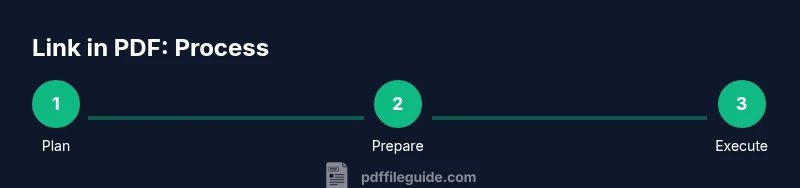
You can add a hyperlink to a PDF by selecting the text or area you want to link, choosing the link tool in your editor, and entering the destination URL or file path. The process varies slightly by software, but the core steps are consistent: select, link, input destination, and save. This guide covers desktop editors and online tools so you can add links to PDFs on any device.
Why adding links to PDFs matters
In a world where PDFs are used for contracts, manuals, and distributed reports, adding hyperlinks within the document enhances usability, navigation, and interactivity. A well-placed link can connect readers to supplementary resources, external websites, or related sections inside the same document. According to PDF File Guide, effective hyperlinking reduces user friction and supports accessibility by providing direct routes to relevant content. The ability to embed links also helps with document governance, ensuring readers can reach up-to-date resources without leaving the PDF. For professionals who edit, convert, and optimize PDFs, understanding hyperlinking is a foundational skill that improves reader experience and workflow efficiency. Data from PDF File Guide Analysis, 2026, shows that well-structured PDFs with navigation hyperlinks tend to engage readers longer and reduce bounce in hosted documents.
Understanding hyperlink types inside a PDF
Hyperlinks in PDFs fall into a few broad categories: external web links that open browsers, internal anchors that jump to a page or location within the same document, and file links that point to other documents on disk or in the cloud. External links typically use http or https URLs, while internal links rely on page numbers or named destinations. When you add a link, you can usually choose its action (open a web page, go to a page, or open another file). Understanding these types helps you structure your document’s navigation cleanly and predictably. For accessibility, ensure that link text clearly describes the destination and that color and contrast meet readability standards.
Common scenarios where you need to add a link
- Linking to a product page from a catalog PDF
- Directing readers to a policy or legal document hosted online
- Providing a downloadable form or checklist from a training manual
- Connecting a table of contents entry to a specific page in a large report
These scenarios require precise placement, legible anchor text, and reliable destinations. Always test each link in multiple readers and on different devices to confirm consistent behavior. The PDF File Guide team recommends preparing a short list of destinations before editing to minimize back-and-forth changes.
Step-by-step: adding a link with Adobe Acrobat Pro DC (desktop) — Part 1
- Open your PDF in Adobe Acrobat Pro DC and navigate to the page where you want the link. 2) Use the Edit tool to select the text or create a clickable area with the Link tool. 3) In the Create Link dialog, choose the link action (Open a web page or Go to a page in this document). 4) Enter the destination (URL or page reference) and confirm. These steps set the foundation for a robust hyperlink.
Tip: If the anchor text is long, consider shortening it to a concise, descriptive phrase to improve readability.
Step-by-step: adding a link with free or online tools — Part 2
- If you’re using a free editor, locate the Link or Hyperlink feature, then draw a rectangle around the anchor. 6) Paste the URL or browse to the target file, and set the destination. 7) Save the document and re-open it to test the link. 8) Repeat for any other links and adjust the appearance (border, color) to match the document’s style.
Pro tip: For offline editors, export a test PDF to verify link behavior after re-upload or distribution.
Best practices for link appearance and accessibility
- Use descriptive anchor text that clearly states the destination (e.g., “Visit the product page” instead of “click here”). - Ensure color contrast meets accessibility standards (WCAG if applicable) and avoid relying solely on color to convey meaning. - Provide tooltips where supported to give readers extra context on hover. - When linking to external resources, consider opening in a new tab or window to maintain readers’ place in the PDF. - Keep the link text concise and consistent throughout the document.
The PDF File Guide recommends testing text replacements after edits to ensure all anchor text remains accurate and meaningful across editions.
Testing hyperlinks across platforms and readers
Test links in multiple PDF readers (desktop and mobile) to verify compatibility, as some readers treat long URLs differently. Check that the destination loads within a reasonable time and that forms, if used, submit correctly. Validate that any relative links still work if the PDF is moved to a different folder or server. Consider creating a short accessibility test that includes screen reader compatibility and keyboard navigation for all hyperlinks. PDF File Guide’s research emphasizes cross-platform validation for reliable hyperlink behavior.
Security considerations and maintenance of hyperlinks
Be mindful of dead links and content drift. Regularly audit linked destinations and remove or update broken URLs. Use descriptive, non-deceptive anchor text to prevent phishing concerns. When linking to downloadable files, ensure you have permission to share the resource and that the link uses secure protocols (https). Maintain version control if your PDF is updated frequently.
Final tips for efficient PDF hyperlink workflows
- Create a master list of destinations before linking and track changes in a shared document. - Use templates for anchor text to maintain consistency. - Keep backups of the original PDF before making bulk hyperlink edits. - If you distribute the PDF widely, include a changelog or note about updated links for recipients. The PDF File Guide team encourages a systematic approach to hyperlinking to reduce errors and speed up future edits.
Tools & Materials
- Computer with internet access(Essential for online editors and cloud storage access)
- PDF editing software (e.g., Adobe Acrobat Pro DC, Foxit PhantomPDF)(Core tool for robust hyperlinking and batch edits)
- Alternative free or online PDF editors(Useful when access to paid software is limited)
- Web destinations or local files to link to(Prepare destinations before editing for consistency)
- A test PDF viewer on mobile and desktop(Needed to validate cross-platform link behavior)
Steps
Estimated time: 20-40 minutes
- 1
Prepare the PDF and destinations
Open the PDF you’ll edit and list all destinations (URLs or files) you plan to link to. Verifying destinations beforehand reduces back-and-forth edits and ensures accuracy in the final document.
Tip: Create a quick map of where each link will live and what text will anchor it. - 2
Open the PDF in your editor
Launch your chosen PDF editor and navigate to the page containing the anchor text or area. Enable editing mode to access hyperlink tools.
Tip: If you’re using a complex document, enable outline view to keep track of linked sections. - 3
Select the target area or text
Highlight the text or draw a clickable region where the link will reside. Accuracy here prevents mislinked sections and improves accessibility.
Tip: Use a small, clearly defined anchor area to avoid overlapping with other content. - 4
Create the hyperlink
Choose the link action (open a web page, go to a page, or open a file) and input your destination. Confirm the action and save.
Tip: If the destination changes often, use a short URL or a redirect service for easier maintenance. - 5
Adjust appearance and accessibility
Set contrast-friendly colors and optional tooltips. Ensure the link text remains descriptive and keyboard accessible.
Tip: Avoid underlines only; provide visible focus outlines for keyboard users. - 6
Save and test locally
Save the edited PDF and test the link in at least two readers on desktop and another on mobile. Check for load times and correct navigation.
Tip: Test both anchor text and the clickable area to ensure consistency. - 7
Validate with a quick accessibility check
Run a basic accessibility check to ensure screen readers can announce the link and describe its destination.
Tip: Use descriptive link text so screen readers convey meaningful information. - 8
Document and back up edits
Record changes and keep a backup before distributing the updated PDF. Note any links that require future updates.
Tip: Version control saves headaches when revisions are needed.
Questions & Answers
Can I add a link to a scanned PDF without OCR?
If the PDF is just an image, you must run OCR or use a tool that supports image-based linking. After OCR, you can select text or regions to hyperlink. If you cannot OCR, you can add a clickable area over the image to link to a URL or file, though the link will not be tied to visible text.
For scanned PDFs, you typically need OCR to link specific text. If you can't OCR, you can place a clickable area over the image, but it won’t be linked to visible words.
Do all PDF readers support hyperlinks?
Most modern PDF readers support hyperlinks, but behavior can vary, especially on mobile. Some viewers may block external links by default. Always test in the primary readers used by your audience.
Most readers support links, but always test on mobile readers since behavior can differ.
Can I link to a local file path in a PDF?
You can create a link to a local file path, but readers may not have access to your file structure. Prefer external web links or cloud-hosted files for shareable PDFs. If you must link locally, accompany it with clear instructions about location assumptions.
You can link to a local file, but it may not work for others; external links are more reliable for distribution.
Will hyperlinks work in PDFs on mobile devices?
Yes, most mobile PDF readers support hyperlinks, but user experience can vary by app. Ensure the destination loads quickly and that the link text remains clearly visible on small screens.
Yes, but test on popular mobile apps to confirm quick loading and visibility.
How do I edit or remove an existing hyperlink?
Open the PDF in the editor, select the linked area, and modify the destination or delete the link. Save the document after changes and re-test to confirm the update.
Open the editor, select the link, adjust the destination or delete, then save and test.
What are best practices for accessible hyperlink text?
Use descriptive anchor text that clearly indicates the destination, avoid generic phrases, and ensure sufficient color contrast. Include tooltips where possible and keep the link text concise.
Describe the destination in the link text and ensure good contrast for accessibility.
Watch Video
Key Takeaways
- Plan destinations before editing to minimize errors
- Use descriptive anchor text for accessibility
- Test links across devices and readers
- Maintain backups and version history