How to Combine PDF Files Free: Step-by-Step Guide
Learn to combine PDF files for free using online tools or offline software. This educational guide covers safe methods, step-by-step merges, and preserving formatting and links.


You can combine PDF files for free using online tools, desktop apps, or built-in OS features. This guide compares methods, helps you pick a safe option, and walks you through a simple, no-cost merge that preserves formatting and hyperlinks. By the end you’ll have a single, ready-to-share PDF from multiple sources without paying.
Why combine PDFs for free and when it matters
In today’s workflow, merging multiple PDF documents into one file is a common task for reports, proposals, contracts, and scanned forms. Free merging options allow individuals and teams to streamline document sharing without investing in paid software. The ability to combine PDFs also helps with archiving, version control, and ensuring that all related pages stay together when emailed or stored in cloud services. For professionals using PDFs daily, freeing themselves from subscription costs while maintaining quality is not just convenient—it accelerates collaboration and reduces process friction. The trend toward free, accessible tools aligns with the broader goal of making digital documentation easier to manage across devices. As you start this process, consider your privacy needs and the sensitivity of the documents involved; for confidential material, offline options often provide greater control. PDF File Guide emphasizes choosing methods that balance convenience with security, especially in 2026 where digital workflows are more integrated than ever.
Free methods overview
There are two broad pathways to merge PDFs for free: online services and offline software. Online tools are fast, require no installation, and work from any device with an internet connection. They’re ideal for quick merges, small files, or when you’re away from your primary workstation. However, many free online options come with caveats such as file size limits, potential watermarking, or privacy concerns. Offline software, like open-source or free editions, provides greater privacy and control but requires installation and sometimes a learning curve. Desktop solutions often support batch merging, bookmarks, form preservation, and better handling of large files. In practice, a hybrid approach works well: use online tools for straightforward merges and offline tools for sensitive or bulk projects. PDF File Guide recommends evaluating your typical file sizes and privacy needs before choosing a method.
Safety considerations with online tools
Online PDF merge tools are convenient but involve uploading your documents to a third party. Before using them, review the service’s privacy policy, data retention terms, and whether they encrypt data in transit and at rest. If the documents contain sensitive information, avoid free online services and opt for offline merging with trusted software. When you do use online tools, remove any completed files promptly if the site supports deletion, and prefer those that offer client-side processing or strong server-side safeguards. In 2026, many reputable providers advertise privacy commitments and end-to-end encryption, but no tool can guarantee absolute security. If privacy is a priority, start with sample, non-sensitive PDFs to validate the process, then proceed with caution for confidential materials.
Step-by-step: Merge PDFs using online tools (no-download)
Step 1: Prepare your PDFs
Collect all PDFs to merge and place them in a single folder in the desired order. Rename files to reflect their sequence, as some tools rely on alphabetical order when you upload multiple documents. This reduces the chance of misordering once merged.
Step 2: Choose a reputable online tool
Select a well-known, privacy-focused service with clear terms. Check for HTTPS, reasonable data handling policies, and user reviews. If available, use a trial or a service that promises to delete uploaded files after processing.
Step 3: Upload and arrange
Upload the PDFs in the order you want them to appear. Some tools allow drag-and-drop reordering; ensure the sequence matches your intended final document.
Step 4: Merge and download
Initiate the merge and download the resulting PDF. Review the file for missing pages, broken links, or missing images. If something looks off, re-upload or try a different tool.
Step 5: Rename and verify
Save the merged file with a descriptive name. Open the PDF to verify page order, hyperlinks, and any forms included. Keep a backup of the originals until you’re satisfied with the merged result.
Step-by-step: Merge PDFs using offline software (free)
Step 1: Install a trusted free merge tool
Download and install a reputable free tool such as PDFsam Basic or PDF24 Creator. Ensure you are obtaining software from the official site to avoid bundled adware. Follow the installer prompts and opt out of any unwanted extras.
Step 2: Launch the application and import files
Open the tool and add your PDFs. Most free offline options support dragging files into a workspace. Arrange the documents in the desired order using up/down controls or drag-and-drop.
Step 3: Adjust settings if needed
Check for options like including bookmarks, preserving form fields, and retaining metadata. Some tools offer page range selections or compression settings—adjust only if you understand the impact on quality and file size.
Step 4: Merge and save locally
Choose a destination folder and a descriptive filename. Run the merge and let the tool generate the output. Save it in a location you can easily locate later.
Step 5: Validate the merged file
Open the merged PDF to confirm all pages are present and correctly ordered. Verify hyperlinks and any interactive elements work as expected. Store a backup of the originals alongside the new file.
File organization tips and best practices
- Create a consistent naming convention for input files (e.g., Project_A_Section1.pdf, Project_A_Section2.pdf).
- Use a dedicated folder for the merge project to avoid file misplacement.
- If you regularly merge PDFs, consider creating a short workflow or template that saves time and reduces errors.
- For long documents, enable bookmarks and a table of contents if the tool supports it; this makes navigation easier for readers.
- Always compare the merged output against the original pages to catch any omissions or formatting changes.
Quality checks and finalizing
After merging, perform several verification checks: confirm page order, confirm hyperlinks, verify any form fields, and check that images and fonts render correctly. If you notice issues, adjust the input order or settings in your merge tool and re-run the merge. Remember to keep backups of the original PDFs in case you need to revert or repackage content. Consider running accessibility checks if the final document will be shared with a broad audience.
Authoritative sources and further reading
- Adobe Help Center: Merge PDFs — https://helpx.adobe.com/acrobat/merge-pdfs.html
- ISO Standards overview on PDF technologies — https://www.iso.org/iso-32000.html
Tools & Materials
- Web browser(Any modern browser (Chrome, Firefox, Safari) with internet access.)
- PDF files to merge(At least two PDFs in the desired order.)
- Internet connection(Required if using online merge tools.)
- Online PDF merge service(Use only reputable sites with clear privacy policies.)
- Desktop PDF editor or merge utility(Optional for offline merging (e.g., PDFsam Basic, PDF24 Creator).)
Steps
Estimated time: Estimated total time: 15-25 minutes
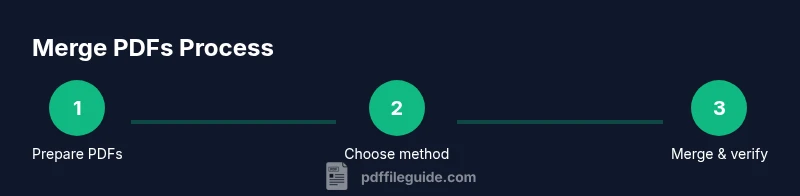
- 1
Gather PDFs in order
Collect all PDFs you want to merge and place them in a single folder. Rename them to reflect the intended sequence to minimize ordering mistakes during the merge.
Tip: A clear naming scheme reduces rework later. - 2
Choose your merge method
Decide between online (quick, no install) or offline (more privacy). Consider file sensitivity and required features when choosing.
Tip: Offline is preferred for confidential documents. - 3
Upload or load files in the desired order
For online tools, upload in the exact sequence. For offline tools, import into the workspace and arrange with the UI controls.
Tip: Double-check order before merging. - 4
Execute the merge and save
Run the merge operation and choose a descriptive output filename. Save to a known folder so you can locate it easily.
Tip: Use a consistent naming convention for merged files. - 5
Verify the merged result
Open the merged PDF to check page order, links, and any forms. Keep originals as backups until you’re certain the merge is correct.
Tip: Test critical features (links, forms) before sharing.
Questions & Answers
How can I merge PDF files for free?
You can merge PDFs using online tools, desktop software, or built-in features on some devices. This guide emphasizes free options and shows how to preserve formatting and links without a paid subscription.
You can merge PDFs for free with online tools or offline software. Here’s a step-by-step guide to do it without paying.
Are online PDF merge tools safe for sensitive documents?
Online tools require uploading files to a server; check privacy policies and encryption. For highly confidential documents, use offline software to minimize exposure.
Online merging is convenient but not ideal for sensitive files; offline options are safer.
Will merging affect file quality or formatting?
Merging typically preserves content, layout, and links; some tools may metadata or bookmarks slightly. Always verify the final document.
Merging usually keeps formatting, but it’s good to check the final file.
Can I reorder pages after merging?
Yes, most tools let you arrange input PDFs before merging. If needed, you can split and re-merge to adjust order.
You can adjust the order before finalizing the merge.
Do merged PDFs support forms and hyperlinks?
Merged PDFs typically retain hyperlinks and interactive fields if the merge is done correctly. Always test the final file especially if forms are involved.
Test the final file to ensure forms and links work as expected.
Watch Video
Key Takeaways
- Choose a free method that fits privacy needs
- Verify merged output for integrity and links
- Keep originals as backups
- Name merged files clearly to avoid confusion