Edit PDFs Online: Best Practices for 2026
Learn how to edit PDFs online safely and efficiently. This educational guide covers workflow, security, accessibility, and best practices for professionals editing PDFs on the web in 2026.


You can edit PDFs online by selecting a trusted web editor, uploading your file, making edits to text, images, and forms, adding annotations, and exporting the finished document. For secure collaboration, look for encryption, session timeouts, and audit trails. This approach saves time, reduces software installs, and keeps workflows fluid across teams.
Why editing PDFs online matters
In 2026, editing PDFs online is a standard capability for professionals who need to update documents quickly, collaborate in real time, and avoid installing bulky software. Web-based editors enable quick text changes, image swaps, form filling, and annotation directly in your browser, with changes saved to the cloud or downloaded as a new PDF. According to PDF File Guide, the best online tools balance speed, reliability, and security, enabling streamlined revision cycles for distributed teams. The team found that online editing fits tight deadlines, especially when stakeholders are working from different locations or devices. This section explains why the online approach is often the pragmatic choice, outlining typical use cases, benefits, and trade-offs you should consider before you start editing.
How online PDF editing differs from desktop workflows
Online editors usually offer real-time collaboration, automatic versioning, and cross-device access. Desktop editors may provide deeper font embedding and offline editing capabilities, but they require installation and license management. For most professional tasks—small corrections, form updates, or quick review cycles—an online editor is fast, accessible, and sufficient. When deciding between online and desktop, weigh factors like data sensitivity, file size, required output formats, and your team’s collaboration model. This decision framework helps ensure you choose a tool that aligns with your workflow and security requirements.
Key capabilities to look for in an online editor
A solid online editor should support text editing, image replacement, form field handling, annotations, and export options that preserve layout fidelity. Look for OCR for scanned PDFs, font substitution handling, and accessible tagging for screen readers. Cross-check whether the editor preserves vector graphics, embeds fonts correctly, and offers export in PDF/A for archival needs. Finally, verify the editor’s reliability with multi-user collaboration features, change history, and secure sharing capabilities.
Security and privacy considerations when editing in the browser
Security matters more than ever when editing PDFs online. Ensure the editor uses HTTPS transfers, strong encryption at rest, and clear data-retention policies. Some services offer client-side processing, which can improve privacy by never sending content to the cloud for certain operations. Read the provider’s privacy policy and terms of service, and opt for password-protected sessions and temporary access links for external collaborators. If your document contains sensitive data, prefer editors with transparent security certifications and permission controls.
Editing text, images, and forms in online tools
Modern online editors allow you to click on text blocks to edit content, swap or resize images, and adjust fonts and colors. For images, you can replace an asset while maintaining surrounding layout, or reflow text around a new image. Forms can often be filled directly in the browser, with field validation options and the ability to save form data as a separate export if needed. When editing, monitor versioning so you can revert to an earlier draft if a layout change disrupts the document’s structure.
Annotations, accessibility, and collaboration
Annotations (comments, highlights, sticky notes) facilitate review without altering the base content. Accessibility features—such as tagging for screen readers, alt text for images, and proper reading order—are crucial for compliant documents. Collaboration workflows may include comment threads, assignment of review tasks, and visibility controls. For teams, choosing a tool with robust audit trails helps protect intellectual property and clarifies edits during approval cycles.
Export formats and preserving quality
Before exporting, confirm the target format requirements: PDF, PDF/A, or image-based exports. Some editors offer lossless compression options to preserve image quality while reducing file size. Font embedding settings, color profiles, and image downsampling levels can affect readability and print fidelity. After export, test the file on multiple devices and readers to ensure that typography, links, and interactive elements behave as expected.
Workflow patterns for consistent results
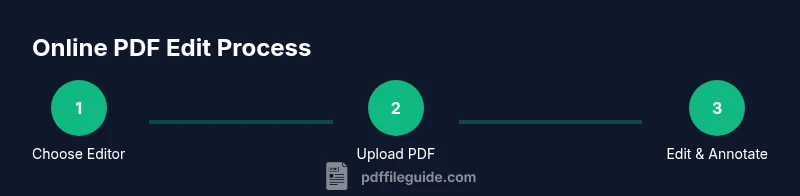
A reliable workflow includes preparing source files, defining required edits, applying edits in a single pass, verifying changes, and exporting in the preferred formats. Maintain a consistent naming convention and versioning approach to track changes across revisions. If you work with teams, establish a shared checklist: ensure text accuracy, font fidelity, form behavior, and accessibility compliance before final approval.
Tools & Materials
- Stable internet connection(Recommended 20 Mbps+ for large PDFs)
- Computer or tablet with a modern browser(Chrome, Edge, Firefox, or Safari updated to latest version)
- Account with at least one reputable online PDF editor(Sign-in may be required for storage and collaboration)
- Original PDF document(Keep a backup before editing)
- Optional: alt text checklist for accessibility(Use for image elements during edits)
- Device for final verification(Test on desktop and mobile if cross-device compatibility matters)
Steps
Estimated time: 30-45 minutes
- 1
Prepare the PDF
Open the original file and remove any password protection if you have the rights to do so. Create a backup copy to preserve the original content. This step prevents accidental data loss during editing.
Tip: Verify you have permission to edit the document and collect any referenced fonts or assets. - 2
Choose a trusted online editor
Select a reputable online PDF editor with good security practices, OCR capability if needed, and a clear data-retention policy. Sign in to enable saving and collaboration.
Tip: Prefer editors that offer client-side processing for sensitive PDFs and transparent encryption standards. - 3
Upload the PDF
Upload your file to the editor. Use drag-and-drop if available and confirm the file loaded correctly by checking the first page.
Tip: If upload is slow, try a smaller page range or compress the PDF before retrying. - 4
Edit text and images
Click on text blocks to modify content or replace images. Adjust font, size, and color to preserve readability and layout integrity.
Tip: Avoid excessive font substitutions that may alter line breaks and pagination. - 5
Fill forms and add annotations
Complete fillable fields and insert annotations for reviewers. Ensure fields preserve accessibility order and that annotations don’t obscure important content.
Tip: Place comments in margins or side panels to avoid overlay issues. - 6
Review and verify
Use the editor’s preview to inspect links, embedded media, and form behavior. Check spellings, consistency, and reading order for accessibility.
Tip: Run a quick OCR verification if your PDF includes scanned text. - 7
Export with the correct settings
Choose the appropriate export format (PDF or PDF/A) and adjust image quality and font embedding as required by your use case.
Tip: Test the exported file in at least one viewer to confirm fidelity. - 8
Secure sharing and storage
If the document is sensitive, enable password protection or share via a time-bound link. Save a copy in a trusted location.
Tip: Document access controls help prevent unauthorized edits.
Questions & Answers
What is the simplest way to start editing a PDF online?
Pick a credible online editor, upload your PDF, and begin editing text, images, or annotations. Save frequently to prevent data loss.
Start with a trusted editor, upload your file, and save as you go.
Can I edit scanned PDFs online?
Yes, but you’ll typically need OCR to convert images to editable text. Choose an editor with reliable OCR accuracy.
OCR is usually needed for scanned PDFs to edit text.
Is online PDF editing safe for confidential documents?
Use editors with strong encryption, client-side processing options, and strict access controls. Review privacy policies before uploading.
Check encryption options and privacy terms before editing.
Do I need an account to edit online PDFs?
Most editors require an account for saving changes and access controls. Some offer guest modes with temporary links.
Typically, an account helps manage edits securely.
Can I edit PDFs on mobile devices?
Many editors offer mobile-friendly web interfaces or apps. Ensure you have a stable connection for best results.
Yes, but check app compatibility and connectivity.
What exports should I consider after editing?
Export as PDF for standard use or PDF/A for long-term archiving. Check font embedding and image quality settings.
Choose PDF or PDF/A and verify embedded fonts.
Watch Video
Key Takeaways
- Choose trusted online editors with clear security policies.
- Verify accessibility and document structure after edits.
- Export with appropriate formats to preserve fidelity.
- Use versioning to manage revisions effectively.
- Securely share edited PDFs to protect sensitive content.