How to Combine PDF Files on Mac
Learn built-in Mac methods to merge PDFs: Preview, Print, and Automator. Step-by-step instructions, tips, and common pitfalls for professionals editing PDFs.


By the end of this guide, you’ll know exactly how to combine multiple PDF files on a Mac using built-in tools like Preview, or automated workflows with Automator. You’ll learn the simplest approach for everyday needs, plus methods for batch merging and troubleshooting. No third‑party software is required for most Mac users, and you’ll save time with practical, clear steps.
Why merging PDFs on a Mac matters
Merging PDF files is a common task for professionals who create reports, assemble client packets, or consolidate research notes. On macOS, you have powerful built-in options that let you combine documents without resorting to expensive software. The advantage of using native tools is simplicity, reliability, and a lower barrier to entry for teams who share files frequently. According to PDF File Guide, merging PDFs on a Mac is a task most people can perform with built‑in tools like Preview. The PDF File Guide team found that most users complete common merges without third‑party software, keeping work self-contained and easier to audit. In addition to saving time, native methods reduce compatibility issues when sharing documents across devices and colleagues. When you understand the basics, you can also tailor workflows to batch-merge multiple folders or create reusable automations. This section lays the groundwork for choosing the method that best fits your needs, from quick ad‑hoc merges to more complex batch processing.
As you work through the options, think about your typical document size, whether you need to preserve image quality, and whether you want to maintain editable text in the final file. These considerations guide whether Preview alone suffices or you opt for Automator or a simple Print-to-PDF approach. You’ll also encounter related terms to help you search effectively: PDF concatenation, page ordering, thumbnail editing, and OCR (optical character recognition) relevance for searchable text. The end goal is a single, well-ordered PDF that accurately reflects the source materials.
For professionals, consistency matters. Use a clear naming convention for the merged file, document version numbers, and a predictable folder structure. Consistency makes auditing easier and reduces the risk of distributing outdated files. If you work with sensitive information, consider setting up a controlled workflow that includes password protection, access controls, or secure deletion of originals after verified merges.
Practical considerations for Mac-based PDF merging: speed, quality, and scope
When you merge PDFs on a Mac, you’ll notice differences in speed and quality depending on the chosen method. Preview is fast for small to medium documents and preserves the original formatting well for most use cases. Automator shines when you need to repeat the same merge across a batch of files, saving time and minimizing manual steps. For large documents or PDFs with complex layouts, you may want to verify that images, fonts, and color profiles are preserved after merging. If the source files include sensitive material, you should test the merged result to ensure there are no unintended data leaks or embedded metadata. Mastery comes from trying multiple approaches and documenting the outcomes, so your team can reuse a reliable process. In short, choose the method that matches your volume, quality tolerances, and risk profile.
Scenarios where built‑in tools excel
- You have two or three PDFs and need a quick, single output. Preview is often the fastest route.
- You routinely merge files from a shared folder and want a repeatable process. Automator can automate the routine with little setup.
- You want to avoid extra software and stay within macOS defaults. The built‑in Print-to-PDF trick is a handy fallback for simple consolidations.
By focusing on these scenarios, you’ll pick the approach that minimizes friction while delivering predictable results. The goal is not to overbuild a process but to establish a workflow you can trust for day-to-day tasks and occasional batch merges. Any chosen method should be easy to explain to teammates and straightforward to repeat with consistent outcomes.
Access and permissions: working within your macOS environment
Before merging, confirm you have permission to access all source PDFs and that they aren’t password‑protected or restricted by read permissions. If a file is locked or encrypted, you’ll need to unlock it before you can merge or edit. This ensures that no step will fail due to access issues during the merge process. If you rely on shared drives or cloud folders, ensure all files are fully downloaded and accessible offline to prevent interruptions during the merge. By verifying access upfront, you minimize frustrating mid‑process errors and keep your workflow smooth.
Quality control: verifying the merged result
After you complete a merge, open the resulting PDF and perform a quick quality check. Look for broken images, missing pages, or any unexpected changes in layout. If anything looks off, reopen the source documents in Preview, reapply the same steps, and save a new merged file. Keeping a checklist for common pitfalls helps you catch issues quickly and maintain professional standards in every project. A disciplined approach to quality control protects your reputation and reduces the risk of distributing flawed documents to clients or colleagues.
Tools & Materials
- Mac with macOS (latest)(Latest compatible macOS version for best compatibility with built-in tools.)
- Preview app (built-in)(Open PDFs in a single window and enable Thumbnails for page editing.)
- Automator (built-in)(Useful for creating batch merging workflows across folders.)
- Print dialog (built-in)(A quick alternative to create a merged PDF by Save as PDF from a multi‑file selection.)
- Backup copies of originals(Always preserve originals in case you need to revert or re‑merge differently.)
Steps
Estimated time: 10-15 minutes
- 1
Open PDFs in Preview and enable Thumbnails
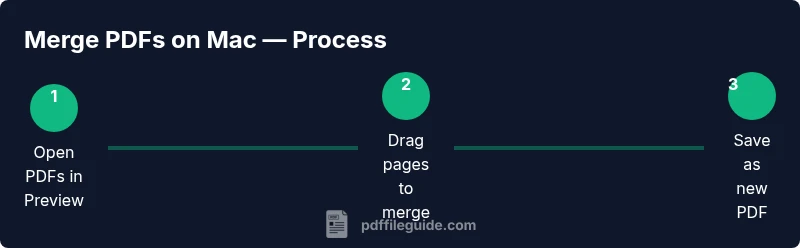
Launch Preview and open all PDFs you want to merge in a single window. Enable the Thumbnails pane (View > Thumbnails) so you can see individual pages. This makes it easy to drag pages between documents in a controlled order.
Tip: If the PDFs are in separate windows, drag them into one Preview window to consolidate your editing space. - 2
Arrange pages in the desired order
In the Thumbnails pane, drag and drop pages to arrange them in the exact sequence you want in the final file. You can select multiple non‑consecutive pages by holding Shift or Command while clicking, then drag them to the new position.
Tip: Use the grid layout in Preview to quickly visualize the final order before merging. - 3
Merge by dragging pages between documents
Drag a set of pages from one PDF’s Thumbnails into the other PDF’s Thumbnails to unite the documents. The target window will update to reflect the merged content. You can repeat across other PDFs to build a single file.
Tip: Dragging pages directly preserves original formatting and avoids reflow issues. - 4
Save the merged PDF as a new file
Once you have the pages in the desired order, choose File > Save or File > Export as PDF to create a new merged document. Pick a descriptive name and a logical location to help future retrieval.
Tip: Always save a new file name to avoid overwriting the originals accidentally. - 5
Optional: use Print-to-PDF for quick consolidation
If you prefer a quick route, select multiple PDFs in Finder and press Command+P to open the Print dialog, then choose Save as PDF. This method creates a merged file from the selected items without opening Preview.
Tip: This approach is helpful for very simple merges or when Preview is not behaving as expected. - 6
Verify and tidy up
Open the merged PDF to verify page order, ensure content integrity, and confirm that no pages are missing. Close all source files and keep a backup of originals until you are confident in the merged result.
Tip: If you notice discrepancies, repeat the merge with adjusted order and save under a new filename.
Questions & Answers
Can I merge PDFs on a Mac without using any extra software?
Yes. Preview and the built-in Print dialog can merge PDFs without third‑party software. If you want more automation, Automator provides batch merging options with no extra installations.
Yes—Preview and the Print dialog can merge PDFs without extra software, and Automator can automate the process if you need batch merges.
Is there a limit to how many PDFs I can merge at once?
There isn’t a fixed limit in native macOS tools, but performance and reliability can be affected by total file size and page count. For very large merges, break the task into smaller batches.
There isn’t a strict limit, but very large merges can be slower or less stable; consider batching.
How do I preserve page order when merging?
Use the Thumbnails pane in Preview to drag pages into the exact order you want. You can rearrange single pages or groups for precise sequencing.
Open the Thumbnails pane and drag pages to place them in the right order.
Can I automate merging PDFs for a folder?
Yes. Automator lets you create a workflow that identifies all PDFs in a folder and merges them into a single document, repeating automatically as needed.
Yes—Automator can automate folder-wide PDF merges with a reusable workflow.
What if the PDFs are password-protected?
You must unlock each PDF before merging. Enter passwords when prompted, then proceed with the merge as usual.
You need to unlock each file first, then merge.
Are there risks merging scanned image PDFs?
Merging scanned PDFs is safe; ensure OCR text if you require selectable text in the merged file. The merge operation itself doesn’t alter OCR status.
Merging scanned PDFs is safe, just check if you need OCR in the final file.
Watch Video
Key Takeaways
- Choose Preview for quick, on‑the‑fly merges.
- Use Automator for repetitive batch merges.
- Save merges as new files to preserve originals.
- Back up originals before merging.
- Verify the merged document before sharing.