How to Edit PDF Files: A Practical Guide for 2026
A practical, step-by-step guide to editing PDF files for professionals and individuals. Learn tool selection, best practices, text/image/form edits, and how to preserve formatting while exporting.


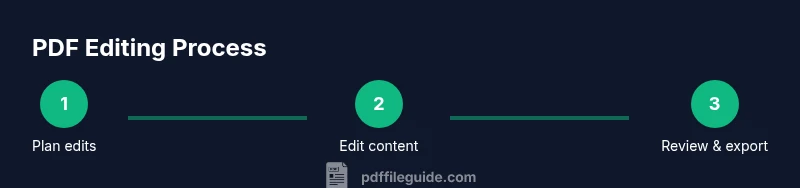
To edit a PDF, use a dedicated PDF editor or an online tool to modify text, images, and forms. You’ll need a PDF editor, a computer, and a backup copy of the file. Open the PDF, enable Edit mode, make changes, and save or export the result. For best results, start with a clean, non-destructive workflow: edit a copy, keep the original, and review changes.
What editing a PDF entails
Editing a PDF means altering content that is designed to retain its layout across platforms. When you pursue the goal of how pdf file edit, you should distinguish between text changes, image replacements, form updates, and annotations. Because PDFs are fixed-layout documents, changes may affect fonts, spacing, and alignment. Understanding the scope of edits upfront helps you decide whether to use a desktop editor, an online tool, or a combination of both. This guide explains practical approaches for professionals and casual users alike, with an emphasis on preserving formatting and accessibility as you modify. By outlining concrete steps and common pitfalls, PDF File Guide aims to empower you to edit confidently without compromising the document’s integrity.
The right tools to edit PDFs
Choosing the right tool is essential for smooth edits. Desktop editors typically offer robust text and image editing, form editing, and offline work, while online tools deliver quick changes withoutinstalling software. Your decision should consider: (a) the types of edits you need (text, images, forms, annotations), (b) whether the PDF uses embedded fonts, (c) whether you require batch processing or OCR for scanned documents, and (d) any security or compliance constraints. For ongoing work, a reliable editor with good font handling and layout preservation saves time. PDF File Guide recommends evaluating a few editors based on your typical tasks, then validating edits by comparing the before-and-after layouts to ensure fidelity.
Preparing your file: backups, fonts, and permissions
Before making edits, create a safe working copy and verify permissions. Always keep the original file untouched so you can revert if something goes wrong. If your PDF uses embedded fonts, confirm font availability; missing fonts may cause layout shifts when editing. For scanned PDFs, check whether OCR is required to convert images to editable text. Collect any source images you might replace, and note any form fields or annotations that require updates. A well-organized prep phase reduces guesswork and protects you from costly mistakes later in the process.
Editing text in PDFs
Text editing in a PDF is often the core task. Start by selecting the edit tool in your editor and clicking on the text you want to modify. Depending on the software, you may be able to reflow text, adjust font size, color, and style, or replace words while preserving line breaks and spacing. When fonts are embedded, the editor can apply changes without reflowing others; if not, you may see layout shifts. Always run a quick typographic check after edits to ensure headings, captions, and body text remain consistent with the original design. If your document uses complex typography, consider exporting a copy to a more editable format for substantial text changes, then re-importing.
Editing images and objects
Images and vector objects often sit alongside text in PDFs, and editing them requires a tool with object handling capabilities. Use the select or edit-object tool to reposition, crop, resize, or replace an image. For vector graphics, you may adjust fills, strokes, and grouping. If you replace an image, keep its resolution and aspect ratio in mind to avoid pixelation. After changes, re-align and re-check margins to preserve the page layout. Document consistency matters, especially for professional PDFs used in client communications or compliance workflows.
Working with forms and annotations
Fillable forms require special handling. Use the form-editing features to update field names, default values, and calculations, or to add new fields. Secure forms by configuring permissions and signatures correctly. Annotations such as highlights, comments, and sticky notes are useful during reviews but should be removed or finalized before final distribution. If you plan to collect signatures, ensure the workflow supports legally binding digital signatures and that the final version preserves form data as required.
Saving, exporting, and preserving layout
After edits, save with a non-destructive approach: save a new version and keep the original intact. When suitable, export to other formats (e.g., Word or image formats) to enable further editing or to share with collaborators who don’t use PDF editors. Check that the exported file preserves essential formatting, fonts, and layout. When possible, run a final quality check on screen and, if needed, print a test copy to verify true-to-layout reproduction. Document any font substitutions or layout adjustments made during the process.
Common issues and troubleshooting
Common issues include font substitutions that alter layout, missing images, or broken hyperlinks after edits. If you encounter unexpected changes, revert to the backup and reapply edits in smaller increments. For scanned PDFs, OCR accuracy can vary; consider re-scanning or re-OCRing at higher DPI if text recognition fails. If editing a heavily formatted document becomes error-prone, break the task into sections and verify each section against the source. Finally, ensure accessibility remains intact by checking reading order and tagging requirements where applicable.
Authoritative sources and best practices
For reliable guidance on PDF editing techniques and standards, refer to authoritative sources and best practices from major publications and standards bodies. The PDF editing process benefits from understanding font handling, embedding, and layout preservation. See the references in the Authoritative Sources section for in-depth material from Adobe, standards organizations, and research bodies to support consistent, accessible edits across workflows.
Tools & Materials
- PDF editor software (desktop or online)(Choose one that supports text, image, and form edits; ensure compatibility with your OS and fonts.)
- Backup copy of the original PDF(Always edit a duplicate to preserve the original in case you need to revert.)
- Source fonts and replacement images(Have replacements ready if the document uses non-embedded fonts or you need image swaps.)
- Access to offline or online resources for OCR(Useful for scanned PDFs that require text extraction before editing.)
- Internet access(Needed for online editors or to verify reference material.)
Steps
Estimated time: 60-120 minutes
- 1
Open the PDF in your editor
Launch your chosen PDF editor and open the target document. Confirm you are editing a duplicate rather than the original to preserve the source file. If the file is large, allow time for the document to load before proceeding.
Tip: Check file permissions and ensure you have write access to the document. - 2
Enable Edit mode
Activate the edit tool or mode in your editor to make content changes. Some editors split text editing from image editing; ensure you’re in the correct mode for your task.
Tip: If the editor shows a locked icon, verify permissions or password protection. - 3
Edit text content
Click on the text to modify words, adjust fonts, and refine spacing. For non-embedded fonts, avoid uncontrolled font substitutions that can alter layout. Save frequently as you progress.
Tip: Prefer editing in short blocks to keep layout stable. - 4
Modify images and graphics
Select images or vector objects to replace, resize, or reposition. Maintain original resolution and aspect ratio to avoid distortion. Re-check alignment after replacements.
Tip: Keep a copy of the original image to revert if needed. - 5
Update forms and annotations
Edit form fields for labels, values, and calculations. Add or modify annotations only as needed for review. Ensure signatures, if used, meet your workflow requirements.
Tip: Test form fields by entering sample data to validate behavior. - 6
Review changes for layout consistency
Scan pages to verify margins, line breaks, and header/footer alignment. Use the zoom and grid tools to inspect spacing precisely. Compare with the original to confirm fidelity.
Tip: Use a side-by-side view to spot layout shifts quickly. - 7
Save a new version and back up
Save edits as a new file version. Record the changes made and the date. Keep the original document in a secure backup location.
Tip: Use meaningful file names to track versions easily. - 8
Export or share the edited PDF
If needed, export to Word, image formats, or other suitable formats. Verify the exported version preserves essential formatting and accessibility features.
Tip: Run a final check for accessibility tags and reading order if the document is intended for assistive technology.
Questions & Answers
What is the best tool to edit PDFs for professional work?
There isn’t a single best tool; choose based on your typical tasks (text edits, image replacement, forms) and whether you need offline work or OCR support. Compare features like font handling, layout preservation, and export options.
There isn’t one best tool; pick based on your usual edits and whether you need offline work or OCR.
Can I edit a password-protected PDF?
You can edit only if you have the password or the file owner has granted permissions. If edits are blocked, request access or use approved workflows.
You need the password or permission to edit a protected PDF.
Are free PDF editors sufficient for basic edits?
Free editors can handle light edits, annotations, and form filling, but they may lack advanced layout control or reliable font handling. For professional work, consider a paid editor for stability and support.
Free editors work for light tasks, but paid editors offer more reliability.
Will edits affect accessibility features like tagging?
Editing can impact tagging and reading order. After edits, verify the document’s accessibility structure and re-tag as needed for screen readers.
Edits may affect accessibility; re-check tagging after changes.
How do I edit a scanned PDF?
Scanned PDFs require OCR to convert images to editable text before making changes. Use a tool with reliable OCR settings and verify text accuracy afterward.
OCR helps; convert to editable text before editing scanned PDFs.
Is it possible to revert after saving edits?
If you saved over the original, revert is only possible if you kept an unmodified backup copy. Always maintain a separate version history for safety.
Revert only if you kept the original backup or a separate version history.
Key Takeaways
- Edit on a copy to protect the original.
- Select the right tool for the task (text, image, forms).
- Preserve fonts and layout to maintain fidelity.
- Review changes thoroughly and test exports.
- Document versions and keep backups for compliance.