How to Clean a PDF File Online: A Step-by-Step Guide
Learn how to clean a PDF file online with safe tools, privacy tips, and a practical workflow to remove metadata, redact content, and preserve formatting.


By the end, you’ll know how to clean pdf file online: remove extraneous text and images, redact sensitive data, and preserve layout using trusted web tools. This guide covers safe online tools, privacy considerations, and step-by-step actions you can perform in under 15 minutes. No software installation required; know what to upload and how to verify results.
What does it mean to clean a PDF?
According to PDF File Guide, cleaning a PDF means removing extraneous elements, redact sensitive content, and standardizing formatting while maintaining readability. This helps when sharing documents, preparing reports, or sending redacted versions to clients. The process often includes metadata pruning, image optimization, and font handling to ensure consistency across devices. In practice, you want a workflow that preserves layout but eliminates distractions.
Why clean PDFs online rather than with desktop software?
Online cleaning offers convenience, speed, and reach across devices. It lets you work from any computer without installing apps and can be ideal for quick collaborations. However, it also requires careful attention to privacy and tool legitimacy. For routine tasks, online cleaners can complement desktop workflows, enabling you to sanitize PDFs on the go.
Privacy and safety considerations when using online tools
Privacy is a major concern when uploading documents to online services. PDF File Guide analysis shows that not all tools delete files promptly, and some may retain data in logs or temporary storage. Always read the privacy policy, use HTTPS connections, and avoid cleaning highly sensitive documents on unknown sites. If you must, consider offline tools or trusted enterprise solutions.
How to select trustworthy online PDF cleaning tools
Start by checking privacy policies, data retention statements, and whether the site supports secure file deletion after processing. Look for user reviews from credible sources, and prefer tools that offer a clear roadmap for redactions and metadata removal. If you handle sensitive information, favor tools that provide local processing or strong encryption and a transparent audit trail.
Step-by-step workflow to clean a PDF online (high-level)
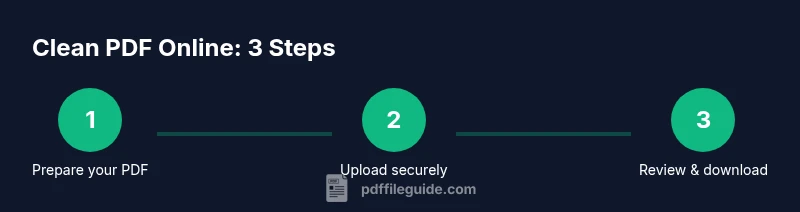
- Upload the file to a reputable tool with a clear privacy policy. 2) Use features to remove metadata and redact sensitive content. 3) Review the result for formatting, fonts, and image quality before saving. 4) Download the cleaned PDF and keep a backup of the original. 5) Verify metadata removal and redactions with a second viewer. 6) Store the cleaned file in a secure location and note any changes for future reference. This approach minimizes risk and ensures you retain control over the outcome.
Common issues and troubleshooting
If a tool fails to remove certain metadata or leaves hidden content, try a second trusted service or repeat the process with a different tool configuration. Always confirm the removal by inspecting the document properties and using a PDF viewer that shows metadata. If your file is scanned and image-based, enable OCR where available or convert to a searchable format before cleaning. Be mindful of file-size limits and ensure you are on a secure network.
Verification and final checks after cleaning
After cleaning, perform a quick visual check: confirm the main content remains legible, fonts display correctly, and images are not distorted. Verify that sensitive metadata and hidden layers are removed by inspecting document properties and using a reputable metadata viewer. Run accessibility checks if needed, and confirm that links and attachments still work. A final save should include a clear filename indicating it is the cleaned version.
Best practices and future-proofing your PDFs
Always keep a clean backup of the original file before any online cleaning. Prefer services with encrypted transmission (HTTPS), a transparent deletion policy, and minimal data retention. Establish a routine: remove metadata first, redacts if necessary, and verify with multiple viewers. When possible, combine online cleaning with offline tools for highly sensitive documents. The PDF File Guide team recommends maintaining a documented workflow to ensure consistency across projects.
Tools & Materials
- Web browser (Chrome, Edge, or Firefox)(Keep browser up to date for security and compatibility)
- Stable internet connection(Aim for reliable connectivity to avoid upload interruptions)
- Original PDF file(Keep a local backup before cleaning)
- Two reputable online PDF cleaning tools(Prefer tools with clear privacy policies and auto-delete)
- Optional: OCR-capable tool if the PDF is scanned(Use only if you need searchable text after cleaning)
Steps
Estimated time: 20-40 minutes
- 1
Assess the document
Open the PDF and identify what should be removed or redacted. Note any sections that must remain intact, such as headers or legal text. This upfront assessment reduces the risk of over-cleaning and keeps essential information accessible.
Tip: Document the sections you plan to redact so you can re-check after cleaning. - 2
Choose trustworthy online tools
Select tools with transparent privacy policies and clear data deletion statements. Favor services that perform processing in the cloud with strong encryption and provide an audit trail. If privacy is critical, consider offline tools instead.
Tip: Read the privacy policy to confirm whether files are stored or shared with third parties. - 3
Upload and configure settings
Upload your PDF to the chosen tool in a secure environment (HTTPS). Configure options to remove metadata, redact sensitive content, and optimize images if needed. Do not enable features you do not understand.
Tip: Use duplicate copies for testing before cleaning the final version. - 4
Apply cleaning actions
Apply metadata removal, redaction, and any layout-preserving adjustments. If the tool supports selective redaction, target only the necessary sections. Avoid irreversible actions until you verify the result.
Tip: Work on a copied file to avoid accidental data loss. - 5
Review results
Check formatting, fonts, and images for fidelity. Inspect document properties to confirm metadata and hidden data are removed. If accessibility features exist, verify they remain intact or adjust as needed.
Tip: View the document in multiple PDF readers to catch rendering differences. - 6
Download and back up
Download the cleaned version and save it with a clear name (e.g., ProjectX_Cleaned_v1). Keep a copy of the original file for compliance and future reference.
Tip: Store the backup in a separate secure location or cloud drive with restricted access.
Questions & Answers
Is it safe to clean PDFs online?
Yes, it is generally safe when you use reputable services with clear privacy policies and avoid uploading documents containing highly sensitive information.
Yes, use reputable services and avoid sensitive documents.
Can online tools remove metadata and hidden data?
Most online cleaners offer metadata removal. Always verify by checking the PDF properties after cleaning.
Yes, most tools let you remove metadata; verify afterward.
Will cleaning online affect accessibility tags?
Cleaning can affect accessibility features if tags or structure are altered. Recheck and fix tags after cleaning.
Be aware of accessibility; verify and adjust tags.
Do I need to pay for premium features?
Free tools exist but often have file-size or feature limits. Premium options unlock larger files and advanced redaction.
Free options exist with limits; consider upgrades for bigger files.
What if the tool damages my document?
Always keep a backup of the original. If issues occur, revert to the original and try another trusted tool.
Back up first; if problems occur, try another trusted tool.
Watch Video
Key Takeaways
- Upload non-sensitive copies to online cleaners.
- Verify metadata removal and redactions before sharing.
- Keep an original backup for safety.
- Choose trusted tools with encryption and deletion policies.
- Review accessibility and formatting after cleaning.