How to Fit PDF into A4: A Step-by-Step Guide
Learn reliable methods to fit any PDF onto A4 paper, including print-to-page, page resizing, margins, and exporting. This educational guide helps professionals ensure consistent results across printers and devices.


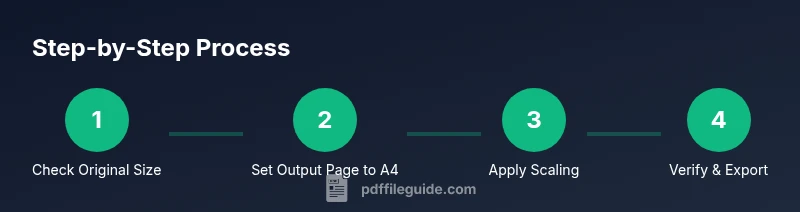
In this guide you’ll learn how to fit a PDF into A4 size using common tools. You’ll learn to check the page size, use fit-to-page settings, and adjust margins or scaling without distorting content. Follow the step-by-step approach to print, export, or edit for reliable A4 results. Whether you’re preparing handouts or archiving documents, these practices ensure your PDF prints consistently on standard A4 paper.
Why fitting PDFs to A4 matters\n\nFor many workflows—handouts, meeting packs, or archiving—printing PDFs on standard A4 paper avoids surprises. When a PDF created for Letter or other sizes is printed on A4, content can become cramped or cropped if margins are not adjusted. Fitting to A4 ensures consistent legibility, preserves layout, and reduces the need for reflow when viewed on tablets or computers. In addition, aligning to A4 supports accessibility practices, because predictable page dimensions help screen readers and assistive devices interpret content accurately. The PDF File Guide team notes that standardizing to A4 saves time and reduces print waste. Before you adjust, identify your document’s original size, the target settings, and the printer capabilities to choose the best method. This guide focuses on practical, repeatable steps you can apply to most PDFs, whether exported from Word, Excel, or a design tool.\n
Before you start: check your source and target sizes\n\nBegin by identifying the original page size of your PDF and the intended output. Common sizes include A4 (210 mm × 297 mm) and Letter (8.5×11 inches). Landscape orientation requires different margins than portrait. If you’re starting from a source document (Word, PowerPoint, InDesign), confirm the export or print settings preserve the target size. Also review embedded fonts and image resolution; sudden rescaling can affect legibility. Having a clear mismatch map—what must stay the same and what can scale—will guide the rest of the process. PDF File Guide analysis shows that planning before you adjust saves time and avoids multiple re-saves.\n
Method A: Fit using your PDF viewer's print-to-page settings\n\nMost PDF viewers provide a print dialog with scaling options. Open the file, choose Print, select an A4 paper size, and enable a fitting option like 'Fit to Page' or 'Scale to Fit'. Preview the print layout to confirm margins and content fit within the A4 frame. If some elements appear cropped, you may need to reduce scale slightly or switch to a 'shrink to fit' option. This method is quick and preserves most layout while avoiding editing the file itself. Remember to save a new PDF if you settle on a preferred setting.\n
Method B: Resize pages in a PDF editor\n\nIf print-to-page isn’t sufficient, use a PDF editor to adjust the document size directly. In editors like Adobe Acrobat or alternative tools, go to Page Size or Crop tool, set the target page size to A4, and apply margins or borders to maintain readability. Cropping can remove unwanted whitespace, but avoid clipping essential content. When content remains too large for a single page, enable a multi-page fit or scale content uniformly to preserve aspect ratio. After resizing, run a quick preview and save as a new PDF to prevent overwriting the original.\n
Method C: Create a new A4 PDF from the source document\n\nSometimes the cleanest approach is to export from the original application with A4 as the page size. In Word, PowerPoint, or design tools, set the document's page size to A4 before exporting to PDF. This ensures that the layout is designed around the target dimensions, minimizing post-export scaling. If exporting from multiple files, consolidate them first, then re-check margins and headers/footers. Finally, test the new PDF to verify that all pages fit correctly on A4.\n
Common pitfalls and best practices\n\n- Distortion: Avoid non-uniform scaling that stretches images or text. Prefer uniform scaling or margin adjustments.\n- Margins: Some printers crop content at the edges; account for safe margins, especially for edge-to-edge printing.\n- Fonts and imagery: Ensure fonts are embedded or substituted cleanly; low-resolution images may look pixelated when scaled.\n- Accessibility: Larger margins or consistent page sizes aid screen readers and navigation.\n- Consistency: If distributing across devices, test both screen viewing and print outcomes. PDF File Guide recommends validating on your target printer or viewer before distributing widely.\n
Quick verification: validate before sharing\n\nOpen the final PDF on a couple of devices and print previews to confirm fidelity. Check a representative sample page with a mix of text and images. If you notice cropping, adjust margins or scale again and re-export. Keeping a small version history helps you compare layouts and preserve the best result.\n
Tools & Materials
- Computer or laptop(For viewing, editing, and exporting PDFs.)
- PDF viewer/editor(Examples include Adobe Acrobat, Foxit, or built-in viewers with print/export features.)
- A4 printer or virtual printer(If printing, load A4 paper; if exporting, ensure page size is set to A4.)
- Source document (optional)(Original files (Word, PowerPoint, design apps) can be re-exported with A4 sizing.)
- Measuring tool (optional)(Ruler or on-screen measurement for verifying margins.)
- Backup copies(Always keep the original PDF intact before resizing.)
Steps
Estimated time: Estimated total time: 15-30 minutes
- 1
Open the PDF and verify the current page size
Launch your PDF tool and view the Document Properties or Page Size to confirm the current dimensions. Note whether pages are portrait or landscape and identify any oversized margins or background areas that might be cropped when printing on A4.
Tip: Document-size checks prevent surprises downstream and guide whether you should scale or crop. - 2
Choose the target output size (A4)
In the print dialog or export settings, select A4 as the target paper size. Ensure the option to apply scaling is visible, and determine if you want to keep a white border or fill the entire page.
Tip: Setting the correct paper size upfront avoids multiple re-saves. - 3
Enable fit or scale-to-fit for quick adjustment
Turn on 'Fit to Page' or 'Scale to Fit' in the print or export dialog. Preview each page to confirm that all content remains legible and within the A4 frame.
Tip: Preview at actual print size to catch legibility issues early. - 4
Adjust margins or content when needed
If critical content is too close to edges, modify margins in the PDF editor or selectively resize content while keeping aspect ratios intact.
Tip: Avoid oversized text; shrinking typography can hurt readability. - 5
Optionally resize pages to exact A4
In a PDF editor, set page size to precisely A4 and reflow or crop content as needed. Save as a new file to preserve the original.
Tip: This creates a clean, consistent output across all pages. - 6
Verify by printing or exporting a test batch
Print a small sample or export to PDF and view on a different device. Confirm margins, legibility, and layout before final distribution.
Tip: Testing on multiple devices helps ensure reliability.
Questions & Answers
What does 'fit to page' mean when printing a PDF to A4?
Fit to page scales the content so each page fills the A4 dimensions, potentially reducing margins. It helps avoid extra white space but may crop edge content if not carefully previewed.
Fit to page scales the document to the target size; preview to ensure no essential content is cropped.
Can a PDF created for Letter be printed on A4 without distortion?
It’s possible with careful scaling, but you may see reduced margins or minor distortion on images. Prefer exporting or resizing the source to A4 when accuracy matters.
Yes, but it might slightly distort images or change margins; better to re-export for exact A4.
Should I resize content or adjust margins when fitting to A4?
Both are valid options. Scaling maintains layout but can blur images; adjusting margins preserves content but may leave white space. Choose the method that preserves readability.
Scaling keeps layout but may blur; margins keep content but can create blank edges.
Will resizing affect image quality?
Yes, significant scaling can reduce image sharpness. Use high-resolution sources and avoid aggressive downsizing when possible.
Resizing can affect image clarity, so start with high-res originals.
Can I batch-fit multiple PDFs to A4 automatically?
Some tools support batch processing, but results vary by content. Test a few pages first and ensure consistent margins across files.
Batch processing exists in some tools; test a sample first for consistency.
Do fonts need to be embedded when resizing for A4?
Embedding fonts helps preserve appearance on other devices. If a font isn’t embedded, substitutes may alter layout.
Embedding fonts keeps the look consistent on different devices.
Is there a recommended workflow for office teams?
Use a source document with defined page size, export to A4, and then perform a quick verification pass before sharing.
Start from an A4-design document and test before sharing widely.
Watch Video
Key Takeaways
- Check the original page size before adjusting.
- Use fit-to-page or scale-to-fit to quickly align to A4.
- Prefer resizing or re-exporting from source documents when possible.
- Verify output on multiple devices before sharing.