How to Fit PDF to Legal Size: Step-by-Step Guide
Learn how to fit a PDF to legal size (8.5 x 14 inches) with practical steps. This guide covers page sizing, margins, scaling, and printing options to produce crisp, print-ready legal-size PDFs.


This guide teaches how to fit a PDF to legal size (8.5 x 14 in) by changing page size, margins, and print options. You'll learn when to resize pages, scale content, or print to fit, plus how to verify results before saving. The recommended workflows work in most PDF editors and print drivers.
How to fit pdf to legal size: Understanding PDF page sizes
PDF page sizes determine how content maps to printed output or screen view. The legal size in the US is 8.5 x 14 inches; many printers and office workflows still default to letter (8.5 x 11) or A4. When you need a document to print or share on legal-size stock, you must adjust either the physical page boundary or the printable area. The difference between resizing the canvas (changing the page size) and scaling the content (shrinking or enlarging the existing layout) matters: resizing changes the document's footprint; scaling preserves content size but may require reflow. According to PDF File Guide, planning ahead saves time and preserves readability. Before you begin, decide whether your goal is a printed brochure, a legal contract, or a digital file intended for archival. If you know your end-use, you can select the right approach from the start.
Core strategies for resizing
Your options fall into three practical tracks: (1) resize the page to legal size and reflow the layout, (2) scale the entire page to fit into legal size without altering proportions, (3) print-to-PDF or export with a new page size. Each approach has trade-offs: resizing may require reflow of text and repositioning images; scaling keeps the layout but reduces legibility if fonts are small; print-to-PDF preserves original page dimensions but adds a new canvas. In many cases, a hybrid approach works: adjust margins to keep content readable, then scale only large elements. PDF File Guide notes that the easiest approach is often to use your editor’s page-size tool and preview the result before exporting.
When to choose each method
Choose page resizing when the document’s layout is flexible and you must fill a longer sheet without shrinking fonts. Opt for scaling when you need a quick fix for simple graphics or dashboards where legibility isn’t critical. Use print-to-PDF or exporting with a new page size when you must preserve the exact content as-is and only change the canvas. For multi-page documents, a consistent approach across all pages usually yields the best results. PDF File Guide emphasizes testing one page first to gauge readability.
Pre-flight checklist
Before you start, collect the essentials: your target legal-size page dimensions (8.5 x 14 inches), a reliable PDF editor, and access to a printer or print-to-PDF driver if you plan to print. Verify whether the PDF contains bleed marks, margins that may crop content, or images that extend to the edge. Decide whether color fidelity matters and confirm that fonts are embedded to prevent reflow issues. Finally, back up the original file to preserve a safe restore point.
Scenarios: single-page vs multi-page PDFs
For a single-page document, resizing or scaling is often straightforward because you can see all content at once and adjust margins accordingly. For multi-page files, you must maintain a consistent layout across pages, which may involve creating a new template or using a preset. Inconsistent scaling can make headers, footers, or page numbers look misaligned. In all cases, verify that critical content remains within printable boundaries.
Common issues and fixes
Cropping: Some printers will crop unexpectedly if margins exceed printable areas. Fix by increasing margins or reducing content. Font readability: Shrinking fonts can blur text; if possible use a larger base font or adjust line spacing. Bleed and margins: Ensure designs with borders leave safe margins. Orientation: Landscape vs portrait can affect readability; pick the orientation that best suits the content.
Verify and save your legal-size PDF
Open the new file in a viewer and use Print Preview to confirm page size and margins. If printing, do a test run on actual legal-size stock. Save the file with a clear, descriptive name (for example: ProjectX_Legal8.5x14.pdf) and keep a copy of the original. When you’re satisfied, share the file with collaborators and include notes about the chosen workflow.
Tools & Materials
- PDF editor software(Supports page size changes, margins, and export options.)
- Legal-size paper or print driver(8.5 x 14 inches; necessary for printing or final validation.)
- Print-to-PDF driver (optional)(Useful if your editor lacks page-size controls.)
- Default or custom page-size presets(Speed up repeated tasks.)
Steps
Estimated time: 25-40 minutes
- 1
Open the PDF in your editor
Launch your PDF editor and open the target document. Confirm you have editing rights and create a backup copy before making any changes.
Tip: Always start by saving a backup of the original file. - 2
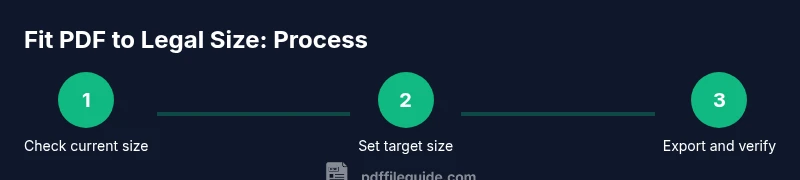
Check current page size
Inspect the current page size and orientation to determine the baseline before editing. This helps you choose the most appropriate resizing method.
Tip: Note the current dimensions in inches or millimeters. - 3
Choose a method: resize, scale, or print-to-PDF
Decide which approach best preserves readability for your content. For dense text, resizing with careful margins is often best; for graphics, scaling may be preferable.
Tip: If unsure, begin with a small test page. - 4
Set the target size to 8.5 x 14 inches
In the page-size dialog, set width to 8.5 inches and height to 14 inches; lock aspect ratio if present. Confirm orientation matches the document layout.
Tip: Check that the orientation aligns with your content flow. - 5
Adjust margins and content placement
Increase margins to accommodate the new canvas or reflow content to fit the new area. This helps prevent cropped elements on print.
Tip: Use alignment guides to keep headers and footers consistent. - 6
Apply scaling if needed
If content doesn’t fit after resizing, apply scale (e.g., 90–100%) or selective scaling for large images. Review text readability after scaling.
Tip: Preview at 100% zoom to evaluate legibility. - 7
Preview and verify
Use the editor’s preview to check page size, margins, and content fit across pages. Look for overflow, cropped text, or misplaced images.
Tip: Check both on-screen and at print size. - 8
Export as a new PDF and test print
Export the document with a new filename to preserve the original. Do a test print on legal-size stock to confirm accuracy before distribution.
Tip: Keep the original file unchanged; name the output clearly.
Questions & Answers
What is legal size in PDF terms?
Legal size refers to 8.5 x 14 inches in the US. PDFs can be created with a fixed page size, or the content can be scaled to fit. When printing, ensure your printer supports legal-size paper.
Legal size is 8.5 by 14 inches. You can create PDFs with that page size or scale content to fit. Make sure your printer supports legal paper.
Can I resize existing content without losing readability?
Yes, you can resize while preserving readability by adjusting margins, keeping font sizes readable, and avoiding extreme scales. Always preview after resizing to verify readability.
Yes. Just adjust margins and font sizes, and preview to ensure readability.
Will legal-size PDFs print correctly on standard printers?
If your printer supports legal-size paper and you select the correct page size, printing should align. Use print-to-fit options or a test page to verify alignment.
Yes, when your printer can handle legal-size paper and you choose the right settings.
What if my editor lacks page size options?
Use a print-to-PDF driver or export with a new page size to create a PDF at 8.5 x 14 inches. This preserves content while updating the canvas.
Try a print-to-PDF approach to apply a new page size.
Is it better to resize pages or scale content first?
Consider the document’s content. For text-heavy documents, resizing with balanced margins helps readability; scaling is often better for simple graphics but can blur text.
Depends on content; resize for text, scale cautiously for graphics.
Watch Video
Key Takeaways
- Plan the target size before editing.
- Choose the method that preserves readability.
- Preview before saving the final file.
- Test printing on legal-size stock if printing.