How to Remove Signature from PDF: A Complete Guide
Learn safe, legal methods to remove signatures from PDFs, whether digital, handwritten, or embedded. Step-by-step approaches, tools, and best practices for professionals.


You can remove a signature from a PDF by clearing the signature field or applying redaction, depending on the signature type and permissions. Use a trusted PDF editor, ensure you have editing rights, and back up your document first. This guide covers digital signatures, handwritten scans, and embedded signatures, plus safe alternatives like replacing the signing area.
Understanding signatures in PDFs
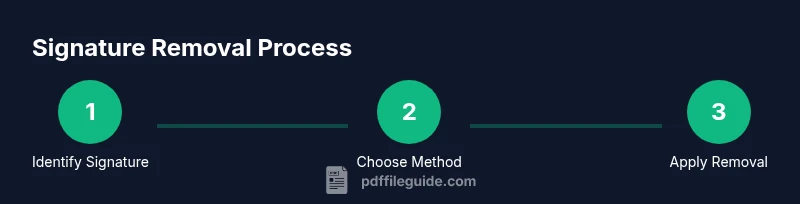
Signatures in PDF documents can be digital, handwritten scanned images, or embedded stamps. Each type behaves differently when you attempt to remove it. The key to a successful removal is understanding whether the signature is merely decorative, a certificate-backed digital seal, or an image tied to specific pages. According to PDF File Guide, the method you choose should respect the document's integrity and any legal constraints. Start by identifying the signature type: is it a digital certificate that validates the document, or a simple image on the page? This distinction determines whether you can simply delete a field or must redact a portion of the page. Knowing this helps you plan the safest and most compliant workflow.
Legal and ethical considerations
Removing signatures is not merely a technical task; it carries legal and ethical implications. If you are the document owner or have explicit permission from the signer, removal may be necessary for updates or corrections. However, for digitally signed PDFs, removing a signature can invalidate the document’s authenticity and break audit trails. In regulated environments (finance, healthcare, legal), you may need to obtain consent or use formal procedures to modify or reissue the document. PDF File Guide emphasizes documenting every change and retaining an original copy for records. When in doubt, consult the signer or the issuing authority before proceeding.
Tools and formats you can use to remove a signature
There are several approaches depending on the signature type and your editor. Digital signatures usually offer a clear option to
Step-by-step: removing a digital signature
Digital signatures often appear as a field or certificate seal on the document. If the signer authorized edits and the document’s policy permits it, you can typically remove the signature by selecting the signature field and choosing a removal or clear option. Some signatures are locked to a certificate; in such cases, you may need to remove the signature by invalidating it through the editor or replacing the signed content, not by simply deleting the field. Always work on a copy to avoid data loss. After removal, re-validate the document to ensure the rest of the content remains intact.
Step-by-step: removing a signature from a scanned or embedded image
When the signature is a scanned image or an embedded stamp, the removal approach is different. Use a redaction tool or an eraser to conceal the area where the signature appears. Redaction is preferred when you must ensure the hidden content cannot be recovered. If you redact, consider attaching a note or a new signature field in a later step to preserve workflow. Be mindful that some scanned signatures may be part of the document’s chronology; removing them could affect the perceived integrity of the file. Always verify post-removal that the rest of the document remains legible and correctly formatted.
Verifying integrity after removal and next steps
After removing a signature, verify that the document’s layout, fonts, and hyperlinks remain intact. Open the PDF in multiple viewers to confirm consistency, and check that any form fields still function as intended. If the document was part of a workflow or approval chain, update the records to reflect the change and generate a new signing workflow if needed. Keep an audit trail that explains why the signature was removed and who authorized the action. This helps maintain transparency and reduces potential disputes later on.
Common pitfalls and troubleshooting
Common pitfalls include removing a signature without proper authorization, accidentally deleting content beyond the signature area, or failing to save changes in a way that preserves the document’s integrity. Always test on a non-production copy, disable any automatic security settings temporarily if required, and confirm that the final file can still be opened by the intended recipients. If you encounter a locked signature, consult your organization’s policy or seek the signer’s consent before attempting further edits. PDF File Guide recommends documenting each step and retaining a pristine backup.
Tools & Materials
- PDF editor with signing and redaction features(Must support clearing signatures and redacting image regions)
- Backup storage (local or cloud)(Create a copy of the original file before editing)
- Redaction or erase tool(For concealing scanned/embedded signatures)
- Password or certificate access (if signature is protected)(Some signatures require authentication to remove)
- Scanner or camera (optional)(If the signature originated on paper and was scanned)
Steps
Estimated time: 30-60 minutes
- 1
Verify permissions and back up the original file
Confirm you have explicit permission to edit the document and create a secure backup copy before making changes. This protects you against accidental loss or disputes later on.
Tip: Store the backup in a separate drive or cloud location. - 2
Open the PDF in a capable editor
Launch your editor and load the document. Use signature viewing mode if available to identify the exact signature field or image region.
Tip: Enable editing mode and ensure you have the latest software updates. - 3
Remove or clear the digital signature
Select the signature field and choose 'Clear Signature' or 'Remove Signature' depending on the editor. Some signatures may be certificate-locked and require alternative steps.
Tip: If the editor prompts for a certificate, do not proceed without proper authorization. - 4
For scanned or embedded signatures, use redaction
If the signature is a scanned image, apply a redaction to the area or use an erase tool to conceal it securely.
Tip: Redaction is preferable to simple erasing to prevent recovery of the hidden content. - 5
Save as a new file
Save the edited document under a new filename to preserve the original file and enable easy rollback if needed.
Tip: Use versioning in the filename (e.g., filename_v2.pdf). - 6
Verify document integrity after changes
Open the new file in multiple viewers and test essential features (forms, links, fonts) to ensure no unintended changes occurred.
Tip: Check that the signature area is completely removed and cannot be reconstructed. - 7
Document next steps and record-keeping
If the document needs re-signing, coordinate with the signer and update any relevant records to reflect the edit and new status.
Tip: Keep an audit trail describing why the signature was removed.
Questions & Answers
Is it legal to remove a signature from a PDF?
Legal outcomes depend on ownership and consent. Digitally signed PDFs may be invalid if signatures are removed without authorization. Always verify with the signer or issuing authority before proceeding.
Legal outcomes depend on ownership and consent. Digitally signed PDFs may be invalid if you remove signatures without authorization.
Can I remove a signature from a scanned PDF?
Yes, a scanned signature can be removed using redaction or erase tools. Ensure your action complies with relevant policies and does not destroy required records.
Yes, you can remove a scanned signature using redaction or erase tools, while following policy rules.
What tools can remove signatures from PDFs?
Use a PDF editor with signing support, redaction features, and field editing. Some editors offer dedicated signature removal workflows.
A capable PDF editor with signing and redaction features can remove signatures.
Will removing a signature affect document integrity?
Content integrity may stay intact, but signature verification and audit trails can be affected. Re-validation after removal is essential.
Removal can affect verification; content may stay the same, but the signature status changes.
What should I do if the signature is locked?
If locked, obtain signer permission or use official removal procedures. Do not attempt to bypass security controls without authorization.
If it's locked, seek signer permission or use proper removal steps.
Key Takeaways
- Back up the original PDF before editing.
- Choose the removal method suited for digital vs scanned signatures.
- Verify the document’s integrity after removal.
- Keep records of changes for audit trails.
- Use reputable PDF editors to avoid file corruption.