PDF for Windows 11: View, Edit, Convert, and Secure
Learn to view, edit, convert, and secure PDFs on Windows 11 using built-in tools and trusted apps. This practical guide covers setup, workflows, security best practices, and efficient tasks for professionals.


PDF on Windows 11 means using native Windows tools and trusted third‑party apps to view, edit, convert, and secure PDF files. This guide explains the best apps, practical tasks, and privacy practices on Windows 11, so you can work efficiently with PDFs across work and personal projects. Whether you edit forms, annotate, or compress large files, this definition captures the scope.
Viewing PDFs on Windows 11: Built-in options
On Windows 11, you can view PDFs using built-in tools like Microsoft Edge and the Print to PDF feature. Edge provides reliable rendering, text search, and basic annotations such as highlights and notes. For offline reading, store PDFs locally on your device to keep data private and fast-access. PDF File Guide notes that starting with Edge for viewing and quick marks helps you stay in a familiar workflow, reserving more powerful edits for specialized tools as needed. If you frequently share PDFs with others, consider saving a copy in a cloud‑synced folder with tight access controls to maintain privacy. For simple tasks like printing or exporting, Edge or the Windows print-to-PDF option can save time without extra software.
Editing PDFs on Windows 11: Tools and workflows
Native editing on Windows 11 remains limited, so most professional tasks rely on dedicated PDF editors. You can use Edge for lightweight annotations, but substantive edits to text or images require a desktop editor such as a commercial or free alternative. A common approach is to annotate in Edge and transfer the document to a full editor for layout changes, then re-export to PDF. The PDF File Guide recommends pairing quick in-context marks with a more capable editor to preserve formatting and avoid unintended shifts in typography or spacing. Remember to save versions incrementally to track changes and rollback if needed.
Converting and exporting PDFs on Windows 11
Windows 11 includes several pathways to convert and export PDFs. You can use Microsoft Print to PDF to create a PDF from almost any printable document, and Word can open or convert PDFs for editing, then save back as PDF. For longer documents, batch exports or OCR-assisted conversions may be needed; many editors provide richer export formats (Word, Excel, PowerPoint, or image formats). PDF File Guide highlights that choosing the right export target helps preserve layout and accessibility when reusing content across apps.
Security and privacy for PDFs on Windows 11
PDFs can carry sensitive data, so applying proper security is essential. Use password protection for confidential documents, restrict copying and printing where appropriate, and keep software up to date to mitigate vulnerabilities. When downloading PDFs from unfamiliar sources, verify authenticity and scan for malware before opening. The Windows 11 platform supports encryption features and secure printing options, which you should enable for high‑risk documents. The PDF File Guide Editorial Team emphasizes maintaining least privilege: share only what is necessary and review document permissions after every update.
Accessibility and optimization for PDFs on Windows 11
Accessible PDFs are easier to read for everyone, including people using assistive technologies. Tag structure, proper headings, and alternate text for images improve screen reader compatibility. If you optimize a PDF for accessibility, ensure fonts are embedded and color contrasts meet guidelines. Windows 11 tools can help check accessibility, while editors often offer built‑in features to add or verify structure. PDF File Guide suggests testing accessibility with a screen reader and adjusting captions and alt text to enhance comprehension for all readers.
Best practices and recommended workflow for professionals
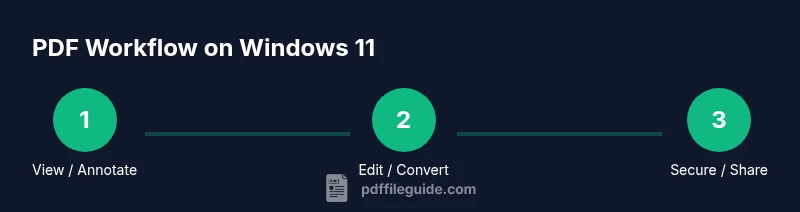
A practical workflow starts with viewing and annotating in Edge, then selectively moving the document to a full editor for any text or image edits. When sharing externally, export to a widely compatible PDF version and verify that all interactive elements function as intended. Maintain versioned backups and document a review trail for compliance. The PDF File Guide Editorial Team recommends establishing a layered approach: use built‑in tools for quick tasks, and rely on trusted editors for complex edits or high‑volume conversions.
Tools & Materials
- Windows 11 PC(Ensure OS is up to date with the latest Windows updates.)
- Web browser with PDF support (e.g., Microsoft Edge)(Use for viewing and simple annotations.)
- PDF editor (e.g., Adobe Acrobat, Foxit, or another trusted tool)(Needed for substantial editing; choose based on your workflow.)
- Office suite (optional for Word-to-PDF workflows)(Useful for converting Word documents to PDF with preserved layout.)
- Printer with PDF output (Microsoft Print to PDF)(Built-in option to create PDFs from any printable file.)
- Reliable internet connection(Helpful for downloading editors or accessing cloud assets, if needed.)
Steps
Estimated time: Total time: 30-60 minutes
- 1
Identify the PDF task
Define whether you only need to view, annotate, edit, or convert. Clear goals help you pick the right tools and avoid unnecessary work.
Tip: Write a one‑sentence task goal before you begin. - 2
Choose the right tool
Select Edge for viewing/annotations or a dedicated editor for advanced edits. If you plan to export to Word or other formats, ensure the editor supports reliable conversion.
Tip: Prefer official or widely trusted editors for critical documents. - 3
Open the PDF securely
Download from reputable sources and scan for malware before opening. Use Edge or a trusted editor to minimize risk.
Tip: Enable Windows Defender/antivirus real-time protection during downloads. - 4
Annotate or edit as needed
Use in‑app annotations for quick feedback; for content changes, switch to an editor and save intermediate versions.
Tip: Keep a version history to track changes safely. - 5
Convert/export when required
Export to Word, Excel, or image formats as appropriate. Validate that formatting remains intact on export.
Tip: Test key pages cross‑application to catch layout shifts. - 6
Save, verify, and share
Save a final PDF with an intelligible filename and metadata. Open the file to verify accuracy before sending.
Tip: Include a short description in the file's metadata for easier retrieval.
Questions & Answers
Can I view PDFs offline on Windows 11 without extra software?
Yes. You can view PDFs offline using Microsoft Edge or the default PDF viewer included with Windows 11. For most readers, edge offers reliable rendering and basic annotations without installing extra software.
Yes, Windows 11 can view PDFs offline with Edge or the built‑in viewer. No extra software is required for basic reading.
Is there a built-in way to edit PDFs on Windows 11?
Editing PDFs beyond simple annotations typically requires a dedicated PDF editor. Edge can annotate, but full text and image edits usually need a third‑party tool.
Edge lets you annotate, but for full edits you’ll usually need a dedicated PDF editor.
How do I convert PDFs to Word on Windows 11?
You can open a PDF in Word for conversion or use a PDF editor that supports export to Word. Check the result for formatting changes and adjust as needed.
Open the PDF in Word to convert, or use a converter in your editor. Review formatting afterwards.
What security practices improve PDF safety on Windows 11?
Enable strong passwords for sensitive PDFs, restrict copying, and keep software up to date. Verify sources before opening unfamiliar files.
Use strong passwords, limit permissions, and update software to stay secure.
Are there free PDF editors for Windows 11?
There are free and freemium editors available; however, their feature sets may be limited compared to paid options. Evaluate needs and trial before committing.
Yes, there are free editors with basic features. Test a few to see if they meet your tasks.
How can I ensure PDFs are accessible on Windows 11?
Use proper tagging, alt text for images, and clear heading structure. Verify accessibility with assistive tech and adjust as needed.
Tag PDFs properly and test with screen readers to improve accessibility.
Watch Video
Key Takeaways
- Leverage Edge for quick viewing and annotations to stay in one workflow.
- Reserve dedicated editors for substantial edits to preserve layout.
- Use Print to PDF for quick conversions without third‑party software.
- Security and accessibility should be built into every PDF workflow.
- Maintain version history and metadata to aid retrieval and compliance.