Acrobat Reader: A Complete How-To for Reading, Annotating, and Signing PDFs
Learn how to use Acrobat Reader to view, annotate, fill forms, and sign PDFs. This step-by-step guide covers installation, essential features, security best practices, and practical workflows for professionals.


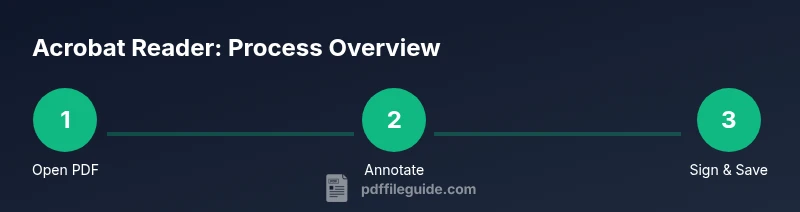
Acrobat Reader lets you view, annotate, fill forms, and sign PDFs without editing the source file. To start, install the official reader, open a PDF, and explore highlights, comments, and signature tools. This guide delivers a practical, step-by-step approach for productive, secure PDF work.
What is Acrobat Reader and why it matters
In the evolving world of document workflows, Acrobat Reader remains a foundational free tool for viewing, annotating, and signing PDFs. It supports a wide range of devices—from desktops to tablets and smartphones—so teams can review documents without altering the original content. The PDF File Guide team emphasizes that reliable, consistent PDF viewing is the first step toward efficient collaboration and risk-managed sharing. While it is not a full editor, its annotation and form-filling capabilities dramatically speed up reviews, approvals, and sign-offs across departments. For professionals who routinely handle contracts, reports, and proposals, mastering Acrobat Reader reduces back-and-forth and ensures everyone sees the same, trusted version of a document.
Essential features for professionals reading and annotating PDFs
Acrobat Reader offers a practical set of features that align with common professional workflows. You can open, search, zoom, and navigate quickly with bookmarks. The annotation toolkit includes highlights, underlines, strikethroughs, sticky notes, and drawing tools, which are invaluable for feedback without altering the text. The app also supports form filling and basic e-signatures through the Fill & Sign tool. For teams, comments can be summarized and exported to share with stakeholders. A key benefit highlighted by PDF File Guide is the ability to keep track of revisions in a single, non-destructive file, maintaining document integrity while capturing reviewer input.
Working with forms and signatures in Acrobat Reader
Fillable forms are a common use case for Acrobat Reader. Use the Fill & Sign tool to add text, checkboxes, and digital signatures. You can draw or type your signature, insert an image, and place it in a fixed position on the page. If you work with digital IDs or certificates, you can validate signatures and check for document integrity. Remember that some signatures may be restricted by the document creator, so you may need permission or a password. The PDF File Guide team notes that practicing signatures on test documents helps prevent accidental alterations to the final version.
Security, privacy, and best practices when using Acrobat Reader
Security is integral to any PDF workflow. Always download Acrobat Reader from the official Adobe site to avoid tampered installers. Enable Protected View or similar sandboxing features to reduce risk from malicious PDFs. Keep the application updated to mitigate known vulnerabilities. Be cautious with documents from unknown sources, especially those requesting form data or signatures. When in doubt, verify the source and scan attachments with security software. The PDF File Guide emphasizes establishing a routine for handling sensitive PDFs, including using a dedicated device for signing and avoiding saving credentials in the app.
Accessing Acrobat Reader on different devices and OS
Acrobat Reader is available on Windows, macOS, iOS, and Android, plus browser-based access through official channels. The user interface adapts to each platform, but the core tools—viewing, annotation, forms, and signing—remain consistent. This cross-platform compatibility supports fluid collaboration across teams who work from laptops, tablets, or phones. If you often switch devices, consider enabling cloud storage integration or syncing your recent documents so you can pick up where you left off. The goal is to maintain a seamless reading experience without compromising security.
Comparing Acrobat Reader with other PDF readers
There are several free and paid alternatives to Acrobat Reader, each with strengths in different areas. Some readers excel at speed and minimal resource use, while others offer advanced form handling and scripting capabilities. For most everyday tasks—viewing, basic annotation, and signing—Acrobat Reader provides a well-supported, familiar environment. When advanced editing or batch processing is required, professionals may evaluate paid editors or alternatives, ensuring features align with their governance and security requirements. PDF File Guide recommends testing multiple readers on non-sensitive documents before standardizing your workflow.
Tools & Materials
- Official Acrobat Reader installer or app from the official Adobe site(Download from the official source to avoid tampered installers)
- A device with internet access(Windows, macOS, iOS, or Android device)
- A test PDF to practice annotations and signatures(Use a sample or non-sensitive document)
- Optional trusted digital ID/certificate for signing(If you plan to sign with a digital ID)
- A saved backup copy of the original PDF(Preserve the unmodified version for reference)
Steps
Estimated time: 25-40 minutes
- 1
Install and verify Acrobat Reader
Download the official installer from Adobe, run the setup, and complete the on-screen prompts. Verify the app opens and the interface loads without errors. This ensures you’re on a trusted, up-to-date platform before you begin any work.
Tip: Download from the official site to avoid malware; enable automatic updates if available. - 2
Open a PDF and explore the interface
Launch a PDF and locate the left navigation pane, toolbar, and annotation toolbox. Familiarize yourself with the View, Comment, and Sign sections so you can quickly switch between tasks during reviews.
Tip: Use the search feature to jump to keywords like 'signature' or 'form' to speed up workflows. - 3
Annotate with highlights and comments
Select the highlight or underlining tool to mark key text, then add a sticky note for reviewer feedback. Use the drawing tools sparingly to avoid clutter and keep feedback legible.
Tip: Keep comments concise and actionable to improve turnaround times. - 4
Fill forms and save a copy
Use the Fill & Sign tool to populate form fields. Save a copy with a clear naming convention to preserve the original and the filled version for distribution.
Tip: Always use 'Save As' to differentiate between drafts and final versions. - 5
Add a digital signature or certificate
Insert an e-signature, resize as needed, and apply the signature to the document. If you use a certificate, ensure it’s valid and trusted by recipients.
Tip: Test the signed PDF by reopening it on another device to verify the signature status. - 6
Review, validate, and share securely
Review all annotations and signatures for completeness. Share via secure channels or cloud storage with appropriate access controls.
Tip: Avoid sending unprotected PDFs with sensitive data; consider password-protecting the document if appropriate. - 7
Cross-device access and ongoing maintenance
If you switch devices, ensure you can locate recent documents and maintain consistent tool settings. Periodically update the app and review security settings.
Tip: Enable cloud sync with caution, and confirm that sensitive data remains within approved environments.
Questions & Answers
Can I edit text in Acrobat Reader?
No, Acrobat Reader is designed for viewing, annotating, and filling forms. Text editing requires Acrobat Pro or another editor.
Acrobat Reader doesn’t edit text; use Pro for editing.
How do I sign a PDF in Acrobat Reader?
Use the Fill & Sign tool to add an e-signature; you can draw, type, or insert an image as your signature.
Use Fill & Sign to add a signature.
Is Acrobat Reader secure for opening sensitive documents?
Yes, use Protected View, keep software updated, and verify the document source before interacting with form fields or signatures.
Stay secure by enabling Protected View and updates.
Can I fill out forms on mobile devices?
Yes, the Acrobat Reader mobile app supports form filling; features may vary by platform and device.
Yes, you can fill forms on mobile.
What should I do if a PDF has signing restrictions?
Protections on a PDF may restrict edits or signing; you may need the document author’s password or an unlocked copy.
Protected PDFs may require the author’s password or an unlocked copy.
Watch Video
Key Takeaways
- Master core Acrobat Reader tasks for PDFs
- Annotate, fill forms, and sign without altering the source
- Prioritize security and trusted sources
- Keep documents organized across devices