Can You Password Protect a PDF? A Practical Guide
Learn how to password protect a PDF, choose between open and permissions passwords, apply strong encryption, and share securely without exposing sensitive data.


You can password protect a PDF using both desktop editors and online tools. Choose between an open password or a permissions password, set strong, unique passwords, and test the file after saving. This is a straightforward, widely supported security step that protects sensitive information. Remember to share the password only with authorized recipients and store it securely.
What password protection does for PDFs
PDFs are a common way to share documents, but sensitive content requires protection. Password protection adds a gatekeeping layer so unauthorized users can't open the file. There are two main models: an open password that encrypts the document for anyone who doesn't know the password, and a permissions password that restricts actions like printing, editing, or copying. According to PDF File Guide, adopting password protection is a practical baseline for document security, especially when handling personal data or confidential work materials. This guide explains how to implement protection across tools you already use, with emphasis on reliability, compatibility, and everyday usability. In this article, you’ll learn how to choose the right model, how encryption works, and how to test access after saving. The goal is to empower you to protect sensitive information without slowing down collaboration.
Two common password protection models
Open password (user password) prevents anyone from opening the PDF without the password. Permissions password (owner password) controls what a user can do once the document is open, such as printing or editing. In practice, you often protect PDFs with both: the open password ensures confidentiality; the permissions password enforces usage restrictions. Some tools allow you to require both passwords or decide to rely on a single password for both purposes. PDF File Guide notes that these models address different risk scenarios: quick sharing vs. controlled distribution. When deciding which model to use, consider who needs access, what restrictions are appropriate, and how you will manage password storage.
Tools you can use to password protect a PDF
Many tools can password protect PDFs, from professional desktop editors to free online services. Desktop editors like Adobe Acrobat Pro, Foxit PhantomPDF, and Nitro Pro typically offer encrypted save options and clear menus for both open and permissions passwords. Free or lower-cost options include LibreOffice, PDFsam Basic, and reputable online services, though you should be mindful of privacy and data handling. If you work with confidential material, favor a desktop solution to avoid uploading files. Always verify supported encryption schemes (AES-256 is standard) and ensure recipients can open the protected file with their tools. PDF File Guide emphasizes testing on multiple devices and readers to avoid compatibility issues.
Step-by-step: protect a PDF in a desktop editor (example workflow)
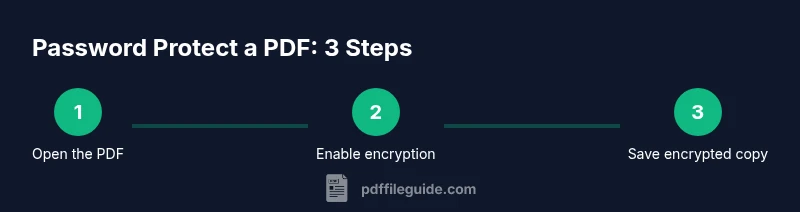
- Open your PDF in a password-capable editor. This is the essential first action because you cannot encrypt what you cannot access. 2. Navigate to the security or encryption section and choose the type of password you want (open or permissions). 3. Enter a strong, unique password and confirm. 4. Select AES-256 or equivalent encryption strength. 5. Decide on permission restrictions (print, edit, copy) if you need them. 6. Save as a new, encrypted copy to preserve the original file. 7. Test by reopening the new file and verifying that the password and restrictions work. 8. Store the password securely in a password manager and share only with authorized recipients.
Step-by-step: use a free tool or online service
- Install or open a trusted free tool or navigate to a reputable online PDF encryption service. 2. Open the PDF you want to protect. 3. Choose encryption or password protection and select the desired password model. 4. Create a strong password and confirm. 5. Save or download the encrypted copy. 6. Reopen to verify access control. 7. If using online tools, delete any uploaded copies from the server after download.
How to manage passwords securely
Passwords are the gate to your protected PDFs. Use a password that is long, random, and unique for each document. Consider a passphrase of at least 12-16 characters mixing upper/lowercase letters, numbers, and symbols. Use a password manager to store and retrieve passwords securely, and share passwords only through secure channels. If you must share access, consider providing a one-time link or note that the recipient's device is trusted. Always keep backups of encrypted PDFs and passwords in separate locations.
Common pitfalls and how to avoid them
- Forgetting the password: store it in a password manager.
- Using weak passwords: avoid simple words or predictable patterns.
- Assuming encryption is foolproof: keep software updated to minimize vulnerabilities.
- Over-sharing: only share with authorized people and revoke access when possible.
- Incompatibility: test across devices and readers to ensure the recipient can open the file.
Accessibility considerations and sharing securely
Password protection can complicate accessibility. Some screen readers or assistive technologies may struggle with encrypted PDFs, or metadata may reveal basic info. If accessibility is required, provide alternate secure access methods or decrypt versions for assistive workflows with the proper permissions. When sharing, use secure channels (encrypted email, password managers) and consider splitting the document into parts if needed.
Authority sources and further reading
- CISA: https://www.cisa.gov
- NIST: https://www.nist.gov
- ISO: https://www.iso.org/standard/74528.html
Quick checklist before sharing password-protected PDFs
- Confirm you encrypted with AES-256.
- Verify the recipient can open the file.
- Store password securely.
- Have a back-up copy of the original and encrypted files.
Tools & Materials
- Desktop PDF editor (e.g., Adobe Acrobat Pro, Foxit PhantomPDF, Nitro Pro)(Use encryption options to apply open or permissions passwords.)
- Password manager(Store and retrieve passwords securely; do not reuse for different files.)
- Backup copy of the original PDF(Keep unencrypted copy until encryption is confirmed for distribution.)
- Strong, unique passwords(Use long passphrases with mixed character types.)
- Optional: Secure USB drive or encrypted storage(Store encrypted copies safely offline if required by policy.)
Steps
Estimated time: 20-40 minutes
- 1
Open the PDF in a password-capable editor
Launch your chosen editor and open the document you want to protect. This initial step is essential because encryption applies to the file after it is loaded in a capable program.
Tip: If you’re unsure about the file’s integrity, work on a copy first. - 2
Access the encryption or security settings
Navigate to the menu that handles password protection and encryption. Look for terms like “Encrypt,” “Security,” or “Password Protection.”
Tip: A wrong menu path is common—use the editor’s help if needed. - 3
Choose password model and set passwords
Select either an open (user) password or a permissions (owner) password, or both if supported. Enter a strong password and confirm.
Tip: Use a passphrase rather than a short password. - 4
Select encryption strength
Pick AES-256 if available, as it is the industry-standard for robust protection.
Tip: Lower encryption levels are faster but far less secure. - 5
Set permissions (if needed)
Decide whether to restrict printing, editing, or copying. This step helps control what recipients can do with the document.
Tip: Only enable restrictions that you actually need. - 6
Save the encrypted copy
Save the file under a new name to preserve the original. Confirm that the copy is saved with encryption enabled.
Tip: Keep the original untouched until you’ve validated access. - 7
Test password access
Close the file and reopen it to verify that the password works and restrictions apply as intended.
Tip: If you can’t open it, re-check the password or encryption settings. - 8
Store and share securely
Record the password in a trusted password manager and deliver it through a secure channel to authorized recipients.
Tip: Never send passwords in plain email or chat without protection.
Questions & Answers
What is the difference between opening password and permissions password?
An opening password prevents anyone from opening the file without the password, while a permissions password restricts what someone can do after opening it (printing, editing, copying).
An opening password blocks access; a permissions password controls actions inside the document.
Can I password protect a PDF without using software?
Yes, you can use online services or some OS-integrated tools, but you should consider privacy and data handling before uploading sensitive files.
You can password protect a PDF online, but be mindful of privacy.
What encryption is commonly used for PDFs?
AES-256 is the standard most editors support today for robust PDF encryption.
AES-256 is the common, strong option used for protecting PDFs.
What if I forget the password?
Without the password, access to the file is blocked unless you have a backup password or copy. Use a password manager to avoid this.
If you forget it, you may lose access unless you have a backup.
Will password protection affect accessibility?
Some screen readers can access password-protected PDFs, but protection may complicate accessibility. Provide alternate secure access if required.
Password protection can affect accessibility; test with assistive tech.
Should I password protect all PDFs?
Only protect documents that contain sensitive or regulated information. Balance security with ease of access for legitimate readers.
Protect only sensitive documents as needed.
Watch Video
Key Takeaways
- Choose the appropriate password model first.
- Use AES-256 encryption where possible.
- Test access, then securely store passwords.
- Share passwords only with authorized recipients.