Can You Get a PDF to Read to You: A Practical How-To
Learn how to make PDFs read aloud using built-in tools, screen readers, and OCR. This educational guide covers Windows, macOS, iOS, Android, and web options with step-by-step instructions and best practices.


With the right setup, you can have PDFs read aloud across devices. This quick guide shows how to enable text-to-speech, screen readers, and OCR for PDFs on Windows, macOS, iOS, Android, and the web. You’ll learn how to pick the best method for your document, adjust settings for accuracy, and avoid common pitfalls.
Understanding can you get a pdf to read to you
If you’ve ever wondered can you get a pdf to read to you, you’re not alone. Text-to-speech (TTS) technology, screen readers, and optical character recognition (OCR) offer reliable ways to listen to PDF content instead of reading it on screen. This guide provides a practical, step-by-step approach to turning any editable or scanned PDF into spoken words across desktop, mobile, and web environments. The answer depends on the document’s text layer and your device capabilities. PDF File Guide’s analysis shows that most modern platforms support read-aloud either directly in the PDF viewer or via accessible third-party tools. If a PDF is image-based, OCR is usually required to extract text before reading aloud. Throughout this article, we’ll compare options, share best practices, and give you concrete steps to improve your listening experience, whether you’re studying, preparing notes, or reviewing long reports. The question can you get a pdf to read to you has practical, accessibility-centered answers today.
According to PDF File Guide, the accessibility quality of a PDF often hinges on the presence of a real text layer, not just images. When text is selectable, most readers can queue the content to be spoken, which makes listening accurate and efficient. If text isn’t selectable, you’ll need to apply OCR to extract readable text before enabling TTS. This distinction drives the method you choose and the tools you’ll deploy.
As you read further, you’ll see how to tailor the setup to your workflow, whether you’re a student, a professional reviewer, or someone who relies on audio learning.
The core reading options for PDFs
There are several reliable paths to have a PDF read aloud. Your choice depends on document type (text-based vs. scanned image), device ecosystem, and whether you prefer built-in features or third-party software. Key options include:
- Text-to-speech (TTS) in PDF viewers that support read-aloud, which reads selectable text directly from the document.
- Screen readers (e.g., VoiceOver, NVDA, TalkBack) that narrate on-screen content and can handle PDFs within supported apps.
- OCR-based readers that extract text from scanned PDFs, enabling TTS on otherwise image-only documents.
- Mobile reading features that simplify listening on tablets and phones.
- Browser-based read-aloud extensions or services that can vocalize PDF content when opened in a web browser.
Each option has trade-offs in accuracy, setup time, and privacy. PDF File Guide’s experience shows that for routine PDFs, built-in TTS is fast and dependable, while OCR becomes essential for historical scans or scanned invoices. For sensitive materials, offline TTS and local screen readers reduce privacy risks.
When choosing, consider the document’s length, formatting (headings, lists, tables), and whether you need punctuation and proper nouns spoken clearly. A well-chosen approach saves you time and improves comprehension.
Beyond basics, you can mix methods—use OCR for certain pages and rely on TTS for others—so you’re not restricted to a single workflow.
Preparing a PDF for reading aloud
Successful reading aloud starts with a document that machine speech can reliably process. The first step is to determine if the PDF contains selectable text. If you can click and highlight text, you’re likely ready to use TTS directly. If not, you’ll need OCR to extract text. Most modern readers perform better when the text is clean and well-structured. Follow these preparation steps:
- Test text selectability: Open the PDF and try highlighting a paragraph. If you can select, skip OCR for now.
- Run OCR on image-only PDFs: Use built-in OCR features in your PDF software or a trusted OCR tool to generate a searchable text layer. Choose the correct language to improve accuracy.
- Check fonts and layout: Complex fonts or embedded images can hinder reading. When possible, re-save with standard font sets and a straightforward layout.
- Ensure document security is compatible with TTS: Some encryption can block text extraction; if needed, adjust security settings or obtain a permission to read aloud.
- Preserve headings and structure: A document with clear headings helps speech rhythm and listener comprehension.
After OCR, re-check a sample page to ensure the text extracted matches the original meaning. Small correction passes can dramatically improve the listening experience. PDF File Guide emphasizes starting with text quality as the foundation for all read-aloud workflows.
Desktop solutions across Windows, macOS, and Linux
Windows, macOS, and Linux offer mature ecosystems for reading PDFs aloud, each with a mix of built-in features and third-party tools. Here’s how to leverage them:
- Windows: Use Edge’s Read Aloud for web and local PDFs, or enable Narrator for full-system reading. NVDA and Jaws are popular third-party choices for higher-precision narration.
- macOS: VoiceOver provides robust screen-reading across apps, including Preview and Acrobat. You can also use Speak Selection or a dedicated TTS engine to read text in PDFs opened in Safari or other apps.
- Linux: Orca screen reader pairs with PDF viewers like Evince or Okular to offer spoken feedback.
- General tips: Adjust speaking rate and voice to reduce mispronunciations, enable punctuation readouts, and use a comfortable headset for longer sessions.
The key is to verify that your chosen combination recognizes the PDF’s text layer reliably and to test a few pages before tackling long documents. PDF File Guide notes that the smoother your text is presented to the TTS engine, the more natural the reading will feel.
Mobile solutions: iOS and Android
Mobile devices bring convenient read-aloud capabilities to PDFs without a desktop setup. Each platform has built-in or easily available options:
- iOS: Use Speak Selection or VoiceOver to read PDFs in Apple Books, Files, or Safari. In VoiceOver, you can navigate by headings and lists; adjust speaking rate in Settings > Accessibility > Spoken Content.
- Android: TalkBack or Select to Speak provides similar functionality. Open a PDF in Google Drive, Google PDF Viewer, or a compatible app and enable the reading feature.
- Tips for mobile: Download a PDF reader with reliable text-to-speech support, keep the device charged, and consider headphones for privacy in public spaces.
On mobile, ensure the PDF’s text layer is accessible; if not, OCR-enabled apps can bridge the gap, though mobile OCR might be slower and less accurate than desktop solutions.
OCR and scanned PDFs: practical tips
When PDFs are image-based, OCR is indispensable. Effective OCR improves speech accuracy and reduces misreads:
- Choose a high-quality scan: A clean, high-resolution scan (300–600 dpi) yields better OCR results.
- Select the right language and dictionary: OCR engines benefit from language settings that match the document’s content.
- Batch OCR for long documents: If you have many pages, process them in batches and review results section by section.
- Post-OCR verification: Read a few pages aloud to verify accuracy, then correct any persistent errors in the text layer.
- Retain formatting thoughtfully: Preserve headings and lists to keep the listening flow logical.
OCR is not a cure-all; it’s a bridge for image-based PDFs. When possible, obtain or create a PDF with an accessible text layer to maximize read-aloud quality. PDF File Guide’s guidance emphasizes starting OCR with a clear goal and validating results with a representative sample.
Privacy, security, and accessibility considerations
Accessibility and privacy intersect in meaningful ways when reading PDFs aloud. Before enabling TTS, consider:
- Offline vs online: Offline TTS minimizes data exposure for sensitive documents, while online services can offer high-quality voices but require data transfer.
- Password-protected and encrypted PDFs: If a document is secured, you may need to unlock it to allow text extraction or use an approved viewer with read-aloud capabilities.
- Voice options and control: Use voices that are clear and comfortable. Adjust speed and pitch to prevent fatigue during long listening sessions.
- Accessibility standards: Favor PDFs with proper tagging, alt text for images, and logical reading order to improve screen-reader and TTS performance.
When you adopt TTS workflows, document privacy and accessibility should guide your tool choices and settings. PDF File Guide recommends testing on non-sensitive sample documents first and progressively applying settings to sensitive materials with appropriate security measures.
Real-world workflows and best practices
People use PDF read-aloud in many contexts: students listening to textbooks, professionals reviewing long reports, and researchers drafting notes. Here are practical workflows:
- Study mode: Pair TTS with highlighted text to reinforce comprehension, pausing for emphasis on key sections.
- Review mode: Read-aloud while skimming headings to identify critical passages, then re-read as needed with text-to-speech highlighting.
- Translation and accessibility: Use OCR on non-English PDFs to extract text and employ bilingual TTS voices for study or documentation tasks.
- Document preparation: When producing PDFs, embed accessible text layers, add clear headings, and provide alt text to support read-aloud accessibility.
In real-world use, the best approach blends OCR, built-in TTS, and screen-reader assistance, tuned to the document type and user preferences. PDF File Guide’s practical examples show how a well-chosen mix reduces reading time and improves retention.
Authority sources and further reading
For readers who want to dive deeper into accessibility standards and best practices, consult established guidelines and government resources. This section collates reputable sources that inform how PDFs should be read aloud and made accessible:
- W3C Web Accessibility Initiative (WAI) guidelines and standards.
- U.S. Department of Education accessibility resources.
- U.S. Section 508 accessibility guidelines.
These references guide how to structure, tag, and present PDFs to support assistive technologies and ensure inclusive access to information. PDF File Guide encourages readers to explore these authoritative sources to expand their own workflows and to stay current with evolving accessibility expectations.
Tools & Materials
- Computer or mobile device(Ensure OS supports built-in TTS or screen reader)
- PDF file to test(Have a sample PDF ready to practice read-aloud)
- Headphones or speakers(For listening comfort and privacy)
- Text-to-speech software or built-in features(Edge Read Aloud, VoiceOver, TalkBack, NVDA, Orca, etc.)
- OCR tool (if working with scanned PDFs)(Use when the PDF text layer is not selectable)
- Internet connection(Optional for cloud-based TTS or online OCR)
Steps
Estimated time: 20-30 minutes
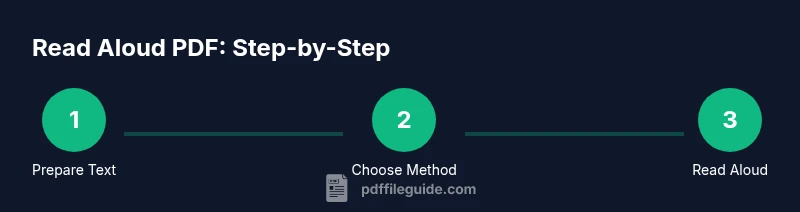
- 1
Assess document text availability
Open the PDF and test if text is selectable. If you can select, you can usually read aloud directly. If not, plan to apply OCR or use a screen reader that can handle image-based text.
Tip: Use the highest-contrast view to improve readability before listening. - 2
Choose a reading method
Decide whether to use built-in TTS, a screen reader, or OCR-assisted reading based on text availability and device capabilities.
Tip: Start with the simplest method to reduce setup time. - 3
Enable read-aloud on desktop
On Windows, enable Edge Read Aloud or Narrator; on macOS, enable VoiceOver. Test a paragraph to adjust pace and voice.
Tip: Use keyboard shortcuts to toggle read-aloud quickly. - 4
Enable read-aloud on mobile
On iOS, enable Speak Selection or VoiceOver; on Android, enable TalkBack or Select to Speak and open the PDF in a compatible viewer.
Tip: Save commonly used voices for consistency across devices. - 5
Process scanned PDFs with OCR
If the document is image-based, apply OCR to extract text. Choose language settings carefully and re-check the output.
Tip: OCR quality improves with high-resolution scans. - 6
Optimize text for listening
Fix obvious misreads, adjust punctuation readouts, and ensure headings are properly tagged to improve comprehension.
Tip: Enable punctuation to guide intonation during listening. - 7
Test a sample section
Read a representative section aloud to verify accuracy, pacing, and pronunciation before proceeding.
Tip: Note recurring misreads and adjust settings accordingly. - 8
Adjust privacy and security
If the document contains sensitive information, prefer offline TTS or local readers to minimize data exposure.
Tip: Review app permissions and data handling in advance. - 9
Document long-term setup
Create a preferred voice profile, save settings, and document your workflow for future use.
Tip: Documenting your steps reduces setup time for future PDFs.
Questions & Answers
What is text-to-speech for PDFs?
Text-to-speech converts written text into spoken language using synthetic voices. For PDFs, TTS works best when the document has selectable text. If the PDF is image-based, OCR must extract the text before reading aloud.
Text-to-speech for PDFs reads the document aloud. If the text isn’t available, OCR can extract it so the TTS engine can speak it.
Can all PDFs be read aloud?
Most PDFs with a readable text layer can be read aloud, but scanned images require OCR first. Encrypted or password-protected files may restrict TTS until access is granted.
Most PDFs can be read aloud, especially when text is accessible. If the file is encrypted, unlock it first or use a reader with proper permissions.
How can I OCR a scanned PDF?
Use built-in OCR features in your PDF software or a trusted OCR tool. Set the correct language, run OCR page by page, and verify accuracy before listening.
Use OCR to extract text from scanned PDFs, then use TTS to listen. Check language settings and verify results.
Which platforms support read-aloud in PDFs?
Windows, macOS, iOS, Linux, and Android all offer read-aloud capabilities, either through built-in features or third-party tools. Browser-based readers can also vocalize content when viewing PDFs online.
Most major platforms support read-aloud in PDFs, either built-in or via accessible apps.
Is there a cost to read PDFs aloud?
Many built-in features are free and sufficient for basic reading, while some third-party tools require purchase or subscriptions for advanced voices or offline support.
There are free options available, but some advanced tools may require payment for extra voices or offline use.
Will reading aloud preserve formatting?
TTS typically reads content linearly and may not preserve complex formatting. Clear headings and accessible tagging help ensure better rhythm and comprehension.
Reading aloud focuses on content; formatting may not be preserved, but good tagging helps.
Watch Video
Key Takeaways
- Choose the reading method based on text availability and device support.
- OCR is essential for image-based PDFs, but ideally use searchable text.
- Test across devices to find the most accurate and comfortable setup.
- Protect privacy by preferring offline tools for sensitive documents.