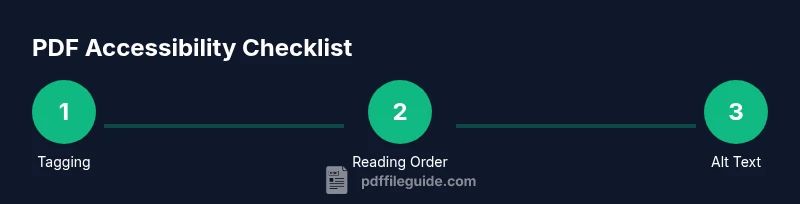
How to Check PDF Accessibility: A Practical Guide for All
Learn how to check pdf accessibility, covering tagging, reading order, alt text, language, and metadata. A practical guide for automated and manual checks to ensure PDFs are accessible to all users.


Today you’ll learn how to check pdf accessibility, focusing on tagging, reading order, alt text, and metadata. According to PDF File Guide, a well-structured PDF uses proper tagging and meaningful alt text to support assistive tech. This quick guide outlines a practical, step-by-step workflow you can apply using built-in accessibility checks and, if needed, affordable tools.
Why Accessible PDFs Matter
Accessible PDFs are essential for inclusive communication. They ensure people using assistive technologies can access content, navigate documents, and understand images. For professionals who edit or publish PDFs, a lack of accessibility can exclude customers, employees, or students who rely on screen readers, magnification, or keyboard navigation. Learning how to check pdf for accessibility is not simply a compliance exercise; it improves readability and searchability, reduces confusion, and enhances collaboration across teams. When a document's structure is properly tagged, its reading order aligns with the visual order, and images have descriptive alt text, information flows naturally, regardless of device or assistive technology. The PDF File Guide team emphasizes that accessibility is not a one-off check; it’s an ongoing discipline built into authoring, review, and distribution workflows. In practice, most organizations benefit from a repeatable checklist that covers tagging, language metadata, color contrast, tables, and accessible forms.
Tools & Materials
- Adobe Acrobat Pro DC(Use for tagging, reading order, and alt text checks)
- NVDA (free screen reader)(Test accessibility on Windows environments)
- VoiceOver (macOS)(Optional for macOS users to cross-check)
- Accessible PDF validator (built-in or third-party)(Helps automate initial checks before manual validation)
- Color contrast checker (built-in or plugin)(Ensure text visibility for users with low vision)
Steps
Estimated time: 45-60 minutes
- 1
Prepare the document for accessibility
Create a backup of the original file and set the document language. Ensure the file’s metadata is up to date and that images have descriptive captions where appropriate.
Tip: Backups prevent data loss and allow you to compare before/after fixes. - 2
Verify tagging and reading order
Open the Tags view and confirm that the tag tree reflects the visual structure. The reading order should match how a sighted user navigates the document.
Tip: If headings aren’t sequential, use the structure tree to reorganize tags. - 3
Check images and lists for accessibility
Ensure all images have alt text that conveys meaning. Verify that lists use proper list tags and nesting for screen readers.
Tip: Alt text should be concise but informative; avoid generic labels like 'image'. - 4
Evaluate language and metadata
Set the document language accurately and verify that any embedded text has a clear description. Review metadata such as title, author, and subject.
Tip: Language metadata affects pronunciation by screen readers. - 5
Test navigation with assistive technology
Open the PDF in a screen reader (NVDA or VoiceOver) and navigate using headings, links, and form fields to verify a logical flow.
Tip: If navigation feels awkward, adjust heading levels and tag order. - 6
Validate and fix issues, then re-test
Run automated checks, fix identified items, and re-run tests with both automated tools and a screen reader until the document meets accessibility goals.
Tip: Iterative testing reduces risk of missed issues.
Questions & Answers
What makes a PDF accessible?
An accessible PDF uses proper tagging, reading order, alt text, language metadata, and accessible tables. It should be navigable with assistive technologies.
A PDF is accessible when its structure and metadata work smoothly with screen readers.
How do I test with a screen reader?
Install a screen reader (NVDA or VoiceOver), open the PDF, and navigate the document using headings, lists, and links to verify the flow.
Open the PDF with a screen reader and step through headings and lists to confirm the flow.
Can automated tools replace manual checks?
Automation catches many issues, but some accessibility problems require human verification, especially complex tables and reading order.
Automation helps, but manual validation is essential.
What about color contrast?
Ensure text has sufficient contrast against the background and avoid color-only cues for information.
Make sure there’s enough contrast; don’t rely on color alone to convey meaning.
How often should PDFs be checked for accessibility?
Check when creating or updating PDFs; re-audit after major edits or format changes.
Re-audit after edits to keep accessibility intact.
Are there standards to follow?
Follow WCAG guidelines and federal accessibility requirements where applicable.
WCAG is a good reference for accessibility.
Watch Video
Key Takeaways
- Tag content with proper structure.
- Provide descriptive alt text for images.
- Test with screen readers and fix issues.
- Combine automated and manual checks for best results.