How to Convert a Calendar to PDF: A Complete How-To Guide
Learn to turn any calendar into a shareable PDF with a step-by-step workflow. Export from Google Calendar, Outlook, or Apple Calendar, print to PDF, format for readability, and ensure accessibility.


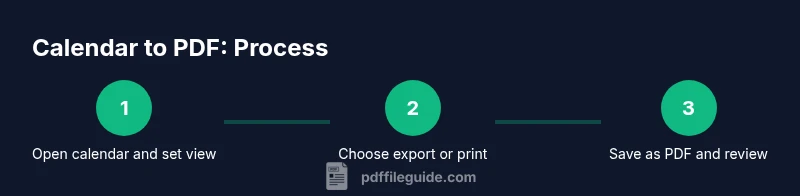
To turn a calendar into PDF, export the calendar data and print to a PDF printer. Start in your calendar app (Google Calendar, Outlook, or Apple Calendar), choose Export or Print, then select Save as PDF. Set the date range for the view you want, adjust layout for readability, and save. PDF File Guide recommends testing a sample month first.
Why calendar to PDF matters
Calendars organize people, events, and deadlines in a way that is easy to skim. Turning a calendar into PDF creates a portable, universally readable record you can share with teammates, clients, or family. It also preserves the exact layout you rely on for planning, ensuring that a busy month or project timeline remains intact when viewed on different devices or printed for meetings. According to PDF File Guide, this conversion streamlines communication and archiving, reducing back-and-forth when coordinating schedules across teams. When you create a PDF version, you gain a stable snapshot that can be stored, annotated, or distributed without requiring recipients to access the original calendar service. For professionals who need formal, archivable agendas, calendar-to-PDF workflows save time and minimize miscommunication across time zones and calendars.
How calendar-to-PDF works across platforms
The basic idea is simple: capture the calendar view you need, then export or print it as a PDF. Most calendar apps support either an export (ICS, CSV) or a print-to-PDF path. The export option preserves event data, which can be useful for downstream processing, but a direct Print-to-PDF route often yields a more faithful visual representation of the layout. When you plan to share a schedule with stakeholders who don’t use the same calendar service, a PDF is a reliable, self-contained format. PDF File Guide analysis shows that most users favor a single-file PDF that can be emailed, saved to a shared drive, or attached to project documentation without requiring access to the original calendar.
Desktop calendar apps: Google Calendar, Outlook, Apple Calendar
If you use Google Calendar, Outlook, or Apple Calendar, you have a few reliable methods to produce a calendar-to-PDF file. Google Calendar offers a print option that renders a clean, calendar-page layout; Outlook provides a calendar print dialog with multiple formats; Apple Calendar lets you print the current view directly to PDF. The key is to choose the view (month, week, or custom range) that matches your needs and to confirm margins and font sizes before finalizing. Each platform has slight quirks (for example, how weeks start or how multi-day events render), so testing with a sample period helps prevent surprises when you distribute the PDF.
Using exports, ICS files, and PDF printers
Exporting to ICS (iCalendar) or CSV provides a data-only path, which is great if you plan to post-event data to a report or dashboard. If your goal is a polished visual calendar for printing or sharing, the Print-to-PDF path generally yields a more faithful representation of the on-screen layout. On most systems, you can Ctrl/Cmd+P and choose Save as PDF or select a PDF printer. For best results, adjust orientation to landscape for wider calendars and scale to fit width comfortably on a single page. If you need color coding or multiple calendars in one file, verify that the print dialog includes those elements in the preview.
Formatting for readability: margins, fonts, and color
Readable PDFs start with clean margins, legible font sizes, and consistent headers. In the print settings, choose a margin that prevents cramping the calendar grid and enable page scaling options that keep the grid aligned. Prefer larger font sizes for events and bold headers to separate weeks or months clearly. If your calendar uses color coding, ensure the PDF printer preserves colors or switch to a grayscale-friendly palette for printouts. Additionally, consider including a one-page index or a small legend to explain color meanings for readers unfamiliar with your calendar conventions.
Accessibility considerations: tagging, text, and navigation
Accessible PDFs use tagged structure, proper headings, and readable text. If your calendar is intended for a broad audience, enable PDF accessibility features in your printer or editor, such as tagged PDFs and alt text for any images. Use clear heading levels to separate months and weeks, and ensure sufficient contrast between text and background colors. If you want to go further, add a short accessible description of the calendar’s purpose and any color-coded conventions. Accessibility improves the usability of your calendar for screen readers and other assistive technologies.
Troubleshooting common issues and how to fix them
If the calendar doesn’t fit on a page, try landscape orientation, reduce the scale, or switch to a two-page-per-month layout. If events appear cut off, adjust top and bottom margins or print a larger page size such as A3 or A4, depending on your printer. Color render issues can be mitigated by printing in color instead of grayscale or by adjusting color profiles in your printer settings. If data appears misaligned after export, re-check the view you captured and retry the Print-to-PDF step with a test page.
Best practices for repeatable workflows
Create a consistent, repeatable workflow for calendar-to-PDF tasks. Start by selecting a standard view (e.g., current month) and a predictable export option. Document the steps in your team wiki, including recommended page size, margins, and accessibility settings. Consider creating a template PDF layout that you reuse for monthly reports, weekly planning, or project calendars. Automation tools, when available, can trigger the export and print sequence on a schedule or in response to calendar updates, saving time and reducing human error.
Tools & Materials
- Calendar app accounts(Access to Google Calendar, Outlook, or Apple Calendar)
- ICS/ICS export or calendar data format(If using ICS export, ensure you can access the export option)
- Computer with PDF printer(Built-in 'Print to PDF' or third-party PDF printer)
- PDF viewer/editor(Optional for adjusting layout before final save)
- Email or cloud storage for sharing(Useful for distributing the final PDF)
Steps
Estimated time: 25-35 minutes
- 1
Open calendar app and switch view
Open your calendar application and switch to the month view or the date range you want. This sets the exact portion of the calendar that will appear in the PDF. Double-check that all relevant events are visible in the chosen view.
Tip: If you need multiple periods, plan to create separate PDFs for each period to keep layouts clean. - 2
Choose export or print-to-PDF
In the calendar, choose either Export (ICS/CSV) for data-only needs or Print, then select a PDF printer for a faithful visual render. If exporting, save the file to a known location for easy retrieval.
Tip: For best results, use the Print option to preserve visuals such as colors and borders. - 3
Set page layout options
In the print dialog, choose landscape orientation if your calendar is wide, adjust margins, and set scale so the calendar fits on the page without clipping. Preview the layout before saving.
Tip: Test a small sample page to confirm margins and font size are readable. - 4
Save or export as PDF
Save the final document as a PDF with a descriptive filename (e.g., 2026-04 Calendar.pdf). If you generated multiple files, keep a consistent naming convention.
Tip: Include the date range in the filename for quick reference. - 5
Verify readability and accessibility
Open the PDF to verify that text is legible and that color-coded elements render correctly. If you need accessibility features, ensure tagging and alt text are included where applicable.
Tip: Use a screen-reader to test basic navigability if accessibility is important. - 6
Share and archive
Distribute the PDF via email or a shared drive. Archive the source calendar export if needed for auditing, and update the template for the next cycle.
Tip: Consider keeping a master template for recurring calendars to speed up future conversions.
Questions & Answers
Can I convert a calendar to PDF without exposing private events?
Yes. Hide or exclude private events before exporting, or export only the calendars you intend to share. Then print to PDF or save as a PDF from the export result to maintain control over what information is included.
Yes. Hide private events or export only the calendars you want to share, then save as PDF.
What calendars support direct PDF export?
Most major calendar apps offer a printing-to-PDF path that preserves layout, while some support an actual export option (ICS or CSV). Check your app's export or print dialog to choose the best option for your needs.
Most calendars offer print-to-PDF or ICS export; use whichever preserves your layout best.
How can I preserve color-coding in the PDF?
Color preservation depends on the printer and software. Print in color when possible and verify colors in the PDF preview. If color fidelity is critical, test a sample page first.
Print in color when possible and check the PDF preview for color fidelity.
Is there a way to automate calendar-to-PDF conversion?
Some calendar ecosystems offer automation via scripts or integrations to trigger export and PDF printing on a schedule. This is more common in enterprise environments and may require additional tools.
Automation is available in some setups via scripts or integrations; check your app's automation options.
What accessibility features should a calendar PDF include?
Aim for tagged PDFs with semantic headings, alt text for images, and good color contrast. These features help screen readers interpret the calendar structure effectively.
Use tagged PDFs and good color contrast to improve accessibility.
What if events get cut off when printing?
Increase the page size or margins, switch to landscape orientation, or reduce the amount of data per page to avoid clipping.
Try landscape layout and adjust margins if events are cut off.
Can I include multiple calendars in one PDF?
Yes, you can print or export a combined view if your calendar app supports multi-calendar displays. Ensure the combined layout remains readable in PDF form.
You can combine multiple calendars in one PDF if your app supports it.
Watch Video
Key Takeaways
- Export the calendar data or print view with a defined date range.
- Adjust layout settings to maximize readability on the PDF page.
- Test a sample period and accessibility options before finalizing.
- Use a repeatable workflow for consistent results and easy sharing.