Can PDF Be Converted to PowerPoint? A Step-by-Step Guide
Learn how to convert PDFs to PowerPoint presentations with practical steps, tool comparisons, and best practices. This guide covers fidelity, fonts, and polishing slides for professional results.


To convert PDF to PowerPoint, use a proven method such as exporting from a PDF editor to PPTX or opening the PDF in PowerPoint and saving as PPTX. Expect some layout tweaks; heavy graphics or fonts may require manual adjustments. This guide covers tools, steps, and best practices.
Can PDF be converted to PowerPoint? An overview
If you're wondering can pdf be converted to powerpoint, the answer is yes, but results depend on the tool and the document. You can export from a PDF editor to PPTX or use PowerPoint's import capabilities to create slides from PDF content. In practice, expect layout changes, font substitutions, and some manual tweaking after the initial conversion. According to PDF File Guide, choosing the right method starts with the document’s complexity and your final presentation needs. This section sets the stage for understanding options, benefits, and common caveats so you can pick the approach that fits your workflow.
How the process works: from PDF to PPTX
Converting a PDF to PowerPoint typically involves extracting text and images, preserving layout, and reassembling content as slides. Depending on the source, fonts may shift, and vector graphics might become raster images. Understanding these dynamics helps you set realistic expectations and choose the best tool for your needs. PDF File Guide explains that fidelity depends on the original formatting and the conversion method used. You'll often see better results with native tools designed for PDF and PPTX, rather than generic converters. Prepare to review each slide to ensure consistency across the deck.
Tools that reliably convert PDF to PPTX
Desktop apps like Adobe Acrobat Pro DC and Microsoft PowerPoint offer built-in features to export or import PDFs as PPTX. Online converters exist, but privacy concerns and formatting variability make them a secondary option. For sensitive content, offline tools deliver better control and security. Always verify licensing and whether embedded fonts remain accessible after conversion. In practice, a typical workflow might involve exporting the PDF to PPTX in Acrobat, then polishing the slides in PowerPoint with slide masters, fonts, and alignment tweaks. PDF File Guide recommends starting with the most reliable tool available in your environment.
Accuracy and fidelity: what changes to expect
No tool guarantees a perfect one-to-one translation, especially for complex PDFs with tables, columns, or scanned images. Text may wrap differently, fonts might substitute, and some visuals may require manual adjustment. Anticipate reflow of content and plan time for slide-by-slide tweaks. Fidelity gaps commonly appear in multi-column layouts, dense tables, and image-heavy pages. By setting expectations and budgeting time for review, you can deliver a professional presentation that closely mirrors the source document while leveraging PowerPoint features like grids, guides, and design ideas.
How to choose between tools: Desktop vs online
Desktop tools typically provide more stable conversions and better privacy, while online tools offer speed and convenience. If your PDF contains fonts embedded or is image-heavy, desktops usually yield better results. Always run a quick check by exporting to PPTX and opening the result in PowerPoint to spot misalignments early. PDF File Guide highlights that the choice often comes down to data sensitivity, file size, and the need for precise typography. For recurrent projects, invest in a consistent toolchain to minimize rework.
Authority sources and best practices
For reliable guidance, see the official documentation from major publishers. This section lists authoritative sources you can consult to deepen your understanding and verify steps. What follows are user-friendly summaries, with direct links to official guidance so you can validate the process and adapt it to your organization’s standards. Combining official instructions with practical steps helps you maintain fidelity while saving time on repetitive conversions.
Tools & Materials
- Adobe Acrobat Pro DC(Export to PPTX via File > Export To > Microsoft PowerPoint)
- Microsoft PowerPoint(Open or Import PDF as slides and adjust formatting)
- Original PDF file(Keep a backup before conversion)
- Reliable online PDF converter (optional)(Use cautiously and review results)
- Fonts and images embedded in the PDF(Note embedded fonts and high-resolution images)
Steps
Estimated time: 45-60 minutes
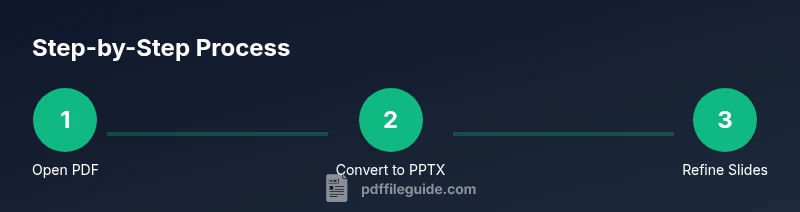
- 1
Open the PDF and verify content
Open the source PDF in your editor and assess headings, lists, fonts, and image quality. Decide which content will map cleanly to slides and which may require re-creation or re-structuring before you begin.
Tip: Note sections that will need manual reformatting in PowerPoint. - 2
Export to PPTX or prepare alternatives
If the tool supports it, export the document as PPTX. If not, consider exporting pages as high-quality images or copying text blocks to slides for reformatting.
Tip: Choose higher-resolution export settings to preserve visuals. - 3
Open the PPTX in PowerPoint and fix structure
Review slide order and apply a consistent slide master. Reflow text, adjust bullets, align images, and ensure consistent margins across slides.
Tip: Use the Slide Master to enforce a clean, scalable design. - 4
Polish typography and visuals
Tweak fonts, line breaks, spacing, and color contrast. Replace low-resolution images with vector equivalents where possible and check for font substitutions.
Tip: Lock layouts with guides and grids to maintain alignment. - 5
Validate and finalize
Run a final review across slides for consistency, export a final PPTX, and save a PDF backup if needed for reference.
Tip: Keep the original PDF as a reference and version the PPTX clearly.
Questions & Answers
Can all PDFs be converted to PowerPoint without any formatting loss?
No. Simple PDFs convert more cleanly than complex, image-heavy files. You should expect layout tweaks and font adjustments.
No. Complexity matters; expect layout tweaks.
What are the best tools to convert PDF to PPTX?
Adobe Acrobat Pro DC and Microsoft PowerPoint's built-in features provide strong fidelity. Always verify the result in PowerPoint.
Use Acrobat Pro DC or PowerPoint's built-in features and review in PowerPoint.
Is exporting to PPTX better than copying content manually?
Exporting to PPTX preserves structure better, but manual adjustments are often needed after import.
Exporting generally preserves structure, but expect tweaks.
How long does conversion typically take for a standard corporate PDF?
For a typical document, expect 20-60 minutes depending on complexity and tool.
It usually takes 20 to 60 minutes.
Are online converters safe for sensitive PDFs?
Online converters can pose privacy risks; use offline tools for sensitive PDFs.
Online tools can expose data, so prefer offline options.
Can fonts be preserved during conversion?
Fonts may shift if not embedded; you may need to adjust or embed fonts in PowerPoint.
Fonts may shift; check font embedding and adjust.
What should I do if images lose quality after conversion?
Replace rasterized images with higher-resolution equivalents and recheck export settings.
Replace low-res images and verify export quality.
Key Takeaways
- Plan for layout tweaks after conversion
- Use official tools for better fidelity
- Check fonts and image quality
- Keep a backup of the original PDF
- Polish slides in PowerPoint after import