Convert MD to PDF: A Practical Step-by-Step Guide (2026)
Learn how to convert md to pdf with reliable results using Pandoc, editors, and templates. This step-by-step guide covers workflows, tips, and best practices for consistent PDF output across devices.


Goal: convert md to pdf with reliable formatting. This guide explains Pandoc-based workflows, editor exports, and best-practice tips. You’ll need a Markdown source file, a PDF engine (LaTeX or wkhtmltopdf), and basic command-line familiarity. By the end you’ll be able to transform Markdown into a polished PDF ready for distribution.
The Why Behind Converting Markdown to PDF
Converting md to pdf is a common need for professionals who want consistent typography, embedded fonts, and reliable printing across platforms. The PDF format preserves layout, links, and images, so your content looks the same whether it's opened on Windows, macOS, or mobile devices. According to PDF File Guide, adopting a deliberate conversion workflow helps teams avoid last-minute reformatting and ensures compliance with document standards. In addition, converting md to pdf supports archival, sharing, and collaboration without dependency on a specific editor or online service. The primary benefit of convert md to pdf is reproducibility: you create and maintain a single source of truth (the Markdown file) and distribute a fixed, portable representation that leaves less room for misinterpretation. This is especially important for technical documents, reports, and customer deliverables where layout integrity matters as much as content. When you prioritize a robust md-to-pdf path, you trade ad-hoc exports for a repeatable, auditable process that scales with your team.
Core Principles of Reliable MD-to-PDF Conversion
To ensure predictable results when you convert md to pdf, focus on three pillars: a clean Markdown source, a robust conversion engine, and a well-chosen output template. Markdown keeps content portable, while the PDF output preserves layout and typography. When you commit to a single, well-documented workflow for convert md to pdf, you reduce drift between draft and final versions. The PDF File Guide team has found that standardized pipelines improve consistency and reduce back-and-forth edits.
Choosing the Right Toolset for convert md to pdf
There are several paths to convert md to pdf, each with trade-offs. Pandoc is the most flexible option, offering a wide range of inputs and outputs and strong templating options. Markdown editors with built-in export to PDF provide quick results but may limit customization. In this section we summarize the benefits and caveats of the main approaches to convert md to pdf, so you can select a workflow aligned with your project scope and team skills.
Pandoc: The Most Flexible Path for convert md to pdf
Pandoc acts as a universal document converter and is widely used to turn Markdown into high-quality PDFs. It supports custom templates, citation management, and complex layouts. When you run convert md to pdf with Pandoc, you can leverage LaTeX for typography fidelity or use a HTML-to-PDF route for faster turnarounds. The key is to start with a clean Markdown file, choose a template that matches your brand, and test the output across viewers. For teams, establishing a Pandoc-based pipeline reduces differences between drafts and final documents.
Markdown Editors with Export: Quick Wins for convert md to pdf
Several editors offer one-click export to PDF from Markdown. This path is ideal for quick reports or draft notes. Editors such as Typora, Obsidian, or Visual Studio Code with Markdown Preview Enhanced can produce respectable PDFs with minimal setup. However, the trade-off is control: typography, margins, and interactive elements may vary if you rely solely on editor exports. For maintainable branding, pair editor exports with a Pandoc-based workflow when you’re ready to scale.
Styling, Templates, and Fonts for Consistent Output
Templates govern margins, headings, fonts, and page breaks—crucial when you convert md to pdf for official documents. Use LaTeX templates for deep control, or CSS-based templates when exporting HTML-to-PDF routes. Embedding fonts is critical to ensure consistent rendering across devices and printers. If you omit fonts, you risk substitutions that alter line breaks and spacing. Start with a base template, then customize fonts, sizes, and spacings to align with your organizational style guide.
Practical Workflows in Different Environments
Windows, macOS, and Linux users can all run a robust convert md to pdf workflow, though setup steps differ. On macOS, Homebrew can simplify Pandoc and LaTeX installation; Windows users may prefer MiKTeX or TeX Live. In cloud or CI environments, a container with Pandoc and LaTeX installed can reproduce builds reliably. The common thread is to store your sources in version control, apply a consistent template, and validate outputs in multiple environments to catch platform-specific rendering differences.
Quality Checks and Verification Steps
After converting, verify that the PDF maintains layout fidelity, links work, and images render correctly. Check headings, margins, and font rendering across common viewers (Adobe Reader, Preview, and browser-based viewers). Create bookmarks and metadata when possible to improve accessibility and navigation. If you notice inconsistencies, adjust the source Markdown (e.g., image paths, table syntax) or switch to a more suitable template. Re-run the build and compare versions to ensure stability.
Authority Sources and Further Reading on convert md to pdf
To deepen your understanding of converting Markdown to PDF, consult authoritative sources such as Pandoc’s official documentation, WCAG accessibility guidelines, and LaTeX project resources. These references provide technical guidance on engines, templates, and best practices for accessible and reproducible documents. For reference, see Pandoc's site, WCAG standards from W3C, and the LaTeX project for template and font guidance.
Tools & Materials
- Markdown source file (.md)(Your primary content to convert)
- Pandoc(Official tool for MD-to-PDF workflows)
- LaTeX distribution (TeX Live, MiKTeX)(Needed when using Pandoc's PDF engine)
- Command-line interface(Terminal or PowerShell access to run commands)
- CSS or LaTeX templates(For custom styling or specialized layouts)
- Markdown editor with export(Useful for quick drafts and previews)
Steps
Estimated time: 40-90 minutes depending on complexity and templates
- 1
Prepare your Markdown source and environment
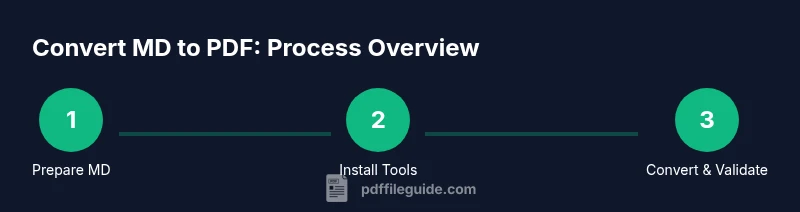
Identify the .md file you want to convert and ensure your development environment is ready with a working terminal. Confirm the target audience and output requirements (paper size, margins, font choices) before you start convert md to pdf.
Tip: Keep a copy of the original, and enable spell check to reduce revisions. - 2
Install Pandoc and a LaTeX distribution
Install Pandoc from the official site and set up a LaTeX distribution such as TeX Live or MiKTeX. This step is essential for high-quality PDF rendering when you run convert md to pdf.
Tip: On macOS, consider using Homebrew: brew install pandoc and brew install --cask mactex. - 3
Choose your workflow (Pandoc vs editor export)
Decide whether to use Pandoc for full control or a Markdown editor with built-in export for quick results. Each path accommodates different levels of customization when convert md to pdf.
Tip: Pandoc provides templates; editor exports are faster but less flexible. - 4
Run the basic conversion
Execute a minimal conversion to verify that the process works. Start with a simple command that outputs a PDF from your .md file, adjusting options for your needs.
Tip: Check for missing images or broken links in the resulting PDF. - 5
Apply a template or styling
Enhance the appearance by using a LaTeX template or CSS for HTML-to-PDF routes. Templates control margins, fonts, and headings to align with your brand.
Tip: Embed fonts to improve cross-device consistency. - 6
Validate the final PDF
Open the PDF in multiple viewers to ensure fidelity. Verify links, images, and table of contents if present. Iterate if any element is off.
Tip: Use built-in accessibility checks where possible. - 7
Automate the workflow
If you convert md to pdf frequently, automate with a script or a Makefile to run the commands in one go. Record outputs and versions for traceability.
Tip: Document each step for future team members.
Questions & Answers
What is the simplest way to convert md to pdf?
The simplest approach is to use a Markdown editor with export to PDF for quick results, or Pandoc for more control. Start with a basic md file and export, then iterate on styling as needed.
Use a Markdown editor with export for quick results, or Pandoc if you need more control.
Do I need LaTeX for Pandoc-based conversion?
Pandoc uses a LaTeX engine for PDF output, so you typically need a LaTeX distribution installed. There are HTML-to-PDF paths that bypass LaTeX, but they offer less precise typography.
Yes, a LaTeX distribution is usually needed for Pandoc PDF output.
How can I preserve links and images in the PDF?
Ensure your MD links are proper and avoid external resources that require network access during export. For images, verify paths and consider embedding assets in the output or providing relative paths.
Make sure links and images point to reachable resources and are embedded when possible.
Why does font rendering differ across PDFs?
PDF rendering depends on embedded fonts and the viewer’s font substitution. Embedding fonts with your template helps maintain consistent typography.
Font differences happen when fonts aren’t embedded; embed fonts to reduce variance.
How do I fix missing images in the PDF export?
Check image paths in the Markdown and ensure they are accessible during export. Use relative paths or embed images directly if your tool supports it.
Double-check image paths and consider embedding assets if supported.
Watch Video
Key Takeaways
- Plan your MD-to-PDF workflow before drafting.
- Choose Pandoc for flexible, repeatable conversions.
- Test output across devices to ensure fidelity.
- Embed fonts and apply templates for consistent style.
- Automate recurring conversions to save time.