Mobi to PDF: A Practical How-To Guide
Learn how to convert MOBI ebooks to PDF using Calibre, online tools, and Kindle printing. This educational guide covers best practices, formatting tips, and reliability considerations for professionals who edit and convert PDFs.


You can convert MOBI to PDF using offline software like Calibre, online converters, or Kindle's print-to-PDF approach. Calibre typically preserves layout, metadata, and fonts, while online tools offer quick single-file conversions. According to PDF File Guide, choose offline tools for privacy and accuracy; this guide shows step-by-step methods to get a clean PDF.
What MOBI and PDF Formats Mean
MOBI is a specialized ebook format widely used on Kindle devices and apps, optimized for compact storage and reflowable text. PDF, by contrast, is a fixed-layout format that preserves exact formatting and typography. Converting from MOBI to PDF is common when you need offline access on non-Kindle devices, printing capabilities, or archiving a readable copy for long-term access. According to PDF File Guide, MOBI remains strongly associated with the Kindle ecosystem, but many readers require portable, device-agnostic formats like PDF for cross-platform distribution. The conversion process focuses on preserving layout, images, and embedded fonts where possible, while handling DRM restrictions and file size considerations. Expect some layout shifts if the MOBI file uses complex fonts or advanced Kindle features.
Why You Might Need to Convert MOBI to PDF
There are several practical reasons to perform a mobi to pdf conversion: sharing content with colleagues who don’t own a Kindle, printing a chapter for classroom or training use, or maintaining an offline library on devices that don’t support MOBI. PDF is widely supported by printers and PDF readers, makes annotations easier, and provides consistent appearance across platforms. While MOBI has features designed for on-device readability, PDF’s fixed layout helps preserve pagination and images when printed. This compatibility often makes PDFs more suitable for documentation, reference manuals, and long-form reading in professional settings.
Conversion Methods at a Glance
Conversion options fall into three broad categories: offline desktop software, web-based online converters, and built-in printing workflows. Offline tools like Calibre offer batch processing, metadata management, and configurable output settings, which improves accuracy and reliability across many files. Online converters are convenient for a quick one-off file, but they raise privacy considerations and depend on an internet connection. Printing from Kindle apps or using a browser print-to-PDF approach can work in a pinch, but may produce inconsistent results if fonts or layout aren’t embedded correctly. The choice depends on file sensitivity, volume, and the desired fidelity of the final PDF.
Using Calibre for mobi to pdf
Calibre is a free, open-source e-book manager and converter that supports MOBI-to-PDF workflows. It handles metadata, covers, and fonts with adjustable output options. By centralizing your library, you can perform batch conversions and fine-tune page size, margins, and font embedding to control the final appearance. The result is usually a reliable PDF suitable for printing and archival. From a professional perspective, Calibre’s offline nature also helps protect sensitive content compared to cloud-based services.
Using Online Converters for Quick Jobs
If you only have a single MOBI file or need a fast result, online converters offer a lightweight path to PDF without installing software. Look for reputable providers, ensure you’re comfortable with privacy policies, and compare output quality. When using online tools, upload the MOBI file, choose PDF as the output format, and download the result. Keep in mind that fonts, images, and tables may not translate perfectly, and you may need to adjust settings after download.
Quality, Formatting, and Font Embedding Tips
To maximize fidelity, aim to embed fonts in the PDF if the converter supports it. Check that margins, line spacing, and page size match your preferred reading format. If the MOBI file contains images, verify that image resolution remains sufficient in the PDF. For documents with mixed content (text and graphics), test a few pages to confirm layout stability. If margins look off, adjust the page size (A4, Letter) and re-run the conversion. Remember that font embedding improves portability but can increase file size.
DRM and Copyright Considerations
Many MOBI files are protected by DRM, which can block or complicate conversion. If you’re dealing with DRM-protected content, ensure you have legal authorization to remove restrictions or convert the file. When in doubt, obtain a license or use sources that permit self-archiving and distribution. PDF File Guide underscores the importance of respecting licensing terms when performing format conversions, especially for commercial or widely distributed ebooks.
Troubleshooting Common Issues
If the PDF output looks garbled, start by checking the source MOBI for DRM restrictions, font availability, and embedded resources. Re-run the conversion with alternate settings, such as changing the page size or disabling embedded fonts if necessary. When a batch of MOBI files fails, examine file integrity and ensure Calibre’s conversion engine has up-to-date codecs. For online converters, test a small file first to gauge output quality before converting larger libraries.
Next Steps and Best Practices
Plan ahead by organizing MOBI files in a dedicated folder and categorizing them by project. Create a standard template in Calibre for common document types to ensure consistent PDF outputs. Maintain a backup of the original MOBI files before conversion and verify the resulting PDFs on multiple devices. Finally, document your conversion settings for reproducibility and future audits.
Tools & Materials
- MOBI file(Your ebook to convert; ensure you have rights to convert)
- Calibre software(Official download from calibre-ebook.com)
- Web browser(Modern browser with JavaScript enabled)
- Online converter (optional)(Use for quick single-file conversions; review privacy policy)
- PDF viewer(To verify the final output)
Steps
Estimated time: 30-60 minutes
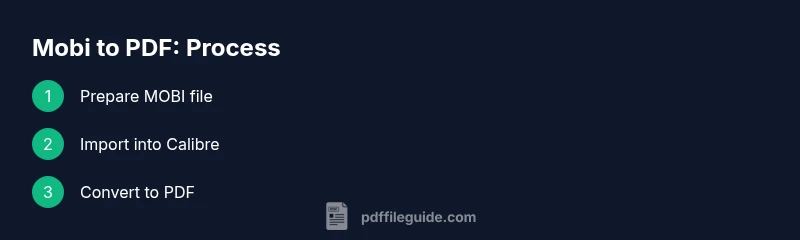
- 1
Prepare MOBI file
Organize the MOBI file you want to convert and ensure it’s DRM-free or you have rights to convert. Rename it clearly and place it in a dedicated folder to simplify batch work.
Tip: If the file is large, consider splitting into smaller chunks to test formatting before full conversion. - 2
Install Calibre
Download Calibre from the official site and complete the setup. Open Calibre after installation to confirm it runs correctly on your system.
Tip: Verify you’re using the latest stable version to maximize compatibility. - 3
Import MOBI into Calibre
Drag-and-drop the MOBI file into Calibre or use the Add books option to import. Ensure the library shows the file and metadata correctly.
Tip: Fill in or adjust metadata to improve searchability later. - 4
Convert to PDF
Select the MOBI book, click Convert books, and set Output format to PDF. Configure page size, margins, and font embedding as needed.
Tip: Preview a sample page to confirm layout before running a full batch. - 5
Review and tweak
Open the generated PDF in a viewer and check for font embedding, image quality, and margins. Re-run with adjusted options if necessary.
Tip: If fonts aren’t embedded, enable font embedding in the conversion settings. - 6
Save and verify
Save the final PDF to a trusted location and verify on multiple devices. Confirm that bookmarks, table of contents, and images appear as intended.
Tip: Maintain a log of the exact settings used for future reproducibility.
Questions & Answers
Can I convert DRM-protected MOBI files to PDF with Calibre?
DRM-protected MOBI files generally cannot be converted with standard tools. You should obtain rights to remove restrictions or use DRM-free copies. Always respect licensing terms when converting.
DRM-protected files usually can’t be converted with standard tools; get rights or use DRM-free copies.
Is Calibre free to use for mobi to pdf?
Yes, Calibre is free and open-source. It supports MOBI to PDF conversion, batch processing, and metadata management, making it a popular choice for professionals.
Yes, Calibre is free and widely used for MOBI to PDF conversions.
Will fonts embed in the resulting PDF?
Font embedding depends on the converter settings. In Calibre, enable font embedding to ensure consistent typography across devices.
Font embedding depends on settings; enable it in Calibre for consistent typography.
Can I convert multiple MOBI files at once?
Yes. Calibre supports batch conversions, which is efficient for large libraries. Organize files and apply a uniform output format.
Yes, you can batch convert MOBI files in Calibre.
Are online converters safe for sensitive content?
Online converters may pose privacy risks for sensitive documents. Use reputable services and avoid uploading confidential material.
Online services can risk privacy; use trusted providers and avoid sensitive content.
What if the PDF layout looks off after conversion?
Try adjusting page size, margins, and font embedding in the converter's settings. Re-run the conversion and verify results on multiple devices.
If layout is off, tweak settings and re-run; check on different devices.
Watch Video
Key Takeaways
- Plan your conversion with a clear file organization strategy.
- Offline tools like Calibre offer better privacy and consistency.
- Embed fonts and verify layout on multiple devices.
- Be mindful of DRM; obtain proper rights before converting.
- Document your settings for repeatable results.