Online Resume Maker Free PDF: Step-by-Step Guide
Learn to create an ATS-friendly resume in PDF for free with an online tool. This step-by-step guide from PDF File Guide covers tools, steps, tips, and best practices for a polished job application.


Create a clean, professional resume PDF in minutes by using an online resume maker that exports to PDF for free. Look for ATS-friendly templates, editable sections, and privacy controls to keep your data secure. Many free tools let you download a resume as a PDF without watermarks, while premium options unlock advanced fonts and keyword optimization. The PDF File Guide team recommends verifying layout on mobile view before sending applications.
Why use online resume makers to export to PDF
In today's job market, a well-formatted PDF resume is a must. Online resume makers let you build, customize, and export directly to PDF without installing software. This approach is especially valuable for job seekers who want a quick, uniform document that preserves layout across devices and applicant tracking systems (ATS). According to PDF File Guide Analysis, 2026, the best free tools emphasize data privacy and clean, scannable structure. By starting with a reputable platform, you reduce formatting drift and ensure your content remains concise and readable. Free options now offer ATS-friendly templates, keyword fields, and mobile-friendly previews, making it easier to tailor resumes for specific roles without leaving the browser.
How free online resume makers work
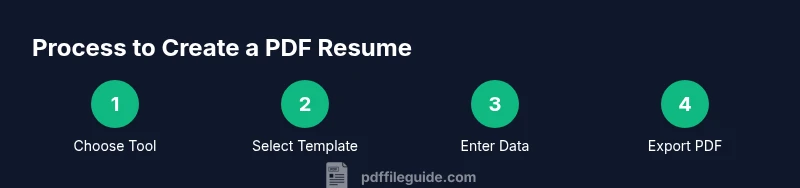
Most tools guide you through a simple workflow: enter or import your data, choose a template, adjust sections, and export. You can paste work history, education, and skills or upload an existing resume to auto-fill fields. Templates vary by layout, font weight, and color; many providers offer a live preview so you can see how your resume appears on screen and on a printed page. When you export to PDF, the tool preserves margins and font choices, ensuring the document looks consistent in email, applicant portals, and printing. The process is designed to be quick, intuitive, and repeatable across multiple job applications.
Choosing the right tool for your needs
Not all free tools are created equal. Prioritize ATS compatibility, clear typography, and privacy controls. Look for templates labeled ATS-friendly, options to remove watermarks, and the ability to download without creating an account. Consider whether you need additional formats, such as TXT or DOCX, for future edits. Additionally, verify that the platform supports mobile previews, as recruiters increasingly skim resumes on smartphones. The PDF File Guide team notes that choosing a reputable provider reduces the risk of hidden watermarks or restrictive terms and helps maintain a consistent brand across applications.
Step-by-step: Create and export your PDF
This section provides a practical walkthrough without duplicating the formal step-by-step block below. Start by opening the tool and selecting a free, ATS-friendly template. Enter personal details, craft a compelling summary, and populate experience, education, and skills sections. Add keywords drawn from the job description, then review for consistency. Finally, export as PDF and save a copy locally. Make sure the file name is professional (e.g., FirstLast-Resume.pdf) and that the document is not password-protected unless required by the employer.
Tailoring your resume: keywords and structure
A resume that wins often speaks directly to the job posting. Use keywords that match the description, including industry terms and action verbs. Ensure each bullet point starts with a strong verb and quantifies achievements where possible. Maintain a clean, scannable structure with bullet points for each role, and keep the overall length to one page for early-career applicants or two pages for extensive experience. When you create the PDF, keep sections ordered logically: contact, profile, experience, education, skills, certifications.
Accessibility, security, and best practices for PDFs
Accessibility ensures that your resume is readable by screen readers and recruiters who rely on assistive technology. Use semantic headings, descriptive link text, and alternate text for any images (if used). For security, avoid including highly sensitive data; rely on the employer's channels for sensitive details and consider removing data after download if the platform offers a purge option. Always test the PDF's reading order and font fallbacks, and verify that copy-paste behaves as expected.
Common mistakes to avoid
Avoid over-optimizing with keyword stuffing; it hurts readability. Don’t rely on decorative fonts or tiny font sizes; stick to clean, professional fonts and 10-12 point sizes. Avoid large headers or images that confuse ATS. Don’t forget to save multiple versions as you revise and back up your files in a secure location.
Example workflow and next steps
Here's a practical example: you need to apply for a marketing coordinator role. Start with a free online resume maker, pick an ATS-friendly layout, insert your data, tailor keywords from the job description, review on mobile, and export as PDF. Next, compare the result with your existing resume, update as needed, and store a master copy locally. When in doubt, re-run the process after updating your CV with new achievements.
Tools & Materials
- Laptop, tablet, or smartphone with internet access(Stable connection recommended; can work on mobile for quick previews)
- Web browser (latest version)(Chrome/Edge/Firefox recommended; ensure cookies enabled)
- Free online resume maker account(Sign-up optional in some tools; data saved temporarily for editing)
- Optional PDF editor (for later tweaks)(Used if you want to adjust typography after export)
Steps
Estimated time: 20-40 minutes
- 1
Choose a free online resume maker
Open a reputable online resume maker and confirm that it offers free PDF export and ATS-friendly templates. Review the privacy policy and terms to understand data handling before you begin.
Tip: Briefly read privacy terms to avoid unnecessary data collection. - 2
Select an ATS-friendly template
Browse templates labeled as ATS-friendly or machine-readable. Choose a clean layout with standard fonts and generous margins to optimize parsing.
Tip: Avoid templates with embedded graphics in headers that can confuse ATS. - 3
Import or enter your resume data
Paste your experience, education, and skills or upload an existing resume to auto-fill fields. Check that dates and organizations are consistent.
Tip: Keep your summary concise and align dates chronologically. - 4
Tailor content for the role
Modify bullet points to reflect achievements and include keywords from the job description. Use action verbs and measurable outcomes.
Tip: Match at least 3-5 keywords to improve ATS ranking. - 5
Review formatting and readability
Use bold for section headings, ensure bullet lists are uniform, and verify that fonts are legible at 10-12 pt.
Tip: Preview on mobile and print layout to catch spacing issues. - 6
Export the resume as PDF
Choose the PDF export option and confirm that the file downloads cleanly without watermarks. Rename the file to a professional format.
Tip: Test the exported file by opening it in another viewer. - 7
Verify accessibility and privacy
Check that the PDF has proper reading order and descriptive headings. Review privacy settings and consider deleting drafts when finished.
Tip: Run a quick accessibility check using built-in tools in your OS or browser. - 8
Store and reuse with version control
Save a master copy and maintain 1-2 alternate versions tailored for different roles. This keeps your workflow efficient for future applications.
Tip: Name versions clearly (e.g., Jane_Doe_Marketing_2026.pdf).
Questions & Answers
Can I really create a resume PDF for free with an online tool?
Yes, many tools offer free templates and export to PDF without watermarks. Some features may be limited unless you upgrade.
Yes, you can export a PDF for free in many tools, but some features may require an upgrade.
Are these tools ATS-friendly and safe to use?
Most modern templates are labeled ATS-friendly and privacy-focused. Always review the privacy policy and avoid sharing highly sensitive data.
Most templates are ATS-friendly and privacy-conscious; check the policy and share minimal sensitive information.
Can I edit my data after exporting?
Yes, you can often reopen your project, edit fields, and re-export. Data retention periods vary by tool.
You can usually edit within the tool and re-export; data retention varies by provider.
Will the PDF look the same on mobile and in print?
PDFs from reputable tools typically preserve layout on mobile and print, but always test on target devices.
They usually preserve layout, but always test on phone and printer.
What about data privacy when using an online resume maker?
Choose tools with clear privacy controls and data deletion options; delete drafts after use if possible.
Look for privacy controls and data deletion options; consider removing drafts after use.
Can I customize fonts or advanced styling beyond the template?
Free tools offer limited font sets; for advanced styling, export and tweak with a PDF editor if needed.
Fonts may be limited; you can tweak with a PDF editor if you need more options.
Watch Video
Key Takeaways
- Choose an ATS-friendly template first.
- Tailor content with job-specific keywords.
- Preview on mobile and print before exporting.
- Prioritize data privacy and data retention controls.
- Keep the resume concise: 1-2 pages max.