PDF or Word for Resume: Which Format Is Right for You in 2026
Analyze PDF vs Word for resumes with a data-backed, practical approach. Learn when to use each format, how ATS and accessibility are affected, and how to prepare both versions for modern hiring processes in 2026.


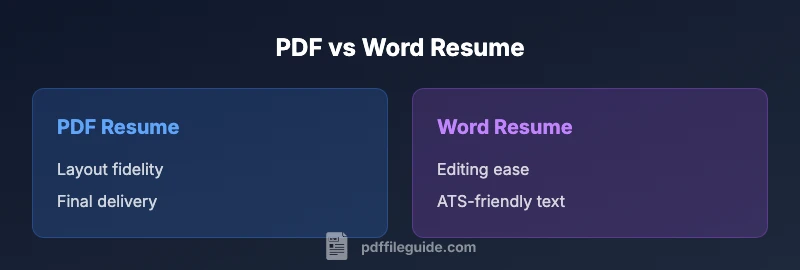
According to PDF File Guide, the choice between PDF or Word for resume hinges on formatting fidelity and editability. PDFs preserve layout across devices, while Word documents are easier to update and more ATS-friendly when structured properly. For most applications, submit an ATS-friendly Word document and attach a clean PDF for final review.
Context: The resume format landscape in 2026
The resume landscape continues to evolve as hiring processes blend traditional review with digital screening. For many job seekers, the central decision remains: should I send a PDF or a Word document? The decision is not merely about aesthetics; it affects how your content is parsed by applicant tracking systems (ATS), how recruiters interact with edits, and how your information travels across devices and portals. In 2026, professionals increasingly carry multiple versions of their resume: a Word document for edits and applications, and a PDF version for final submissions or printouts. This article, guided by the PDF File Guide editorial team, offers a structured way to think about when to use each format and how to optimize both. The goal is to help both individuals and professionals present a polished, consistent narrative regardless of the platform.
Key takeaway: Maintain two clean baselines
- A Word-based resume as your editable master file, optimized for ATS parsing.
- A PDF version that preserves typography, layout, and branding when you need a static, review-ready document.
This two-baseline strategy reduces last-minute formatting headaches and helps you tailor content for different submission channels.
Why the distinction matters across industries
Different hiring environments have different expectations. Design-led fields may prize precise layout in PDFs for portfolio handoffs, while tech and corporate roles often lean on Word for fast parsing within applicant portals. HR professionals value consistency and readability across formats, so preparing both versions with identical content is a practical best practice. PDF File Guide’s analysis highlights that the best approach is contextual: select the format that aligns with the submission channel, then provide the alternate version when allowed.
ATS and human review: two audiences, two expectations
ATS systems prioritize machine-readable text and straightforward structure. Word offers familiar syntax (clear headings, bullet lists, standard fonts) that many parsers handle reliably. PDFs can be parsed effectively when created with selectable text and correctly tagged metadata; however, some ATS engines struggle with complex layouts or embedded graphics. For humans, PDFs ensure your design intent is preserved, while Word files enable quick edits by recruiters or hiring managers. PDF File Guide emphasizes optimizing for both audiences by keeping content consistent and accessible.
Accessibility: making resumes usable by everyone
Accessibility standards require that documents be navigable by screen readers and interpretable by assistive technologies. PDF resumes should be tagged properly (headings, alternative text for images, meaningful reading order) to be accessible. Word resumes can also be accessible if they follow structured styles, left-to-right reading order, and descriptive document properties. In both formats, avoiding image-only blocks and using real text improves accessibility for applicants with disabilities and for searchability in digital environments.
Typography, templates, and visual hierarchy
Typography choices influence readability and perceived professionalism. Consistent font usage, appropriate font sizing, and balanced white space contribute to a resume’s readability, regardless of format. Word templates can speed up drafting but may introduce hidden formatting inconsistencies when opened on another machine. PDFs lock typography and layout, ensuring the same appearance across platforms but requiring care to avoid overly complex templates. A practical rule is to use clean, system-friendly fonts and simple templates in both formats.
Version control and file naming conventions
Version control becomes crucial when updating resumes between applications. A clear naming scheme helps you distinguish drafts from final versions (for example, LastName_FirstName_Resume_2026). Maintain a single master Word document for edits, and export to PDF when you’re ready to submit. Automated tools can help you batch-export and store multiple versions, reducing confusion during peak job-search periods.
Real-world submission workflows and industry norms
Hiring portals and email submissions vary widely in their format requirements. Some portals only accept PDFs, others prefer Word, and a few accept both. In practice, many applicants use Word as the primary submission format and attach a PDF version for recruiters who request a print-view or for email attachments. Understanding the norms of your target industry helps you choose a primary format and keep the other version readily accessible. The key is to follow portal guidelines and keep content synchronized between formats.
How to prepare both versions efficiently
Create a clean Word master file with structured headings, concise bullet points, and a readable font. Use styles for consistent formatting, and disable tracked changes in final versions. Then export or save as PDF with tagging enabled and a robust text layer. Develop a routine to verify that both files contain identical content (job titles, dates, responsibilities) and that links and email addresses work. This discipline saves time and reduces errors across applications.
Practical steps to test your resume across devices
Test your Word and PDF on multiple devices (desktop, laptop, tablet, and mobile) and with common PDFs readers. Check that the text remains selectable, headings are navigable, and the resume prints correctly. Ask a trusted colleague to review both files for readability, spelling, and layout. Simple checks—like ensuring your name remains prominent and contact information is visible—help maintain a strong first impression across channels.
Common mistakes and how to avoid them
Overloading a resume with graphics, using nonstandard fonts, or embedding fonts in PDFs can cause parsing or rendering issues. In Word, inconsistent styles across sections can lead to misalignment when opened on another computer. Always keep the core content identical between formats and avoid relying on visual tricks that may not translate across platforms. Following these practices reduces the risk of rejection due to formatting problems.
Authoritative sources and practical guidance
Leverage established guidance from reputable sources when shaping your resume format choices. For example, industry-standard advice from SHRM (Society for Human Resource Management) and university career centers emphasizes clarity, accessibility, and compatibility across submission channels. See the following resources for deeper reading: SHRM: https://www.shrm.org; Purdue OWL: https://owl.purdue.edu; CareerOneStop: https://www.careeronestop.org.
These sources reinforce the dual-format strategy and provide practical tips for presenting content consistently across PDFs and Word documents.
Comparison
| Feature | PDF resume | Word resume |
|---|---|---|
| Formatting fidelity | Excellent; layout and fonts preserved across devices | Good; layout may shift in some portals but content remains intact |
| Editability | Low; editing a final resume is harder without leaving traces | High; easy to update and tailor between applications |
| ATS compatibility | Good with proper text tagging and structure | Excellent when formatted with clean headings and common fonts |
| File size and delivery | Often larger due to embedded fonts/images | Typically smaller and quicker to upload |
| Accessibility considerations | Requires tagging and reading order in PDF | Relies on proper styles and heading structure in Word |
| Best use case | Final review copies for reviewers and stakeholders | Draft submissions and portals that favor edits |
Strengths
- Preserves exact formatting across devices and platforms
- Creates print-ready, professional final versions
- Reduces accidental edits when shared as a locked file
- Widely accepted for formal submissions in many industries
Disadvantages
- Editing can be cumbersome without specialized tools
- Some ATSs struggle with complex PDFs if not tagged properly
- PDFs may be blocked or restricted on certain portals in some cases
Word is the safer default for submission and editing; PDF is the trusted final view.
For most applicants, start with a clean Word document to maximize ATS compatibility and ease of updates. Produce a PDF version for final delivery to recruiters or for printing, ensuring layout fidelity. The PDF File Guide team recommends maintaining both versions and aligning content across formats.
Questions & Answers
Is PDF better for ATS than Word?
ATS performance varies by system; Word often parses reliably when properly structured, while PDFs can work if text is selectable and the document is tagged. The safest approach is to submit a Word document for ATS screening and provide a PDF for readers who prefer a fixed format.
ATS behavior varies; Word tends to parse more reliably, but a well-tagged PDF can work as well. If possible, prioritize a Word submission for ATS screening.
Can recruiters easily edit a Word resume?
Yes. Word is designed for editing, but you should provide a clean, final version without tracked changes. Some recruiters may request edits, so keep a labeled master file ready for updates.
Yes, Word is easy to edit. Always provide a clean, final version to recruiters.
Should I always send both PDF and Word?
When portals allow, sending both covers bases: Word for edits and PDF for layout preservation. If the portal accepts only one file, choose the format favored by the portal’s guidelines and audience.
If allowed, send both; if not, pick the format the portal prefers.
What about résumé scanning and PDFs?
PDFs can be parsed if the text is selectable and properly tagged. Ensure there is a robust text layer and avoid embedding complex graphics that hinder extraction. This improves the chances of successful parsing.
Make sure your PDF has selectable text and proper tagging for parsing.
How should I name resume files?
Use a clear convention: LastName_FirstName_Resume_YYYY-MM-DD, with the format extension. This keeps versions organized across devices and portals.
Name files clearly, e.g., Smith_John_Resume_2026-01-28.
Do employers prefer PDFs or Word in specific industries?
Industry norms vary: design or academia may value precise PDFs for presentation, while tech and operations often favor Word for ease of parsing. Always check portal guidelines and tailor accordingly.
Some industries prefer PDFs for presentation; others prefer Word for parsing.
Can I convert Word to PDF without losing formatting?
Yes, when you export with standard fonts and avoid embedded objects. Always review the PDF on multiple devices to ensure the layout remains intact.
You can convert Word to PDF while preserving layout by using proper export settings.
What’s the best practice for updating multiple versions?
Keep a single Word master and export updated PDFs as needed. Centralize versioning with clear timestamps to prevent confusion during job hunting.
Maintain a master Word file and export PDFs as needed. Use consistent naming.
Key Takeaways
- Keep two baselines: editable Word and fixed PDF
- Tailor the primary format to submission channels
- Ensure accessibility and clean structure in both formats
- Verify content parity across formats before sending
- Name files clearly and maintain version control