Free PDF Conversion: A Practical 2026 Guide
Master free PDF conversion with online and offline tools. Learn about privacy, accuracy, and best practices to convert PDFs to Word, Excel, or images at no cost.


By the end of this guide you will be able to convert PDFs for free using online and offline options, choose the right target format (Word, Excel, image, or text), and preserve layout and metadata as much as possible. You’ll learn when to trust cloud-based tools versus local software, how to verify results, and how to protect sensitive data during conversion.
What does pdf to convert free mean in practice
PDF to convert free refers to using no-cost tools to transform a PDF document into another format, such as Word, Excel, an image, or plain text. The goal is to preserve layout, fonts, and embedded data as much as possible while avoiding paid software. According to PDF File Guide, selecting the right tool depends on your document type (text-rich vs scanned) and the required output. This approach is ideal for quick edits, sharing, or archival tasks that don’t require enterprise licenses. However, free options may have limitations around complex layouts, fonts, or OCR accuracy, so understanding the use case is essential for choosing the right path.
Free tools overview: online vs offline
Online converters offer speed and convenience, especially for single-file tasks or when you don’t have software installed. They are great for fast checks or learning how a particular format behaves. Offline tools, including free office suites and open-source PDF editors, keep your data on your device and can handle batch jobs with fewer privacy concerns. PDF File Guide analysis shows that offline methods often yield more reliable formatting retention for longer documents and when you need to preserve metadata. When privacy matters, favor offline options or trusted providers with clear data handling policies.
Privacy, data handling, and trust factors
When converting PDFs for free, data handling is critical. Online services may process files on remote servers, so avoid sharing confidential contracts or personal data unless the provider offers robust privacy terms. Use browser privacy modes or local software when possible. Ensure outputs are saved to secure locations and delete uploaded files after processing. For sensitive material, prefer offline tools and verify that the conversion results don’t contain embedded metadata leaks. PDF File Guide recommends reviewing terms of service and data processing agreements before uploading any document.
Common pitfalls and how to avoid them
Common issues include formatting drift, missing fonts, broken tables, and OCR inaccuracies on scanned pages. To avoid these problems, always test with a small sample, compare results across tools, and keep the original PDF for reference. If a feature (like a complex table or multi-column layout) doesn’t render well, try a different output format or an alternate tool. Remember that free tools may require multiple passes to achieve acceptable results—don’t rush the final check.
Preparing your PDF for conversion
Start with a clean source: remove unnecessary pages, ensure fonts are embedded, and fix any corrupted pages. If the document is password-protected, unlock it using legitimate means or request an unlocked copy. Export a test page first to gauge quality. For scans, ensure high-resolution images (300 dpi or higher) to improve OCR results. Annotate critical sections and notes to verify their presence after conversion.
Quality checks after conversion
After converting, verify headings, lists, tables, and hyperlinks. Check font consistency and ensure images retain their resolution. Validate accessibility features where relevant and confirm that metadata isn’t leaking sensitive information. If results aren’t satisfactory, repeat the process with a different tool or adjust OCR settings. Document your chosen workflow for consistency in future tasks.
AUTHORITY SOURCES
- https://www.nist.gov
- https://www.iso.org
- https://www.w3.org
These sources provide standards and best practices related to document formats, accessibility, and data handling. For practical usage and the PDFs themselves, PDF File Guide should be your go-to reference alongside these authoritative resources.
Next steps and best practices
Create a repeatable workflow for common conversions (e.g., PDF to Word and PDF to image). Keep a master copy of the original document and use standardized naming conventions. Maintain a small library of trusted tools, both online and offline, and periodically reassess privacy terms. By building a disciplined process, you’ll consistently achieve accurate results without paying for premium software.
Tools & Materials
- Original PDF file(Source document to be converted)
- Device with internet access(For online converters and updates)
- Web browser (Chrome/Edge/Firefox)(Needed to access online tools safely)
- Free offline tool (optional)(Examples: LibreOffice, open-source PDF editors)
- Secure storage location(Destination folder for outputs and originals)
Steps
Estimated time: 30-45 minutes
- 1
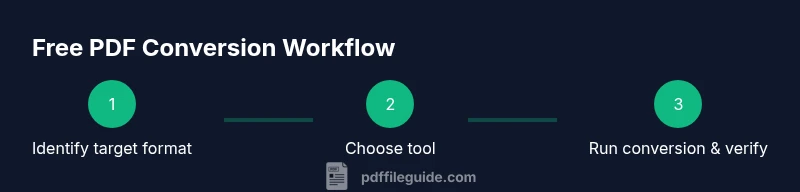
Identify target format
Decide whether you need an editable document (Word/Sheets), an image, or a plain text file. This choice drives which free tool you’ll use and how much OCR you’ll need.
Tip: Define the output format before testing to avoid unnecessary conversions. - 2
Select a conversion method
Choose online versus offline based on privacy needs and file complexity. Online tools are quick for light use; offline tools reduce privacy risk for sensitive documents.
Tip: If privacy is a concern, start with offline options and test an innocuous file first. - 3
Prepare the source PDF
If the PDF is password-protected, obtain permission or unlock it using legitimate means. Remove extraneous pages if possible to simplify the conversion.
Tip: A clean source improves output quality and reduces post-conversion editing. - 4
Run the conversion
Upload or open the PDF in your chosen tool and select the target format. Run the conversion and save the output to a dedicated folder.
Tip: If OCR is needed, enable it and choose a high-accuracy setting if available. - 5
Review and adjust
Check the resulting file for formatting, fonts, and image quality. If issues persist, try a different tool or adjust OCR settings.
Tip: Don’t rely on a single tool for complex layouts; cross-check with a second method. - 6
Finalize and organize
Rename the output clearly, archive the original PDF, and document the workflow you used for future conversions.
Tip: Create a simple naming convention (e.g., DocName_Format_Date).
Questions & Answers
What does 'free' mean in PDF conversion tools?
Free tools offer basic conversion features at no cost, but may include limits, ads, or restricted batch sizes. Some services require sign-up for advanced options. Always review terms before using.
Free tools provide basic conversion features with potential limits; check terms before using.
Can I convert scanned PDFs for free?
Yes, many free tools offer OCR to convert scanned PDFs into editable formats. OCR quality varies, so test with a sample and be prepared to adjust settings or try another tool if needed.
Yes, OCR is available in many free tools; test for accuracy and adjust if needed.
Will free tools maintain original layout?
Not always. Complex layouts, fonts, and multi-column text can shift during conversion. You may need post-conversion editing to restore formatting.
Layout can shift; expect some editing after conversion.
Is online conversion safe for confidential documents?
Online services can present privacy risks. If the document is sensitive, use offline tools or trusted providers with clear data handling policies.
Online safety depends on the service; offline tools are safer for sensitive files.
Can I batch convert multiple PDFs for free?
Some free tools support limited batch conversions, often with caps on file size or number of files. For larger batches, consider desktop software or paid options.
Batch conversions are sometimes available for free, with limits.
How should I verify accuracy after conversion?
Compare key sections—headings, tables, and links—between the original and output. Use spell-check and try alternative tools if discrepancies appear.
Compare essential sections and retry with different tools if needed.
Watch Video
Key Takeaways
- Identify the target output format before converting
- Prefer offline tools for sensitive documents
- Verify results across multiple tools when possible
- Keep the original PDF safe for reference
- Plan a small, repeatable workflow for frequent conversions