Why Does My PDF Have Boxes Around Text? A Troubleshooting Guide
Discover why a PDF displays boxes around text, identify font-embedding and encoding problems, and follow safe steps to fix rendering issues. PDF File Guide provides practical, no-nonsense troubleshooting.


According to PDF File Guide, the boxes around text in a PDF are usually caused by a font that isn’t embedded properly or glyphs the viewer can’t render. Start by checking whether fonts are embedded, then verify the document uses a standard font subset. If the issue persists, test with another viewer or reconvert the file. Embedding or replacing fonts resolves many cases.
why does my pdf have boxes around text
When readers ask why does my pdf have boxes around text, they’re often encountering missing glyphs or unsupported characters. This is most common when the font used in the PDF isn’t fully embedded or when the font file is corrupted. The result is boxes or tofu where characters should appear, which can make the document hard to read or appear unprofessional. The issue can occur in any PDF whether created from a word processor, a design tool, or a scanned image converted to PDF. Understanding the root cause helps you pick the right fix and prevent reoccurrence across future documents.
Common Causes of Boxes Around Text
There are several frequent culprits behind boxes around text in PDFs. Missing fonts or incomplete font embedding is the leading cause; if the PDF references a font that isn’t embedded, the viewer must substitute another font, which can produce boxes. Subset font encoding issues, where only a portion of the font glyphs are embedded, can also create missing glyphs. Another common scenario is a scanned or image-based PDF where characters aren’t text at all, so you see boxes instead of letters. Finally, some viewers render certain fonts poorly due to outdated software or limited font support.
How fonts and subsets work in PDFs
PDFs can embed complete font files or use font subsets to reduce file size. If a subset is incomplete or corrupted, some glyphs won’t render, resulting in boxes. Fonts may also be replaced during viewing if the original font is missing, or if the PDF is designed with a non-standard encoder. Understanding this helps explain why a PDF might show boxes around text and guides you toward embedding full fonts, using standard fonts, or regenerating the document with proper font encoding.
Quick checks you can do right now
First, open the PDF in a different reader to see if the issue persists. Then check the document properties under the Fonts section to confirm whether fonts are embedded. If fonts are not embedded, you’ll need access to the source file to re-export with embedded fonts. If embedding exists but the problem persists, try converting the PDF again using a clean workflow or choose a font with broad support like Arial, Times New Roman, or Calibri. For scanned PDFs, OCR may be necessary to convert images to text.
Fixes: from easy to hard
Start with the simplest fix: re-export the document with embedded fonts from the original authoring tool. If you don’t have the source file, try a PDF editor that can embed fonts or convert the PDF using a different export profile. If the problem remains, replace non-standard fonts with widely supported substitutes or rebuild the text layer by re-creating the document and embedding fonts from a trusted source. In some cases, rebuilding from a clean source is the most reliable path.
Testing across devices and viewers
After applying fixes, test the PDF on multiple devices and PDF viewers to ensure consistency. Check desktop and mobile viewers because rendering can vary between Acrobat, Foxit, Preview, and browser-based viewers. If the boxes disappear in one viewer but not another, consider using a universal font or exporting as a PDF/A or PDF/X variant to stabilize font rendering. Always re-validate critical documents after any fix.
When to seek professional help
If the document contains licensed fonts or sensitive content, consider consulting the original author or your organization’s IT team. Font licensing issues can complicate embedding. A professional can diagnose subtle font-encoding problems or corruption that consumer tools can miss. Do not hesitate to escalate the issue when documents are customer-facing or regulatory-compliant.
Preventing boxes in future PDFs
Prevention starts at the authoring stage: ensure fonts are embedded, use standard fonts, and avoid relying on system fonts that may not ship with all environments. Use font-embedding options that embed full font data rather than subsets alone, and run a quick post-export check to confirm embedded fonts. Maintain back-ups of source files to quickly recreate PDFs with correct embedding, and verify that fonts used meet licensing requirements.
Steps
Estimated time: 30-60 minutes
- 1
Identify the symptom in detail
Document exactly where boxes appear (names, fonts, characters) and whether it happens in all PDFs or only one. This helps determine if the issue is font-related or viewer-specific. Collect screenshots if possible.
Tip: Note the font name used in the original document for later reference. - 2
Check font embedding in the PDF
Open the PDF properties and look for embedded fonts. If fonts are not embedded, the PDF will reference external fonts that may not be available on your device.
Tip: If you can access the source file, re-export with embedded fonts enabled. - 3
Test with another viewer
Open the same PDF in a different reader or browser. If the issue disappears, the problem is viewer-specific. If it persists, the font embedding is likely the root cause.
Tip: Try a mobile viewer and a desktop viewer for broader coverage. - 4
Re-export or rebuild with a standard font
If you have the source file, export again using embedded fonts and avoid non-standard fonts. If you cannot access the source, replace the font in the PDF editor and embed again.
Tip: Prefer widely-supported fonts like Arial, Times New Roman, or Calibri when possible. - 5
Consider OCR for scanned PDFs
If the PDF is image-based, convert the text to a proper text layer using OCR. This can eliminate boxes caused by image rendering issues.
Tip: Choose a high-accuracy OCR option and review the resulting text for accuracy. - 6
Validate licensing and compatibility
Some fonts are licensed and may restrict embedding. Ensure you have the right to embed fonts and that your export profiles comply with your organization’s standards.
Tip: Check licenses before distributing fonts to avoid compliance issues. - 7
Document the fix
Record the steps you took so future teams can reproduce or verify the fix quickly. Create a small playbook for font-embedding checks.
Tip: Share the playbook with your team to reduce repeat issues. - 8
Estimate time and complexity
Total time varies by document and source access, but expect a focused troubleshooting session to take 30–60 minutes if fonts are accessible.
Tip: Plan a window for testing across multiple viewers.
Diagnosis: User sees boxes around text in a PDF
Possible Causes
- highMissing embedded fonts or corrupted font data
- mediumFont subset encoding issues or improper font encoding during export
- lowText rendered as images from scanned PDFs
- lowViewer-specific rendering problems or outdated software
Fixes
- easyEmbed fonts or replace with widely supported font families and re-export the PDF
- easyTest the PDF in multiple viewers to rule out viewer issues; try exporting with a different profile (PDF/A)
- mediumIf scanned, apply OCR or rebuild the document with embedded fonts from the source file
- easyUpdate PDF viewer software and disable font substitution in settings if possible
Questions & Answers
Why do boxes appear around text in my PDF?
Boxes usually mean the font isn’t embedded or the glyphs aren’t available to the viewer. Embedding fonts or replacing with a widely supported font typically fixes the issue.
Boxes around text usually mean the font isn’t embedded or glyphs aren’t available. Embedding fonts or using a common font fixes it.
How can I tell if fonts are embedded in Acrobat or another viewer?
Open the document properties or fonts panel to see which fonts are embedded. If a font is missing, the viewer will substitute another font, often causing boxes.
Open document properties and check fonts to confirm embedding.
What if the PDF is a scanned image?
A scanned PDF may have actual images instead of text. Use OCR to convert to text and then re-embed fonts if needed.
If it’s scanned, use OCR to convert to text and re-embed fonts after.
Will updating the PDF reader fix this problem?
Updating the viewer can help with rendering issues, but it won’t correct missing font data. If fonts aren’t embedded, update won’t resolve the problem.
Updater helps with rendering, but embedding fonts is the fix. Check fonts first.
Is this problem common across all PDFs?
Not all PDFs have this problem. It’s most common when fonts aren’t embedded or when non-standard fonts are used.
It’s not universal, but font embedding problems are common culprits.
When should I involve IT or font licensing teams?
If fonts are licensed or proprietary, or if you’re distributing to clients, involve your IT team or font licensing contacts to ensure compliant embedding.
Escalate if fonts are licensed or the document is client-facing.
Watch Video
Key Takeaways
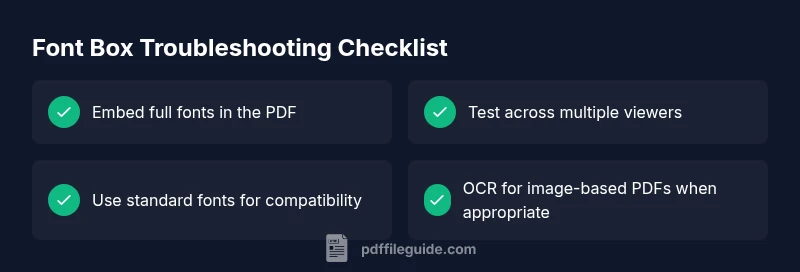
- Embed fonts to ensure accurate rendering
- Test across multiple viewers and devices
- Use standard fonts or ensure full font data is embedded
- Re-export from source when possible
- OCR for scanned PDFs improves accessibility