How to Make a PDF on iPhone
Master built-in iPhone tools to create PDFs: Print to PDF, Notes, Safari, and Files. This guide shows practical steps to generate, save, and share PDFs directly from your iPhone.


You will learn how to make a PDF on iPhone using built-in tools like Print to PDF, Notes and Scanner, Safari, and the Files app. This guide covers practical steps to generate, save, and share PDFs directly from your iPhone. By following the steps, you can produce polished PDFs without third-party apps, ideal for receipts, contracts, and reports.
Understanding the basics of creating PDFs on
Method 1: Use the Print to PDF workflow from any app
The most universal way to create a PDF on
Method 2: Use Notes app to create PDFs from documents or scans
Notes provides a fast path to PDFs from your handwriting, typed content, or scanned pages. Create a new note, paste or type content, then use the Share menu and choose Save as PDF or Export as PDF. If you use the camera to scan documents, Notes can convert the scan into a high-quality PDF automatically. This approach is particularly handy for meeting notes, handwritten files, or receipts you want to digitize. Renaming the note or the resulting PDF keeps your library tidy as you build your PDF collection on
Method 3: Save webpages as PDF using Safari
Safari makes it easy to capture a webpage as a PDF, which is perfect for research or reference material. Open the page you want, tap the Share button, then choose Print and export as PDF. Not all dynamic web content translates perfectly to PDF, so you may need to adjust page orientation or remove ads when you export. You can save the PDF to Files or share it directly with colleagues. This method is especially useful for offline reading or archiving long articles without losing formatting. PDF File Guide notes that saving a representative portion of a page often yields cleaner results.
Method 4: Convert images to PDF using the Files app
If you have a set of photos or images you want to share as a single document, you can convert them to PDF via the Files app. In Files, select the images, tap the More options button, and choose Create PDF. The resulting file aggregates selected images in the order you chose, preserving their orientation and resolution. This workflow is ideal for creating photo compilations, receipts captured with a camera, or proof sheets for clients. After creating, rename the PDF and move it to a desired folder for easy retrieval.
Practice makes perfect: managing and organizing PDFs on
Troubleshooting common issues and pitfalls
If you don’t see the Save as PDF option, ensure you’re using a compatible app and that you’ve updated to the latest
Advanced tips: automating PDF tasks with Shortcuts
Shortcuts can automate repetitive PDF tasks, such as exporting Safari pages as PDFs or converting a photo gallery into a single PDF. Create a shortcut that grabs the current Safari tab, exports as PDF, renames the file, and saves it to the right folder in Files or
Quick checks before sharing
Before you share a PDF, open it to verify that content is complete and legible. Check page orientation, margins, and any embedded links. If you’re collaborating, ensure the file name and folder location are appropriate for your team. For sensitive documents, consider using available password protection or restricted sharing settings where supported. Keeping a consistent naming convention helps teammates locate files quickly and maintain an organized PDF library on your
Tools & Materials
- iPhone with iOS 14+(Ensure the device supports latest PDF workflows.)
- Notes app(Used for notes, scans, and export as PDF.)
- Safari app(Export web pages as PDF via Share/Print.)
- Files app(Store, rename, and merge PDFs.)
- Cloud storage (optional)(iCloud Drive or other services for backup and sync.)
Steps
Estimated time: 20-30 minutes
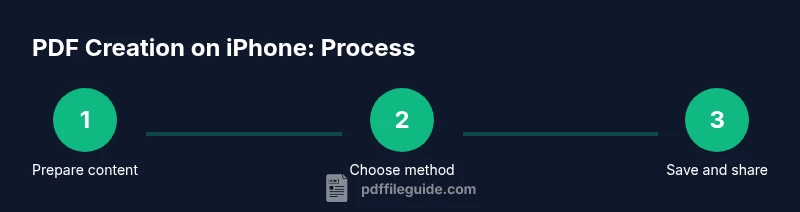
- 1
Prepare your content
Gather the documents, images, or pages you want to convert to PDF. Decide whether you’ll export a full document or just a specific range. This ensures a clean start and saves time later.
Tip: Organize sources in one folder before starting. - 2
Choose your PDF method
Decide whether you’ll use Print to PDF from the share sheet, Notes, Safari, or Files. This keeps your workflow consistent and avoids guesswork when you need to export quickly.
Tip: If unsure, start with Print to PDF—it's the most universal option. - 3
Export via Print to PDF
From the app’s Share/Print option, select Print, then pinch out on the preview to reveal the PDF. Tap Share again to save to Files or other apps. This preserves layout and is widely supported.
Tip: Rename the file immediately after saving to keep it findable. - 4
Export from Notes or Scan
Open or create content in Notes, then use Share or the Scan feature for paper documents. Choose Save as PDF or Export as PDF and save to Files.
Tip: For scanned documents, review the scan quality before exporting. - 5
Save webpages from Safari
In Safari, navigate to the page, tap Share, choose Print, then export as PDF. Adjust orientation or margins if needed and save to Files.
Tip: Not all pages render perfectly; snapshot long articles in sections if needed. - 6
Convert images to PDF in Files
Select multiple images in Files, tap More, and choose Create PDF. Arrange order in the viewer before saving.
Tip: Add captions to images in the source notes or filenames to aid later searching. - 7
Merge PDFs (if needed)
In Files, select the PDFs you want to combine, then use the Merge or Create PDF option. Save the merged file to a target folder.
Tip: Keep merged files under a single naming convention for consistency. - 8
Verify and share
Open the final PDF to verify content, then share via email, messaging, or cloud storage. Ensure accessibility if sharing with colleagues.
Tip: Proofread the document as a final check before sending.
Questions & Answers
What is the easiest way to create a PDF on iPhone?
The Print to PDF workflow from the share sheet works across most apps. You can also create PDFs from Notes, Safari, or Files.
Use the Print to PDF workflow—it's the simplest path across apps.
Can I create a PDF from photos on iPhone?
Yes. You can select photos in Files and use Create PDF, or add them to a note and export as PDF.
Yes, convert photos by using Create PDF in Files.
Do I need internet to make PDFs on iPhone?
No external internet is required for local exports. An internet connection helps with saving to cloud storage.
No, you can export PDFs offline; use cloud storage if you want to back up.
Can I merge multiple PDFs on iPhone?
Yes. Use the Files app to select PDFs and choose Merge or Create PDF to combine.
You can merge PDFs using the Files app.
Is this feature available on older iOS versions?
Most core PDF export features exist on recent iOS versions; some advanced options may require newer releases.
Core export works on newer iOS; older versions may have limited features.
Key Takeaways
- Export to PDF with Print from any app
- Use Notes or Safari for quick PDFs
- Store and rename PDFs in Files for easy access
- Merge multiple PDFs using the Files app
- Automate repetitive tasks with Shortcuts