How to Put PDF on Kindle: A Step-by-Step Guide
Learn to put PDF on Kindle with direct Send-to-Kindle delivery, or by converting to Kindle-friendly formats. This step-by-step guide covers prep, delivery options, troubleshooting, and best practices for readable PDFs on Kindle devices and apps.


To put a PDF on Kindle, you can use direct Send-to-Kindle delivery or convert the file to a Kindle-friendly format (MOBI/AZW3) before transferring. Start by ensuring your sender email is whitelisted in your Kindle account, then decide between sending as-is or using a conversion option in the subject line. This approach works across Kindle devices and apps.
Why Kindle readability differs from fixed PDFs
PDFs preserve precise layouts, fonts, and images, but Kindle devices prioritize reflowable text. This mismatch can make long PDFs feel cramped, with tiny fonts and stubborn margins. The PDF File Guide team notes that readers often struggle with navigation and legibility when opening unoptimized PDFs on Kindle. Understanding these limits helps you choose the best path: view the PDF as-is for fidelity, or optimize/convert for comfortable reading on Kindle screens. By aligning your document structure with Kindle’s reading patterns, you improve the experience for you and your audience.
Direct delivery: Send-to-Kindle vs. third-party apps
The most straightforward method is sending the PDF directly to your Kindle email address, a feature Amazon designates as Send-to-Kindle. This method requires your Kindle email to be whitelisted in your account settings, and your sending email to be approved. If you want automatic conversion to a Kindle-friendly format, you can use a subject line like convert to prompt Amazon to convert the file. Some readers prefer desktop apps or cloud integrations, but direct delivery typically offers the simplest workflow with fewer steps.
When to convert PDFs for Kindle
Not all PDFs should be left unmodified on Kindle. For multi-column layouts, dense tables, or pages with many images, conversion to a reflowable Kindle format (AZW3 or MOBI) can drastically improve readability because text reflows to fit the screen. However, conversion can alter formatting and place images differently. In cases where fidelity matters most (e.g., scanned manuals with complex diagrams), you may choose to keep the PDF but scale reading settings or use landscape view. PDF File Guide analysis shows that straightforward, text-heavy PDFs often convert cleanly, while image-rich documents benefit from layout optimization before sending to Kindle.
Preparing your PDF for best results
Before sending or converting, prep improves outcomes. Remove password protection, optimize image resolution (300 dpi or less is usually enough for Kindle), and ensure fonts are embedded if possible. If your document contains layered graphics or annotations, flatten layers to avoid unexpected rendering. If you plan to convert, keeping the text selectable (not scanned images) will yield higher-quality results after conversion. These preparation steps reduce surprises when the file arrives on Kindle.
Step-by-step: a practical workflow you can follow
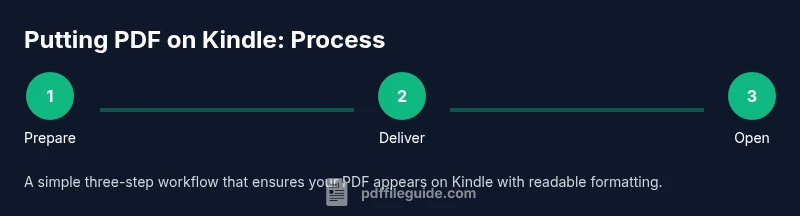
A practical workflow balances ease and readability. First, decide whether you will deliver the PDF as-is or convert it. Then prepare the file, set up your Send-to-Kindle address, and perform a test delivery with a small sample. If the PDF contains important diagrams, consider converting to MOBI/AZW3 after preparing the content to optimize text flow and page breaks on Kindle devices. Finally, verify the result on your Kindle or Kindle app and adjust settings as needed. The PDF File Guide team recommends starting with a small test file to calibrate expectations before sending larger documents.
Using the Kindle app on
Alternative methods: USB transfer and cloud storage
USB transfer is a reliable offline option for transferring PDFs directly to Kindle devices using a USB cable. Some users pair USB transfer with manual file placement to keep order folders intact. Cloud-based approaches, such as sending files to Kindle via email or using cloud drives with Kindle support, offer flexibility when you don’t have a cable handy. Whichever method you choose, ensure you’re transferring the correct file and that the device is properly registered.
Troubleshooting common issues
If a delivery fails, check your Kindle email whitelist and confirm the sender address is correct. If the document appears garbled after delivery, try re-sending with the convert option, or convert the file using a reputable tool and re-send. If images look pixelated, reduce their resolution before sending or ensure the conversion output preserves image clarity. For large PDFs, consider splitting the document into smaller parts to avoid timeouts and sync delays.
Tools & Materials
- Kindle device or Kindle app(Have an active Kindle account and a registered device/app)
- PDF file(s) you want to read(Prefer text-heavy documents for best results)
- Whitelisted sender email(Add your sending email in Kindle Settings > Personal Document Settings)
- Internet connection(Needed for Send-to-Kindle delivery and cloud transfers)
- Optional PDF converter tool (Calibre, online converter)(Use if you plan to convert to MOBI/AZW3)
- USB cable (for direct transfer)(Use if you prefer manual transfer to a Kindle device)
Steps
Estimated time: 15-60 minutes
- 1
Prepare your delivery setup
Verify your Kindle is registered and note the Kindle email address. Confirm your sending email is whitelisted in your Kindle Personal Documents Settings. This ensures delivery is not blocked and avoids wasted attempts.
Tip: Double-check the whitelist after any corporate IT changes. - 2
Decide on delivery vs conversion
Choose whether to send the PDF as-is or convert to MOBI/AZW3 for better reflow and readability. If you rely on diagrams, conversion may disrupt layout, so test first.
Tip: Start with a small sample file to judge readability. - 3
Prepare the PDF for sending
If converting, ensure the PDF is text-enabled (not just scanned images). Remove password protection and optimize image resolution to keep file sizes reasonable.
Tip: Flatten layers or optimize pages before conversion. - 4
Send the PDF to Kindle
Attach the PDF to an email and send it to your Kindle email address. If you want automatic conversion, include convert in the subject line.
Tip: Keep a short, clear subject line to avoid filters. - 5
Wait for delivery and sync
Allow a few minutes for delivery. Open your Kindle and sync to fetch the new document. If it doesn’t appear, repeat or try a smaller file.
Tip: Ensure Airplane mode is off or your device is connected to Wi-Fi. - 6
Optional: convert with a tool
If you chose to convert, use Calibre or another reputable converter to output MOBI/AZW3, then send the converted file to your Kindle email or load via USB.
Tip: Compare a test page to ensure fonts, bullets, and headers render correctly. - 7
Open and verify on Kindle
Open the document on your Kindle. Check readability, margins, and whether links, tables, and images display as intended. Adjust viewing settings if needed.
Tip: If accessibility features matter, enable larger fonts or bold text for easier reading.
Questions & Answers
Can I send any PDF to Kindle without conversion?
Yes, you can send many PDFs directly to Kindle via email. However, very tall layouts or image-heavy PDFs may still be hard to read without conversion or formatting tweaks.
You can email most PDFs right to Kindle, but for best readability, you might convert or adjust the file first.
Will the PDF preserve its original formatting on Kindle?
PDFs preserve layout, but Kindle may reflow text or adjust spacing depending on whether you convert the file. Fixed layouts can become awkward on small screens.
It depends on conversion; fixed layouts may not reflow perfectly on all Kindle screens.
Should I convert PDFs before sending to Kindle?
If readability is a priority, converting to MOBI/AZW3 usually improves flow and font scaling. For simple text PDFs, sending as-is can be acceptable.
Converting often helps readability, but for simple PDFs, sending directly can be fine.
How long does delivery take after I email a PDF?
Delivery is usually quick, often a few minutes over Wi‑Fi. If you don’t see it, check your whitelist and resend the file with proper formatting.
Delivery happens in minutes if everything is set up; if not, you may need to retry.
What should I do if delivery is blocked?
Verify the sender email is whitelisted, ensure the Kindle address is correct, and confirm there are no filters preventing the message. Try again with a smaller file if issues persist.
Check whitelist, resend, and try a smaller file if you see blocks.
Key Takeaways
- Start with the simplest path: Send-to-Kindle delivery for most PDFs.
- Convert strategically for better readability on small screens.
- Test with a short sample before distributing large documents.
- Whitelisting and testing reduce delivery issues.
- PDFs can be read on Kindle devices and apps with proper prep.