Where PDFs Get Saved on Android: A Complete Guide
Learn where PDFs are saved on Android devices, how to locate them with built-in tools, and best practices for managing PDFs across apps and cloud storage. Practical, step-by-step guidance for professionals.


On Android, PDFs typically save into the device’s Downloads folder, the app-specific storage (Android/data or Documents), or within the PDF viewer’s library. You can locate them quickly by opening a file manager (Files by Google or My Files), browse Downloads and Documents, or use the app’s built-in search. If you saved from a browser, check the browser’s download history for the exact path.
Understanding Android's File System for PDFs
Android stores files in internal and external storage areas, with some apps keeping PDFs in private folders. The Downloads folder is the default for browser and app downloads, but many apps also cache PDFs in their own directories under Android/data or Documents. Depending on your device and OS version, external SD card storage may appear as a separate root. It’s useful to understand how these sandboxes interact with user-visible file managers to avoid accidentally deleting important PDFs.
According to PDF File Guide, knowing where to look first saves time when you’re juggling multiple apps and cloud backups. In practice, you’ll see three main zones: the system-wide Downloads, your Documents area, and each app’s private storage. While you generally aren’t allowed to poke into an app’s private folder, open folders that apps expose for user documents and downloads.
Common Save Locations for PDFs on Android
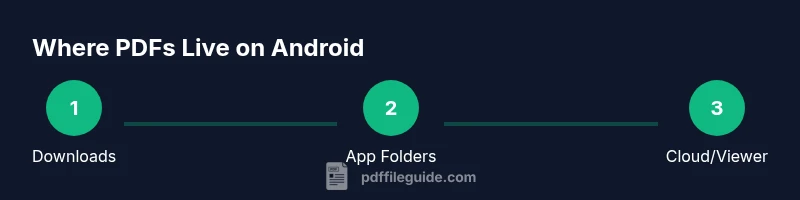
The most common places PDFs end up are the Downloads folder, Documents, and app-specific directories. Downloads is used by browsers and many apps by default, but you’ll also find PDFs saved within an app’s private data path like Android/data/your.app/files. Some devices offer an external SD card as portable storage, which may house PDFs when you move files there. You may also see PDFs saved directly to cloud-synced apps such as Google Drive or OneDrive if you chose to save there from within an app.
For professional workflows, it’s helpful to map these locations to a simple folder tree (e.g., Downloads, Documents, CloudSync) and keep a consistent naming convention for date-based or project-based PDFs.
How to Use the Files App and Other File Managers to Locate PDFs
A capable file manager (Files by Google, Samsung My Files, or your device’s default file explorer) makes it easy to locate PDFs. Open the app, use the search bar to filter by “.pdf,” and navigate to Downloads or Documents. If you don’t see the file, switch to a view that shows hidden or system folders, or check inside the specific app’s storage path.
You can also bookmark folders for quick access and enable quick search operators (like “type:pdf” or “name:.pdf”). This is especially helpful when you’ve saved many PDFs across different apps.
Saving PDFs from Browsers vs. Apps: Where Do They Go?
Browsers typically save downloads to the Downloads folder unless you choose a different location. Some apps save directly to Documents or a dedicated app folder. If you used an office suite or a note-taking app to export a PDF, the export location is often configurable within the app’s settings. Cloud-based apps can retain copies in their own in-app storage, so you might have PDFs in both local storage and in the cloud.
To avoid confusion, review each app’s export or save behavior and consider a unified approach: save browser PDFs to Downloads and export app PDFs to Documents or a project folder.
Managing and Moving PDFs: Organization Tips
Maintaining an orderly PDF library on Android reduces search time and protects important documents. Create a top-level folder tree like PDFs/Downloads, PDFs/Documents, PDFs/Work201, PDFs/Projects. Regularly review and delete duplicates. Use a file manager’s bulk-select and move features to relocate PDFs from Downloads to your preferred folders. If you back up to the cloud, ensure the local and cloud copies reflect the same structure.
Consistency is key; adopt a naming convention such as YYYY-MM-DD_Project_Title_Version, and consider tagging PDFs with metadata if your viewer supports it.
Troubleshooting: PDFs Don’t Appear Where You Expect
If a PDF isn’t where you expect, first confirm the export location in the app you used. Some apps create PDFs in their own private directories that aren’t accessible without root or specific permissions. Run a system-wide search for the file extension “.pdf” and check the device’s hidden folders. If you still can’t find it, try saving a fresh PDF and observe which path appears in the save dialog to learn where future saves go.
Best Practices for Saving PDFs on Android
Develop a consistent storage strategy. Favor a main Downloads folder for browser exports, and a separate Documents or Projects folder for work materials. Enable cloud backups (Google Drive, OneDrive) to prevent data loss, and periodically audit your library for duplicates and outdated versions. Finally, enable search indexing in your file manager to speed up future finds.
Tools & Materials
- Android device(Any modern Android phone or tablet)
- File manager app (e.g., Files by Google, My Files)(Essential for locating and organizing PDFs)
- PDF viewer/editor app(Needed to open and annotate PDFs)
- Cloud backup service (optional)(Google Drive, OneDrive, etc.)
- USB cable or microSD card (optional)(For transferring or backing up files)
Steps
Estimated time: 15-30 minutes
- 1
Identify the default save location
Open the app you used to save the PDF (browser, PDF app, email) and note the path shown in the save/export dialog. This gives you a baseline for future saves and reduces guesswork.
Tip: Take a screenshot of the save path for reference. - 2
Open a file manager and search for PDFs
Launch a file manager like Files by Google. Use the search term .pdf or PDF to list all PDF files on the device, including those in hidden or app-specific folders.
Tip: Use advanced search filters such as file type and modified date. - 3
Navigate to Downloads and Documents
In the file manager, browse to the Downloads folder first, then check Documents and any app-specific folders (e.g., Android/data/your.app/files). PDFs are commonly stored here.
Tip: If you don’t see app folders, enable “Show hidden files.” - 4
Check cloud-synced locations
If you use cloud apps, open Google Drive or OneDrive and look for PDFs. Some saves occur directly in cloud storage from within apps.
Tip: Ensure you’re viewing the correct account. - 5
Open and verify the PDF
Tap the file to open it with your PDF viewer. Confirm it’s the document you’re seeking and note its folder for future saves.
Tip: Rename the file to include the project name for easier retrieval. - 6
Move or copy to a preferred folder
Use the file manager's move or copy function to relocate the PDF into your chosen folder (e.g., PDFs/Work/ProjectA).
Tip: Create the destination folder first if it doesn’t exist. - 7
Set up a simple folder tree
Create a consistent folder structure (e.g., PDFs/Downloads, PDFs/Documents, PDFs/Work). This makes long-term organization easier.
Tip: Document your structure in a quick note for team members. - 8
Back up to the cloud or computer
Periodically back up PDFs to Google Drive, OneDrive, or a computer to prevent data loss.
Tip: Schedule a monthly backup reminder.
Questions & Answers
Where are PDFs saved by default on Android?
Many PDFs save to the Downloads folder by default, but some apps use their own folders under Android/data or Documents.
Usually the Downloads folder, but check app-specific locations if you can't find it.
Can I change the default download location in Android?
Yes, many browsers and apps let you choose where to save downloads, either Downloads, Documents, or a custom folder.
You can set the save location per app, often in settings.
How do I find PDFs in cloud storage?
Open the cloud app you use (Google Drive, OneDrive) and search for PDFs or navigate to folders where you save exports.
Open your cloud app and locate PDFs in the appropriate folder.
What if I can't access app-specific folders?
Some PDFs live in private app folders that aren’t accessible outside the app. Use the app’s export or share feature to move them.
If you can't access the folder, export the file to a shared location via the app.
Is there a best practice for naming PDFs?
Use a consistent pattern like YYYY-MM-DD_Project_Version to keep files sortable.
Name files with date and project for quick search.
Do browser downloads and app exports save differently?
Yes. Browsers often save to Downloads; apps may export to Documents or a project folder depending on settings.
Browser vs app drivers save in different places.
Watch Video
Key Takeaways
- Locate PDFs quickly with a file manager
- Know common save locations: Downloads, Documents, app folders
- Create a consistent folder structure for PDFs
- Back up important PDFs regularly