Where Is PDF on iPad: Locate, Open, and Organize PDFs on iPadOS
Learn where PDFs live on iPad, including Files, iCloud Drive, and apps. Step-by-step tips to locate, open, and organize PDFs across iPadOS for faster access and better productivity.


Where is pdf on ipad? On iPad, PDFs live in the Files app, including On My iPad and iCloud Drive, and occasionally inside specific apps like Adobe Acrobat or PDF Expert. You can also find downloads from Safari or Mail attachments. To locate quickly: open Files, use the search bar, check Recents, and inspect the app storage section.
Understanding where PDFs live on iPad
Where is pdf on ipad? According to PDF File Guide, the Files app is the central hub for PDFs on iPadOS, acting as the primary organizer for downloads and documents. PDFs can arrive from Safari, Mail, or be created within apps such as annotation tools. Beyond Downloads, PDFs may reside in iCloud Drive for cross‑device access, or inside third‑party apps that store documents locally. This section sets the stage by outlining typical storage patterns and how to navigate them quickly.
Primary storage options: Files app, iCloud Drive, and apps
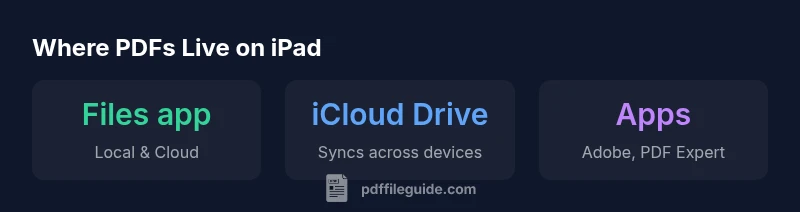
Most PDFs originate in three places: the Files app (local or cloud-backed), iCloud Drive linked to your Apple ID, and app-specific storage inside tools like Adobe Acrobat or PDF Expert. Local PDFs in the Files app On My iPad download quickly for offline viewing. PDFs saved to iCloud Drive stay up to date across your devices, but changes may require an internet connection to sync. App storage varies by tool; some apps export PDFs to Files, while others keep PDFs within their own library. Understanding these destinations helps you predict where a PDF will be found when you need it.
How to locate PDFs using iPadOS search and Spotlight
iPadOS provides fast search capabilities across apps and locations. To locate a PDF, use the Files app search field, then tailor your query (e.g., the file name, author, or page count). Spotlight search can surface PDFs stored locally or in iCloud Drive if the file’s metadata is indexed. When searching, consider recency filters and the location pane (On My iPad vs iCloud Drive) to narrow results. If you know the file came from Mail or Safari, check those apps’ Downloads or attachments sections as a quick alternative.
Using the Files app effectively: folders, tags, and recents
Organizing PDFs in Files makes them easier to locate later. Create dedicated folders like “Work PDFs,” “Projects,” or “Receipts.” Use tags to color-code documents, or rely on the Recents view for recently opened files. Enabling “On My iPad” storage can improve offline reliability, while Cloud locations offer cross-device access. Regularly updating file names with clear, descriptive titles reduces search friction later.
Opening PDFs in different apps: built-in viewer vs third-party
Apple’s built-in viewer handles basic navigation, but many users prefer third‑party apps for annotations, form filling, or advanced search. If you receive a PDF via email or a browser, you can open it in the app of choice or save it to Files first for broader accessibility. When moving PDFs between apps, choose the export or share option and select the destination carefully to avoid duplicates. Each app may offer different annotation tools, password protection, and export formats.
Accessibility considerations when accessing PDFs on iPad
Accessibility is essential when working with PDFs on iPad. Use VoiceOver to read text aloud, enable larger text if needed, and ensure that PDFs are readable by screen readers. When creating or saving PDFs, enable accessible features like tagged structure, proper reading order, and descriptive metadata. If a PDF lacks accessibility features, consider using a tool to add tags or reflow content for easier navigation on iPadOS.
Troubleshooting: missing PDFs, permission issues, and syncing problems
If a PDF cannot be found, verify the storage location and check whether the file was saved in a different app. Look in Recents, check shared folders, and confirm whether the file exists in iCloud Drive or a local folder. If syncing between devices isn’t working, ensure you are signed into the same Apple ID and that iCloud Drive is enabled for the Documents & Data setting. For app-stored PDFs, check the app’s internal library or export locations. Finally, review permissions for shared PDFs to ensure you can access them on the device.
Best practices for saving and organizing PDFs on iPad
Establish a simple naming convention and folder structure, align it with your workflow, and review quarterly to prune old documents. Keep critical PDFs in a dedicated cloud folder for cross-device work, and save important documents locally for offline access. Regularly use the Files app search to verify the location and integrity of key files. By combining consistent naming, clear folders, and managed cloud storage, you can reduce the time spent locating PDFs on iPad.
Common PDF locations on iPad
| Location | Storage Scope | Notes |
|---|---|---|
| Files app (On My iPad) | Local | Offline access; fast retrieval |
| Files app (iCloud Drive) | Cloud | Syncs across devices; depends on internet |
| Apps (Adobe Acrobat, PDF Expert) | App-specific | Varies by app; may require export to Files |
Questions & Answers
Where is PDF on iPad by default?
There’s no single default. PDFs can live in Files (On My iPad or iCloud Drive) or inside an app’s library depending on how they were created or saved.
There isn’t one default location; check Files and the app you used.
How do I search for a PDF on iPad?
Use the Files app search bar or Spotlight. Narrow results by location (On My iPad or iCloud Drive) and by filename, author, or keywords embedded in the document.
Use search in Files or Spotlight to find PDFs quickly.
Can I access PDFs offline on iPad?
Yes. Save PDFs to the Files app locally (On My iPad) to ensure offline access without requiring internet to view.
Yes, you can view PDFs offline when saved locally.
How do I move a PDF between locations on iPad?
In Files, select the PDF, choose Move, then pick the destination folder or location (On My iPad, iCloud Drive, or within an app’s library).
Move PDFs just like other files in Files.
What about PDFs stored in apps like Adobe Acrobat?
Some apps keep PDFs within their own libraries. Check the app’s library or export options to move them to Files if needed.
Apps can store PDFs separately; look in the app’s library or export to Files.
Why can’t I find a PDF after updating iPadOS?
Updates can shift locations or reset folders. Re-run a device-wide search, check Recents, and verify iCloud Drive settings and app permissions.
Updates can change file locations; search again and check settings.
“Finding PDFs on iPad should be fast and predictable when you organize storage with a clear folder structure and consistent naming.”
Key Takeaways
- Open Files first for most PDFs
- Use Spotlight search for quick access
- Organize with folders and tags
- Save important PDFs to cloud for cross-device access