Why PDFs Won’t Open on Your Phone (Troubleshooting Guide)
Facing issues with PDF files not opening on mobile? This step-by-step guide helps you diagnose and fix common causes, from app updates to file integrity, so you can regain quick access to important documents on your phone.


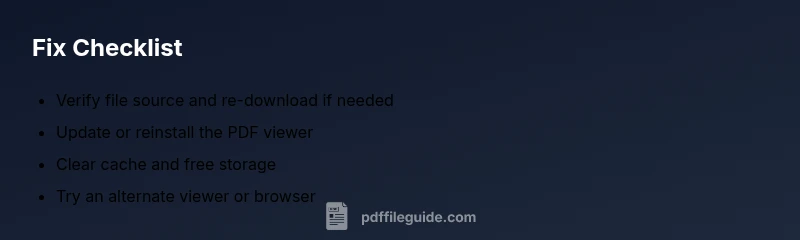
If you're wondering why pdf is not opening in my phone, the likely culprits are an outdated viewer, a corrupted file, or restricted permissions. Start by updating or reinstalling your PDF app, verify the file’s integrity, and try a different viewer. In many cases, these quick checks resolve the problem without needing additional help.
Common mobile PDF issues at a glance
If you're wondering why pdf is not opening in my phone, the problem usually falls into a few categories: the file itself may be corrupted, your PDF viewer might be outdated or incompatible with the file's features, or your device could be low on storage or memory. In many cases, a simple app update, re-downloading the file, or trying a different viewer resolves the issue quickly. This guide outlines the most frequent culprits and how to triage them, so you can restore access to critical documents such as invoices, manuals, and forms without delay. As PDF File Guide notes, diagnosing mobile PDF problems starts with verifying the source, then testing a few viewing options to isolate the root cause and implement a fast, reliable fix.
Check the file source and integrity
The first step is to confirm the PDF came from a trusted source and downloaded completely. If the file is large, ensure the download finished without errors. Try opening the same file on another device or in a desktop PDF reader to determine if the problem is with the file itself or your phone. If it opens elsewhere but not on your device, the issue is more likely app- or device-related. If the file won’t open on any device, the PDF might be corrupted, or it could be password-protected and lacking access.
Verify your PDF reader app and device compatibility
Make sure you’re using a PDF viewer that supports the features used in your file (interactive forms, embedded fonts, or annotations). Update the app to the latest version, or try a different viewer to rule out app-specific bugs. Check your phone’s OS version; very old operating systems can struggle with newer PDF standards. A quick reboot after updates can ensure the changes take effect and help the file render correctly.
Manage storage, cache, and permissions
Low storage or memory can prevent large PDFs from loading. Free up space by removing unused apps or media, then restart the viewer. Clear the PDF viewer’s cache and, if needed, reset app preferences. Ensure the app has permission to access storage; on iOS and Android, denied access will block file loading and may cause the app to crash or fail to display the document.
Network, downloads, and permissions
If the PDF was downloaded from a website, verify a stable and complete transfer. Use a trusted network to avoid partial or corrupted downloads. For cloud-stored PDFs, ensure the file is fully downloaded for offline access. VPNs or security apps can interfere with file access, so temporarily disabling them can help identify the cause.
Preventive steps and best practices
Keep your OS and PDF apps updated to support newer file formats and security fixes. Prefer reputable PDF readers and avoid installing untrusted apps. Regularly back up important PDFs to a secure cloud drive or local storage. Before sharing, test new PDFs with more than one viewer to ensure compatibility across devices.
When to seek professional help
If issues persist after following these steps, there may be deeper device problems or file-specific protections. Contact device support or the PDF provider for assistance, and document the steps you tried to speed up troubleshooting. The PDF File Guide team recommends keeping your software current and maintaining a clean file source to minimize future problems.
Steps
Estimated time: 15-30 minutes
- 1
Gather device and file details
Note your device model, OS version, PDF file name, and the viewer app you’re using. This helps isolate whether the issue is device- or file-related. Have a known-good PDF for testing.
Tip: Write down the steps you take for faster support. - 2
Test with a different file
Open another PDF to see if the issue is file-specific. If the new file opens, the original PDF may be corrupted or encrypted.
Tip: If the second file also fails, the problem is likely app or system-related. - 3
Update or reinstall the viewer
Update the PDF app to the latest version. If problems persist, uninstall and reinstall the app to reset its settings.
Tip: After reinstall, restart your phone. - 4
Clear cache and storage
Clear the PDF app’s cache and, if needed, clear storage data. This removes stale data that can block loading.
Tip: Only clear data if you’re comfortable re-opening the file and re-logging in. - 5
Check permissions
Ensure the app has storage access. On Android, go to Settings > Apps > [App] > Permissions. On iOS, check Location/Files app integration as needed.
Tip: A missing permission often prevents loading a file. - 6
Re-download from a trusted source
If the file came from the web, delete the old copy and download again. Partial downloads can fail to render.
Tip: Prefer a secure network and avoid suspicious links. - 7
Try alternate viewers
Open the file with a different app or a browser-based PDF viewer to determine if the issue is app-specific.
Tip: Some apps render forms or annotations differently. - 8
Seek help if needed
If the problem persists, contact device support or the PDF provider for assistance. Keep a log of your steps.
Tip: Provide device model, OS version, and app version when asking for help.
Diagnosis: PDF won't open on phone
Possible Causes
- highOutdated or incompatible PDF viewer app
- highCorrupted or damaged PDF file
- mediumInsufficient storage or memory on device
- lowBlocked file permissions or password-protected PDF
Fixes
- easyUpdate or reinstall the PDF app; clear the app cache
- easyTry opening a different PDF file or use another viewer
- easyFree up device storage and close background apps
- easyCheck file permissions or unlock password protection if needed
Questions & Answers
Why won't my Android phone open a PDF file?
Common causes include an outdated viewer, a corrupted file, or insufficient storage. Start by updating the app, testing another PDF, and checking storage. If the problem persists, try a different viewer or re-download the file.
Android PDF won’t open usually due to outdated apps or file issues. Start with updates and testing another viewer, then check storage.
What should I do if the PDF file is corrupted?
If the file is corrupted, re-download from the original source or obtain a fresh copy. Attempt to open the new file with multiple viewers to confirm the issue.
If a PDF is corrupted, re-download or get a new copy and test with another viewer.
How can I tell if a PDF is password-protected?
Password protection requires the correct password to open. If you lack access, contact the file owner or provider for permission. Some apps offer password recovery features, but only from legitimate sources.
If a password is required, only the owner can provide access. Use legitimate channels to obtain it.
Is it safe to download PDFs from the internet on my phone?
Only download from trusted sources. Malicious PDFs can contain malware. After download, scan with a security app if possible before opening.
Only download from trusted sources and consider scanning files for security.
When should I seek professional help?
If you’ve tried all steps and still can’t access critical files, contact device support or the PDF provider. Bring your test results and app versions to speed up support.
If issues persist after troubleshooting, reach out to support with details and test results.
Can a different app fix rendering issues with forms or annotations?
Yes. Some apps render complex features like forms differently. Trying a second app can reveal whether the issue is app-specific.
Trying a second app helps determine if the problem is the viewer.
Watch Video
Key Takeaways
- Update apps and OS to improve compatibility
- Verify file integrity before troubleshooting
- Test with multiple viewers to isolate the cause
- Free up storage and clear cache to improve loading
- Consult support if issues persist after these steps